How to Remove a Printer From Mac, Drivers and Print Queue Included
To remove a printer from your Mac, open System Settings, click Printers & Scanners, Control-click the printer, choose Remove Printer and confirm. That takes it off your printer list, but any driver or app you installed for it stays. To remove those, run the printer maker's uninstaller or delete its driver files in /Library/Printers.
How to remove a printer from your Mac in System Settings
These are Apple's steps in Remove a printer from your printer list, the same on macOS 13 Ventura and later.
- Choose Apple menu > System Settings, then click Printers & Scanners in the sidebar.
- Click the printer and note its model. You need it later to find its driver files.
- Control-click the printer in the Printers list, choose Remove Printer, then click Remove Printer again to confirm.
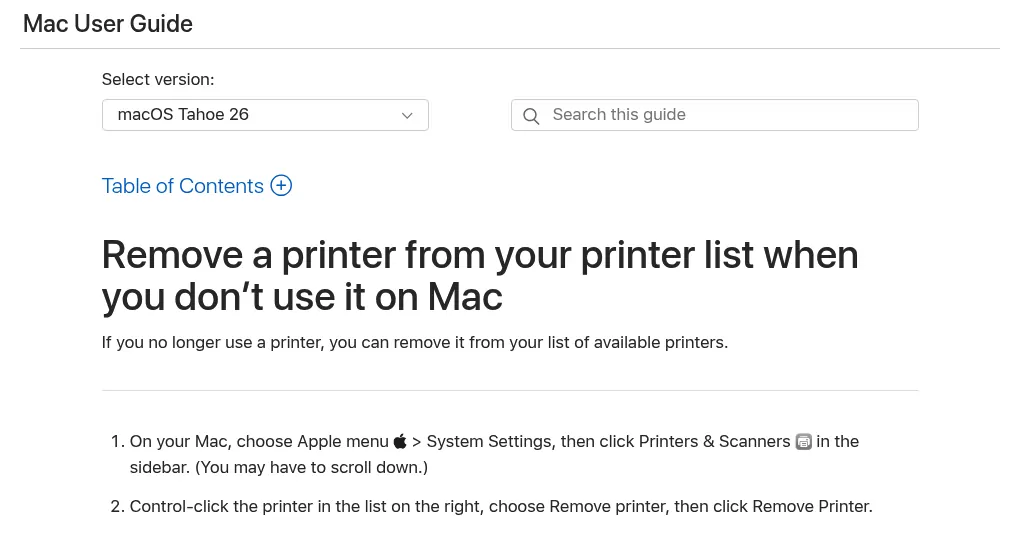
If it was your default printer, macOS picks another one. Change it with the Default Printer pop-up menu. On macOS 12 Monterey and earlier, use System Preferences > Printers & Scanners, select the printer, click the Remove button (the minus sign), then Delete Printer.
A printer that also scans or faxes can have several entries. Remove each one: Brother's instructions use Remove Printer, Remove Fax or Remove Scanner.
Delete a printer on Mac with Print Center
On macOS 14 Sonoma and later, open Print Center from Applications > Utilities, select the printer in the sidebar, then choose Printer > Remove Printer. On macOS 13 Ventura, use the System Settings steps above.
Remove printers in Terminal
First, list each printer's queue name:
lpstat -pThen remove one printer. Put a listed name in place of Printer_Name:
lpadmin -x Printer_NameRepeat that command for each printer. The lpadmin manual page says waiting jobs are removed and a job that is printing is stopped.
Why removing the printer from the list is not the whole job
The Printers & Scanners entry is only the printer queue. When you add a printer, macOS uses AirPrint, which Apple says lets you print without installing an app, extra drivers or other software. If you never installed the maker's software, removing the entry is usually all there is to do.
Otherwise, look in these places:
- A driver folder in
/Library/Printers - Printer description (PPD) files in
/Library/Printers/PPDs/Contents/Resources - The maker's apps in
/Applications - For Brother printers that scan, scanner drivers under
/Library/Image Capture
One folder holds drivers for every printer of that brand. Epson says deleting its EPSON folder removes all installed Epson printer drivers. Brother says you cannot uninstall one machine's driver on its own. If you keep another printer of the same brand, plan to reinstall its software afterwards.
Run the printer maker's uninstaller first
To uninstall a printer on Mac, use the maker's own uninstaller when there is one.
| Printer brand | Vendor uninstaller | What the vendor says |
|---|---|---|
| HP | HP Uninstaller in Applications > HP or Hewlett Packard if present, otherwise HP Easy Start > Uninstall HP Software. | HP Easy Start comes from 123.hp.com/setup. The HP app itself is removed by dragging it from Applications to the Trash. See HP's uninstall steps. |
| Epson | Epson Drivers and Utilities Uninstaller | Double-click Uninstaller, tick each Epson program, then click Uninstall. Epson lists it for Mac OS X 10.5 through macOS 26. |
| Brother | None in Brother's macOS 13 and later instructions | Brother's macOS 13 and later instructions list the folders to delete. |
| Canon | None in Canon's UFR II and PS driver manual | Canon's driver manual lists the folders to delete. |
Epson and Canon both say you usually do not need to uninstall before reinstalling or upgrading.
Uninstall printer drivers on Mac by hand
Sign in as an administrator, remove the printer from the list, unplug any USB cable (Brother asks for this) and back up your Mac.
Delete only items named for your printer's maker or model. Never touch /System, change permissions or turn off System Integrity Protection. Reach each folder with Finder > Go > Go to Folder (Shift-Command-G) and enter your administrator password when asked.
- Open
/Library/Printersand move the maker's folder to the Trash:HPorHewlett Packard,EPSONorBrother. For Canon, open/Library/Printers/Canonand remove onlyCUPS_Printer(UFR II, UFRII LT, LIPSLX and CARPS2 drivers) orCUPSPS2(PS driver). Canon's current pages list folders only for these office drivers. For a PIXMA or other Canon inkjet, check with Canon support before deleting anything in/Library/Printers/Canon. - Open
/Library/Printers/PPDs/Contents/Resources. For Brother, move everyBrother [model name] CUPS.gzandBrother [model name].gzfile to the Trash. For Canon, remove only theCNPZU****ZU.ppd.gz(UFR II family) orCNMC****S2.ppd.gz(PS) file for your model, where****depends on the model. Leave files without the maker's name. They belong to other printers. - If a Brother printer also scans, remove
Brother TWAIN.dsorBrother TWAIN2.dsfrom/Library/Image Capture/TWAIN Data Sources, andBrother Scannerfrom/Library/Image Capture/Devices. - Open
/Applicationsand move theHP,Hewlett PackardorBrotherfolder to the Trash. If an app will not move, see how to delete apps on Mac that won't delete. - Empty the Trash and restart your Mac.
Old .dmg or .pkg driver installers may still be in Downloads. See how to delete downloads on Mac.
How to clear a stuck print queue on Mac
macOS 14 Sonoma and later. Use Print Center, which opens when you print or from Applications > Utilities. Apple says clicking its Dock icon opens the queue window.
- To cancel a print job on Mac, including one with an error that blocks the queue, select it and click the Delete Job button.
- To pause or resume all jobs, select the printer in the sidebar, then click the Pause or Resume button in the toolbar.
macOS 13 Ventura. Click the printer's icon in the Dock, select the blocking job, then click Delete Job (marked with an X). Apple's other route is Printers & Scanners: click the printer, then Print Queue.
In Terminal, cancel -a cancels all jobs on every printer.
Reset the printing system as a last resort
Apple suggests you reset the printing system only after other fixes fail. It deletes every printer in your list, information about completed print jobs and all printer presets. Apple's list does not include drivers or the maker's apps.
- On macOS 13 and later, open System Settings > Printers & Scanners.
- Control-click the printer or anywhere in the Printers list (an empty list works too).
- Choose Reset Printing System, then add the printers you still use again.
On macOS 12 and earlier, open System Preferences > Printers & Scanners, Control-click the list and choose "Reset printing system".
Why a removed printer keeps coming back
Your Apple Account
Apple's print settings page says recently used AirPrint printers automatically appear across devices signed in to the same Apple Account (macOS Sequoia, iOS 18 or iPadOS 18 required). A printer you still use from an iPhone or iPad can reappear in your Mac's Print dialog.
The printer is still on your network
Apple says a printer on the same Wi-Fi network might be available without any setup. So an old printer that is switched on and connected can still appear in the Print dialog. That does not mean it is installed, so there is nothing to delete.
A configuration profile
Some network printers come with a configuration profile, found in System Settings > General > Device Management on macOS 15 and later, or Privacy & Security > Profiles on macOS 13 and 14. To remove it, select the profile, then click the Remove button (the minus sign).
If you cannot remove a profile, Apple says your Mac may be managed. On a work or school Mac, ask IT first.
Confirm nothing from the printer is still running
- The printer, and any scanner or fax entry for it, is gone from Printers & Scanners.
- Activity Monitor shows nothing when you search for HP, Epson, Canon or Brother. If something will not quit, see how to force quit an app on Mac.
- System Settings > General > Login Items & Extensions on macOS 15 and later (Login Items on macOS 13 and 14) lists nothing from the maker. To remove items and leftover launch agents, see how to stop apps from opening on startup.
-
/Library/Printersno longer has the maker's folder (for Canon,CUPS_PrinterorCUPSPS2).
Frequently Asked Questions
How do I completely remove a printer from my Mac?
Remove it from Printers & Scanners, run the maker's uninstaller or delete its driver files, then restart and run the check above.
How do I uninstall my HP printer from my Mac?
Run HP Uninstaller from Applications > HP or Hewlett Packard, or HP Easy Start > Uninstall HP Software. Without either, HP says to drag the HP or Hewlett Packard folder from Applications and from the Printers folder to the Trash, restart, then empty the Trash.
How do I uninstall the printer driver from my MacBook?
Run the maker's uninstaller, or remove its folder in /Library/Printers (for Canon, only the named subfolder) and its printer description files, then restart. The steps are the same on a MacBook Air, MacBook Pro or desktop Mac.
Where do I find printer settings on my Mac?
In System Settings > Printers & Scanners, and on macOS 14 Sonoma and later in Print Center (Applications > Utilities). On current macOS, a Print Center icon with a status badge appears in the Dock while you print. On macOS 13 Ventura, the queue opens from the printer's own Dock icon.
How do I uninstall and reinstall a printer on a Mac?
Remove it, restart, then use Add Printer, Scanner, or Fax in Printers & Scanners. Apple suggests trying AirPrint first and installing the maker's software only if the printer is not AirPrint compatible. Apple also suggests adding the printer again to create a new queue, then deleting the old one once printing works.
Removing other apps from this Mac
See how to stop apps from opening on startup, how to delete apps on Mac that won't delete, and how to show hidden files on Mac.
If you have more apps to remove, the other guides on this site show what each one leaves behind and how to remove it by hand.