How to Force Quit an App on Mac When It Freezes or Will Not Close
To force quit an app on Mac, press Option, Command and Esc together, select the frozen app in the Force Quit window, then click Force Quit. You can also choose Force Quit from the Apple menu, Control-click the app's Dock icon and choose Force Quit, or use Activity Monitor. Force quitting can lose unsaved changes.
That is the short answer to how to force quit on Mac. The rest of this guide covers when to wait instead, how to stop background helpers that never show a window, and what to do when an app refuses to go to the Trash because it is still open.
Try a normal quit first
Before you force anything, try to quit the app the usual way. Press Command-Q, or open the app's own menu in the menu bar (the one with the app's name) and choose Quit. A normal quit lets the app save changes and close cleanly. A force quit does not, which is why Apple's force quit guide asks you to try a normal quit first.
It also pays to wait a little. A spinning cursor during an export, a big save, an update or a sync often clears on its own in a minute or two. If a document with unsaved work is open, give the app that short wait before you force it closed.

How to force quit on Mac: 4 ways to close a frozen app
If the app still does not respond, macOS gives you four ways to close it. All of them stop the app at once, so anything you have not saved in that app is lost.
1. Use the force quit shortcut on Mac (Option-Command-Esc)
- Press Option (also labelled Alt), Command and Esc together. On a Mac with a Touch Bar, Esc is on the left side of the Touch Bar.
- The Force Quit Applications window opens. A frozen app may show "Not Responding" next to its name.
- Select the app, then click Force Quit.
- Confirm if macOS asks you to.
This shortcut is the Mac answer to Control-Alt-Delete on Windows. Apple lists it in its Mac keyboard shortcuts as the way to force quit an app.
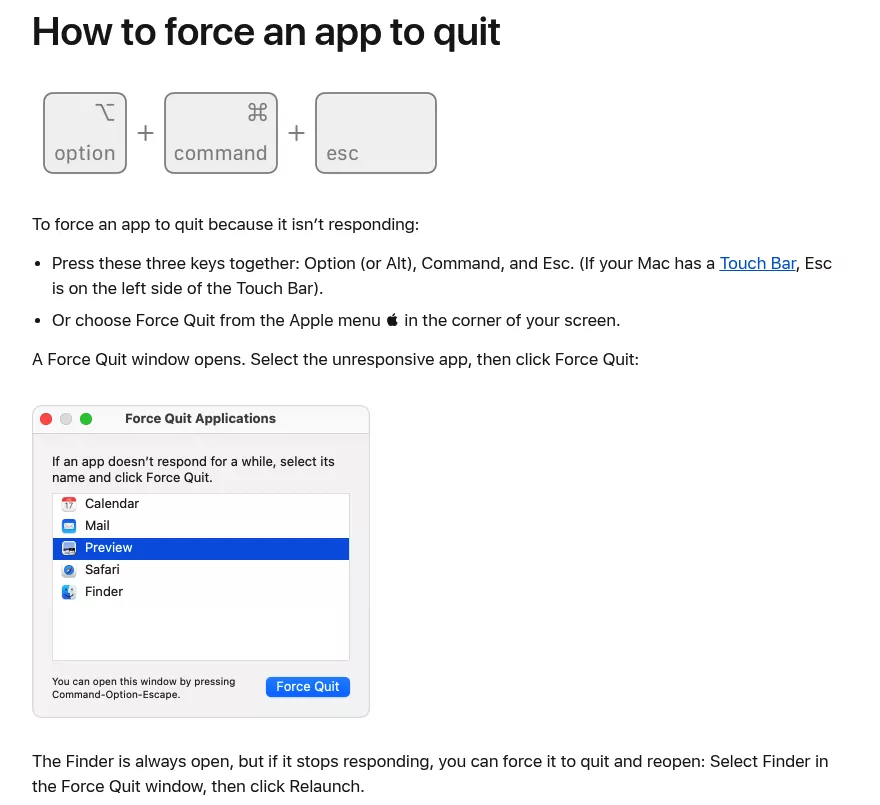
2. Choose Force Quit from the Apple menu
Click the Apple menu in the top-left corner of the screen and choose Force Quit. The same Force Quit window opens, so select the app and click Force Quit. This route helps when the shortcut does nothing because the frozen app has grabbed the keyboard.
3. Force quit from the Dock
If an app stops responding, Control-click its icon in the Dock, then choose Force Quit. Apple notes in its guide to the Dock that you may lose unsaved changes this way too. It is the quickest method when you can see the app's icon and the mouse still moves.
4. Force quit in Activity Monitor, the Mac task manager
Activity Monitor shows every running process, not just apps with windows. Open it with Spotlight (press Command-Space and type Activity Monitor) or from Finder in Applications, then Utilities.
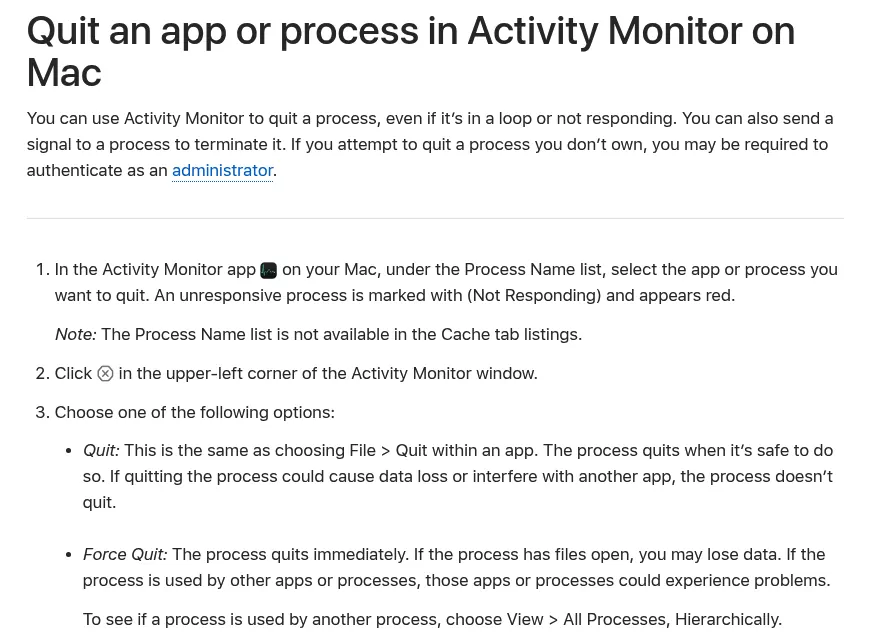
- In the CPU tab, select the app or process under Process Name. An unresponsive process is marked "Not Responding" and shows in red.
- Click the Stop button (a circle with an X) in the upper-left corner of the window.
- Choose Quit to let it close when it is safe, or Force Quit to stop it at once.
Apple's Activity Monitor guide explains the difference. Quit waits until closing is safe and does nothing if it could cause data loss. Force Quit stops the process right away, may lose data if it has files open, and can cause problems for other apps or processes that use it.
This method matters most when you are removing an app. Menu bar agents, sync helpers, updaters and background services have no window, so they never appear in the Force Quit window. Type the app's name in Activity Monitor's search field and look for helper processes that carry the vendor's name. Only quit processes you can clearly match to that app, and leave anything you do not recognise alone.
Task Manager and Control-Alt-Delete on a Mac
If you are coming from Windows, the ideas carry over, but the names change. There is no Control-Alt-Delete screen on a Mac and no app called Task Manager. Here is how the familiar tools map across.
| On Windows | Mac equivalent | What it does |
|---|---|---|
| Control-Alt-Delete | Option-Command-Esc | Opens the Force Quit window |
| Task Manager | Activity Monitor | Shows processes, CPU, memory, energy and more |
| End task | Force Quit | Stops an app that is not responding |
Activity Monitor is built into macOS, so you do not need a separate task manager app on a Mac.
How to force quit Finder
Finder is always open, so it works a little differently. Open the Force Quit window with Option-Command-Esc, then select Finder. The button now reads Relaunch instead of Force Quit. Click it, and Finder closes and opens again on its own.
What to do when force quit does not work
Sometimes the first method fails. Work through these steps in order, from gentle to forceful.

- Try another method. If the shortcut does nothing, use the Apple menu. If the app is missing from the Force Quit window, use Activity Monitor.
- Restart the Mac. Choose Restart from the Apple menu.
- Force the Mac to turn off. If the whole screen is frozen and the Mac will not restart, press and hold the power button for up to 10 seconds until the Mac turns off. On a laptop with Touch ID, hold the Touch ID button. Then press the power button again to turn it back on. Anything unsaved is lost.
If one app freezes again and again, check the vendor's site or the App Store for an update. If it keeps happening after that, a clean reinstall is a reasonable next step, and removing the old copy fully first gives the new one a fresh start.
Quit before you delete: "can't be moved to the Trash because it's open"
When you drag an app to the Trash while it is running, Finder stops you with a message that the item can't be moved to the Trash because it's open. The fix is to quit everything that belongs to the app first.
- Quit the app normally with Command-Q.
- Quit its menu bar icon too. Many sync and VPN apps keep running after their window closes. The Dropbox removal guide and the Google Drive removal guide show where those menu bar quit options live.
- Open Activity Monitor, search for the app's name, and quit any helpers that remain.
- Now drag the app to the Trash.
If the app or its helper opens again by itself, it is usually set to start at login or to run in the background. Go to Apple menu, System Settings, General, then Login Items & Extensions (called Login Items on earlier macOS versions). Turn it off there to stop it opening at login.
Some apps ship their own uninstaller, and that is the better way to remove them. Force quitting only clears a stuck process; it is not a removal method. See the guides for uninstalling Creative Cloud on Mac, uninstalling Docker on Mac and uninstalling GlobalProtect on Mac for how each vendor tool works.
One calm note on security and VPN apps: quitting or force quitting them stops their protection or connection until they open again.
Confirm nothing is still running
Before you delete an app, or after a force quit, take a few seconds to check that it is really closed.
- Search for the app's name in Activity Monitor. Nothing should come up.
- Look at the menu bar. The app's icon should be gone.
- Look at the Dock. There should be no dot under the app's icon.

Frequently Asked Questions
What is the shortcut to force quit on a Mac?
Press Option, Command and Esc together. The Force Quit Applications window opens, where you select the app and click Force Quit. On a Mac with a Touch Bar, Esc is on the left side of the Touch Bar.
Does force quitting an app delete my work?
It does not delete files you have already saved. It can lose changes you have not saved yet, because the app has no chance to save before it closes.
How do I force restart a Mac when the whole screen is frozen?
Press and hold the power button for up to 10 seconds, until the Mac turns off. On a laptop with Touch ID, hold the Touch ID button. Then press the power button again to turn it on. Anything unsaved is lost.
What is the Mac version of Task Manager?
Activity Monitor. It lives in Applications, then Utilities, and you can open it fast with Spotlight. It shows running apps and background processes, and it can quit or force quit any of them.
Why can't I move an app to the Trash because it's open?
The app, or a helper that belongs to it, is still running. Quit the app, quit its menu bar icon, then check Activity Monitor for helpers with the vendor's name. Once nothing is running, Finder lets you move it to the Trash.
Removing other apps from this Mac
Each removal guide on this blog starts with the step above: quit everything first. If you are clearing out more than one app, these guides cover what each one leaves behind and where.
- How to uninstall Grammarly on Mac
- How to uninstall Microsoft Office on Mac
- How to uninstall Steam on Mac
- How to uninstall Google Chrome on Mac
You can browse every removal guide on one page. If your app is not covered yet, email hello@uninstallonmac.com with the app's name and version and your macOS version, or use the contact page.