How to Uninstall Google Drive on Mac Without Losing Files
To uninstall Google Drive on a Mac, let syncing finish and copy the Lost and Found folder. Then click the Drive icon in the menu bar, click your profile picture and choose Disconnect account, quit Drive, and drag it from Applications to the Trash. Your files stay in Google Drive online, and ~/Library/Application Support/Google/DriveFS is the main leftover to clear.
Knowing how to uninstall Google Drive on Mac safely comes down to order. Each step below says what happens to your files.
Why dragging Google Drive to the Trash is not enough
Google Drive for desktop arrives as a .pkg installer inside GoogleDrive.dmg, and it puts more on your Mac than one app. Here is what our test Mac held with Drive 130:
- Settings, a file cache and a Lost and Found folder in
~/Library/Application Support/Google/DriveFS. - Your streamed files in
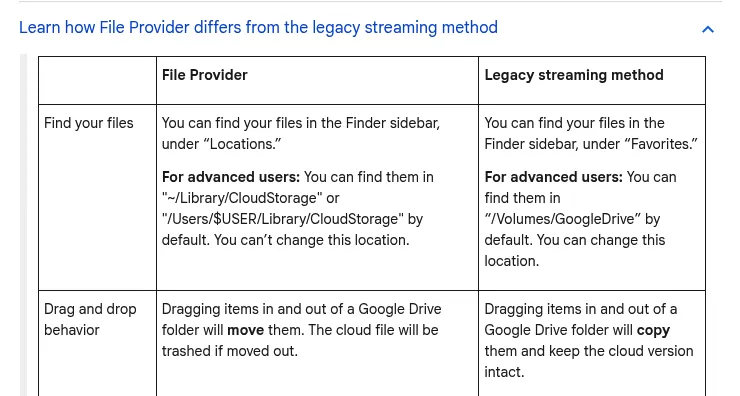
~/Library/CloudStorage, run by the macOS File Provider system. - Three small launcher apps in Applications: Google Docs, Google Sheets and Google Slides.
- A login item, a Finder extension and a File Provider extension.
- Google Software Update, the updater Drive shares with other Google apps.
A Trash drag removes only the main app. Like the background parts that security apps leave behind, the rest stays put. Current versions need macOS Ventura 13 or later, per Google's Drive for desktop release notes.
Before you uninstall Google Drive on Mac: what happens to your files
Your Drive stays online
Removing the app deletes nothing on drive.google.com. Your files stay there, and Google's disconnect steps warn only about copies on your Mac.
Streamed files and offline copies
Streaming is the default mode. Your files live in the cloud, and the Mac keeps only files you open or mark Available offline. Google's Drive for desktop guide is plain about it: disconnect a streaming account and any offline files are removed.
Google's advanced guide adds that unsynced changes wait in a local cache, and they can be lost if that cache is cleared. So open the Drive menu and wait until Sync status shows nothing still uploading.
Warning: do not drag files out of the Google Drive location to keep them. Per Google's macOS page, a drag moves the item and the cloud file is trashed. Hold Option while you drag to copy instead.
Mirrored files
Mirroring keeps a full copy of My Drive in a folder you picked. When you disconnect, Drive's own dialog says mirrored folders stay on your computer but stop syncing. Delete that copy only after checking the files are on drive.google.com.
Folders you sync from your Mac, such as Documents, also stay put and stop syncing.
Rescue the Lost and Found folder
Files that failed to upload land in ~/Library/Application Support/Google/DriveFS/lost_and_found, inside a folder named with a long number for each account. Google's troubleshooting page says this folder is deleted when you disconnect. Open it with Finder's Go to Folder and copy anything inside to your Desktop first.
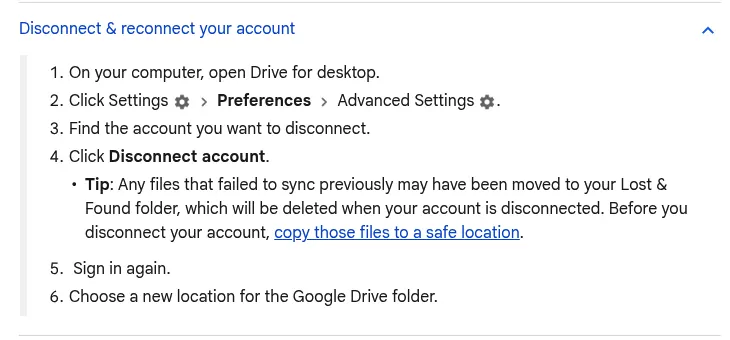
Work accounts and Photos backups
If your company or school installed Drive, ask IT before you remove it. Drive for desktop stopped backing up to Google Photos on August 10, 2026. Items it already backed up stay in Google Photos.
Step 1: Disconnect every account
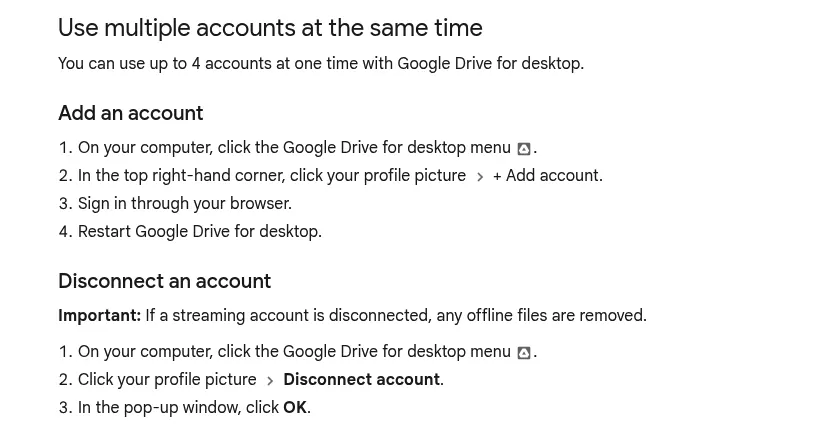
- Click the Google Drive icon at the top right of the menu bar.
- Click your profile picture, then Disconnect account.
- Confirm in the pop-up window.
The other route: gear icon, Preferences, the gear icon again for Advanced settings, then Disconnect account. Repeat for each account. Drive allows up to four.
Step 2: Quit Google Drive
Click the Drive icon in the menu bar, click the gear icon, then Quit. Next, search Activity Monitor for Google Drive. If anything is listed, select it and use Apple's steps to quit a process in Activity Monitor.
Step 3: Move Google Drive to the Trash
Google documents a silent uninstaller for Windows only, in its admin setup guide. The Mac app ships without one, so use Apple's method to delete an app on Mac. Drag Google Drive from Applications to the Trash and enter your administrator password when asked.
Now look for Google Docs, Google Sheets and Google Slides in Applications. On our test Mac these came from Drive's installer. Each is a tiny launcher that opens Drive, or the website once Drive is gone. In Terminal (Applications, then Utilities), this read-only command lists Drive's install records:
pkgutil --pkgs | grep -i drivefsA com.google.drivefs.shortcuts line means the three launchers came with Drive. Trash them if you do not want them. If an older app called Backup and Sync is still there, remove it the same way.
Step 4: Delete the DriveFS folder
Warning: this folder holds each account's file cache and any changes that never uploaded. Only trash it after Step 1 and after you copied Lost and Found.
In Finder, choose Go, then Go to Folder, and enter ~/Library/Application Support/Google. Drag only the DriveFS folder to the Trash. Leave the parent Google folder alone: Chrome and Google's updater use it too.
That is why this step is manual: Google's troubleshooting page warns that system cleaner apps can edit Drive's configuration data and cause data loss.
Step 5: Check ~/Library/CloudStorage
Warning: only trash anything here after every account is disconnected in Step 1. While an account is connected, deleting from this folder deletes the cloud files.
Streamed files sit in a folder named GoogleDrive- followed by your Google account email. Check what is left with this read-only command:
ls ~/Library/CloudStorageIf a GoogleDrive folder is still listed after the disconnect, open it. If it holds files, compare them with drive.google.com before you trash anything.
Step 6: Remove preferences, containers and the login item
These leftovers carry Drive's app ID, com.google.drivefs. List them first with this read-only command:
find ~/Library -maxdepth 2 -iname "*drivefs*" 2>/dev/nullThe 2>/dev/null ending hides "Operation not permitted" notes about protected folders. They are normal. On our test Mac it printed eleven items:
- In
~/Library/Preferences: com.google.drivefs.plist, com.google.drivefs.settings.plist and com.google.drivefs.helper.renderer.plist. - In
~/Library/Containers: com.google.drivefs.fpext, com.google.drivefs.finderhelper and com.google.drivefs.finderhelper.findersync. - In
~/Library/Application Scripts: the same three names, plus EQHXZ8M8AV.group.com.google.drivefs. - In
~/Library/Group Containers: EQHXZ8M8AV.group.com.google.drivefs.
Open each folder with Go to Folder and trash the listed items one at a time. Skip anything without drivefs in its name, and never delete results in bulk.
Two system-level folders may also exist. On our test Mac, /Library/Application Support/Google/DriveFS held one small file.
Macs that ran older versions can keep /Library/Google/DriveFS holding dfsfuse.kext, which Google's page names for Mojave and High Sierra. Trash only those DriveFS folders, never their Google parent, and expect an administrator password prompt.
Then check the login item, following Apple's Login Items & Extensions guide. Open System Settings, click General, then Login Items & Extensions on macOS Sequoia 15 or later, or Login Items on Ventura 13 and Sonoma 14. If Google Drive is still under Open at Login, select it and click the minus button.
Step 7: Leave Google's shared updater alone
If Chrome or any other Google app is installed, do not remove Google's updater. It is shared: Google's Chrome update guide says its policies apply to all Google apps on a device.
Drive updates itself through Google Software Update, per Google's admin guide. Even if Drive was your last Google app, removing that updater is a separate job, so this guide leaves it in place.
Confirm nothing from Google Drive is still running
Search Activity Monitor for Google Drive once more. In Login Items & Extensions, Drive should be gone from Open at Login, the background list, and File Providers and Finder under Extensions. The background list is Allow in the Background on Ventura 13 through Sequoia 15 and App Background Activity on macOS Tahoe 26 and later.
On Ventura 13 and Sonoma 14, extensions sit under Privacy & Security instead. Also check Locations in the Finder sidebar.
These Terminal checks only read:
pgrep -fl "Google Drive.app"This lists any process running from inside the Drive app. No output means none is running.
launchctl list | grep -i googleA line containing application.com.google.drivefs means Drive is still open. An application.com.google.Chrome line is expected while Chrome is open and is not a Drive leftover.
Lines with GoogleUpdater or Keystone belong to Google's shared updater and are expected while another Google app is installed. Do not delete anything based on them.
ls ~/Library/CloudStorage
find ~/Library -maxdepth 2 -iname "*drivefs*" 2>/dev/null
When neither shows Drive, look through the Trash first, because emptying it permanently deletes everything inside. Then empty the Trash and restart your Mac.
Reinstalling Google Drive cleanly later
Install a fresh copy from Google and sign in. If you mirror into your old mirror folder, Google's stream and mirror guide says Drive tries not to copy files already in the cloud. Where a file differs from the cloud copy, it keeps both.
Frequently Asked Questions
Does Google Drive have an uninstaller for Mac?
No, Google documents one for Windows only, so on a Mac you disconnect, quit and drag the app to the Trash. If you are weighing a general uninstaller app, read Google's cleaner warning first. Our AppCleaner alternatives roundup compares those tools.
Where does Google Drive store files on a Mac?
Streamed files sit in ~/Library/CloudStorage, mirrored files in the folder you picked, and settings and cache in the DriveFS folder.
Does uninstalling Google Drive free up space on my Mac?
Some. Streamed files use little space, but the DriveFS cache can grow, and a mirror folder is a full copy that stays until you delete it. Finder's Get Info shows a folder's size, and our DaisyDisk alternatives guide compares disk space viewers.
Why is Google Drive still in the Finder sidebar?
With File Provider, Drive shows under Locations while an account is connected. Restart first. If it stays, reinstall Drive, disconnect every account, quit, and remove it again.
Why can't I move Google Drive to the Trash?
Drive is probably still running. Quit it and check Activity Monitor. If the Mac still says the app is in use, Apple suggests a restart or Safe Mode.
Do I need to remove Backup and Sync separately?
Only if it is still in Applications. It was Google's older sync app, and its help pages now point to Drive for desktop. Remove it the same way.
Removing other apps from this Mac
Every app leaves a different trail. A code editor leaves a PATH line in your shell profile, and security apps register system extensions that block the next install. Some built-in apps, like Safari, cannot be removed at all.
Each guide here follows the same shape: what the app installs, the vendor's own route, the leftovers, and a final check that nothing is still running.