How to Uninstall Sublime Text on Mac Without Leaving subl Behind
To uninstall Sublime Text on a Mac, quit the app, then delete the Sublime Text bundle from your Applications folder. A default install names it Sublime Text.app, so check the real name there before you remove anything. Remove the data directory at ~/Library/Application Support/Sublime Text, the cache at ~/Library/Caches/Sublime Text, the com.sublimetext preference and cache items, and any subl entry you added to your PATH. Then empty the Trash.
Most advice on how to uninstall Sublime Text on Mac stops at the app icon. That is why a leftover line in your shell profile can quietly break git commit afterwards, and why a fresh install hands your old settings back. This guide covers both.
The full removal, in five steps:
- Quit Sublime Text, and force quit it if it will not respond.
- Delete the app bundle from
/Applications, using the name your Applications folder actually shows. - Remove the
sublhelper: the PATH line in your shell profile, plus any symlink you made yourself. - Delete the data directory at
~/Library/Application Support/Sublime Text. - Delete the caches and preference files, then empty the Trash and restart.
Before you uninstall Sublime Text on Mac, back up what you will miss
Your key bindings, snippets, theme tweaks and package list all live in one folder. So do your open windows and unsaved buffers. Copy that folder somewhere safe first:
cp -R ~/Library/Application\ Support/Sublime\ Text ~/Desktop/That is the vendor's own advice. Sublime HQ's guide to reverting to a freshly installed state says to move the folder to a backup location rather than delete it, so a botched wipe stays recoverable.
If you own a licence, find the key in your purchase email first. Keys are stored in a format tied to the machine they were typed on, as the portable licence key page explains. Do not count on reading yours back off the disk.
Step 1: Quit Sublime Text properly
Press Cmd+Q. On a Mac an app can keep running with no windows open, so closing the last tab is not enough. Several steps below only behave once the app itself has stopped.
If it will not respond, use Apple's documented route. Press Option (or Alt), Command and Esc together, or choose Force Quit from the Apple menu. Then select the app and click Force Quit. Apple's page on how to force an app to quit on Mac covers both. Activity Monitor works too. Each route lets you pick the app from a list, so you never guess at a process name.
A Terminal check is optional. If you want one, look before you act:
pgrep -fl "Sublime Text"
pkill -f "Sublime Text"
The -f flag matches full argument lists rather than process names, which is why this form works. It can also catch something unrelated that merely has that text in its arguments, such as an open file path. Run the pgrep line first and read what comes back.
Step 2: Remove the application itself
Check the name first. A default install puts the bundle at /Applications/Sublime Text.app, but the vendor docs only call that path typical, and a copy unzipped next to another version keeps its build number in the name, along the lines of Sublime Text (4121).app. List what is actually there:
ls -d /Applications/Sublime*.appThen drag the bundle that list names to the Trash. Dragging is the route to prefer. The Trash holds the folder until you empty it, so a wrong pick is still recoverable, which is the same reasoning the vendor applies to your data directory further down.
Terminal works too, with one caveat worth reading before you paste anything. rm -rf deletes straight away, bypasses the Trash and cannot be undone, and it exits quietly with no output when the path does not exist, so a wrong name looks exactly like success while the app stays installed. If you use it, substitute the name your own ls printed. For a default install that is:
rm -rf "/Applications/Sublime Text.app"Deleting from the Applications folder can ask for an administrator password. That prompt is normal.
There is no installer to undo here. The Mac build ships as a plain zip that you unpack and drag across, so it leaves no receipt behind. There is no vendor uninstaller either. On the forum thread Completely uninstall Sublime Text 4 from Mac, a Sublime HQ team member answers that exact question by pointing at the revert docs.
Step 3: Remove the subl command line helper
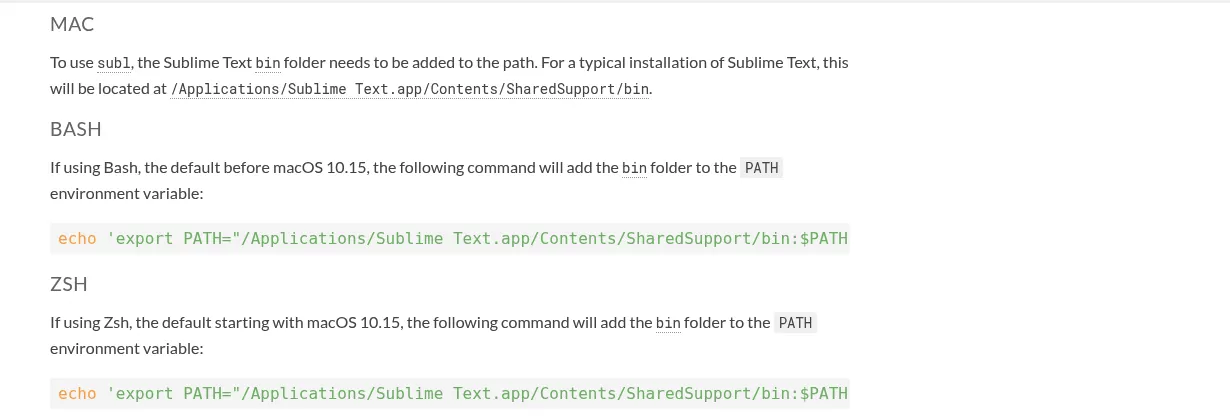
This is the part that sends people looking for a guide. The real subl binary is not loose on your system. It sits inside the app bundle, in Contents/SharedSupport/bin, so deleting the app takes the binary with it. What survives is whatever you did to reach it.
Sublime HQ's command line documentation sets it up by adding that bin folder to your PATH. It appends an export line to ~/.bash_profile under bash, the default before macOS 10.15, or to ~/.zprofile under zsh, the default from macOS 10.15 on. It does not create a symlink on Mac. So once the app is gone, that line still sits in your profile, pointing at a folder that no longer exists.
Plenty of people took the other route and made their own symlink, usually at /usr/local/bin/subl. The docs describe that method for Linux only, so on a Mac the link is one you created. Nothing removes it for you, and it dangles once the bundle is gone.
Once the bundle is deleted, typing subl returns a command not found error, and that is true whether or not the leftovers are still in place. A stale PATH entry points at a folder that is no longer there, and a symlink whose target is gone cannot be run either. That also rules out the usual lookup commands here: a shell reports only commands it can actually execute, so which -a subl comes back empty at this point in the cleanup even when a broken symlink is still sitting in a PATH folder. Wrapping it, as in ls -l $(which subl), just passes that empty or not-found result to ls, which is worse than useless in a guide about deleting files.
Look in the likely folders directly instead, since ls -l does report a link whose target has gone:
ls -l /usr/local/bin/subl
ls -l /opt/homebrew/bin/subl
ls -l ~/bin/subl
A folder with nothing to show answers No such file or directory, which simply means there is no link to clean up there.
In ls -l output a symlink shows an arrow, then its target. If that target points inside the deleted app bundle, the link is dangling. Remove a link you made with rm /usr/local/bin/subl. You may need sudo, depending on who owns that folder, and a password prompt there is normal.
Then check your shell config for leftovers that quietly break other tools:
grep -n -i subl ~/.zshrc ~/.zprofile ~/.bash_profile ~/.bashrcSearch for subl rather than the full product name. The two leftovers worth naming below do not contain the word sublime at all, so the longer pattern would walk straight past them.
Most matches are standalone lines, and those you can delete outright. Read each line before you remove it, though. If the match is a single consolidated PATH assignment that also carries other folders, such as Homebrew's /opt/homebrew/bin, a pyenv shim directory or your own ~/bin, edit out only the Sublime Text segment and leave the rest of the line in place. Deleting the whole line would take those still installed tools off your PATH along with it.
Two matches are worth naming. The docs suggest export EDITOR='subl -w', and that one outlives the app: git commit then tries to launch an editor that is no longer there, gets nothing back, and aborts with an empty commit message. An alias subl='reattach-to-user-namespace subl' line, a popular tmux fix, is another common leftover.
One safety note. Everything above sits in your home folder or in /usr/local, and both are fine to edit. Never delete anything inside /System. Since macOS Catalina that volume is read only and protected, and nothing here belongs there.
Step 4: Remove the data directory (Packages, Installed Packages and Local)
Now the folder that holds everything the app knew about you:
~/Library/Application Support/Sublime TextIf version 3 was ever installed, there may be a second folder ending in 3, as the revert docs note. Check for both.
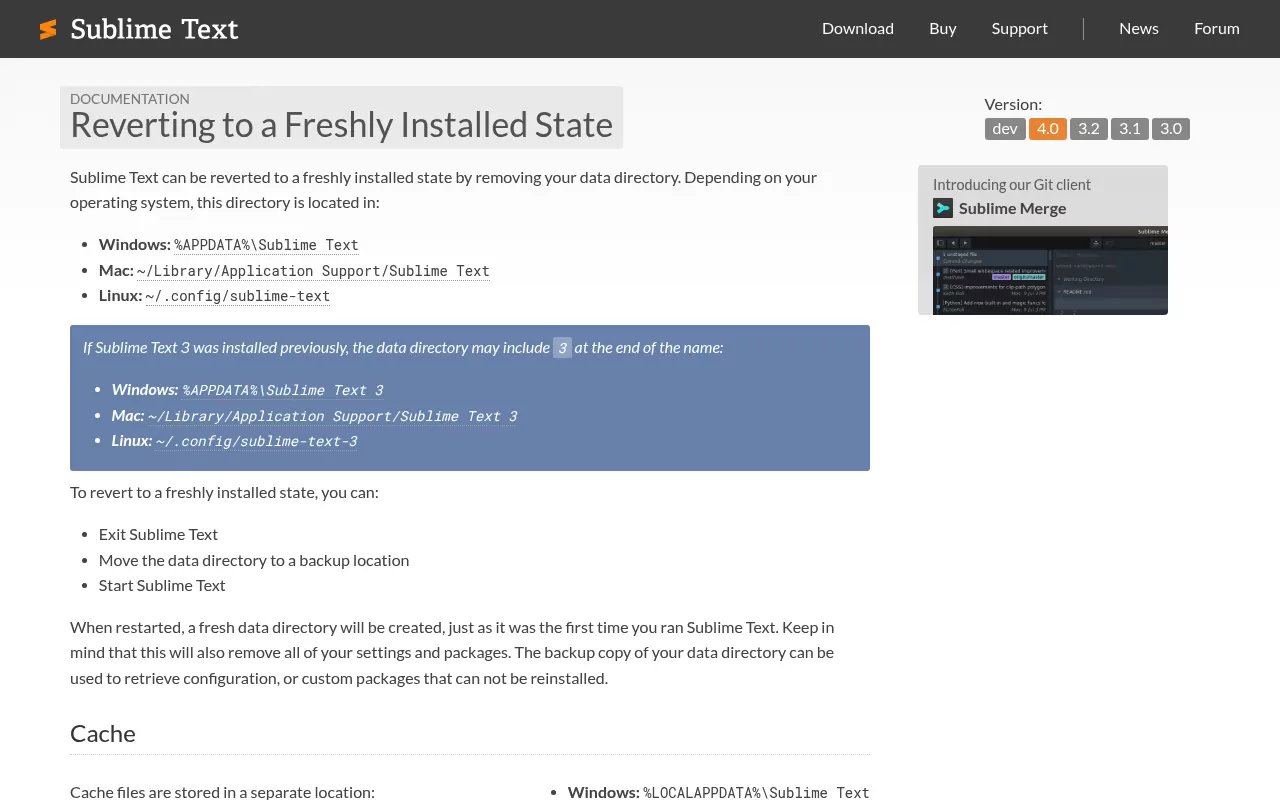
Open it before you delete it. A real install holds five folders:
-
Packages holds loose packages and your own overrides.
Packages/Useris where your settings live, along with key bindings and snippets. -
Installed Packages holds the
.sublime-packagefiles for packages you added, Package Control among them. -
Local holds session state, including
Session.sublime_sessionand its backup copies. It is also the documented spot for a plain textLicense.sublime_licensefile. - Lib holds Python libraries that packages rely on.
- Log holds logs.

The split matters. The packages documentation keeps the packages that ship with the editor inside the app bundle, and the ones you added out here. That is why trashing the app leaves your own packages on disk.
The ~/Library folder is hidden in Finder. To reach it, open the Go menu, choose Go to Folder, and type ~/Library. Remove only folders that carry the Sublime Text name.
Step 5: Remove caches and preference files
Four more items, all in your own Library folder:
-
~/Library/Caches/Sublime Text, the cache spot the vendor documents ~/Library/Caches/com.sublimetext.4~/Library/Preferences/com.sublimetext.4.plist~/Library/HTTPStorages/com.sublimetext.4
The last digit tracks the major version. A Mac that once ran version 3 may carry the same items with a 3 on the end, so check for those too.
These files matter even if you are staying. On the Stack Overflow question Sublime Text no longer launches from terminal, the accepted answer fixed the failure by deleting the version 3 cache folder and preference file, then restarting. The editor had been holding a stale link to an old app location.
Be clear on what that plist is, though. It holds window and open panel state for macOS, not your editor settings. Those are in Packages/User. Deleting the plist loses a window size, not a config.
When the list is clear, empty the Trash and restart your Mac. That clears anything still held in memory from the last session.
What you can safely ignore
Many uninstall checklists send you hunting through folders a text editor never touches. On a normal install there is nothing to find in any of these:
-
~/Library/LaunchAgentsand/Library/LaunchDaemons ~/Library/Containers~/Library/Logs/var/db/receipts
The editor is not sandboxed, so it has no container. It adds no background helper and no login item, so it has no launch agent. It arrives as a zip, so it leaves no receipt. If a guide sends you into LaunchDaemons for a text editor, it is padding a list. Skip those folders and save the time.
Try safe mode before you wipe everything
If your real goal is a working editor, not an empty Applications folder, try this first. Safe mode starts the app with all your changes switched off, while leaving the real ones untouched.
Start it with subl --safe-mode, or hold the Option key while launching the app. It arrived in version 4.0, and the safe mode documentation covers both routes. It only works when the app has been fully closed, which is one more reason Step 1 matters.
Safe mode uses its own folder, ~/Library/Application Support/Sublime Text (Safe Mode)/. That folder is erased every time safe mode starts, so never keep anything in it. Your licence key is copied across, so you do not have to type it again.
If the editor behaves in safe mode, the install is fine and your setup is not. Resetting Packages/User, or switching packages off one at a time, beats a full uninstall.
Reinstalling Sublime Text cleanly afterwards
Here is the trap that catches almost everyone who reinstalls. The vendor page on running 3 and 4 side by side spells out how version 4 picks its folder. It uses the version 4 folder if that exists. If not, it uses the version 3 folder. Only if neither exists does it make a fresh one.
So if you deleted the newer folder and left the version 3 one behind, your new install quietly adopts the old one, and every setting and package comes back. That is the whole answer to "I reinstalled and my old config returned". Remove or rename both before you reinstall.
After that, a clean install is easy. Download a fresh copy from sublimetext.com, unzip it, drag it into your Applications folder, and launch it once so a new data directory is made. If you want subl back, add the documented PATH line to ~/.zprofile. The compatibility page lists Sublime Text 4 Mac builds as a Universal 2 binary for Intel and Apple silicon. Read the minimum macOS version on that page with care, because the page filters itself by build: it carries a version selector, and the macOS 10.13 line it can show belongs to builds 4201 and later, which at the time of writing means the dev channel only. The current stable release is Build 4200, and under the page's default Sublime Text 4 view the minimum shown is older than 10.13. Select the build you are actually downloading before you read a number off it.
Frequently Asked Questions
Does Sublime Text have an uninstaller for Mac?
No. Asked on the official forum, a Sublime HQ team member pointed users at the docs on reverting to a freshly installed state. Removal on Mac is a manual job.
What happens to the subl command after I delete Sublime Text?
It stops working. The binary lives inside the app bundle, so removing the app removes it too, and subl then returns a command not found error. What outlives the app is the setup you did to reach it: the PATH export in your shell profile, and any symlink you made in a folder such as /usr/local/bin. Neither of those can run anything on its own, but they can break other tools that expected the editor, so check the likely folders with ls -l /usr/local/bin/subl and search your shell files for subl.
Why did my settings come back after reinstalling?
Version 4 falls back to the version 3 data directory when no version 4 one exists. Leaving that folder in place hands your old setup back to the new install.
Where are my Sublime Text settings stored on a Mac?
In the data directory, under Packages/User. That folder holds your preferences file, your key bindings and your snippets.
Will uninstalling Sublime Text remove my licence key?
Removing the data directory clears the stored licence state, so keep the key from your purchase email. Keys are held in a machine specific format, so do not plan on recovering one from disk.
Is it safe to delete the Local folder?
Yes, but it holds your session. Open files, window layout and unsaved buffers go with it. Save anything you still care about first.
Do I need to remove Package Control separately?
No. It lives in Installed Packages inside the data directory, so it goes when that folder goes. There is no separate step.
Removing other apps from this Mac
Sublime Text is one of the tidier ones. Many apps also leave login items, background helpers and files in the shared /Library folder that a text editor never creates.
UninstallOnMac publishes one removal guide per app, tested on a real Mac, covering what that app puts on disk and where, whether the vendor ships its own uninstaller, and how to check nothing is still running at the end. You can read how the guides are written and tested before you follow one.