How to Uninstall Safari on Mac (and What to Do Instead)
If you are looking for how to uninstall Safari on Mac, the honest answer is that you cannot. Safari ships with macOS as sealed system software, and the icon in your Applications folder is only a link pointing at it, so the Finder will not delete it. If Safari is showing ads or a changed homepage, remove the extension, profile or notification behind it instead.
The short answer: you cannot uninstall Safari on Mac
Safari is not an optional download. It arrives with macOS, and macOS updates keep it current. There is no separate installer to reverse and no Uninstall menu item.
Apple says so in its guide to deleting or uninstalling apps on Mac: "You can't use the Finder to delete apps that are required by your Mac." That covers apps installed by macOS and any apps in the System folder, which Apple calls reserved. Apple Community experts answer the same way on the thread how to uninstall safari on macbook pro.
Now the good news. Whatever is actually wrong is almost certainly something you can remove, and the rest of this guide removes it.
Why Safari cannot be removed, and why forcing it breaks your Mac
Safari is not really in your Applications folder
On a Mac running macOS Tahoe 26, the Safari icon in your Applications folder is not an app. It is a symbolic link, a signpost pointing elsewhere on disk. We checked this on macOS 26.6.2 with System Integrity Protection on.
Follow the link and it goes to a Cryptexes path under the System folder, and that path is itself a link onward, to storage held on the Mac's preboot volume. That is where the real Safari bundle sits, one volume removed from the folder you were looking in. The link is protected too. Deleting it returns "Operation not permitted", even though it is only a few dozen bytes.
Apple's security guide explains why. Content Apple wants to patch quickly has moved into cryptexes, which Apple calls "optimized, cryptographically sealed disk images that reside on the preboot volume". Apple says these come in subtypes for system frameworks and for apps, and that Safari uses their content once it is relaunched. So dragging the Safari icon to the Trash does not fail on a permissions quirk. There is nothing in that spot to drag.
The system volume is sealed, not just locked
Apple's signed system volume page gives the timeline. macOS 10.15 brought in a read only system volume, and macOS 11 added strong crypto protection on top, checked by the kernel as the Mac runs. Apple says the check "rejects any data, code and noncode, without a valid cryptographic signature from Apple".
That matters if you are tempted to force the issue. Apple states that if the check fails, startup halts and you are asked to reinstall macOS. So a successful deletion would not leave you a Mac without Safari. It would leave you a Mac asking to be set up again.
Why the old "disable SIP and delete it" guides no longer work
Some older pages walk you through switching off System Integrity Protection and deleting Safari by hand. They describe much older macOS releases. On current macOS the guard is a seal on the whole volume, not a flag on one file, so switching that protection off does not make Safari deletable. macOS updates also restore system files. We are not going to print those commands, and you do not need them.
Work out what is actually wrong
Most people who search for this are not really trying to delete a browser. Use this list to jump to the fix that matches your symptom.
- Ads and pop-ups on sites that never used to show them: remove Safari extensions.
- Homepage or search engine changed, and changes back after you fix it: delete configuration profiles.
- Alerts appearing even when Safari is closed: turn off rogue website notifications.
- A toolbar or search box you did not add: check extensions first, then profiles.
- Safari slow or stuck on one site: clear website data, caches and history.
- Something starts up with the Mac and you cannot place it: check Login Items.
- You simply prefer Chrome or Firefox: change the default browser and tidy the Dock.
Remove Safari extensions you did not install on purpose
This is the highest yield fix, and Apple names it first. Extensions can change pages, inject ads and redirect searches, which covers most of the complaints that bring people here.
Apple's steps for Safari extensions on your Mac are short:
- Open Safari.
- From the Safari menu in the menu bar, choose Settings, or Preferences on older versions.
- Click Extensions.
- Select the extension, then click the Uninstall button.
Not sure which one is at fault? The same Apple page covers turning an extension off by clearing the checkbox beside its name. Switch one off, browse for a while, and switch it back on if nothing changes.
There is a trap if you use Safari profiles, which need Safari 17 or later. Apple states that add-ons for the default profile sit in the main Extensions tab, while add-ons for other profiles live in the Profiles tab, which has its own Extensions tab for each one. So an extension can be busy in one profile and invisible in another. If one comes back after you remove it, the app that installed it is probably still on the Mac.
Delete configuration profiles that hijack your homepage or search engine
This section fixes the "it changes back every time" problem. Some unwanted installers add a configuration profile that enforces a homepage and a search engine. Resetting Safari seems to work, then the setting quietly reverts, because the profile puts it back.
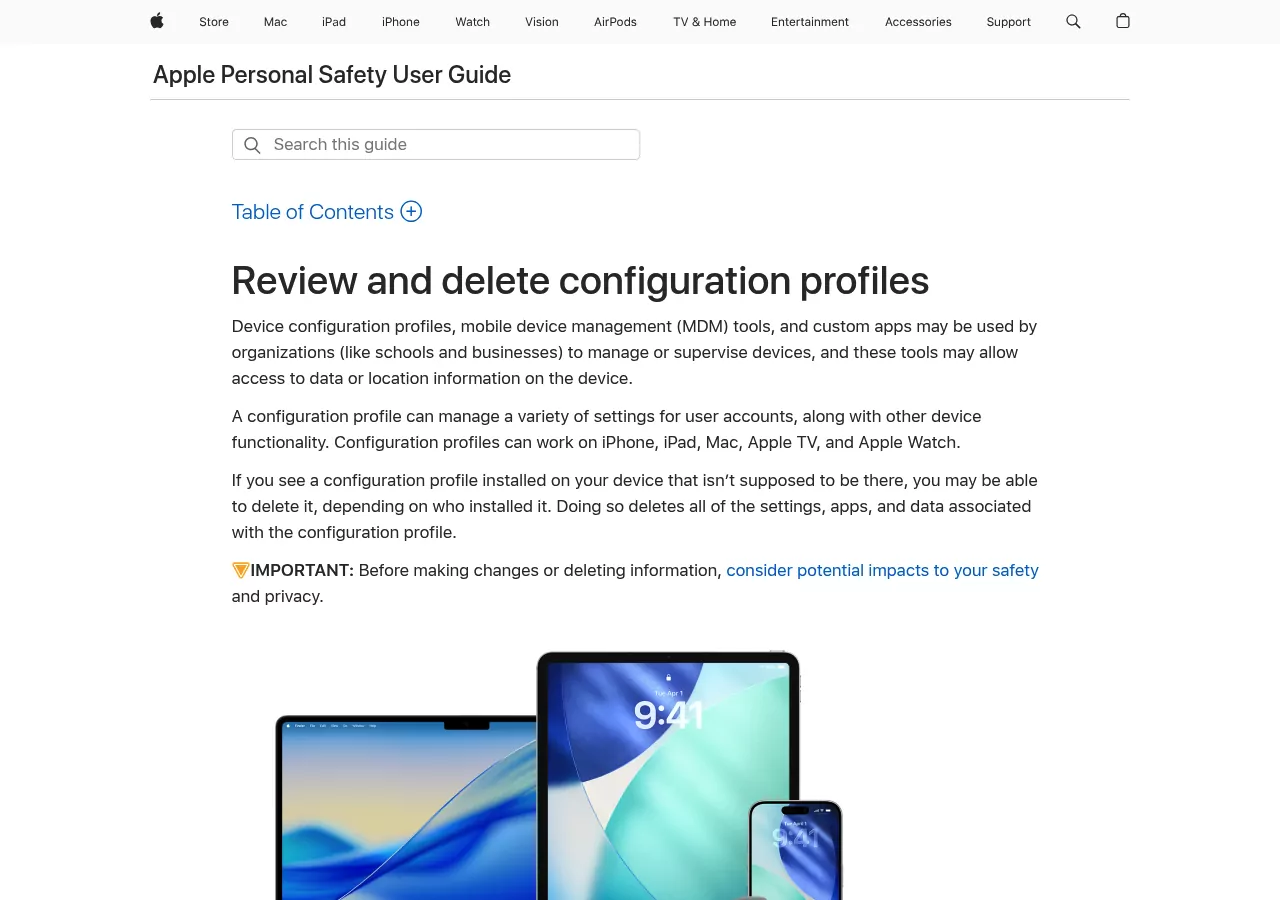
Apple's guide to reviewing and deleting configuration profiles gives two paths.
macOS 13 Ventura and later: choose Apple menu, then System Settings. Click General in the sidebar, then Device Management. Select the profile, click the remove button, then restart your Mac.
macOS 12 Monterey and earlier: choose Apple menu, then System Preferences. Click Profiles. Select the profile, click the remove button, then restart your Mac.
Three honest caveats. If Device Management or Profiles does not appear at all, no profiles are installed, so this is not your problem. Second, removing a profile takes everything it carried: Apple states that all of its settings and information are deleted, so a profile that also set up a mail account takes those settings too.
Third, if a school or an employer issued the Mac, you may not be able to remove some profiles, and Apple advises checking with your system administrator first. Being asked for an admin name and password here is normal, and it is the same password you use to log in.
Clear website data, caches and history
Older guides tell you to look for a single Reset Safari button. Current Safari does not have one. Apple documents two separate controls instead, and people often mix them up.
Clearing your history
Choose History in the menu bar, then Clear History, then pick a time range. Apple's page on clearing your browsing history lists what goes, and it is more than most people expect.
- The history of webpages you visited.
- The back and forward list for open webpages.
- The frequently visited site list and recent searches.
- Icons and saved snapshots for webpages.
- The list of items you downloaded. The files themselves stay put.
- Websites that asked to use your location.
- Websites that asked to send you notifications.
That last item links this section to the next one. Note Apple's warning too: if your Mac and your other Apple devices have iCloud set up for Safari, the history goes from all of them.
Managing website data
Choose Safari, then Settings, then Privacy, then Manage Website Data, then Remove or Remove All. Apple's page on clearing your cache and cookies covers macOS Tahoe 26 back to High Sierra. Apple's caution is worth repeating: removing the data may cut tracking, but it may also sign you out of websites, change how they behave, and change or remove cookies in other apps.
Turn off rogue website notifications
This is the fix that settled the Apple Community thread closest to the case people arrive here with. A Monterey user asked how to uninstall Safari after a page kept claiming the Mac was infected. Safari was never the problem. He later reported finding two entries in the notifications list with an official looking icon and no name.
This spam is convincing because it looks like a system alert and keeps arriving when Safari is closed. Apple's page on website notifications in Safari covers two separate settings, and the fix usually needs both. Where the panes live depends on your macOS version, so each path below says which release it is for.
To silence one site, on macOS 13 Ventura and later: choose Apple menu, then System Settings. Click Notifications in the sidebar, go to Application Notifications, click the website, and turn off Allow Notifications.
To silence one site, on macOS 12 Monterey and earlier: there is no System Settings app on Monterey, so that path does not exist. Apple's macOS 12 notifications page gives it as Apple menu, then System Preferences, then Notifications and Focus, then Notifications. Select the entry and turn Allow Notifications off.
To take back a permission you already granted: choose Safari, then Settings, then Websites, then Notifications. Find the website in the list and set it to Deny. On macOS 12 the same path runs through Safari, then Preferences. Do not skip this one. Apple states that a website you silence in Notifications settings stays in that list, and that denying it permission in Safari settings is what removes it. This is the step that actually revokes the permission.
To stop new requests arriving: in that same Notifications tab, deselect "Allow websites to ask for permission to send notifications". Read what this does carefully. Apple describes the result as no longer being asked when you visit a website that wants to send you notifications. It closes the door on future prompts, and it leaves permissions you have already given exactly as they are. Use it alongside the Deny step, not instead of it.
As you read that list, watch for entries with a plausible icon and no name you know. Those are the ones to switch off.
Check Login Items and background helpers
Unwanted software rarely lives only in the browser. Something that starts with the Mac can put the ads back after you clean Safari, so this step is worth doing even when the browser looks fine.
Apple's guide to opening items automatically when you log in gives the path, and it is not the same path on every release. Between Monterey and Ventura this moved to a different pane in a different app, so it is worth reading the line that matches your Mac rather than the first one you see.
- macOS 15 Sequoia and later: Apple menu, System Settings, General in the sidebar, then Login Items and Extensions. You may need to scroll down.
- macOS 13 Ventura and macOS 14 Sonoma: Apple menu, System Settings, General in the sidebar, then Login Items on the right.
- macOS 12 Monterey and earlier: Apple menu, System Preferences, then Users and Groups. Select your user account, then click Login Items at the top of the window.
Wherever you land, the move is the same: select the item you want gone and remove it with the button below the list. On macOS 13 and later the same pane also holds the switches that let apps run in the background.
One boundary, stated once. Remove only entries that clearly belong to an app you know and no longer want. If a name means nothing to you, look it up before you touch it.
Cannot tell whether a startup item is the culprit? Safe mode is a clean test. Apple says it stops login items and extensions that macOS does not require from loading. If the symptom goes in safe mode, something that loads at startup is involved.
What you can remove, and what you cannot
| You can remove this | You cannot remove this |
|---|---|
| Safari extensions | The Safari app bundle itself |
| Configuration profiles | Anything inside the System folder |
| Website data and cookies | Anything on the sealed system volume |
| Browsing history | The cryptex that holds Safari |
| Saved website notification permissions | Safari's place in macOS updates |
| Per profile data in Safari 17 and later | The link in your Applications folder |
| Login items and unwanted apps in Applications | Safari as a fallback browser for macOS |
One rule sits under that table. Never delete anything inside the System folder. Since macOS Catalina the system volume has been read only, and since macOS 11 it has been sealed as well. The attempt either fails outright or leaves a Mac that will not start.
If you just want Safari out of the way
Change your default browser
Install the browser you want first, or it will not appear in the list. Apple's steps for changing the default web browser on Mac depend on your version. On macOS Ventura 13 or later: Apple menu, System Settings, Desktop and Dock, then scroll down to the Default web browser menu. On earlier versions: Apple menu, System Preferences, General, then the same menu.
Remove Safari from the Dock
Apple's guidance on using the Dock is to drag the item out of the Dock until Remove is shown. Apple is clear about the result: only the alias goes, and the actual item stays on your Mac. This hides the icon and deletes nothing, which is what most people here want anyway.
Screen Time limits, and the toggle that catches people out
Screen Time looks like the answer, and one part of it is a trap. Apple's page on App and Feature Restrictions lists what you can restrict on a Mac: Camera, Book Store, Siri and Dictation, and SharePlay. Safari is not on that list. Apple lists Safari among the iPhone and iPad restrictions instead.
What does work on a Mac is a time limit. Apple's page on time limits for apps and websites gives the path: Apple menu, System Settings, Screen Time, App Limits, Add Limit. Pick apps, categories, or one website, set a daily amount, and turn on "Block at end of limit". It is a soft limit you can lift yourself, so treat it as a nudge rather than a lock.
When the real problem is another app
If pop-ups continue after all of the above, the source is usually an app that came along with something else you installed.
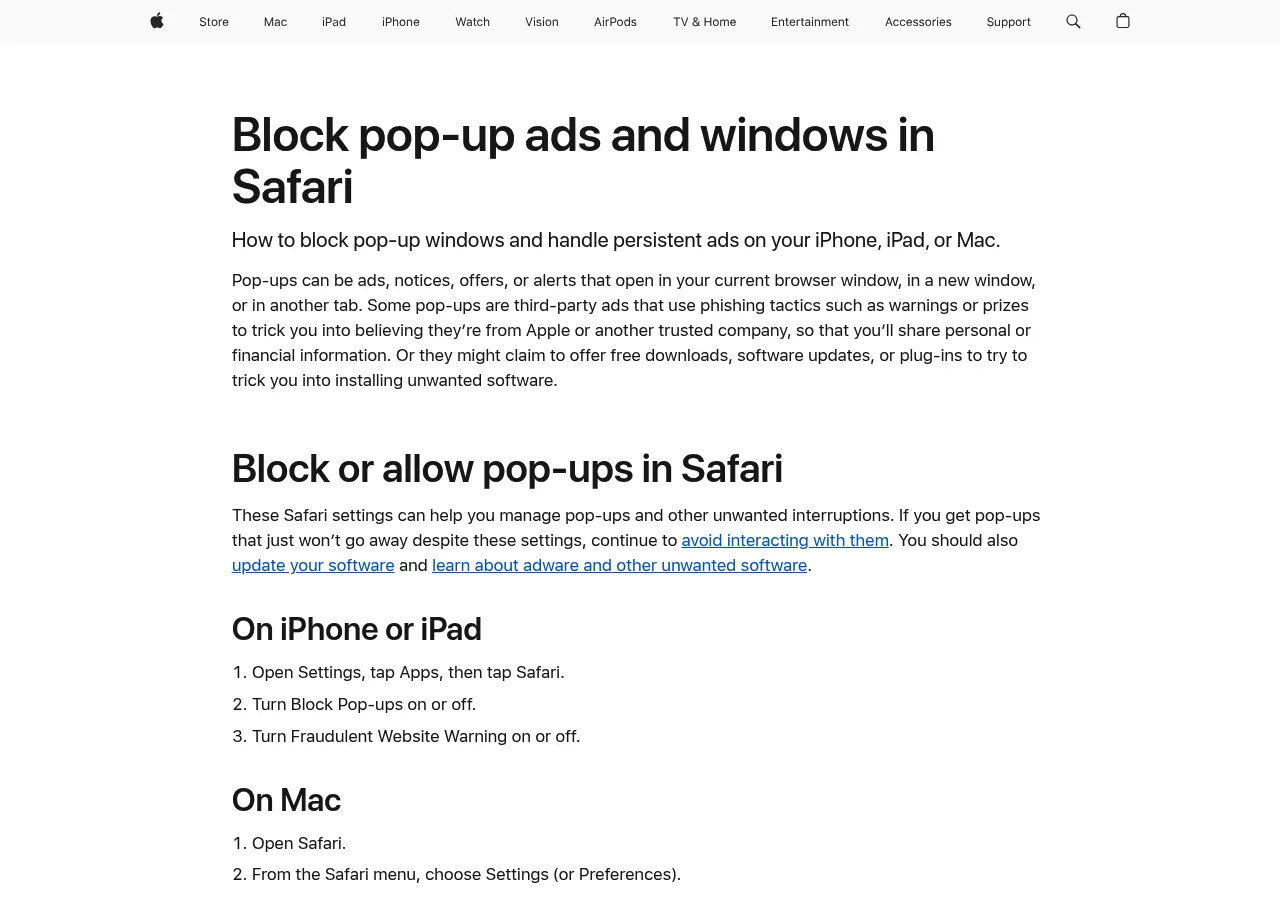
Apple's advice on blocking pop-up ads and windows in Safari is worth following in order. Update to the latest macOS, or restart if you are already on it, because macOS has a built in tool that removes known malware when restarting. Then check your Applications folder for apps you did not expect. Then check the Extensions tab in Safari settings.
Take that middle step the way Apple writes it. Apple offers deleting or uninstalling those apps as something you can do, not something you must, and the difference matters, because "did not expect" is a much wider net than it sounds. Plenty of legitimate software installs a helper, updater or manager app under a name nobody ever chose, and a program you use every day may depend on it. A vendor's update agent, a printer utility, a VPN client and software an employer deployed all look unfamiliar in a list. So identify each name before you act on it, look it up if it means nothing to you, and leave anything that belongs to software you still use. Where an app ships its own uninstaller, run that instead of dragging the bundle to the Trash.
Two details there are easy to miss. Avoid touching a pop-up at all, because some carry fake buttons that look like a close button. And if Safari keeps reopening the same bad tab, quit it, then hold the Shift key while opening it. That stops it restoring the tabs that were open. After you drag an unwanted app to the Trash, choose Finder, then Empty Trash, then restart.
Dragging an app to the Trash usually leaves its support files, caches and login items in folders you would never think to open. Finding those by hand is slow, which is what the rest of this site is for. Uninstall on Mac publishes per app removal guides, and each one covers the same ground: what that app installs and where, whether its vendor ships an uninstaller and what the uninstaller actually removes, the manual steps for everything left behind, and a check at the end to confirm nothing is still running. There is nothing to download here and no cleaner utility to install. Everything we describe is done with Finder, System Settings and, occasionally, Terminal. You can read more about the approach here.
Frequently Asked Questions
Can you uninstall Safari on a Mac?
No. Safari is protected system software that macOS installs and updates for you. On the Mac we tested, running macOS 26.6.2, the icon in the Applications folder is only a link, and it points into a cryptex, one of the cryptographically sealed disk images Apple keeps on the preboot volume. Older releases held the bundle differently, but the outcome has been the same since macOS 10.15: the Finder will not delete it. What you can remove is the extension, profile or notification causing the trouble.
How do I uninstall and reinstall Safari on a Mac?
Neither step exists on its own. There is no standalone Safari installer for current macOS, because macOS updates deliver Safari. If Safari itself is misbehaving, install the latest macOS update first.
Will deleting Safari free up disk space?
Not in any way that helps. The icon in your Applications folder is only a link a few dozen bytes long, and the bundle it points to lives inside a cryptographically sealed disk image that macOS manages on your behalf. That is not storage you can claim back by hand. Clearing website data and history frees real space, and both are covered above.
Why does my homepage keep changing back?
That pattern usually means a configuration profile is enforcing the setting. Check Device Management on macOS 13 and later, or Profiles on macOS 12 and earlier, then remove the profile and restart.
Is it safe to delete Safari's folder in my Library?
We are not going to name a folder path, because Apple does not document one for this and deleting the wrong thing by hand is how people lose bookmarks. Removing Safari's data would not remove Safari anyway. Use Clear History and Manage Website Data instead.
Can I uninstall Safari on an older Mac?
Older releases came before the read only system volume that Apple brought in with macOS 10.15 Catalina, so the rules were different then. We will not publish a removal method for them, and guides that tell you to switch off System Integrity Protection are the ones to walk away from.