CleanMyMac Alternatives: What Each One Does, and the Manual Method That Needs None
CleanMyMac is a paid Mac utility that clears junk files, removes apps and their leftovers, manages login items, finds duplicates and scans for malware. People look for CleanMyMac alternatives when the price, the billing model or the sheer scope stops fitting. Every job it does can also be done by hand, with Finder, System Settings and Terminal.
What follows describes each of those apps, with licence and price stated as fact. Then it walks the manual route in full, because none of them is required.
What CleanMyMac actually does
CleanMyMac is made by MacPaw. Its site groups the work into a few jobs. It clears caches and other files it treats as junk. It removes apps together with the files they leave behind, and tracks app updates.
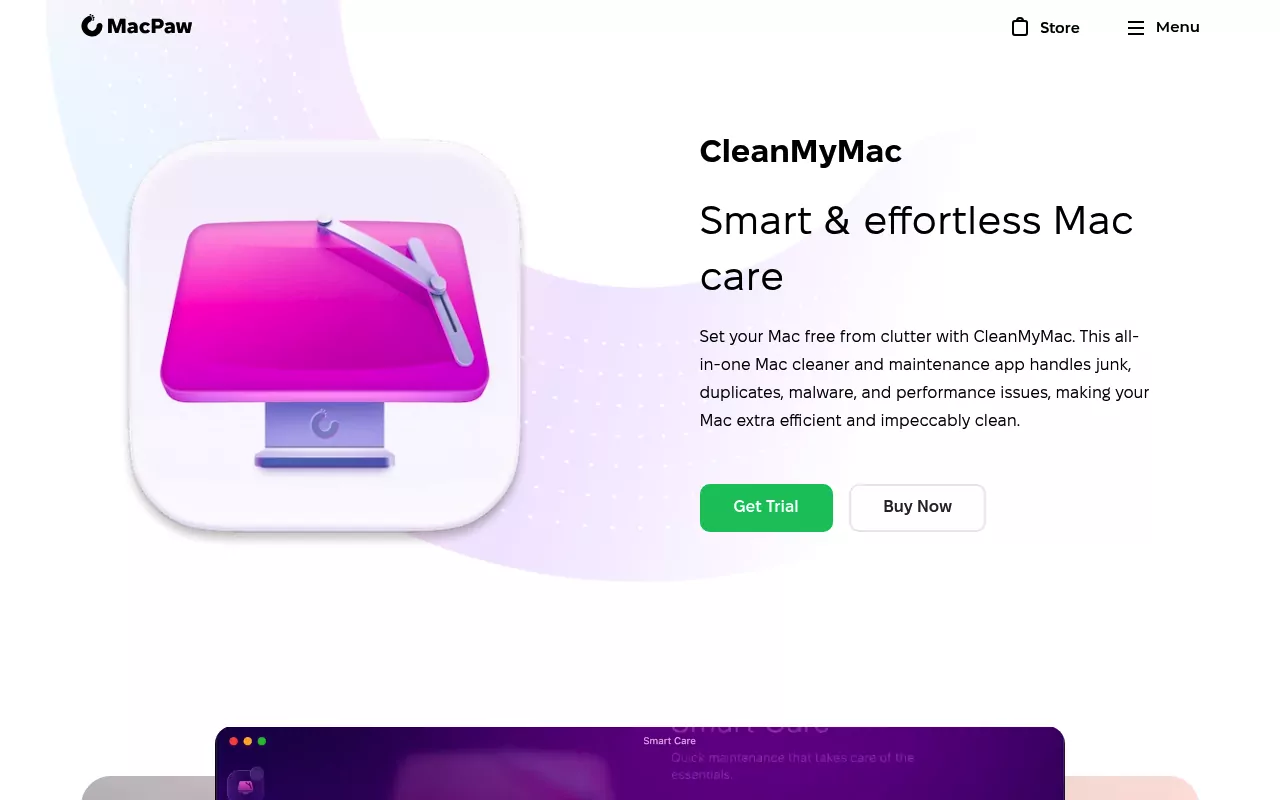
It also switches off login items and background apps. It scans for malware at three depths. It finds duplicate files and similar photos. A feature called Space Lens draws your drive as a map of folders sorted by size, and a Cloud Cleanup view does something similar for cloud accounts.
MacPaw lists version 5.6.1, released on 2 September 2026, and states system requirements of macOS 11.0 or later with a screen of at least 1200 by 800 pixels. The app is notarised by Apple. There is a seven day free trial.
Almost every one of those jobs already has a home on your Mac. If an app installs background helpers, as many security products do, the helpers sit in folders you can open yourself.

The pairings, one for one:
- Caches and logs live in your own Library folder.
- App removal happens in the Applications folder, plus the leftovers.
- Login and background items sit in System Settings.
- Large files show up in the Storage pane.
- Mail attachments are handled inside Mail.
- Reclaiming the space itself means emptying the Trash.
Two jobs have no neat built in twin. macOS has no general duplicate file finder, though Photos groups duplicate images. And a full disk malware scan differs from the screening macOS does when you open something new.
Why people look for something else
The reasons are usually practical, and they are worth stating without drama.

Cost and billing. MacPaw lists pricing starting at $3.33 a month, and says the price depends on the store, the number of Macs and local taxes. The MacPaw Store and the App Store both offer monthly, annual and one time purchases. Setapp is subscription only. A one time licence includes updates but not major version upgrades. A subscription includes them.
macOS version support. CleanMyMac needs macOS 11.0 or later. An older Mac that cannot move past an earlier release is simply out of scope.
Scope creep. The app now spans cleanup, malware scanning, duplicates, cloud storage and updates. That is a lot of surface for someone who only wanted to delete one app properly.
Permissions. Any tool that reaches into system adjacent folders needs broad access to your files. Some people would rather keep that access to a minimum and do the work themselves.
It is not that hard by hand. This is the one most articles skip. Once you know the seven or eight places files hide, a full removal takes a few minutes.
The manual method that needs none of these
Work through it in order. Nothing here needs a download.
Step 1: open your Library folder
Most leftovers live in a folder macOS hides by default. Open Finder. Click Go in the menu bar, then hold the Option key, and Library appears in the list.
Faster still: press Shift, Command and G together, type a tilde followed by /Library, then press Return. The tilde means your home folder.
Two Library folders matter. The one in your home folder holds files for your account. The one at the top level of the drive, /Library, holds files shared by all users. Installers use both.
Step 2: quit the app and check what is still running
Quit the app first. A file in use will not delete cleanly, and the Trash will refuse to empty.
Then open System Settings, click General in the sidebar, and click Login Items and Extensions. Apple documents this pane in its guide to opening items automatically at login. It holds two lists. One opens apps when you log in. The other, Allow apps to run in the background, lets an app work while closed.
Switch off anything belonging to the app you are removing. Security tools and VPN clients often place several entries here. The Kaspersky removal guide shows how many pieces one product can install.
Step 3: move the app itself out
Open the Applications folder in the Finder sidebar. Select the app and press Command and Delete, or drag it to the Trash. Apple covers this in its page on deleting or uninstalling apps on Mac.
Two notes from that page are worth repeating. When an app not made by Apple ships its own uninstaller, that is the best way to remove it, because it also clears login items and extensions stored elsewhere. And you cannot use the Finder to delete apps that macOS itself requires.
So check for an uninstaller first. Some sit inside the original disk image, some in a folder next to the app. When one exists, run it before you delete anything by hand.
Step 4: sweep the places leftovers hide
Now go back to your Library folder. These are the folders worth opening, in the order they usually pay off. Search each for the app name or the developer name.
- ~/Library/Application Support holds the app's working data.
- ~/Library/Caches holds temporary files it rebuilds on its own.
- ~/Library/Logs holds diagnostic output.
- ~/Library/Preferences holds settings files.
- ~/Library/Containers holds everything for sandboxed apps.
- ~/Library/Group Containers holds data shared between an app and its extensions.
- ~/Library/Saved Application State holds window positions.
Preference files and container folders are usually named after the bundle identifier rather than the app. That looks like com.developer.appname, so search for the developer name too.
Then check the shared Library at the top level of the drive. Look in /Library/Application Support, /Library/Preferences and /Library/PrivilegedHelperTools. The last one holds small helper programs that run with elevated rights, a common home for pieces an installer left behind.
Step 5: deal with launch agents and daemons
This is the step that stops an app coming back after a restart. Three folders start background jobs:
- ~/Library/LaunchAgents starts jobs when you log in.
- /Library/LaunchAgents does the same for every user.
- /Library/LaunchDaemons starts jobs at boot, before login.
Each item is a small settings file named after its developer. Delete the ones belonging to the app you removed, then restart. Apple describes how apps register this kind of background work in the Service Management documentation.
Antivirus suites are the usual culprits here, because they install helpers in all three places. The Trend Micro guide walks through exactly that pattern.
Step 6: use the Storage pane macOS already gives you
Open System Settings, click General, then click Storage. You get a bar chart of what is using the drive, broken down by category.
Click More Info next to a category to see what is inside it. Apple's own advice on how to free up storage space on Mac is short and sensible. Move files to an external drive. Delete media you can stream again. Clear out Downloads. Remove apps you no longer use. Empty the Trash.
This pane is the honest answer to most disk space panics.
Step 7: clear Downloads and mail attachments
Open your Downloads folder in Finder. Switch to list view and click the Size column to sort. Installers and disk images collect here for years.
Mail is the other quiet hoarder. Choose View, then Sort By, then Size, to find the heavy messages. To strip files from a message you want to keep, choose Message, then Remove Attachments. Apple's guide to viewing, saving or deleting attachments warns that on IMAP accounts the attachment leaves the server too, so save anything you need first.
Step 8: Terminal, only where Finder cannot reach
You can finish most removals without ever opening Terminal. It earns its place in two situations.
The first is command line tools. Editors and developer apps often install a small command somewhere like /usr/local/bin, and dragging the app to the Trash leaves it there. Our Sublime Text removal guide covers that exact leftover.
The second is checking your work. Terminal sits in the Utilities folder inside Applications, and Apple publishes a full Terminal user guide. Two read only commands cover most needs. Run launchctl list to see what is loaded right now. Run du -sh on a folder to see its real size.
Finish by emptying the Trash. Until you do, the space is still spoken for.

Folders to leave alone
This part matters more than any cleaning tip. Apple's page on System Integrity Protection names the directories macOS defends: /System, /usr, /bin, /sbin and /var. Leave all of them alone. Apple names one carve out on that same page: /usr/local, which is why the leftover command in step 8 is fair game.
Two more cautions. Do not empty ~/Library/Application Support as a folder. It holds live data for apps you still use, including saved work and licence files.
And do not try to delete apps that came with macOS. Safari is the classic case. Our guide on removing Safari on a Mac explains what the system will and will not let you do.
The CleanMyMac alternatives people compare
These are the names that come up in the same searches. What follows is description, not a ranking. This site does not recommend cleaner utilities, and there is no winner at the end.

OnyX
OnyX comes from Titanium Software and is free. The developer's page says the apps exist so that all Mac users can use them freely, with a donation link for anyone who wants to help.
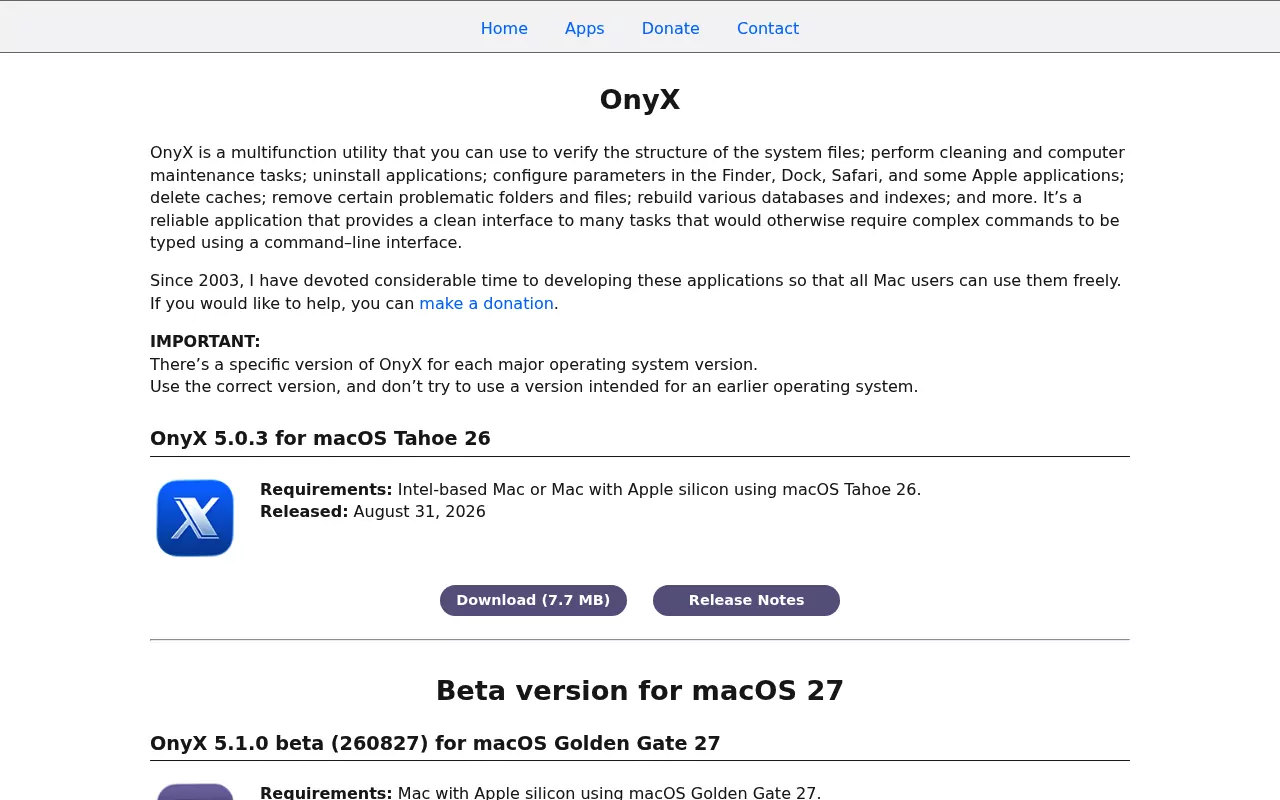
It checks the structure of system files, runs maintenance and cleaning tasks, uninstalls apps, deletes caches, rebuilds databases, and exposes hidden settings for Finder, the Dock and Safari.
Version 5.0.3 for macOS Tahoe 26 was released on 31 August 2026. The limitation is built into the design: there is one version per major macOS release, and Titanium warns against running one meant for an older system. Archived builds reach back to Mac OS X 10.2, and none is still updated.
Pearcleaner
Pearcleaner is free and open source. Its licence is Apache 2.0 with the Commons Clause, which allows you to read and modify the source but blocks anyone from selling it.
It removes apps and their related files, hunts for orphaned files left by apps that are already gone, manages Homebrew, and adds a Finder extension so you can right click an app to uninstall it. A monitor feature reacts when you drag an app to the Trash.
It needs macOS 13 Ventura or later, because earlier systems lack the SwiftUI pieces it depends on. The honest caveat is on the project page: development is on hold, because the author does not have access to a Mac.
AppCleaner
AppCleaner comes from FreeMacSoft. The page lists no price and offers a donation link instead.
The workflow is one action. You drop an application onto the AppCleaner window, it finds the related files, and you click a delete button.
Version 3.6.8 covers macOS Mojave up to Tahoe. Older builds are kept for High Sierra, for 10.10 to 10.12 and for 10.6 to 10.9. The limitation follows from the design: the flow starts from the app bundle, so it fits best while the app is still installed.
DaisyDisk
DaisyDisk is paid. Its site lists a lifetime licence at $9.99, described as a one time purchase with no recurring payments, usable on up to five personal Macs. It requires macOS 10.13 or newer.
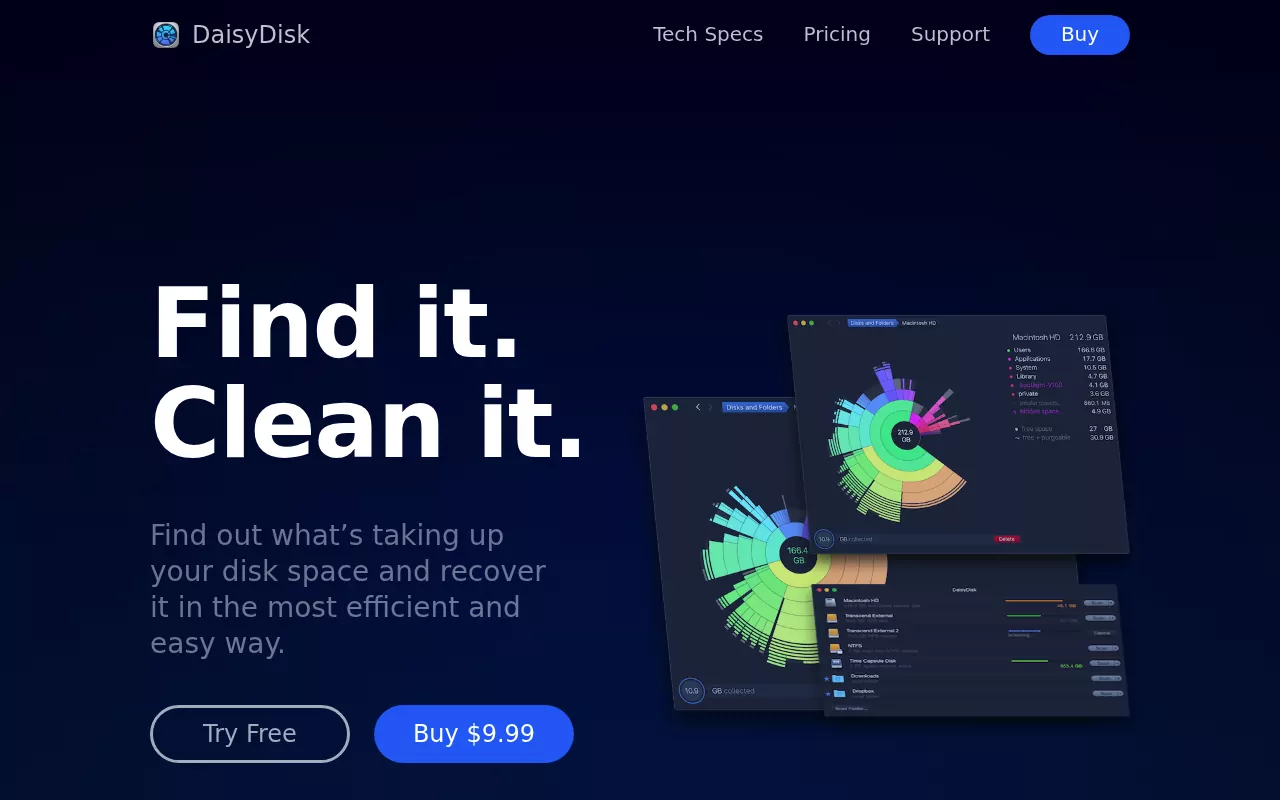
It draws your drive as a coloured map. You click into the biggest segments, find what is actually taking the room, and drag things out from there.
The limitation is scope, and it is deliberate. DaisyDisk shows you size. It does not uninstall apps, and it does not know which leftover belongs to which program.
OmniDiskSweeper
OmniDiskSweeper comes from the Omni Group, released as freeware years ago and still free.
It does one thing. It lists every folder on a drive sorted by size, biggest first, so you can walk down into the heavy branches and sweep files to the Trash.
The limitation is presentation. There is no map and no analysis, just a column of sizes. The download page keeps separate builds for systems back to OS X Tiger, without stating a current minimum.
Maintenance
Maintenance is Titanium Software's smaller utility, also free with a donation link.
Its described job is narrow: rebuilding databases, and deleting application, font and system caches. It puts a plain interface on tasks that would otherwise mean typing commands.
Version 3.5.2 for macOS Tahoe 26 was released on 3 August 2026. Two limits are worth naming. It carries the same one version per macOS release rule as OnyX. And removing apps is not in its list of tasks, so it does not replace an uninstaller.
Comparison at a glance
Prices and versions below were checked on 9 September 2026.
| App | Licence and price | What it is for | Notable limitation |
|---|---|---|---|
| OnyX | Free. Donations accepted. | Maintenance, caches, hidden settings, uninstalling. | One build per macOS release. |
| Pearcleaner | Free. Apache 2.0 with Commons Clause. | App removal and orphaned files. | Needs macOS 13 or later. Development on hold. |
| AppCleaner | No price listed. Donations accepted. | Removing one app and its files. | Flow starts from the installed app. |
| DaisyDisk | $9.99 lifetime licence. Up to 5 Macs. | Seeing what fills the drive. | Maps space. Does not uninstall. |
| OmniDiskSweeper | Free. | Finding large files by size. | Plain list. No current minimum stated. |
| Maintenance | Free. Donations accepted. | Maintenance scripts and caches. | No app removal. One build per release. |
When something will not go away
A few problems come up again and again. None of them needs a paid tool.
The Trash will not empty. Something in it is still open. Quit the app, or restart the Mac, then try again.
You are asked for a password to delete a file. That file belongs to a helper installed for all users. Look in /Library/PrivilegedHelperTools and /Library/LaunchDaemons.
The app comes back after a restart. A launch agent survived. Recheck all three LaunchAgents and LaunchDaemons folders from step five.
A system extension refuses to unload. Security software and VPN clients often need the vendor's own removal tool, run while the product is still installed. The Kaspersky and Trend Micro guides both cover that order.
The space did not come back. Empty the Trash. macOS also keeps local Time Machine snapshots for a while, and those release space on their own schedule.
Frequently Asked Questions
Is CleanMyMac worth it?
That depends on what you value. It packages jobs you can do yourself into one window, and MacPaw lists pricing starting at $3.33 a month. If your goal is to remove one app cleanly, the manual steps above cost nothing.
Which is the best CleanMyMac alternative?
This site does not rank cleaner or uninstaller apps, so there is no pick here. Choose by job instead. Disk maps answer where the space went. Uninstallers answer what an app left behind. Maintenance tools answer neither, and macOS covers most of both.
Is there a free CleanMyMac alternative?
Several of the apps above are free: OnyX, Pearcleaner, AppCleaner, OmniDiskSweeper and Maintenance. Before installing any of them, remember that macOS already covers the storage view, the login items, the caches and the app removal itself.
Is there a Mac cleaner without a subscription?
Yes. DaisyDisk sells a lifetime licence at $9.99, and the free tools listed here carry no subscription at all. MacPaw also sells CleanMyMac as a one time purchase, though it notes that such a licence does not include major version upgrades.
Is it safe to delete files in the Library folder?
It is safe when you delete folders that clearly belong to an app you have removed, with the app closed. Caches and logs rebuild themselves. What is never safe is deleting inside /System, /bin, /sbin, /var, or anywhere in /usr apart from /usr/local.
Can I clean a Mac without installing an app?
Yes, and that is the point of the long section above. Finder reaches the Library folders, System Settings shows storage and background items, Mail strips its own attachments, and Terminal covers the last few corners.
Where to go from here
The useful conclusion is not a shortlist. The work is visible once you know where to look, and no purchase stands between you and a clean removal.
If one specific app will not leave, start with the guide for that app. Each covers what it installs, where those files sit, whether the vendor ships an uninstaller and what it really removes, and a final check that nothing is still running. The Sublime Text and Trend Micro guides show the shape.
Everything in them is done by hand, with Finder, System Settings and occasionally Terminal. There is nothing to download.