Pearcleaner Alternatives: Open Source, Free, and Manual Options on macOS
Pearcleaner is a free Mac app that removes an application along with the files it leaves behind. People start hunting for Pearcleaner alternatives because the developer paused work on it at the end of 2025. The same job can be done by other free tools, by Homebrew, or by hand in Finder and System Settings.
This is a plain survey, not a ranking. The manual route gets the most space, because it works on every Mac.

What Pearcleaner actually does
Pearcleaner is a Mac app uninstaller written in Swift and published on GitHub by a single developer. You drop an app on its window. It searches for the files that app spread around your Library, then shows you the list before anything moves.
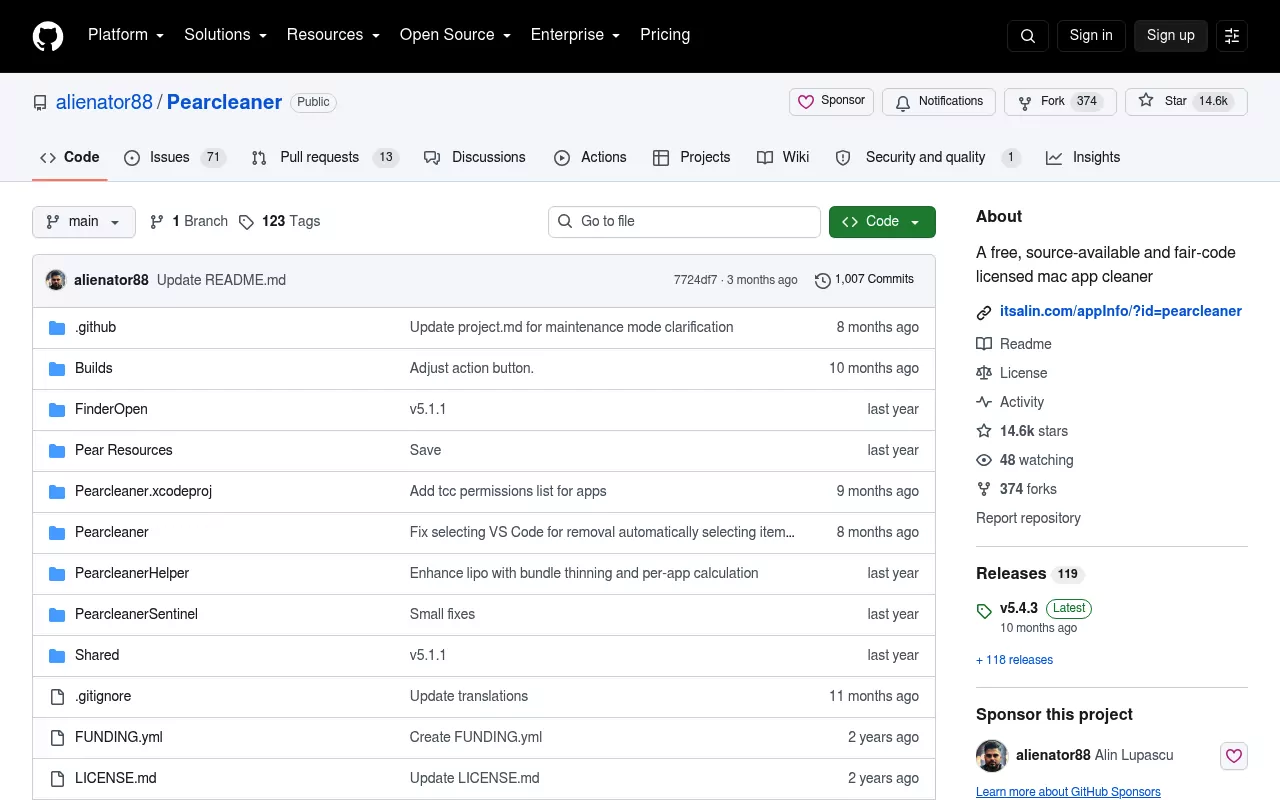
Around that core it stacks extras, none of them new. Version 5.4.3, the last release, includes an orphaned file search for apps you already deleted and a Homebrew manager. It also has a package receipt manager, plus a monitor that offers to clean up when an app hits the Trash.
It asks for Full Disk Access so it can search, and it installs a privileged helper so it can touch system folders. It runs on macOS 13 Ventura and later, and lists Ventura, Sonoma, Sequoia and Tahoe as supported.
Why Mac users look for Pearcleaner alternatives
The main reason is in the project's own README. Development stopped at the end of 2025. The maintainer changed jobs, no longer has a Mac he can use for personal work, and describes new releases as on hold indefinitely. The last release, 5.4.3, is dated 26 November 2025.
The project is not archived and the source is still there. Even so, a tool that installs a privileged helper is one most people want kept current.
Two smaller reasons come up. The licence is Apache 2.0 with the Commons Clause attached, so the project calls itself source available rather than open source. The other is the floor of macOS 13, which rules out an older Mac stuck on Monterey.
The README also warns that a lookalike domain has been handing out a fake build, so a search result is no substitute for the project's own releases page.
The manual method that needs no uninstaller at all
Every tool in this article is a shortcut for one routine. By hand it takes a few minutes per app, and it works on any Mac, on any macOS version, with nothing installed.

1. Quit the app and its background helpers
Quit the app. Then open Activity Monitor, type the app or vendor name in the search field, and look for anything still running. Select it, click the Stop button, then choose Quit. Apple documents this in its Activity Monitor guide.
Helpers are why files reappear after a delete. Updaters and menu bar extras run as separate processes, often under different names.
2. Look for a real uninstaller first
Some apps ship one, and it is the right tool. Open the app's folder in Applications and look for an entry named Uninstall. Apple covers this in Install and uninstall apps from the internet or a disc on Mac.
Security software is the clearest case. Its removal tool unloads system extensions that Finder cannot touch, which is why the Trend Micro removal guide and the Kaspersky removal guide both start there.
3. Remove the app itself
Drag the app from Applications to the Trash. Leave the Trash unemptied until the rest is done, so you can put things back.
Note the app's bundle identifier first. Most leftover files are named after it, not after the app:
osascript -e 'id of app "Sublime Text"'
That returns something like com.sublimetext.4.
4. Clear the per app folders in your Library
In Finder choose Go, then Go to Folder, and type ~/Library. Apple explains the shortcut in Go directly to a specific folder on Mac.
Search each of these for the app name or the identifier, then remove only what clearly belongs to it:
-
~/Library/Application Support/for its data folder -
~/Library/Caches/for a folder named after the identifier -
~/Library/Preferences/for settings files such ascom.vendor.app.plist -
~/Library/Containers/and~/Library/Group Containers/for sandboxed data -
~/Library/Saved Application State/and~/Library/Logs/for window layouts and crash logs -
~/Library/HTTPStorages/and~/Library/WebKit/for cookies and web view data -
~/Library/LaunchAgents/for startup jobs
Then check the system Library, which asks for an admin password. Look in /Library/Application Support/, /Library/LaunchAgents/, /Library/LaunchDaemons/ and /Library/PrivilegedHelperTools/. Helpers and background services land in one of those four.
Command line tools sit outside the Library, so they are easy to miss. A developer app may leave a launcher in /usr/local/bin, the leftover the Sublime Text removal guide tracks down.
5. Turn off leftover login items
Open System Settings, click General, then Login Items and Extensions. On Ventura and Sonoma the pane is called Login Items. Apple documents it in Open items automatically when you log in on Mac.
Remove any entry for the app you deleted. Background entries sometimes stay listed until you restart, so a reboot is a fair last step.
6. Check installer receipts
Apps that arrive as a package installer leave a receipt. List the ones matching a vendor with pkgutil --pkgs | grep -i vendorname, then see what the package put on disk:
pkgutil --files com.vendor.package
Running sudo pkgutil --forget com.vendor.package drops the receipt, and only the receipt, so the files still need removing by hand. Apple's Terminal User Guide covers the basics.
7. What to leave alone
Do not empty whole Library folders. Containers and Application Support hold data for every app you own, so delete only what matches yours.
Leave the System folder alone too. System Integrity Protection blocks writes there by design, as Apple explains in its note on System Integrity Protection. Some Apple apps cannot be removed at all, as the Safari removal guide explains.
Free and paid uninstallers people compare with Pearcleaner

AppCleaner by FreeMacSoft
AppCleaner is a free Mac app uninstaller, and the app Pearcleaner was inspired by. You drag an app onto the window, it lists the files it found, and you confirm. Version 3.6.8 is listed for macOS Mojave up to Tahoe, a wider range than Pearcleaner covers.
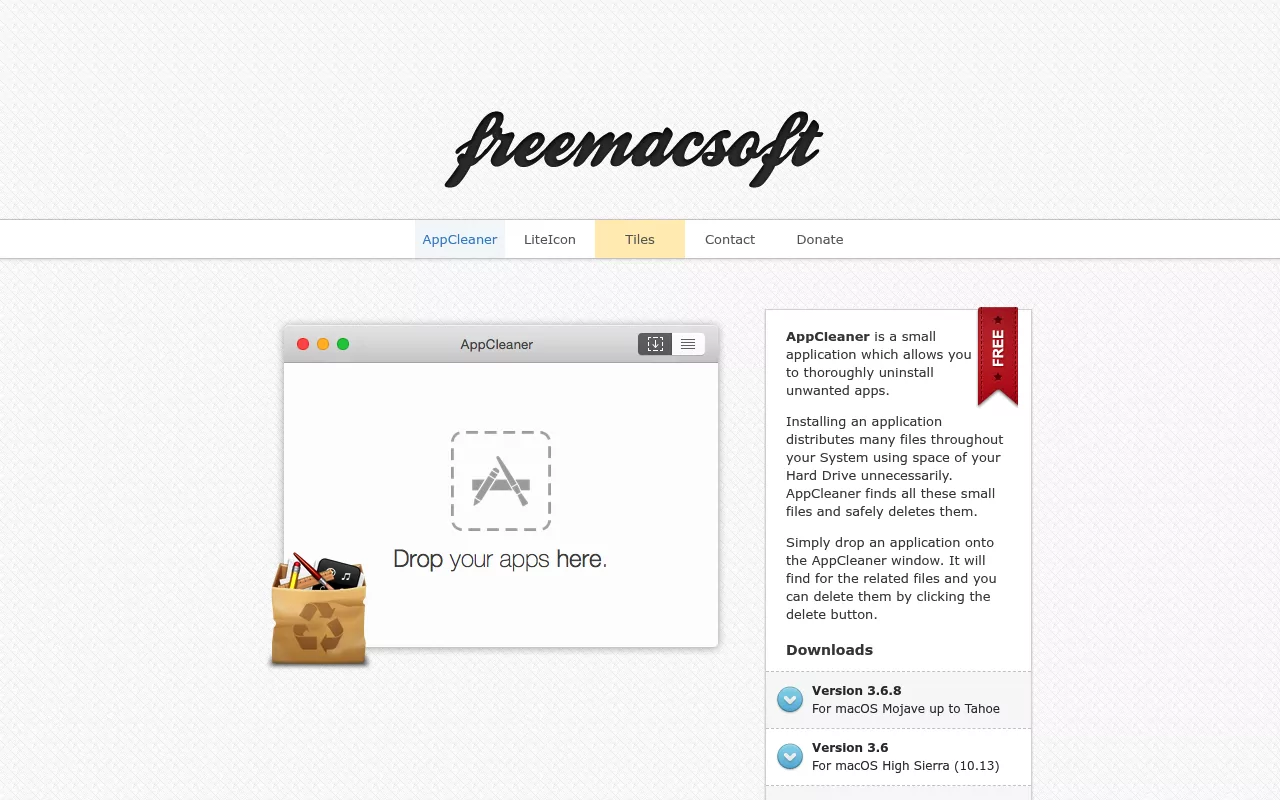
It is free and donation supported. It is not open source, there is no command line, and it matches leftovers by name, so oddly named files can slip past.
App Cleaner and Uninstaller by Nektony
This one is a wider dashboard that lists extensions, startup items and app permissions alongside app removal. The vendor lists support from macOS 11 upward.
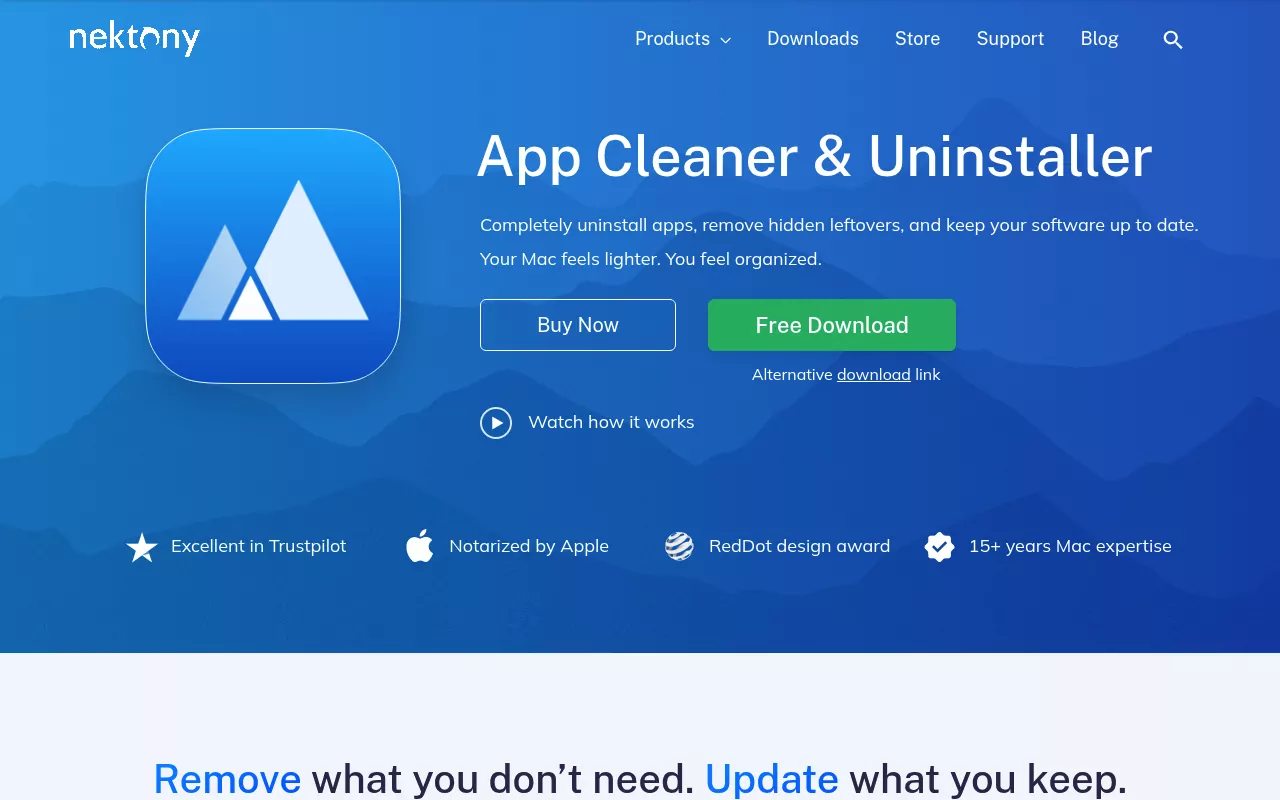
The pricing model matters. A two day trial opens the paid features, and after it ends the free version is limited to scanning and manual cleanup. Paid use is sold either as a subscription, monthly or yearly, or as a one time licence, each covering one, two or five Macs.
Homebrew, for anything you installed with it
If you install Mac apps with Homebrew, the uninstaller is already there. brew uninstall --zap plus the cask name removes the app and the files the cask definition lists.
It is free and open source, and the tidiest option for a cask. Two limits: it only covers apps Homebrew installed, and the manual page warns that zapping "May remove files which are shared between applications".
The app-cleaner shell script
Sun Knudsen's app-cleaner.sh is a short shell script that finds an app's files and moves them to the Trash. Pearcleaner credits it as an inspiration alongside AppCleaner.
It is free and genuinely open source, and reading it teaches you where leftovers live. It now sits in its repository's archive folder, so treat it as a reference, not maintained software.
Comparison at a glance

| Tool | Licence and price | What it is for | Notable limitation |
|---|---|---|---|
| Pearcleaner | Free. Apache 2.0 with Commons Clause | Removing apps, finding orphaned files | On hold; last release 5.4.3, November 2025 |
| AppCleaner | Free, donation supported. Not open source | Drag and drop removal, app plus files | No command line; matches leftovers by name |
| App Cleaner and Uninstaller | Free tier after a two day trial. Paid monthly, yearly, or as a one time licence | A dashboard for apps, extensions, startup items | The free tier stops at scanning |
| Homebrew zap | Free and open source, command line only | Removing a cask and its listed files | Casks only; may remove shared files |
| app-cleaner.sh | Free and open source shell script | A scripted search and trash routine | Archived in its repository, so unmaintained |
| Finder and System Settings | Free, already installed | Every job above, done by hand | Slower; you must know where to look |
Frequently Asked Questions
Is Pearcleaner still being updated?
Not at the moment. The README says development stopped at the end of 2025 and releases are on hold indefinitely, because the maintainer no longer has a Mac for personal work. Version 5.4.3 is the newest release.
Is Pearcleaner open source?
It is source available rather than open source in the strict sense. The licence is Apache 2.0 with the Commons Clause added, which permits reading and changing the code but forbids selling it.
Do I need an uninstaller app to remove a Mac app completely?
No. Finder, System Settings and occasionally Terminal cover every step. An uninstaller saves time when you remove apps often, but it is convenience, not a requirement.
Is it safe to delete files from the Library folder?
It is safe when you delete only items named after the app or its bundle identifier. Do not clear a whole folder such as Caches or Containers, since those hold data for every app. Send items to the Trash and empty it a day later.
What is the difference between Pearcleaner and AppCleaner?
Both accept an app by drag and drop and list its files for review. AppCleaner is closed source, free, and runs on more macOS versions. Pearcleaner needs macOS 13 or later and publishes its source.
Where to go next
These tools are conveniences. None reaches anything you cannot reach yourself in Finder, and none is required to get an app fully off a Mac.
If you would rather follow a checked path for one app, that is what the per app removal guides here are for. Each names the exact files an app installs and where, from a developer editor like Sublime Text to a security suite such as Kaspersky. All by hand, with nothing to install.