Osx Uninstaller Alternatives: Mac Uninstallers Compared, and Doing It Yourself
Osx Uninstaller is a paid Mac app that deletes a program along with the support files, preferences and startup items it left behind. Its licence starts at $29.95 for one Mac. Every job it does can also be done by hand in Finder and System Settings, which is why people look at Osx Uninstaller alternatives before paying.
This page is a survey, not a ranking. It covers what the app does, why people go looking, the full manual method, and the tools people compare it with. The by hand route is the same one this site's per app guides use, whether you are removing a code editor like Sublime Text or a security suite like Kaspersky.

What Osx Uninstaller actually does
Osx Uninstaller is a single window utility sold directly by its developer. You pick an app from the list it shows you, confirm, and it deletes the app bundle plus the files it links to that app. The vendor says it also handles software installed from .dmg, .pkg and .mpkg packages, and that it clears startup entries.
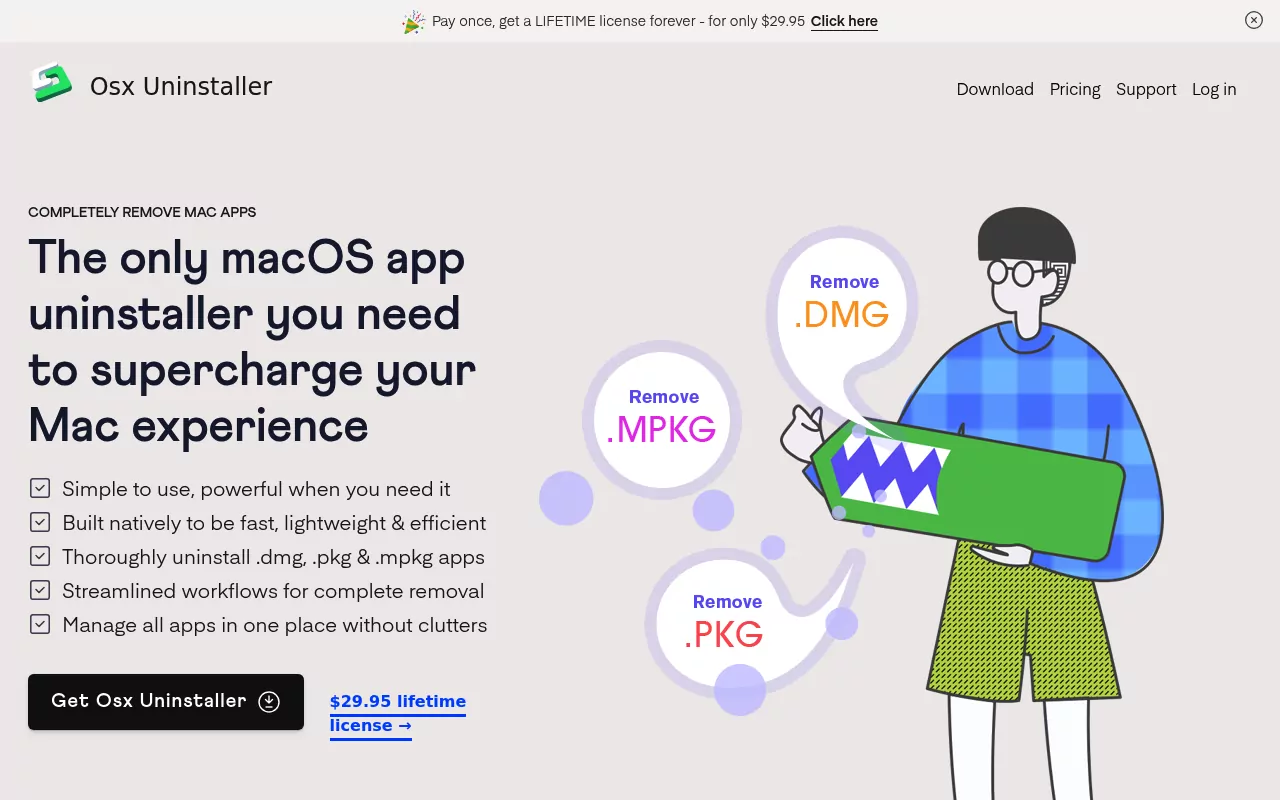
It is sold as a one time licence, not a subscription. The store lists $29.95 for one Mac, $39.95 for three Macs and $49.95 for five Macs. Each is described as a lifetime licence with free updates and support, backed by a 30 day money back guarantee.
Two details are worth knowing before you download it. There is no free trial published on the site, so trying it means buying first and asking for a refund later. And the newest release is labelled Osx Uninstaller 2024, announced in December 2023, with no list of supported macOS versions anywhere on the site.
None of that makes the app bad at its job. It does mean you are buying without a compatibility statement.
Why people look for something else
Price is only part of it. These are the reasons that come up most often in the same searches.
- Cost against free options. Two of the tools people compare are free, and one of those is open source.
- No trial. Paying before you can see whether a tool handles your specific app is a real barrier.
- Version support. macOS keeps changing where things live and how apps register background helpers. A tool that does not say which releases it supports is a gamble on a newer Mac.
- Permissions. Any uninstaller that reaches into system folders needs Full Disk Access, and most install a privileged helper of their own. Not everyone wants to grant that to a cleanup app.
- First launch friction. Downloaded apps have to clear macOS security checks before they open. Apple explains those prompts in its guide to safely opening apps on your Mac.
- Scope creep. Several of these tools have grown into general cleaners with panels you did not ask for.
There is also a limit that applies to every uninstaller, paid or free. macOS keeps no master list tying an app to every file it created. Uninstallers work from naming patterns, bundle identifiers and folders they already know about. That covers most cases, and it can still miss a helper named after something else.
Dragging an app to the Trash removes the bundle and nothing else. Preferences, caches, saved state, logs and any background helper stay exactly where they were. Those files are usually small. They matter when a leftover keeps a process running, or when a reinstall picks up a broken setting.
The manual method that needs none of these
This is the part that vendor articles tend to skip. Everything an uninstaller does can be done with Finder, System Settings and, once in a while, Terminal. Give it five minutes for a normal app. Give it longer for anything that installed a background service.

Step 1: Quit the app and its helpers
Quit the app with Command-Q. Then open Activity Monitor, which lives in the Utilities folder inside Applications. Type the app name in the search field at the top right.
Select anything that matches, click the stop button in the toolbar, then choose Quit. Force Quit is the second ask, not the first. Apple covers this in its guide to quitting a process in Activity Monitor.
Search the developer name too. Menu bar tools, updaters and sync helpers often run under a name you would not recognise.
On macOS Tahoe, when an app leaves background tasks running after you quit it, macOS asks whether those tasks may stay active. Answer no when your plan is to remove the app.
Step 2: Turn off its login and background items
Open System Settings, click General in the sidebar, then click Login Items and Extensions. You may need to scroll down to find it.
Two lists matter here. Open at Login holds what starts when you log in. App Background Activity holds the helpers an app may run while the app itself is closed. Older macOS releases label that second list Allow in the Background.
Turn off every entry that belongs to the app you are removing. Come back to this pane after the app is gone as well, because an entry can linger under the developer name once the app itself has been deleted.
Apps register these helpers through Apple's Service Management framework, which is why they all appear in one place.
Step 3: Look for the vendor's own uninstaller first
Apple's advice is to use the app's own uninstaller when there is one. Look in three places: the app's folder inside Applications, a folder named after the developer, and the original .dmg or .pkg you installed from.
Security software is where this matters most. Those apps install system extensions and network filters that macOS will not let you pull out by hand. The guides here for removing Kaspersky and Trend Micro both start with the vendor tool for that reason.
Run it, then keep going. A vendor uninstaller often removes the app it shipped with and leaves its own launch daemon and helper tool sitting in place.
Step 4: Remove the app itself

Which route you take depends on where the app came from.
- From the App Store. Delete it in Finder, and download it again later from your purchases if you change your mind. Apple documents both halves in its guide to installing and uninstalling App Store purchases.
- With its own uninstaller. Run that first, as in step 3.
- Everything else. Open Applications in Finder, select the app, then press Command-Delete or choose File then Move to Trash. Enter your admin password if macOS asks, and empty the Trash when you are done.
If you used to delete apps in Launchpad, that route has changed. Through macOS Sequoia you could hold Option in Launchpad and click the delete badge, but only on apps that came from the App Store. macOS Tahoe replaced Launchpad with the apps view in Spotlight, which you open with Command-1 and which has no delete control. Finder is the reliable route now.
Some apps cannot be removed this way at all. Apple protects the apps that ship with macOS, which is why the guide here on uninstalling Safari turns into a piece about what to do instead.
Step 5: Sweep the folders where leftovers live

Your personal Library folder is hidden by default. In Finder, hold Option and choose Library from the Go menu. You can also press Shift-Command-G and go straight to a folder by typing its path.
Check these folders in your home Library, in this order:
- ~/Library/Application Support/ holds the app's own data, in a folder named after the app or the developer.
- ~/Library/Caches/ holds cache folders, usually named with the bundle identifier, such as com.vendor.appname.
- ~/Library/Preferences/ holds settings files, in the form com.vendor.appname.plist.
- ~/Library/Containers/ and ~/Library/Group Containers/ hold the data of sandboxed apps, which includes most App Store apps.
- ~/Library/Saved Application State/ holds window state folders ending in .savedState.
- ~/Library/Logs/ holds log files, again named after the app or the developer.
- ~/Library/HTTPStorages/ and ~/Library/Cookies/ hold stored web data for apps that sign you in.
- ~/Library/WebKit/ holds data for apps built around a web view.
- ~/Library/LaunchAgents/ holds the file that starts a helper when you log in.
Then check the machine wide locations. These need your admin password, and Go to Folder is the quickest way in.
- /Library/Application Support/ and /Library/Preferences/ for anything installed for all users.
- /Library/LaunchAgents/ and /Library/LaunchDaemons/ for background services.
- /Library/PrivilegedHelperTools/ for the helper an installer set up to do admin work.
- /usr/local/bin/ for command line shortcuts. The subl command is a good example, and the Sublime Text removal guide covers that case.
Match on the bundle identifier, not on a single word. A folder called com.vendor.appname belongs to that app. A folder called Vendor may hold data for three other apps from the same company, and deleting it takes all of them with it.
Move what you find to the Trash instead of deleting it outright. Leave the Trash unemptied for a few days and use the Mac normally. If nothing complains, empty it. Export anything you want to keep first, such as licence keys or project files.
Step 6: Confirm nothing is still running
Restart the Mac, then check three things. This is the step people skip.
- Activity Monitor: search the app and developer name again. Nothing should match.
- Login Items and Extensions: no entry for the app, and nothing left under the developer name.
- A Finder search inside your Library folder for the app name, with nothing left but files you chose to keep.
Terminal is optional. If you are comfortable there, three read only commands are useful. The command launchctl list shows loaded agents and daemons. The command pkgutil --pkgs lists installer receipts. The command systemextensionsctl list shows system extensions that are still registered. Pipe any of them through grep with the developer name.
If you would rather watch than read, video walkthroughs of these same Finder steps are easy to find. Nothing above needs one.
The stubborn cases people buy an uninstaller for
Three situations account for most of the frustration, and each has a fix.
macOS says the app is still open. Something is holding it. Quit it from Activity Monitor, check the Login Items pane, and look for a menu bar icon or a Finder extension from the same developer. Logging out and back in clears most of these.
A helper keeps relaunching itself. A launch agent with a keep alive setting restarts the process the second you stop it. Order matters here. Stop it, then delete the file that starts it, then restart the Mac. In Terminal that is launchctl bootout gui/$(id -u)/com.vendor.helper for a user agent, and sudo launchctl bootout system/com.vendor.helper for a system daemon.
The vendor uninstaller left its own daemon. Check /Library/LaunchDaemons and /Library/PrivilegedHelperTools after running one. Security tools are the usual case, and the Trend Micro guide walks through that exact pattern.
One warning. Do not hand delete a system extension or a network filter. Those sit in places that System Integrity Protection guards, and forcing them out can leave your Mac worse off than the app did. Use the developer's removal tool, then confirm the extension is gone in Login Items and Extensions.
Osx Uninstaller alternatives people compare it with
These are the tools that show up in the same searches. What follows describes each one, with no ranking and no pick. Prices and version numbers were checked in September 2026 and change often.
AppCleaner
AppCleaner from FreeMacSoft is usually the first name mentioned, mostly because it is free and has been around for years. You drag an app onto its window, it lists the related files it found, and nothing moves until you approve the list.
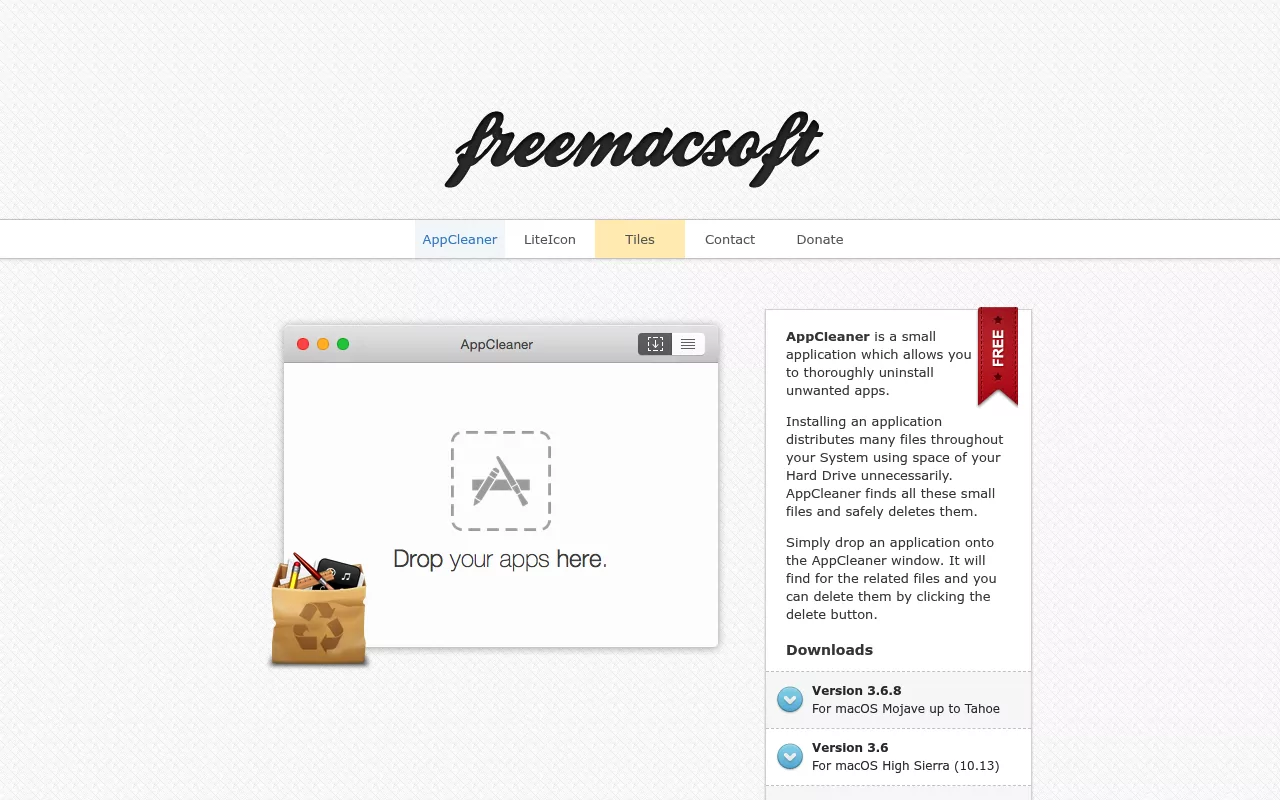
The current version is 3.6.8, listed for macOS Mojave through Tahoe. Older builds stay available for older systems: 3.6 for High Sierra, 3.4 for macOS 10.10 to 10.12, and 2.3 for 10.6 to 10.9.
Licence and price: free, with a donation link on the developer's site.
Limitation: it works from what it can associate with the app you hand it. Installer receipts and system extensions sit outside that, and the site documents so little that there is not much to check before you run it.
Pearcleaner
Pearcleaner is the open source option, with its code published under the Apache 2.0 licence plus the Commons Clause. That combination allows changes and contributions but not selling it.
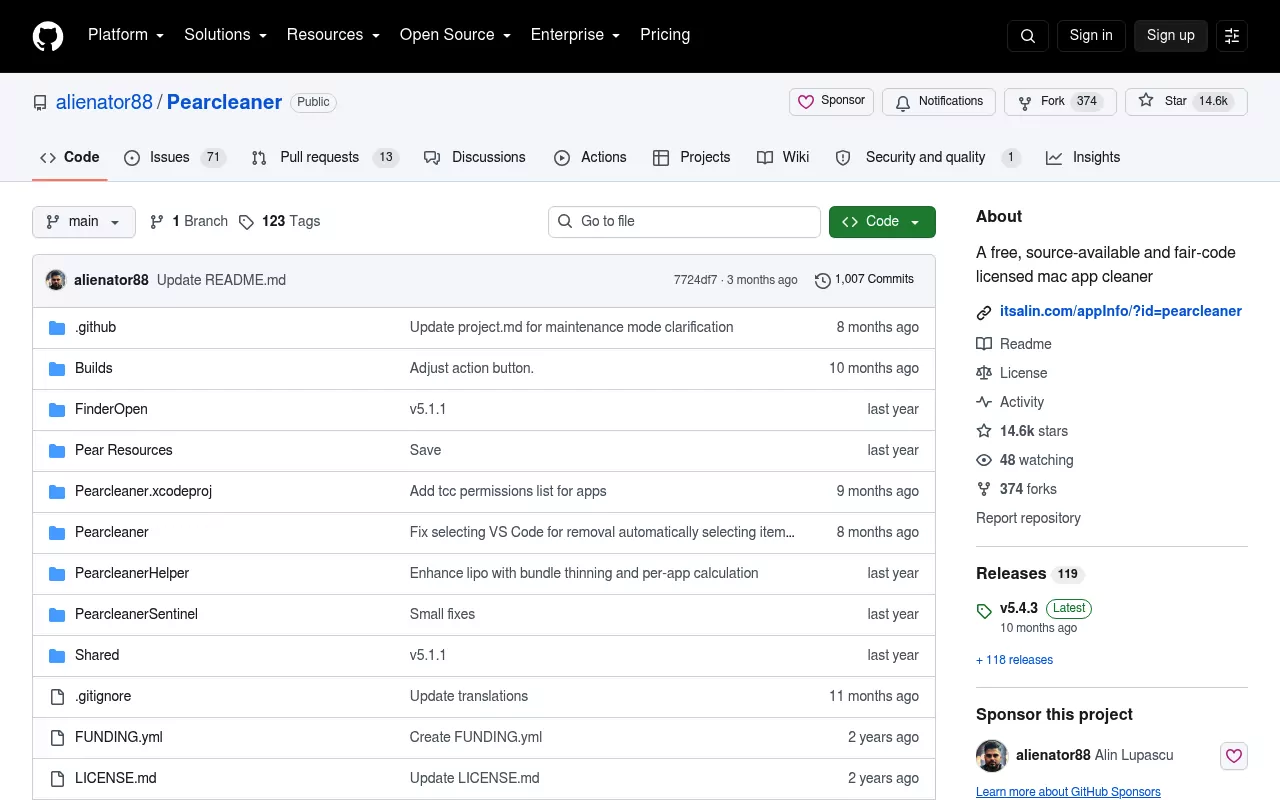
It uninstalls apps, searches for orphaned files left by apps that are already gone, and adds a right click action in Finder. A feature called Sentinel can react when you move an app to the Trash. Version 5.4.3 requires macOS 13 Ventura or later, asks for Full Disk Access so it can search, and installs a privileged helper for anything in system folders.
Licence and price: free.
Limitation: the developer has paused work on the project and says he has no Mac for personal development at the moment. Open source means someone else can pick it up, but do not count on day one support for a new macOS release.
App Cleaner and Uninstaller by Nektony
This one is freemium. A two day trial unlocks the paid features. After that the free version keeps scanning and showing what it found, but the one click removals and batch actions stop.
It also manages extensions, startup items and app permissions. Nektony lists support for macOS 11 through 27.
Licence and price: the vendor's store listed 12.84 euros per year for one Mac in September 2026, with plans covering one, two or five Macs.
Limitation: it is a recurring cost, and the free mode stops just short of the job most people downloaded it to do.
AppZapper
AppZapper is the old drag and drop uninstaller, now sold as AppZapper 3000 at version 1.0. You drag one or more apps in, it finds the caches, preferences and support files, and one click removes them together.
It requires macOS 15 or later. The trial gives you three removals before you have to buy a licence.
Licence and price: one time purchase. $18 for a single user on one Mac, $29 for a family pack covering five Macs, and $99 for up to 25 Macs.
Limitation: it acts on the apps you hand it. The current description says nothing about leftovers from apps you deleted months ago, and the macOS 15 requirement rules out older machines.
TrashMe
TrashMe from Jibapps is a paid uninstaller with cleanup tools attached, including cache cleaning. TrashMe 3 is the current version, and the developer keeps 2.1.23 available as a legacy build. The download page lists macOS 10.7 or later on a 64 bit processor.
The trial is limited to five uninstallations.
Licence and price: $17.99 as a one time purchase on the Mac App Store.
Limitation: the extra cleaning features come with it. If app removal is all you want, you are paying for the rest of the toolbox too.
What macOS already gives you
The last option is the one with no download. Finder removes the app, the Login Items and Extensions pane handles background helpers, and the App Store handles anything you bought there. Nothing to install, no extra permissions to grant, and no compatibility question the next time macOS updates.
Licence and price: included with your Mac.
Limitation: you do the searching. That is a real cost in time, and it is the whole reason the tools above exist.
Comparison at a glance
| App | Licence and price | What it is for | Notable limitation |
|---|---|---|---|
| Osx Uninstaller | One time. $29.95 for 1 Mac, $39.95 for 3, $49.95 for 5. | Picking an app from a list and removing it with its files. | No trial, and no published macOS compatibility list. |
| AppCleaner | Free, donations invited. | Drag and drop removal with a file list you approve. | Skips installer receipts and system extensions. |
| Pearcleaner | Free and open source, Apache 2.0 with Commons Clause. | Removal plus orphaned file search on macOS 13 or later. | Development is paused by the author. |
| App Cleaner and Uninstaller | Freemium. 12.84 euros per year for 1 Mac. | Removal, extensions, startup items and permissions. | Free mode stops before one click removal. |
| AppZapper | One time. $18 for 1 Mac, $29 for 5, $99 for 25. | Fast drag and drop removal of apps you hand it. | Needs macOS 15 or later. |
| TrashMe | One time. $17.99 on the Mac App Store. | Removal bundled with cache and cleanup tools. | You pay for the cleanup features as well. |
| Finder and System Settings | Included with macOS. | The full manual method described above. | You do the searching yourself. |
Frequently Asked Questions
Is it safe to delete the files an uninstaller lists?
Usually, and one habit makes it safer. Move files to the Trash and leave them there for a few days before emptying it. Be careful with folders named after a company rather than an app, because two apps from the same developer often share one.
Is a free Mac uninstaller enough?
For everyday apps, yes. The free tools find related files and remove them in one pass. Paid tools mostly add batch removals, extension management and someone to email when it goes wrong.
Will removing the leftovers break the app if I reinstall it later?
No, but it will forget you. Sign in state, preferences and window layout live in those files. A reinstall then behaves like a fresh install, which is usually the point when you are reinstalling to fix a problem.
What does macOS remove when I drag an app to the Trash?
The application bundle, and nothing else. Support files, caches, preferences, saved state and any background helper stay on disk. That is why the sweep in step 5 exists, and why Apple suggests checking for a vendor uninstaller before you drag.
Why does an app keep coming back after I delete it?
A launch agent or daemon is restarting it. Turn the item off in Login Items and Extensions, remove the matching file in ~/Library/LaunchAgents or /Library/LaunchDaemons, then restart the Mac. Check Activity Monitor once it comes back up.
Can I uninstall the apps that came with my Mac?
Not through Finder. macOS protects its built in apps, so the practical move is to change your default app, hide it, or restrict it with Screen Time. Apple also documents which apps cannot be deleted in Finder.
Where to go from here
Whether an uninstaller is worth paying for comes down to volume. Removing one app a month is a Finder job, and the six steps above cover it. Clearing twenty apps off a machine you inherited is where a tool earns its price.
The other route is to follow a guide written for the exact app you are removing, which names the specific files that app leaves behind. That is what the rest of this site is: per app removal guides, done by hand, with nothing to install. The ones people arrive here for most are Sublime Text, Kaspersky and Trend Micro.