App Cleaner & Uninstaller Alternatives for Mac, Including the Free Manual Route
App Cleaner & Uninstaller is a paid Mac app from Nektony. It deletes an app together with the support files it leaves behind, and it lists login items, launch agents and extensions in one window. Every one of those jobs can also be done by hand, with Finder and System Settings.
So a search for App Cleaner & Uninstaller alternatives has two honest answers. One is a different uninstaller app. The other is the route macOS already gives you, which costs nothing and installs nothing. This page covers both, and it does not pick a winner. Prices and version numbers here were checked on 9 September 2026.
What App Cleaner & Uninstaller actually does
Nektony ships the app as one window with five tabs. Each tab handles a different kind of clutter, and the app cleaner and uninstaller name only really covers the first one.
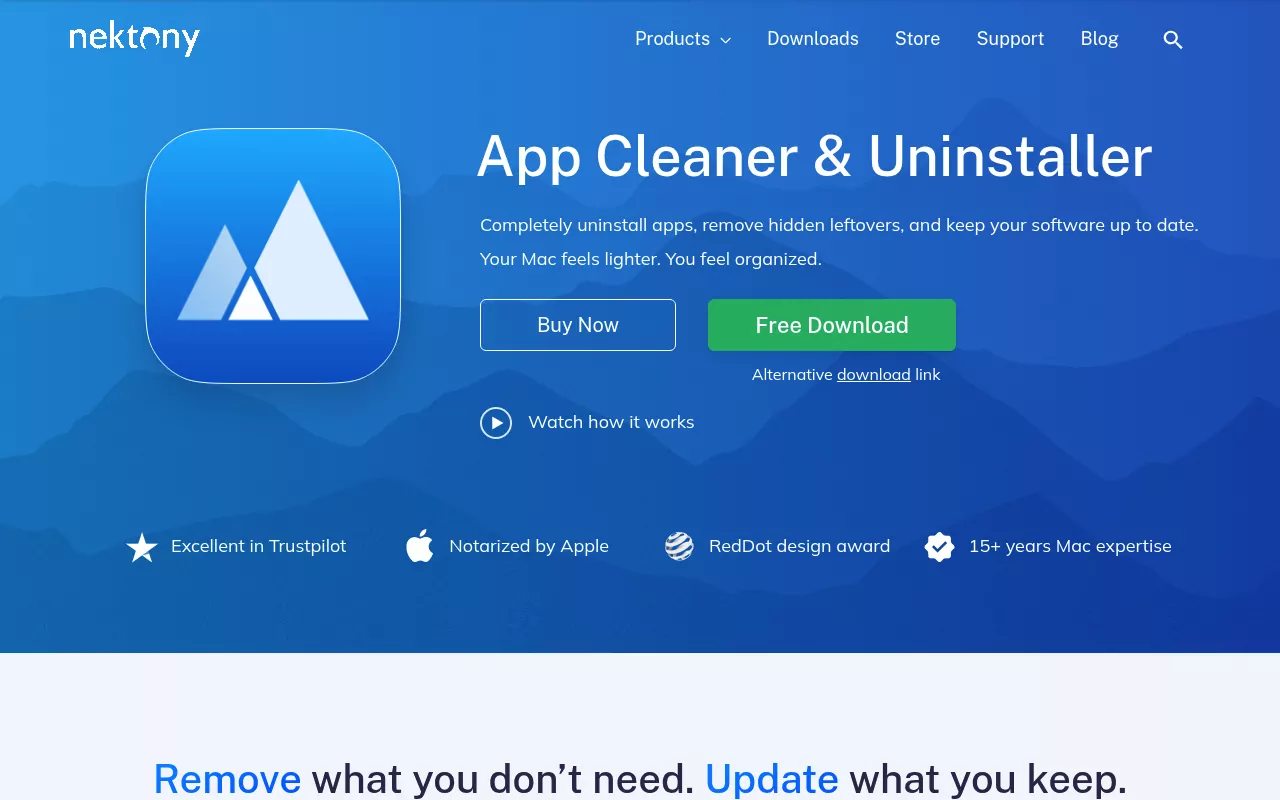
- Applications. Pick an app, see the files that belong to it, and delete them together.
- Updates. A list of installed apps with newer versions available.
- Startup Programs. Login items, background apps and system daemons in one list.
- Extensions. Preference panes, plugins and widgets.
- Security. A permissions audit, plus a check of whether an app is notarised by Apple.
Nektony says the app knows more than 20,000 third party apps, so it can group files by app instead of making you guess. It runs on macOS 11 and later.
The free download scans and previews only. It shows you every service file it found, but deleting the full set needs the paid Pro version. Nektony lists Pro at $7.95 a month, $14.95 a year, or $34.95 as a one time purchase, with a two day trial of all features.
Video walkthroughs of those five tabs are easy to find, so there is no need to narrate the interface here.
Why people look for App Cleaner & Uninstaller alternatives
Nobody switches tools for no reason. These are the reasons that come up, and none of them makes the app bad.
- The free tier only looks. You can see the leftovers, but you cannot remove them until you pay.
- Subscription fatigue. A monthly or yearly fee feels heavy for a job most people do a few times a year.
- More app than the job needs. If you only wanted to remove one app cleanly, four extra modules are noise.
- Older Macs. A Mac stuck below macOS 11 cannot run the current version at all.
- Permission prompts. Any tool that touches the system Library asks for Full Disk Access and an admin password. Some people would rather not grant that to a third party.
- It is optional. Once you have seen where the files live, doing it yourself takes a few minutes.
That last point is the one the rest of this page is built on. If you only read one section, read the next one.
The manual method that needs none of these
An uninstaller app bundles three jobs: delete the app and its files, switch off the parts that start by themselves, and hunt down leftovers from apps you removed long ago. Here is each job done by hand. Everything below uses Finder, System Settings and, in two places, Terminal.

Step 1: Remove the app the way it arrived
Quit the app first. Check the menu bar too, because helper icons often keep running after the main window closes.
Then open Finder and click Applications in the sidebar. If the app came as a folder, open it and look for an uninstaller inside. Vendors of large apps often ship one, and it usually removes more than the Trash can reach. Apple describes both routes in Install and uninstall apps from the internet or a disc on Mac.
If there is no uninstaller, drag the app to the Trash and empty it. Apps you bought from the App Store can go the same way. A few Apple apps cannot be removed at all, which is why uninstalling Safari on a Mac works differently from uninstalling anything else.
Security software is the other exception. It installs system extensions and helper tools that a drag to the Trash never touches, so the vendor's own steps come first. The guide to removing Kaspersky on a Mac shows how much of that work sits outside the Applications folder.
Step 2: Check the folders where apps keep their files
Dragging an app to the Trash removes the app. It does not remove the folders the app wrote into your Library. Open Finder, then choose Go and Go to Folder, or press Shift-Command-G. Apple explains the shortcut in Go directly to a specific folder on Mac.
Type a path, press Return, and look for anything carrying the app's name or the vendor's name. These are the folders in your own Library that hold app files:
- ~/Library/Application Support/
- ~/Library/Caches/
- ~/Library/Preferences/
- ~/Library/Containers/
- ~/Library/Group Containers/
- ~/Library/Application Scripts/
- ~/Library/Saved Application State/
- ~/Library/HTTPStorages/
- ~/Library/WebKit/
- ~/Library/Logs/
Four more sit at the machine level, and they need an admin password:
- /Library/Application Support/
- /Library/Caches/
- /Library/Preferences/
- /Library/PrivilegedHelperTools/
Two rules keep this safe. Delete only items whose names match the app or its maker, and never delete a Library folder itself. A preference file looks like com.vendor.appname.plist, and a saved state folder looks like com.vendor.appname.savedState.
Some apps also drop a command outside Library, usually in /usr/local/bin. That is how a text editor leaves a working shell command behind after the app is gone, which is the trap in uninstalling Sublime Text on a Mac.

Step 3: Switch off login items and background items
Open the Apple menu, choose System Settings, click General, then click Login Items & Extensions. Apple documents this pane in Change Login Items & Extensions settings on Mac.
Two lists matter here. Open at Login holds the apps and files that launch when you log in. Select a line and click the minus button to remove it. Below that, background activity holds the apps allowed to keep working after you close them. Switch off anything belonging to software you have removed.
A warning marker next to a login item means the item was moved or deleted, so the entry is a leftover pointing at nothing. Removing it is safe and tidies the list.

Step 4: Delete the launch agents and daemons a vendor added
Background helpers do not live in Login Items. They live in small .plist files that macOS reads at startup. Three folders are yours to manage:
- ~/Library/LaunchAgents/
- /Library/LaunchAgents/
- /Library/LaunchDaemons/
Each file is named after the job it starts, so an updater for a removed app looks like com.vendor.updater.plist. Delete the file for software you no longer have. The two folders at the root of the disk ask for an admin password.
Leave /System/Library/LaunchAgents and /System/Library/LaunchDaemons alone. Those belong to macOS, they are protected, and nothing you installed lives there. Apple's Creating Launch Daemons and Agents reference lists which folder is used for what.
Deleting the file stops the job from starting next time you log in. Restart once, and it is gone for good. If you would rather disable a launch agent than delete it, move the file to your Desktop and restart, then put it back if something breaks. Antivirus and backup tools are the usual owners of these files, and the walkthrough for removing Trend Micro on a Mac shows how many pieces one security suite can leave running.
Step 5: Match leftovers to their app with the bundle identifier
Every Mac app has a bundle identifier, a reverse domain name like com.apple.Safari. Leftover files are usually named after it, which turns guesswork into a search. Open Terminal from Applications, then Utilities. Apple's Terminal User Guide covers the basics if you have never used it.
While the app is still installed, read its identifier:
mdls -name kMDItemCFBundleIdentifier /Applications/AppName.app
If the app is already gone, take the identifier from any file you found in ~/Library/Preferences. The name of that file is the identifier.
Now find everything that carries it. This lists matches in both Library folders:
find ~/Library /Library -maxdepth 3 -iname "*com.vendor.appname*" 2>/dev/null
Launch files hide the identifier inside the file rather than in its name, so search their contents too:
grep -rl "com.vendor.appname" ~/Library/LaunchAgents /Library/LaunchAgents /Library/LaunchDaemons 2>/dev/null
Read the results before you delete anything. Both commands only print paths, so nothing is removed until you say so.

Step 6: Confirm nothing is still running
Open Activity Monitor and type the vendor name in the search box. An empty result means no process of theirs is alive. In Terminal, this does the same for background jobs:
launchctl list | grep -i vendorname
Then restart the Mac, reopen Login Items & Extensions, and empty the Trash. If the list is clean after a restart, the app is fully gone. That final check is the part people skip, and it is the part that proves the work.
Apps people compare it with
These are the tools that come up next to App Cleaner & Uninstaller. They are listed alphabetically, not in order of merit, and the descriptions below are neutral on purpose. What matters is what each one does, what it costs, and where it stops.
AppCleaner by FreeMacSoft
The best known free option, and the reason people search for an appcleaner alternative in the first place. Drag an app onto its window and it lists the matching files it found, then deletes the ones you keep ticked. Version 3.6.8 covers macOS Mojave up to Tahoe, and the developer's site asks only for an optional donation.
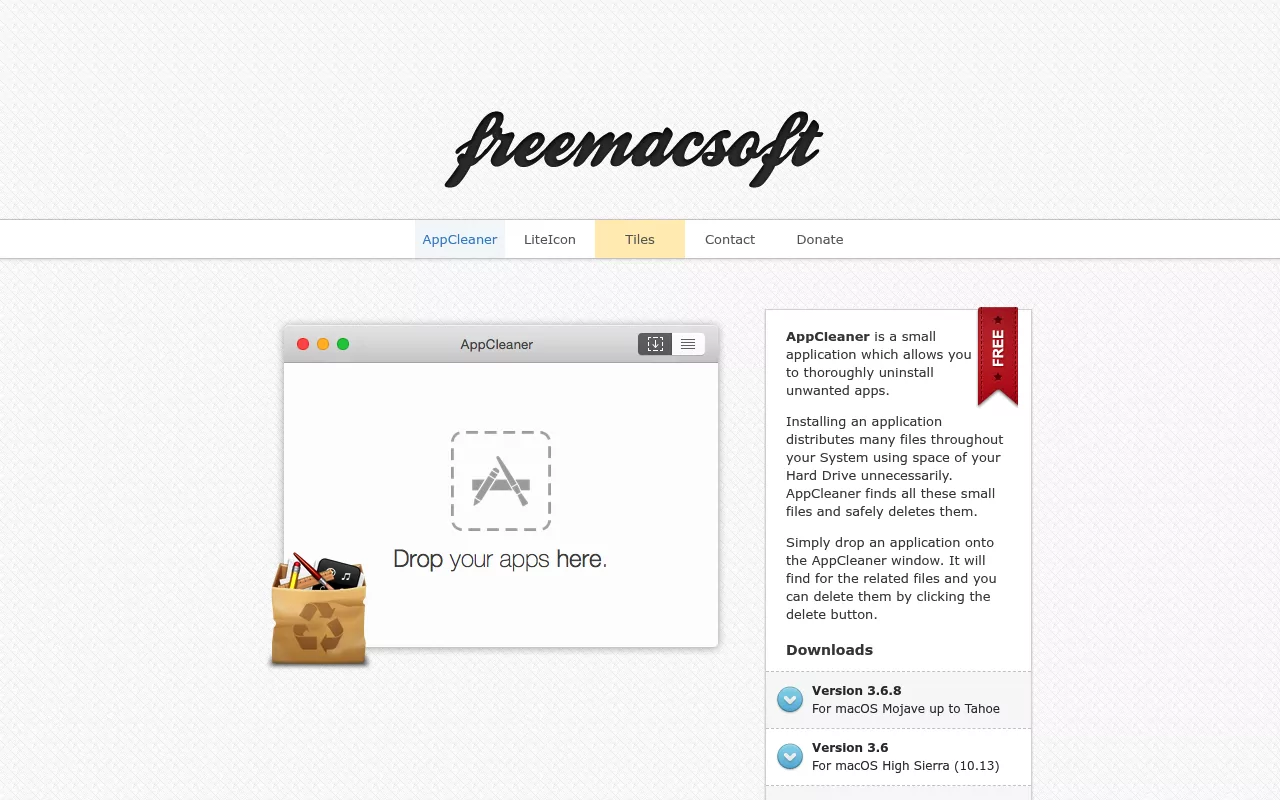
Limitation: it works from the app, so an app you already trashed is largely invisible to it. There is no login item or launch daemon view.
AppZapper 3000
An old name relaunched. The first AppZapper shipped in 2006, and the current release is version 1.0 of AppZapper 3000, which needs macOS 15 or later. You drag apps in, review the files it finds, and zap them. You get three free removals to test it, then a licence costs $18 for one Mac, $29 for up to five, or $99 for up to 25, paid once.
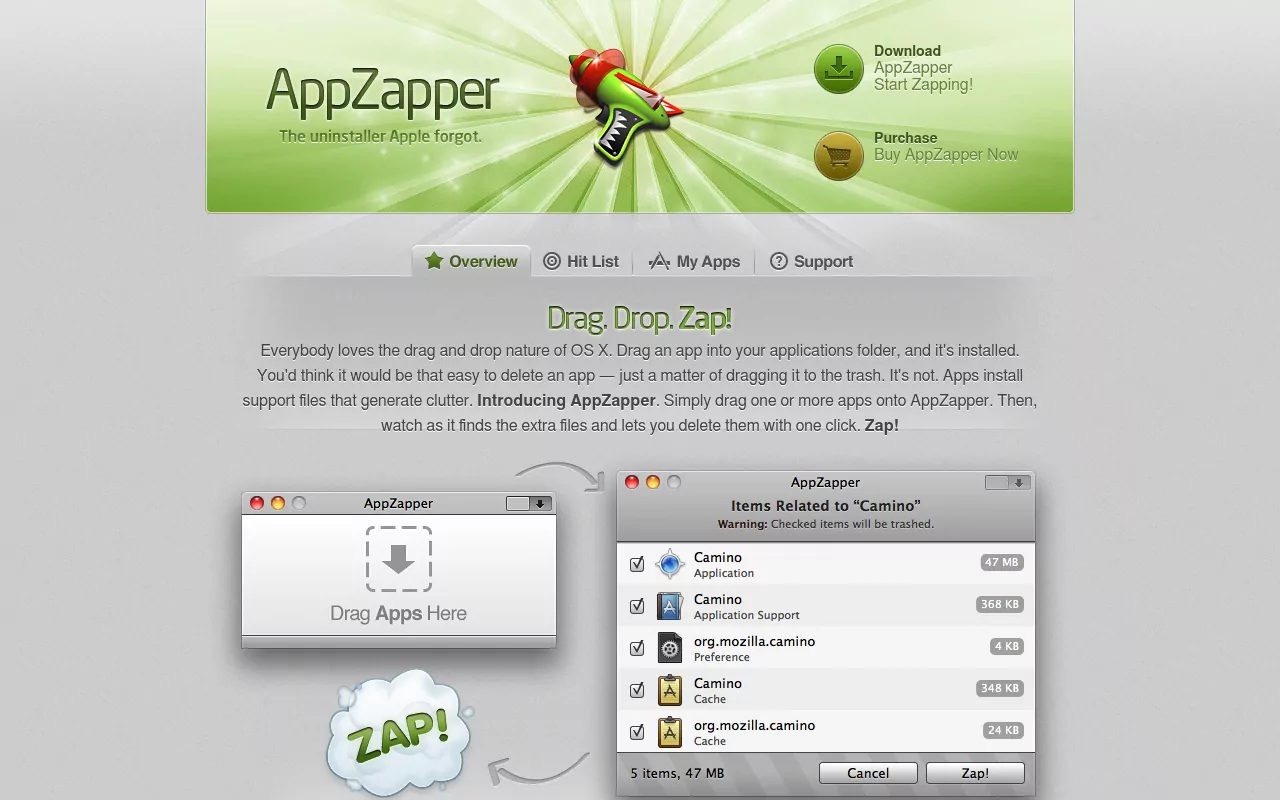
Limitation: the macOS 15 floor rules out older Macs, and the drag in model shares AppCleaner's blind spot for apps already deleted.
Osx Uninstaller
A paid removal tool sold as a flat lifetime licence at $29.95, with a 30 day money back guarantee. It targets apps installed from .dmg, .pkg and .mpkg packages, lists what is installed, then analyses and removes the files tied to your choice.
Limitation: the site does not publish a supported macOS range, and there is no free tier to try, so the refund window is the only way to test it.
Pearcleaner
A free, source available Mac uninstaller under the Apache 2.0 licence with the Commons Clause, so you can read and modify the code but not sell it. It removes apps and their files, finds orphaned files whose parent app is gone, and manages Homebrew installs. It needs macOS 13 or later, Full Disk Access to search, and a privileged helper for system folders. Install it directly or with Homebrew.
Limitation: the last release, 5.4.3, landed in November 2025, and the project describes development as on hold since the end of that year.
TrashMe 3
A paid uninstaller that also does wider cleanup, including duplicate files. Version 3.7.5 shipped in January 2026, requires macOS 10.13 or later, and is notarised by Apple. It sells for $17.99 on the United States Mac App Store, and the developer sells it directly too, with a 15 day trial.
Limitation: the App Store copy needs a separate free extension before it can delete files that require an admin password.
The removal paths already in macOS
Worth naming as an option, because it is the one every Mac already has. Finder handles the app, System Settings handles the startup items, and Terminal handles the search when a name is not enough. It costs nothing, adds no software, and asks for no permissions beyond your own admin password.
Limitation: it is manual. You check the folders yourself, and on a Mac with hundreds of apps that adds up.
Comparison at a glance
| App | Licence and price | What it is for | Notable limitation |
|---|---|---|---|
| App Cleaner & Uninstaller | Free to scan; Pro $7.95 a month, $14.95 a year or $34.95 once | App removal plus startup items, extensions, updates and a permissions audit | Free version cannot delete; needs macOS 11 or later |
| AppCleaner | Free, optional donation | Removing an installed app and its matching files | No startup item view; little help once the app is deleted |
| AppZapper 3000 | Three free removals; $18 one Mac, $29 five Macs, $99 twenty five Macs | Drag and drop app removal | Needs macOS 15 or later |
| Osx Uninstaller | $29.95 once, lifetime licence | Removing apps that came from .dmg, .pkg and .mpkg packages | No free tier; no published macOS version range |
| Pearcleaner | Free, source available, Apache 2.0 with Commons Clause | App removal, orphaned file cleanup and Homebrew management | Development on hold since late 2025; needs macOS 13 or later |
| TrashMe 3 | $17.99 on the United States Mac App Store; 15 day trial direct | App removal plus broader cleanup such as duplicates | App Store copy needs a free extension for admin level files |
| Finder, System Settings and Terminal | Free, already installed | All three jobs, done by hand | Manual, so it takes your time instead of money |
Frequently Asked Questions
Do I need a cleaner app to uninstall software on a Mac?
No. Finder removes the app, System Settings removes its startup items, and Terminal finds the rest. A paid tool saves time when you remove apps often. It is a convenience, not a requirement.
Is it safe to delete files from the Library folder?
It is safe when you delete by name. Remove only items that carry the app's name or its bundle identifier, and never remove a Library folder itself. Files land in the Trash first, so you can put one back if you change your mind.
Is the free version of App Cleaner & Uninstaller enough?
Only for looking. The free download scans an app and shows every service file it found, which is useful on its own. Deleting that full set needs the paid Pro version.
Will clearing leftovers break the app if I reinstall it later?
No, but it will forget you. Preferences, licence details and saved sessions live in those folders, so a fresh install starts blank. Keep the preference file if you want your settings back, and sign in again for licences.
What does macOS do when I drag an app to the Trash?
It deletes the app bundle and nothing else. Caches, preferences, containers, login items and launch agents all stay where they are. That gap is the whole reason uninstaller apps exist.
Why does an app keep running after I delete it?
Because a launch agent or daemon is still starting it. Look in ~/Library/LaunchAgents, /Library/LaunchAgents and /Library/LaunchDaemons for a .plist file named after the app, delete it, then restart. Check Activity Monitor afterwards to confirm.
Where to go from here
Pick a tool if it saves you time. Skip all of them if it does not, because the manual route reaches every file they reach. The only real difference is who does the looking.
Either way, the per app detail is what lets you uninstall an app completely, since every app hides its pieces somewhere slightly different. That is what the guides on this site are for: one app at a time, real paths, done by hand, with nothing to install. Start with the app that is bothering you, whether that is Sublime Text, Trend Micro or something else on the list.