How to Uninstall Kaspersky on Mac
To uninstall Kaspersky on Mac, open the app, choose Help then Support in the menu bar, and click Uninstall. Enter an administrator name and password when macOS asks. If that fails, use Kaspersky's free kavremover-mac tool. Both routes take off the system extension and background parts that a Trash drag leaves behind.
Most people asking how to uninstall Kaspersky on Mac are not browsing. They are blocked. Another antivirus will not install, because it reports that Kaspersky is still there. That is almost always one leftover part, not the whole app. Steps 3 and 4 deal with it.

Why dragging Kaspersky to the Trash does not work
Kaspersky is not one simple app bundle. At first launch it asks you to grant a few permissions. Kaspersky calls that screen the Essential Protection window.
For Kaspersky for Mac 25, those are full disk access, a system extension that inspects URLs and network packets, network content filtering, and a scan of encrypted web traffic.
The app also runs parts that load with macOS, and it can add an add-on to Chrome and Firefox. None of that sits inside the icon in your Applications folder.
So drag the app to the Trash and the extension stays registered. The background parts stay too. That leftover is what another security app finds when it will not install.
Step 1: Uninstall Kaspersky on Mac with the app's own uninstaller
Start here every time. The built-in uninstaller knows where the extension and background parts live, so it takes them off cleanly. You will be asked for an administrator name and password. That prompt is normal. The route depends on your product, so pick the one that matches.
Kaspersky for Mac 25, and the Standard, Plus and Premium subscriptions
These steps come from Kaspersky's Uninstall application page for Kaspersky for Mac 25, article ID 118671, dated 22 October 2024. Kaspersky's removal hub for home products sends Standard, Plus and Premium to that same page.
- Open the Kaspersky app. In the menu bar, choose Help, then Support.
- In the dialog that opens, click Uninstall. The uninstaller starts.
- In the uninstaller window, click Uninstall again.
- Enter an administrator name and password, then confirm.
- Read the uninstall notes, then click Quit.
Kaspersky says on that page that you do not have to restart afterwards. It also notes that removal leaves the Kaspersky add-on in Chrome and Firefox, which Step 5 covers.
Kaspersky Internet Security 21 for Mac
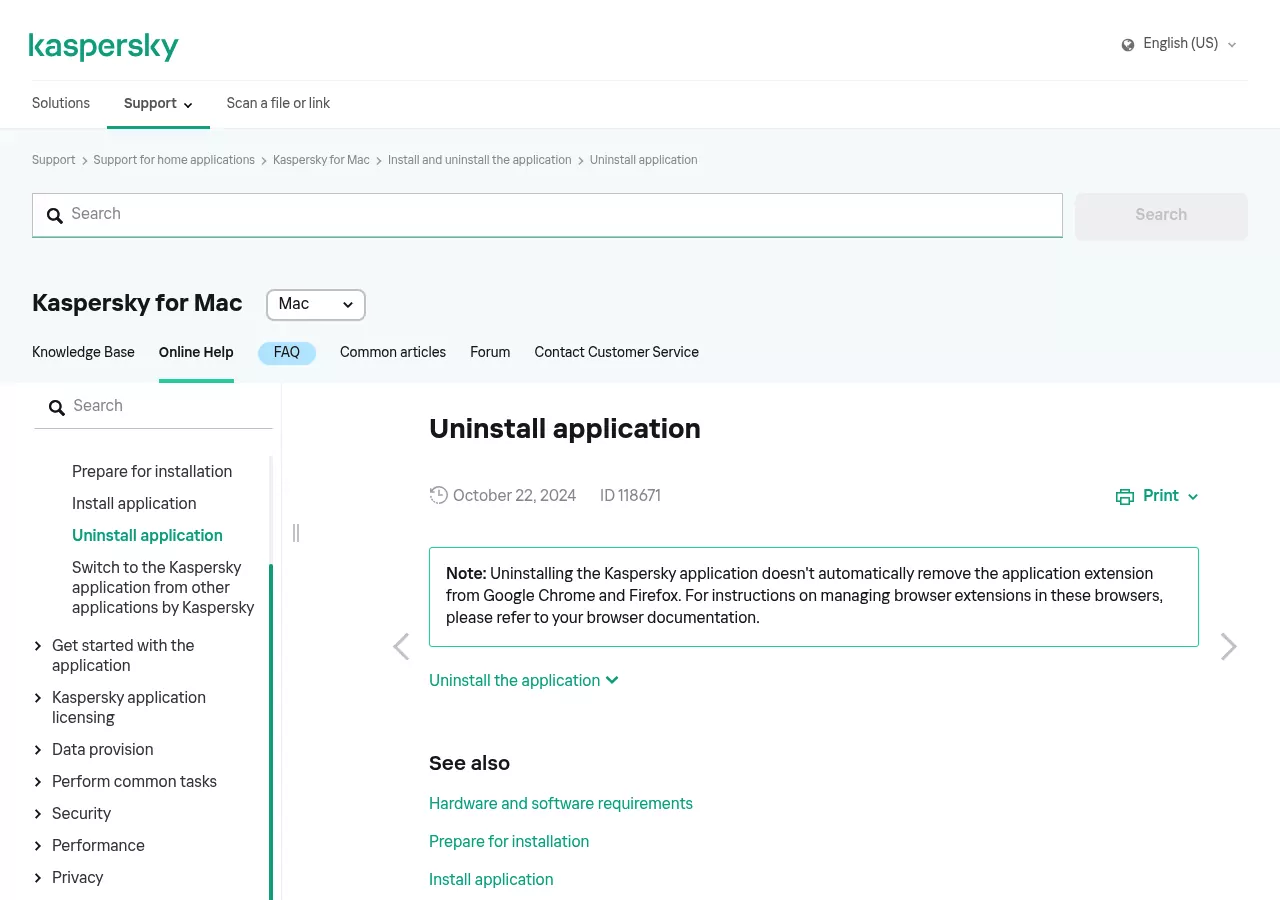
The route is the same. Kaspersky's online help for version 21 spells it out. Choose Help then Support. Click Uninstall, click Uninstall again, enter an administrator name and password, then click Quit.
Kaspersky's hub page for version 21, last updated 2 June 2025, lists two ways to remove it: the app menu, or the kavremover-mac tool. It repeats the browser add-on warning too.
Kaspersky Internet Security 16 for Mac and other older releases
Version 16 works differently. This is where people get stuck. Kaspersky's page for version 16 asks you to run the uninstaller from the original install file.
- Click the Kaspersky icon in the macOS menu bar, which the article calls the tray, and choose Quit.
- Open the original install file for Kaspersky Internet Security 16 for Mac. If you did not keep it, download it again and extract the files.
- Double-click Uninstall Kaspersky Internet Security.
- Click Uninstall.
- Enter the username and password for an account with administrator rights, then click OK.
- Wait for it to finish, then click Quit.
Two honest warnings. You need that install file, and many people no longer have it. And kavremover-mac does not cover version 16, so it is not a way around this. If removal throws an error, Kaspersky's advice is to contact Kaspersky Customer Service with a screenshot of the error and a system report.
Step 2: Use kavremover-mac when the built-in uninstaller fails
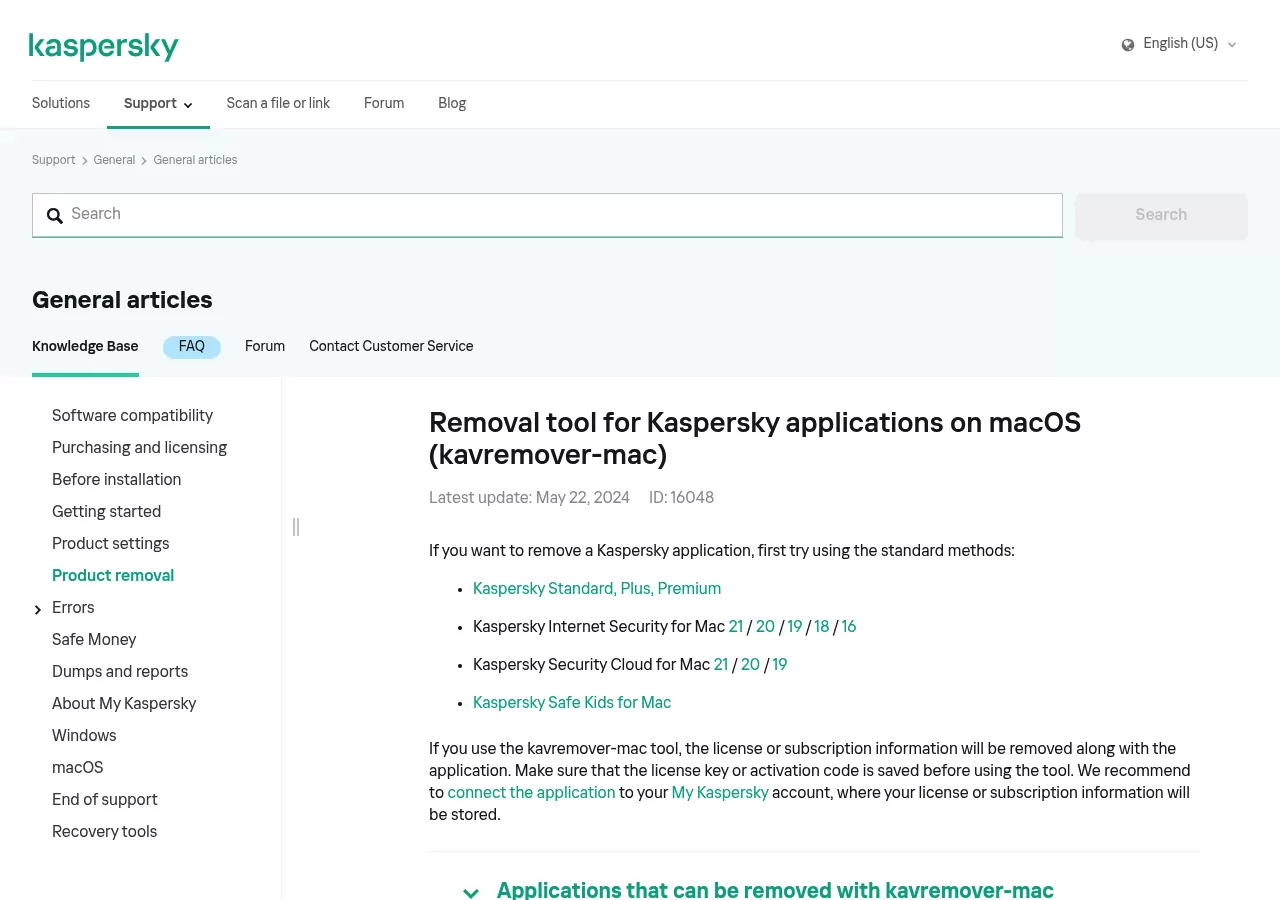
Kaspersky offers a free removal tool for Mac called kavremover-mac. It is meant for Kaspersky apps that standard macOS tools cannot fully remove. Kaspersky's home removal hub names it as the fallback. Check two things on its page before you run it.
Your product must be on the list. Kaspersky names Kaspersky Standard, Plus and Premium for Mac in all versions, Kaspersky Security Cloud for Mac in all versions, Kaspersky Internet Security 21 for Mac, and Kaspersky Internet Security 20 for Mac. Treat that list as complete. Older home releases, version 16 included, are not covered.
Your macOS must be new enough. Kaspersky says the tool works on macOS 10.15.7 Catalina and higher.
Save your licence key or activation code first. Kaspersky warns that the tool wipes licence and subscription details along with the app. Then run it.
- Download the kavremover-mac.tar archive from Kaspersky's page.
- Extract the files and run kavremover-mac.dmg.
- Click Uninstall Kaspersky.
- Click Uninstall.
- Wait for the notice that the app was removed, then click Quit.
- Restart your Mac.
Note the difference between the two routes. The in-app one needs no restart. This Kaspersky removal tool for Mac does, and that restart is part of the job.
Step 3: Deal with the system extension or kernel extension
This is the part that makes another antivirus say Kaspersky is still there. What Kaspersky set up depends on your macOS version.
Kaspersky's permissions page for version 21 documents the split. On macOS 10.14 and 10.15 the app asks for a kernel extension plus full disk access. On macOS 11.0 and later it asks for a system extension, full disk access, network content filtering, and a scan of encrypted web traffic.
You granted those at install, so a clean removal has to hand them back. The vendor uninstaller does that. A Trash drag does not.
Where macOS keeps these controls. Apple's page on system extension alerts confirms that the location moved. On macOS Sequoia 15 and later, open System Settings, then General, then Login Items and Extensions. Apple's guide for that pane lists Network Extensions and Endpoint Security Extensions among the groups. To change one, click the Info button next to it. Turn it off, then click Done. Apple also says to ask the developer how to remove an extension, and what happens when you do.
Earlier versions use a different name, in a different app. Apple's alert page sends earlier versions to Privacy and Security, but that is loose wording, and taken literally it sends some readers looking for a pane their Mac does not have. Here is the actual split. On macOS Ventura 13 and macOS Sonoma 14, choose Apple menu, then System Settings, then Privacy and Security in the sidebar. On macOS Monterey 12 and earlier, which includes Big Sur 11, Catalina 10.15 and Mojave 10.14, there is no System Settings app and no pane under that name. Choose Apple menu, then System Preferences, then Security and Privacy, then General. Apple's own page for that one puts the two words the other way round, so the name you are looking for on those versions is Security and Privacy.
A word on names. Look for an entry whose name has Kaspersky in it. Do not hunt for an exact string. Kaspersky does show one name, Kaspersky Endpoint Security Daemon, but only on the page for its business product, Kaspersky Endpoint Security for Mac 11.0. Do not assume the home app uses that same label.
A safe way to check, on macOS 10.15 Catalina and later. Open Terminal and run systemextensionsctl list. It only reads and reports. It prints each system extension with its state. A state of terminated waiting for uninstall on reboot means macOS will drop it at the next restart. So restart, then look again. Sometimes it takes a second restart. Do not run the reset option of that command, because it clears every system extension on the Mac.
Two limits, before you trust that output. First, the command arrived with System Extensions, which Apple introduced in macOS Catalina 10.15. On macOS 10.14 Mojave it is not on the Mac at all, and Terminal will just report that the command was not found. Second, on every version that has it, the command covers system extensions only. Its own built-in usage text offers list and reset for System Extensions and nothing more, so a kernel extension never appears in it. That matters for exactly the readers described a moment ago. If your Kaspersky version registered a kernel extension on macOS 10.14 or 10.15, an empty result here is not an all clear, because a kernel extension was never in scope for the command. On those two versions, lean on the vendor uninstaller, a restart, and the Security and Privacy pane described above instead.
Kaspersky has a troubleshooting page for this. On macOS 11.0 Big Sur, extensions can stay in memory if you clicked Cancel at the second password prompt. Kaspersky's fix is to install the app again and remove it again. Enter your password when the sysextctrld window shows up, then reboot.
Step 4: Clear the leftovers that block another antivirus from installing
If both vendor routes ran cleanly, you are likely done. If an installer still reports Kaspersky, or you dragged the app out by hand months ago, some Kaspersky leftover files on the Mac may remain.
First, check what else you have from Kaspersky. This is the step a manual cleanup usually skips, and it is the one that costs people data. Kaspersky ships several separate Mac apps under the same vendor name. Its own removal hub for home products opens by telling you to follow the instructions for your application, then lists Kaspersky Standard, Plus and Premium, Kaspersky Internet Security 21, 20 and 19, and Kaspersky Security Cloud 21, 20 and 19, with Kaspersky Safe Kids on a separate link of its own. Kaspersky Password Manager for Mac has its own install and uninstall pages again, and Kaspersky VPN Secure Connection has a Mac app and help of its own.
So open your Applications folder first and note which Kaspersky apps you still want to keep. If Password Manager, VPN Secure Connection or Safe Kids is among them, a sweep that matches the bare word Kaspersky will take their launch items, preferences and support files with it, and those files carry the name just as plainly as the ones you meant to remove. For Password Manager that includes its local vault store, which is your own data and not a leftover.
Kaspersky does not publish exact leftover paths for macOS, so this guide will not print a list. Look in the usual folders instead, and match the specific product name you removed, such as Kaspersky for Mac or Kaspersky Internet Security, rather than the vendor name on its own.
- /Applications
- /Library/Application Support
- /Library/LaunchDaemons and /Library/LaunchAgents
- ~/Library/Application Support and ~/Library/Caches
- ~/Library/Preferences and ~/Library/LaunchAgents
To reach any of these, open Finder, choose Go and then Go to Folder, and type the path. The tilde stands for your home folder, and that Library folder is hidden by default. Emptying a whole folder is never the goal. Search by the product name rather than the vendor name, leave alone anything that belongs to a Kaspersky app you are still using, and leave alone anything you are unsure about.
Never delete anything inside /System. Apple moved system content to its own read-only volume in macOS 10.15, and the system guards it, so there is nothing there for you to clean up. Deleting inside your own Library folders may ask for your password, which is normal.
Going folder by folder is slow, and it is easy to miss one. UninstallOnMac finds an app's support files, caches and other remnants and clears them together, which saves that search. It is an app uninstaller, not security software, so it stands in for the manual hunt here and not for the antivirus you are removing.

Step 5: Remove the Kaspersky browser extension
Removing the app does not remove its browser add-on. Kaspersky says so on the Kaspersky for Mac 25 page. The version 21 hub page says it too.
Open your browser's own extensions page and remove any entry named for Kaspersky. Google covers the steps in Chrome Help. Mozilla covers them in Firefox Help.
This one is easy to forget. In an Apple Support Communities thread, a macOS Monterey user asked how to remove Kaspersky from a MacBook. The answer had two parts: follow Kaspersky's official guide, and take the add-ons out of the browsers.
Step 6: Confirm the Mac is clean before you install other security software
Run this quick check before you start the next installer. It takes a minute. It saves a second failed install.
- The Kaspersky product you set out to remove is no longer in /Applications. A different Kaspersky app you still use, such as Password Manager, is meant to stay.
- On macOS 10.15 Catalina and later, systemextensionsctl list shows no Kaspersky entry, or shows one waiting to uninstall on reboot. On macOS 10.14 Mojave that command does not exist, and on both 10.14 and 10.15 it would not show a kernel extension in any case, so on those versions treat the vendor uninstaller plus a restart as the check instead.
- No Kaspersky entry sits under System Settings, then General, then Login Items and Extensions on macOS Sequoia 15 and later; under System Settings, then Privacy and Security on Ventura 13 and Sonoma 14; or under System Preferences, then Security and Privacy, then General on Monterey 12 and earlier.
- The Kaspersky add-on is gone from Chrome and Firefox.
Now empty the Trash and restart your Mac. If an extension was staged to go at reboot, check the list again afterwards. Restart once more if it is still there. Then run the installer you were blocked on.
One calm note to close. Once Kaspersky is gone, your Mac no longer runs that third party protection, so finish installing whichever product you picked, or rely on what macOS provides.
Administrator prompts, password protection and what is normal
If you got here after a failed install, every password box can feel odd. Most are routine, so here is what to expect. macOS asks for an administrator name and password. Kaspersky put parts outside your home folder and registered an extension. Only an administrator can undo that. Both the in-app uninstaller and kavremover-mac ask for it.
On macOS 11.0 and later you may be asked twice. Once to start, and once as the system extension comes off. Kaspersky calls that second one a sysextctrld window. Clicking Cancel there is the exact mistake that leaves the extension behind, so let it through.
Kaspersky also offers its own password lock, which can guard closing the app, changing settings and removal. Kaspersky's page on resetting that password says its Mac apps use the system password for it. It points to Apple's steps if you forgot it. If you still cannot get past it, Kaspersky Customer Service is the next stop. Worked through everything and it still fails? You can also get in touch and describe what you are seeing.
Frequently Asked Questions
Why is Kaspersky still detected after uninstall when I install another antivirus?
Almost always because a system extension or a background part is still registered with macOS. The app icon is gone, but the piece macOS tracks is not. Work through Step 3 and Step 4, then restart. Kaspersky names one common cause. On macOS 11.0, cancelling the second password prompt leaves the extension in memory.
Do I need to restart my Mac after removing Kaspersky?
It depends on the route. Kaspersky says you do not have to restart after the in-app uninstaller. The kavremover-mac tool does list a restart as its last step. And if an extension shows as waiting to uninstall on reboot, restart, because that is the only thing that clears it.
Will uninstalling Kaspersky delete my licence?
The kavremover-mac tool wipes licence and subscription details along with the app, and Kaspersky warns about this on the tool's page. Save your licence key or activation code before you run it. Kaspersky also suggests connecting the app to a My Kaspersky account, so the details are stored there.
Can I uninstall Kaspersky on Mac without a password?
Not really. macOS itself asks for an administrator name and password, because removal touches parts outside your home folder. Kaspersky's own password lock is separate, and Kaspersky says its Mac apps use the system password for it.
Does removing Kaspersky leave my Mac unprotected?
Your Mac loses whatever that Kaspersky product was providing, which is the normal result of taking it off. Most people here are removing it so a different product can install, so finish that install. macOS also has its own built-in protections, and those keep running either way.
Which macOS versions do these steps cover?
The vendor routes come from Kaspersky's current pages for Kaspersky for Mac 25, Kaspersky Internet Security 21 and Kaspersky Internet Security 16. Extension behaviour splits at macOS 11.0. A kernel extension applies before it, and a system extension from it on. The settings location splits twice. It is Login Items and Extensions in System Settings on macOS Sequoia 15 and later, Privacy and Security in System Settings on Ventura 13 and Sonoma 14, and Security and Privacy in System Preferences on Monterey 12 and earlier.