How to Uninstall Trend Micro on Mac and Clear the Leftovers
The short answer to how to uninstall Trend Micro on Mac is to run the uninstall tool that shipped with your product, then approve the admin prompts it sets off. Then open System Settings and check no Trend Micro system extension or network filter is still listed. Work agents need a package from your admin instead.

Work out which Trend Micro product you actually have
Trend Micro's Mac lineup is not one product. The names look alike. The removal paths are not. Start here, because the wrong route wastes an afternoon.
| Product | How you got it | Removal path |
|---|---|---|
| Trend Micro Antivirus for Mac | You bought or trialled it yourself | Run Uninstall Trend Micro Antivirus from Spotlight |
| Antivirus One | A separate free Mac App Store app | Quit from the menu bar, delete the app, clear one container folder |
| Apex One (Mac) Security Agent | Set up by your employer |
tmsmuninstall package from the admin console, usually with a password |
| Worry-Free Business Security agent | From a small business console |
tmsmuninstall.zip from the console, then run tmsmuninstall.mpkg
|
| Worry-Free Business Security Services agent | From the cloud console | Uninstaller for Mac, from Administration then Tools |
| Trend Micro Web Security agent | Set up by your employer | Run the uninstall app inside /Applications/TrendMicro
|
| Trend Vision One endpoint agent | Managed by your employer | TODO: confirm. Handled by your admin through the console |
Not sure which one you have? Two quick checks settle it. Look at the name on the menu bar icon, then open the app's About window.
If it calls itself a Security Agent rather than Antivirus, it is a work install. The home steps below will not work on it.
Before you start
- Copy your serial number if you plan to install the app again. The Uninstall Tool asks you to confirm you have.
- Expect several admin password prompts. One comes when the tool clears items outside your home folder. Another comes when macOS removes an extension. Apple's guide to deleting apps on a Mac says this prompt is normal.
- A work agent may need a password you do not have. That is by design, and there is a proper way to get it.
- Decide what comes next. Removing security software leaves a gap. Picking a replacement is outside this guide, but settle it before you start.
Remove only files that clearly belong to Trend Micro. If you cannot tell what owns a file, leave it. Never delete anything inside
/System. Apple's page on System Integrity Protection says this feature, added in OS X El Capitan, blocks changes to folders including/System,/usr,/bin,/sbinand/var.
How to uninstall Trend Micro on Mac with the supported tool
This is the right path for the home product, Trend Micro Antivirus for Mac, and the one to try first. It also clears the system extension as part of the same run. Trend Micro lists the steps in its guide on how to uninstall Trend Micro Antivirus on Mac.
- Open Spotlight by pressing CMD and SPACE, then type
Trend Micro. - Select Uninstall Trend Micro Antivirus.
- Enter your Mac password when asked, then click Uninstall.
- Click OK when the pop up appears.
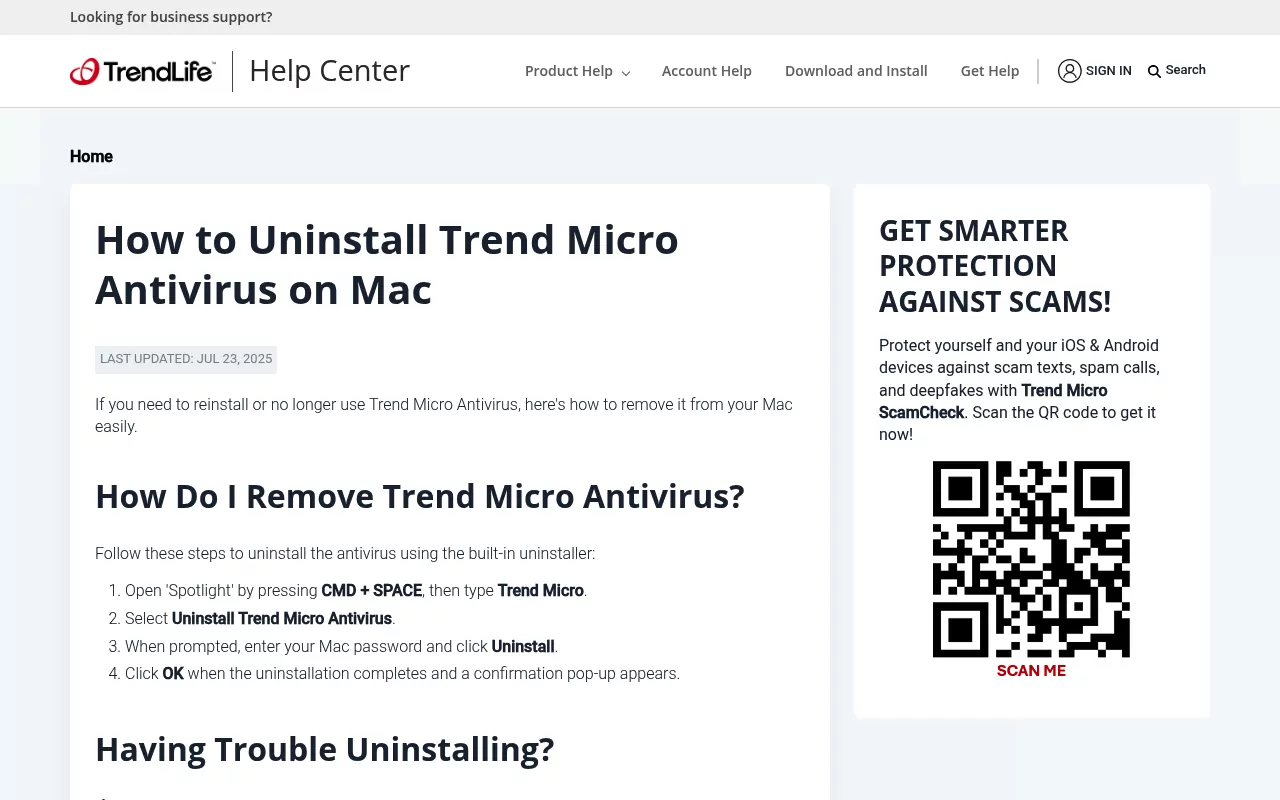
That page now carries TrendLife branding. Trend Micro renamed its consumer business TrendLife in April 2026. The old links redirect there. It is the same official help centre, not a fake.
When the built in tool does not finish, use the official Uninstall Tool
Trend Micro puts out a separate Uninstall Tool for this case. Get it from the help centre page linked above. The download is a long temporary link, not a stable one, so do not trust a copy from anywhere else.
- Double click
UninstallTool.zipto extract it. - Double click
UninstallTool.appto open it. - Tick the box marked I have copied my serial number.
- Click Uninstall.
- Enter your username and password when macOS asks, so Finder can remove the Trend Micro Antivirus extension.
Removing Antivirus One, which is a different app
Antivirus One is its own app with its own steps. If that is what you have, follow Trend Micro's Antivirus One removal guide instead.
- Force quit Safari first, so the app's extensions stop running. Bookmark your open tabs before you do.
- Click Antivirus One in the menu bar, then choose Quit.
- Open Finder, go to Applications, right click Antivirus One and choose Move to Trash.
- Click Go in the menu bar, choose Go to Folder, type
~/Library/Containersand click Go. - Move the folder named
com.trendmicro.DrSafetyto the Trash. - Empty the Trash and restart your Mac.
Removing a managed Trend Micro agent on a work Mac
Work agents are built so the person at the keyboard cannot switch them off. The supported removal runs from the admin console, not the Mac.
Apex One (Mac). Trend Micro's agent uninstall guide has an admin download tmsmuninstall.zip from the console under Agents, Agent Setup Files, Agent Uninstallation File. The Mac then runs Apex One (Mac) Security Agent Uninstaller.app and asks for a password. That guide adds one more click, and it scopes it narrowly: on macOS 11.0 only, you click Continue to remove the system extensions. It does not document that prompt for any later macOS version, so on a newer release do not read its absence as a failed uninstall.
If the uninstall password is unknown, Trend Micro's support guide for this exact case says to open a case with its technical support and supply the file at /Library/Application Support/TrendMicro/common/conf/ServerInfo.plist.
Worry-Free Business Security. Per Trend Micro's uninstall article, the console path is Administration, Plug-ins, then Trend Micro Security (for Mac), Manage Program, Administration, Agent Setup Files. The download is tmsmuninstall.zip and the file run on the Mac is tmsmuninstall.mpkg.
Worry-Free Business Security Services. The cloud console guide puts the tool under Administration, then Tools, then Uninstaller for Mac. The admin then clears the agent from the console list too.
Trend Micro Web Security. Its enforcement agent guide says the current user needs admin rights. Open /Applications/TrendMicro, where you will find two apps, iwsaasEA and uninstall. Run the uninstall app, then restart to stop the running processes.
Trend Vision One. TODO: confirm the removal steps. This is a business product. Its agent comes off through the console, run by an admin rather than by you. If you find it on your Mac, go to your IT team.
On a company Mac, talk to IT rather than fighting the agent. Removing it may break policy. Device management will often put it straight back.
Clear the system extension that outlives the app
Trend Micro adds an endpoint security extension and a network extension. Both are filed with macOS, not kept inside the app. A half finished removal can leave them listed. Apple covers the basics on its page about system extension alerts on Mac.
Where you look depends on your macOS version.
| macOS version | Where to look |
|---|---|
| Sequoia 15 and later | System Settings, General, Login Items and Extensions |
| Ventura 13 and Sonoma 14 | System Settings, Privacy and Security, Security section, Details button |
Monterey 12 and earlier are deliberately missing from that table. Apple's page splits at Sequoia 15 and says only that earlier versions use Privacy and Security, which is the Ventura era name, and Trend Micro's own guide covers macOS 13, 14 and 15 and nothing older. Neither documents where Monterey lists these, so on an older release treat this pane as inconclusive and lean on the restart and Activity Monitor checks further down instead.
On Sequoia the two categories worth opening are Endpoint Security Extensions and Network Extensions. Apple lists both by those names on its guide to the Login Items and Extensions pane.
You are hunting for a Trend Micro entry inside those categories. Trend Micro's own setup guide calls the home one the Trend Micro Antivirus Extension. On work agents, Trend Micro's Apex One (Mac) post installation guide gives the label in that pane as iCore Service. That is the name to match on. The same guide has several Trend Micro components added to Full Disk Access during setup, so Trend Micro entries can show up in that list too.
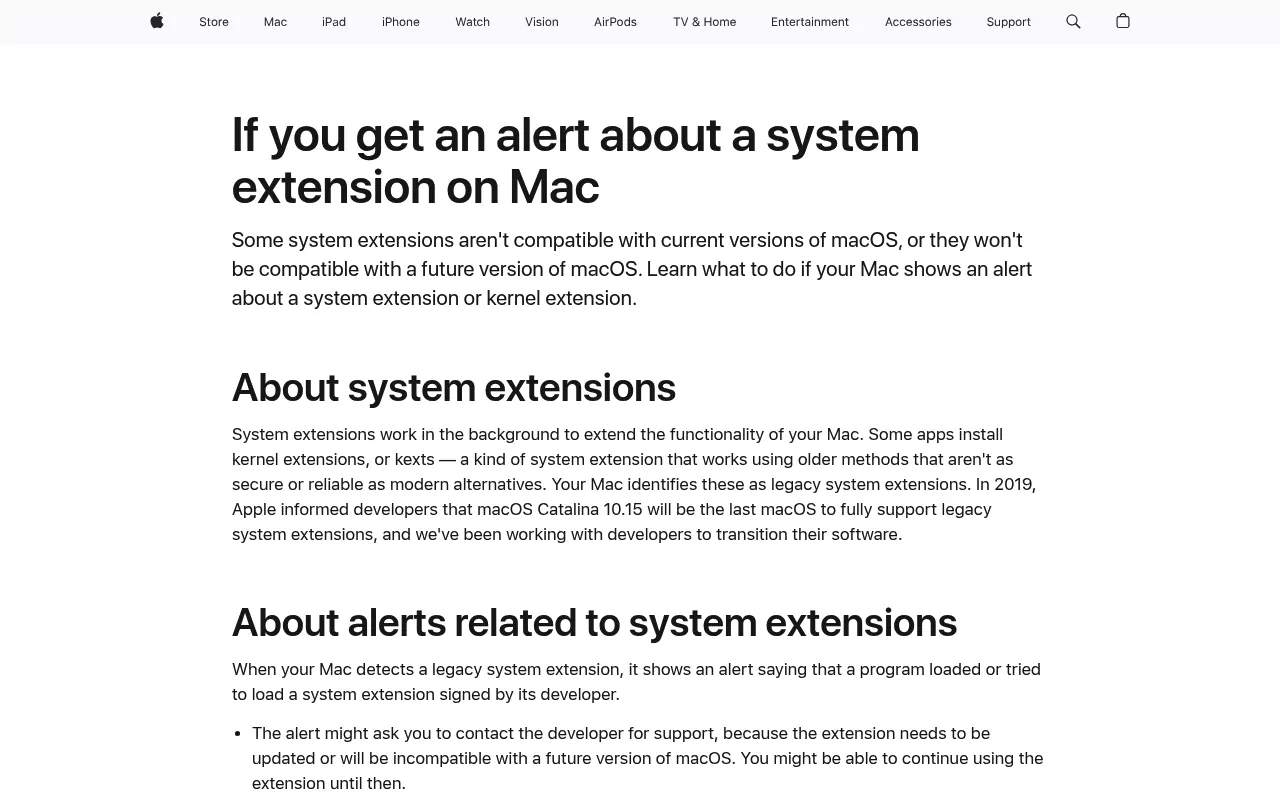
One honest caveat. Switching an extension off here turns it off. It does not uninstall the app, and macOS will ask for an admin password. The clean removal is still the vendor tool. Treat this pane as where you check the job finished.
When the network filter is still intercepting traffic
A leftover network filter gives the strangest symptoms. Watch for sites that fail to load once the app is gone. Watch for a filter or proxy prompt that keeps coming back, or a Trend Micro entry still under Network Extensions.
Check the same Login Items and Extensions pane first, under Network Extensions, which is the category Trend Micro's own setup guide points at for its network extension. If an entry you can clearly tie to Trend Micro is still listed there, the fix is to run the vendor uninstaller for your product again, not to go hunting for the filter somewhere else in System Settings. No Apple or Trend Micro page we could find documents a second pane where you delete one of these by hand, so treat any forum instruction that names one with care. Deleting the wrong network item can take a VPN or connection you still need with it.
Background items and helpers that restart themselves
Does a Trend Micro process come back in Activity Monitor seconds after you quit it? Something is starting it again. One check before you change anything. If this is a managed work agent, that restart is the agent doing what it was configured to do, not a fault, and switching its pieces off by hand leaves it half running rather than removed. Stop and talk to IT. The rest of this section is for a personal Mac where the vendor uninstaller has already run and finished. Work through it in order of safety.
Start with System Settings, General, Login Items and Extensions. The heading depends on your macOS version. Ventura 13, Sonoma 14 and Sequoia 15 all call it Allow in the Background. Apple's current Tahoe 26 version of the same page renames it App Background Activity. Either way it lets apps do work when the app is not open, such as checking for software updates or syncing data. A leftover Trend Micro item can be switched off there.
Launch agents and daemons are the next layer. They live in /Library/LaunchDaemons, /Library/LaunchAgents and ~/Library/LaunchAgents. A half finished removal can leave files there whose names start with com.trendmicro.
Look at what is on your own Mac rather than working from a list. File names vary by product and version. Match on the com.trendmicro name and remove only entries that clearly carry it. Again, leave /System alone.
Check for a configuration profile
On a work Mac, look in System Settings, General, Device Management. A profile there may be what installs or re-enables the agent.
Found one on a company Mac? Stop and contact IT. Removing a profile yourself can cut off other things you need.
Find and remove the leftovers

Two conditions before you open any of these folders. The vendor uninstaller for your product should have run and finished, and this should not be a managed work Mac. If a work agent is still installed, or you are blocked on an uninstall password, go back to the console route and to your IT team instead. Deleting files under a live agent strips its parts away while macOS still has the agent registered, which leaves you with something half present and harder to remove, not with a clean Mac.
With that settled, these are the places worth checking. The same rule holds: remove only obvious Trend Micro items, and search by name rather than clearing a folder wholesale.
-
/Applicationsfor the app itself. Look inside/Applications/TrendMicrobefore you touch it rather than dragging the folder off as a unit. On a Trend Micro Web Security install that folder is where the uninstall app lives, and deleting it takes away the supported way to remove the agent while the agent itself stays registered with macOS. -
/Library/Application Support/TrendMicro, and only once no managed agent is left on the Mac. While a work agent is still installed, leave this folder where it is. It holdscommon/conf/ServerInfo.plist, the file Trend Micro support asks for when the uninstall password is unknown, and it is the documented route back if you need it. If you are unsure, copy that file somewhere safe first. -
~/Library/Containersforcom.trendmicro.DrSafetyin the Antivirus One case. -
~/Library/Application Support,~/Library/Caches,~/Library/Preferencesand~/Library/Logs, where an identifier beginningcom.trendmicrois unambiguous.
To reach any of these, click Go in the Finder menu bar, choose Go to Folder, then type the path. Finder hides ~/Library by default, which is why you cannot just click through to it.
Confirm the removal actually worked
- Restart the Mac. Some processes only clear on restart, which is why Trend Micro's own Web Security instructions call for one.
- Check the menu bar for a leftover icon.
- Check Login Items and Extensions, under both Endpoint Security Extensions and Network Extensions.
-
Open Activity Monitor and search for
trend. -
Confirm no Trend Micro folder remains in
/Applicationsor/Library/Application Support.
Troubleshooting
The uninstaller says Trend Micro is not installed
This usually means the app is already gone but its extensions are not. Work through the extension and background item sections instead.
You do not have the uninstall password for a managed agent
Ask your IT team first, since they often hold it. Failing that, Trend Micro asks you to open a case and supply the ServerInfo.plist file named above. There is no supported way around it.
The extension is still listed after a successful uninstall
Restart, then look again. The list can lag until the extension unloads. If it survives a restart, the job did not finish.
A Trend Micro process restarts every time you quit it
Something is starting it again. On a work Mac that is the agent behaving as designed, so go to IT rather than switching it off. On a personal Mac where the uninstaller has already run, check the background items section of Login Items and Extensions, called Allow in the Background on Ventura 13 through Sequoia 15 and App Background Activity on Tahoe 26. Then check the three launch agent and daemon folders for an item named com.trendmicro something.
You need to reinstall afterwards and cannot find your serial number
Check the order email from when you bought it, or sign in to the account you used. If neither works, ask Trend Micro support.
Where UninstallOnMac fits
UninstallOnMac finds an app plus the support files that belong to it, and removes them together. That is the dull part of the leftovers section above, done for you.
Two honest limits. It is an app removal tool, not a security product, so it does not replace what you are taking off. It also cannot stand in for the vendor tool on a work agent, since that removal is gated by a password and a console, not by deleting files.
Frequently Asked Questions
Can I uninstall Trend Micro on a Mac without the password?
For the home product you need only your own Mac password. For a work agent the uninstall password is required by design. Ask your IT team, or open a case with Trend Micro support and supply the ServerInfo.plist file they ask for.
Is dragging Trend Micro to the Trash enough?
No. The app is only one layer. The system extension, the network filter and any background helpers are filed with macOS on their own. They stay behind.
Do I need my serial number before I uninstall?
Only if you plan to install it again. The Uninstall Tool asks you to tick a box saying you have copied it, so have it ready first.
Why does Trend Micro still appear in System Settings after I removed it?
Extensions are filed with macOS rather than kept in the app, so the list can lag. Restart and check again. On Sequoia 15 and later look under Login Items and Extensions. On Ventura 13 and Sonoma 14 look under Privacy and Security. Neither Apple nor Trend Micro documents that pane for Monterey 12 and earlier, so on those releases confirm the removal by restarting and checking Activity Monitor instead.
Can I uninstall Trend Micro from Terminal?
There is no published Terminal command for the home product, so treat any command you find on a forum with care. For managed Apex One (Mac) agents there is one. Trend Micro's uninstall article points to its silent uninstall guide, which publishes a supported sudo command run against the TMUninstallLauncher app inside the uninstallation package, with a token variant for when an uninstall password is set. Copy that command from Trend Micro's page rather than from here, so you get the exact characters. It is an admin route rather than a way around the password, because you still need the package from the console and, where a password is configured, a token generated there.
Does removing Trend Micro leave my Mac unprotected?
It removes the cover that product gave you. What replaces it is outside the scope of this guide. It is worth settling before you uninstall, not after.
Why does Trend Micro's help centre now say TrendLife?
Trend Micro renamed its consumer business TrendLife in April 2026. Old helpcenter.trendmicro.com links now redirect to helpcenter.trendlife.com. It is the same official help centre. Business products such as Apex One keep the Trend Micro name.