CCleaner for Mac Alternatives: What Mac Users Actually Need Instead
CCleaner for Mac clears browser and app caches, finds duplicate files, uninstalls apps and manages startup items. Every one of those jobs can be done by hand in Finder and System Settings. So a CCleaner for Mac alternative is not always another app. Often it is a short manual routine you already have.

What CCleaner for Mac actually does
CCleaner for Mac is a commercial cleanup app with a free tier. The free tier cleans clutter, finds duplicate files, uninstalls apps and manages startup items. The paid tiers, Professional and Professional Plus, add photo analysis, automatic browser cleaning, bookmark importing and automatic Trash emptying. Both are subscriptions. Professional covers one device and Professional Plus covers three. The Mac product page lists no price for either.
The system requirements on that page run from macOS 10.12 Sierra up to macOS 13 Ventura. Sonoma, Sequoia and Tahoe are not on the list.
Why Mac users look for a CCleaner for Mac alternative
Cleanup is a job most people do a few times a year, and a yearly fee for that is fair to question.
Version support comes next. macOS moves files around between releases, so a cleanup tool has to keep up, and users notice when a vendor's requirements lag behind. Scope matters too: a cache cleaner that also sorts photos and watches your Trash is a lot of access for one small task.
The last reason is a mix up. Many people meet CCleaner on Windows first, where it cleans the registry. A Mac registry cleaner cannot exist, because macOS has no registry.
The manual method that needs none of these
Nearly everything a Mac cleaner does maps onto something you already have.
There is no registry, so there is nothing to repair
Windows keeps app settings in one central registry. macOS keeps them in separate files. Each app writes its own property list into ~/Library/Preferences, or into its folder under ~/Library/Containers if it is sandboxed. Nothing central can rot, so if an app misbehaves you delete its preference file and macOS builds a fresh one.
Clear cache on Mac browser by browser
Browser data is the biggest chunk most cleaners report, and every browser clears its own. In Safari, choose History then Clear History, and use Safari settings for cookies and website data. In Chrome, open Settings, then Privacy and security, then Delete browsing data. In Firefox, open Settings, then Privacy and Security, then Clear Data.
Doing it in the browser is safer than deleting folders. Chrome caches in ~/Library/Caches/Google/Chrome and Firefox keeps profiles in ~/Library/Application Support/Firefox/Profiles. Dragging those out while the browser is open can lose logins and tabs.

Let macOS handle user caches and logs
Open the Apple menu, choose System Settings, click General, then Storage. You get a list of what fills the disk, plus Apple's storage recommendations.
Apple states that when space is needed, macOS clears caches and logs that are safe to delete, including temporary database files and interrupted downloads. That is the work a cleaner charges for. User caches sit in ~/Library/Caches and logs in ~/Library/Logs. Quit an app before touching its cache folder, and leave /System alone.
Turn off login items and background items
Startup management is a paid feature in some cleaners, and macOS gives it free. Open System Settings, click General, then Login Items and Extensions. The top list holds apps that open at login, and the list below holds background items apps installed for themselves.
Security tools and sync clients add the most entries. The guide for removing Trend Micro on a Mac dwells on them. In Terminal, launchctl list prints what is loaded now. Those entries live in ~/Library/LaunchAgents, /Library/LaunchAgents and /Library/LaunchDaemons.

Uninstall an app completely on Mac, leftovers included
This is the job people buy a cleaner for. Apple's page on installing and uninstalling apps says to run the vendor uninstaller if there is one, and otherwise drag the app to the Trash. It stops there. The support files are left for you, and that gap is what cleaners fill in.
- Quit the app. Check Activity Monitor for helpers sharing its name and quit those too.
- Look for a vendor uninstaller. If the app arrived in a folder, check inside it. Security suites usually ship one, as the Kaspersky removal guide shows.
- Read the bundle ID first. In Terminal, run osascript -e 'id of app "AppName"', or read it from the app with defaults read /Applications/AppName.app/Contents/Info.plist CFBundleIdentifier. It returns something like com.vendor.appname, the bundle identifier every leftover hangs from.
- Move the app to the Trash. Open Applications in Finder, or press Shift Command A. Launchpad is gone in macOS Tahoe 26, so the old Option and delete badge trick went with it.
- Search your own Library. In Finder choose Go, then Go to Folder, and enter ~/Library. Press Shift Command Period to show hidden items. Check Application Support, Caches, Containers, Group Containers, Preferences, Saved Application State, HTTPStorages, WebKit, Logs and LaunchAgents for the ID or the vendor name.
- Search the system Library. Repeat in /Library, plus /Library/LaunchDaemons and /Library/PrivilegedHelperTools. Anything there was installed with your password, so read it twice.
- Use Terminal if you prefer typing. find ~/Library -maxdepth 3 -iname "*com.vendor.appname*" lists matches under your Library, and mdfind "kMDItemCFBundleIdentifier == 'com.vendor.appname'" asks Spotlight the same thing.
- Empty the Trash and log out once. Background items stay in memory until you do.
One caution throughout: if you cannot say which app a file belongs to, leave it.
Finding leftovers when the app is already gone
If you binned an app months ago, no bundle is left to read the ID from. Search the vendor name instead, then open ~/Library/Containers and ~/Library/Group Containers and read the folder names, which are IDs in plain sight.
Apps people compare with CCleaner for Mac
What follows describes each one rather than ranking them.
OnyX
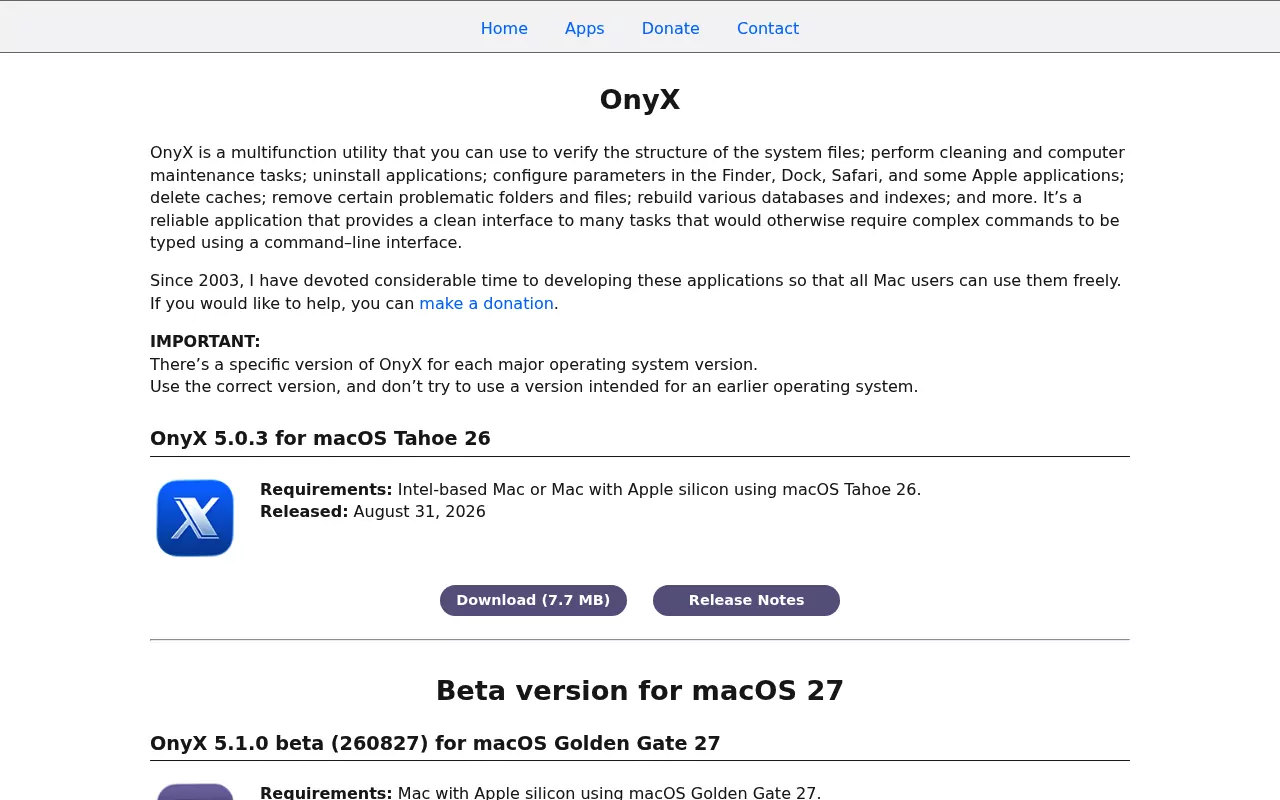
OnyX from Titanium Software is free, with donations invited. It verifies system files, deletes caches, rebuilds databases, uninstalls apps and changes hidden Finder, Dock and Safari settings. The newest build is OnyX 5.0.3 for macOS Tahoe 26, from August 2026. There is one build per macOS release, and the developer warns against running one that does not match.
Pearcleaner
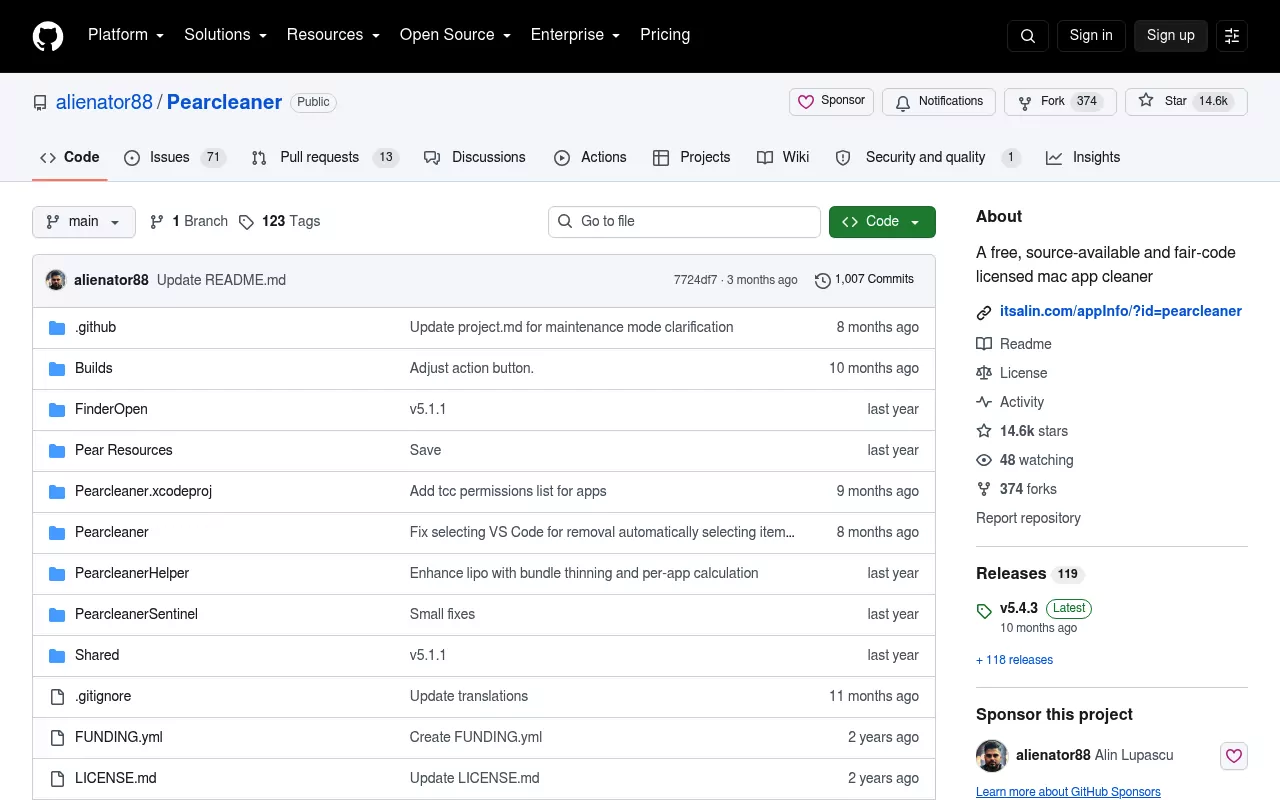
Pearcleaner is free and its source is public under Apache 2.0 with the Commons Clause, which the project calls source available and fair code rather than open source. It needs macOS 13 Ventura or later. It uninstalls apps, finds orphaned files and adds a right click item in Finder. The developer has said active development, releases and issue replies are on hold, dating from the end of 2025.
AppCleaner
AppCleaner from FreeMacSoft is free, and version 3.6.8 supports macOS Mojave up to macOS Tahoe. Drag an app onto its window and it lists the related files, which you delete together. SmartDelete can watch the Trash. It works from an app still on disk, so old leftovers sit outside its job.
Maintenance by Titanium Software
Maintenance is the smaller sibling of OnyX, also free with donations invited. It rebuilds databases and deletes application, font and system caches, with a build for every macOS release from Mac OS X 10.4 through Tahoe 26. It runs tasks in bulk and does not uninstall apps.
Storage in System Settings
Storage is already on your Mac and costs nothing. It shows what fills the disk by category and lets macOS clear caches and logs it considers safe. It manages space, so it will not hunt for the preference files an app left behind.

Comparison at a glance
| App | Licence and price | What it is for | Notable limitation |
|---|---|---|---|
| CCleaner for Mac | Free tier, paid tiers by subscription | Clutter, duplicates, app removal, startup items | Stated requirements stop at macOS 13 Ventura |
| OnyX | Free, donations invited | Maintenance, caches, rebuilds, uninstalling | One build per macOS release, must match |
| Pearcleaner | Free, Apache 2.0 with Commons Clause | App removal and orphaned file hunting | Development on hold, needs macOS 13 or later |
| AppCleaner | Free | Removing an installed app with its files | Works from apps still on disk |
| Maintenance | Free, donations invited | Cache clearing and rebuilds in bulk | No uninstaller, no file by file review |
| Storage in System Settings | Built in, no cost | Seeing what uses space | Leaves an app's support files in place |
| Finder and System Settings | Free, already installed | All of the above, file by file | Slower, and every call is yours |
Frequently Asked Questions
Is CCleaner safe for Mac?
It is a signed commercial app, so the question is access rather than malware. Any cleaner needs broad permission to read your Library folder, so read the list before you confirm a batch deletion.
Do I need a cleaner app to uninstall Mac apps?
No. Finder, System Settings and the odd Terminal command cover the whole job. A cleaner saves time on a long list, but nothing here requires one.
Is there a free CCleaner alternative for Mac?
Several tools above cost nothing: OnyX, Pearcleaner, AppCleaner and Maintenance. The Storage panel is free too, and already installed.
Does a Mac need a registry cleaner?
No, because macOS has no registry. Settings live in separate preference files per app, so there is no central database to sweep.
How do I uninstall CCleaner from my Mac?
Quit it and check its folder in Applications for an uninstaller. Otherwise read its bundle ID, drag the app to the Trash, then search ~/Library and /Library for that ID and check Login Items and Extensions.
Will deleting files in Library break an app?
It can, so quit the app first and delete only what you can attribute to it. Preference files are rebuilt on the next launch, while Application Support can hold licences and saved work.
Where to go from here
Pick the app you want gone and work through it once. The routine is the same every time.
Guides for individual apps live on this blog, done by hand, with nothing to install. Start with removing Sublime Text for a plain example, Trend Micro or Kaspersky for apps with background helpers, and Safari for the odd case of an app macOS builds in.