OnyX Alternatives for Mac: Maintenance Tools and What macOS Already Does
OnyX is a free Mac maintenance app from Titanium Software. It checks the startup disk, clears caches, rebuilds system databases, uninstalls apps, and flips hidden Finder and Dock settings. Most people hunting for OnyX alternatives want just one of those five jobs. macOS can do all five on its own, and this guide shows how.

This is a survey, not a scoreboard. There is no winner at the bottom and no download button. Every app below gets its price and its limits stated plainly.
What OnyX actually does on a Mac
OnyX is a single window that fronts a handful of unrelated system tasks. Titanium Software describes it as a multifunction utility. In practice it covers five areas.
- Verifying the structure of the system files on the startup disk.
- Cleaning tasks, mostly deleting user, system, font and browser caches.
- Rebuilding databases and indexes that macOS keeps in the background.
- Uninstalling apps and the files they leave behind.
- Setting hidden options in Finder, Dock, Safari and other Apple apps.
That last group is why many people keep it around. The settings are real and ship with macOS. Apple just does not put a switch in System Settings for them.
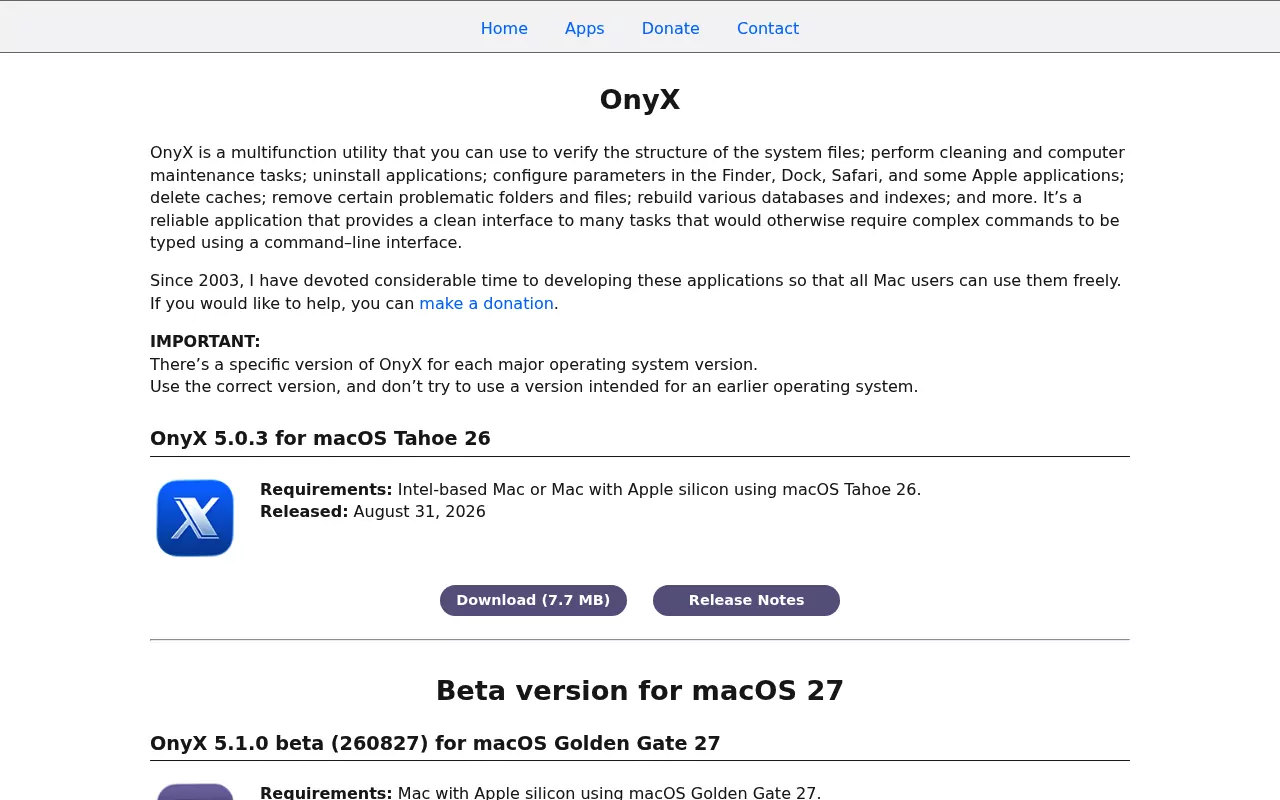
The app is free. The developer has accepted donations since 2003. There is no paid tier and no subscription.
One quirk matters more than any feature. Titanium Software builds a separate copy of OnyX for each major macOS release, and the download page lists 21 of them going back to Mac OS X 10.2. The stable build for macOS 26 Tahoe is OnyX 5.0.3, from 31 August 2026, and a 5.1.0 beta exists for macOS 27. Run the build that matches your system, and only that one.
The same developer also ships smaller apps that are, by their own description, components of OnyX: Maintenance, Deeper, Uninstaller, CalHash and Schedulizer. If you already run OnyX, those are duplicates rather than additions.
Because the jobs are unrelated, app removal has little to do with the rest. If that is the piece you use, a per app guide gets the same result by hand. A code editor is a good example, since it also leaves a command line tool behind: see how to uninstall Sublime Text on Mac.
Why Mac users look for OnyX alternatives
Almost nobody leaves OnyX because it is bad software. The reasons are duller than that, and worth stating plainly.
The per release build model. Every time you upgrade macOS, your copy of OnyX is the wrong copy. You go back to the site and fetch a new one. Some people find that reassuring, because the build is tuned to the system. Others find it a chore.
Some of its jobs no longer exist. A few classic maintenance chores have been absorbed by macOS or removed outright. Repairing permissions is the clearest case. Running the old periodic scripts is another. Both are covered further down, with the checks you can run yourself.
Scope. Plenty of people want exactly one of the five jobs. If you only ever toggle hidden Finder settings, a maintenance suite is a lot of surface area for one checkbox.
Access. Any app that clears system caches or rebuilds databases needs deep access to the disk. That is a fair trade for some people and not for others. Doing the same work in Finder means nothing new gets that access.
Preference. Some want open source. Some want a paid product with a support address. Some would rather learn the commands once.
None of those reasons makes another app necessary. They point at the next section.
The manual method that needs none of these
This is the part the vendor blogs skip. Every job OnyX fronts has a plain route through Finder, System Settings, Disk Utility or Terminal. None of it needs an install.
Check the disk with First Aid in Disk Utility
First Aid is the built in version of the disk check. Open Disk Utility from Applications, then Utilities. Choose View, then Show All Devices.
- Select a volume in the sidebar.
- Click First Aid, then Run.
- Wait for it to finish, then click Done.
- Repeat for each volume and container, then run it on the device itself.
Order matters. Apple says to work through every volume and container in turn before running First Aid on the whole storage device. To check the disk you started up from, restart in macOS Recovery first. Apple has the full steps in Repair a storage device in Disk Utility.
Apple is also honest about the limits. First Aid cannot find or fix every problem a disk may have. If it reports a failure it cannot repair, that is a backup and replace situation, not a cleaning one.
The maintenance scripts you no longer have to run
Search for how to run maintenance scripts on a Mac and you will find years of advice about daily, weekly and monthly scripts. That advice describes a BSD feature called periodic. It is worth checking whether your Mac still has it.
On macOS 26.6.2 it does not. There is no periodic command, no /etc/periodic folder, and no /etc/daily, /etc/weekly or /etc/monthly script. There is not even a man page for it. You can confirm that in Terminal in seconds, and confirming beats trusting any article, including this one.
What replaced it is launchd, the scheduler macOS uses for background work. Two jobs cover most of what the old scripts did.
- Log rotation. A daemon called com.apple.newsyslog runs the newsyslog tool once an hour, at half past. It runs at low disk priority so you never feel it. The rotated files are sitting in /var/log right now, named system.log.0.gz and upward.
- Temporary file cleanup. A daemon called com.apple.bsd.dirhelper runs at 03:35 each day and clears per user temporary folders under /var/folders. Its own settings say to delete files older than three days. It also runs at startup, so a Mac that was asleep at 03:35 still gets a pass.
So there is nothing to click and nothing to schedule. A button labelled "run maintenance scripts" in any Mac maintenance app is running something that macOS either handles on a timer or no longer ships at all.
Permission repair is not a thing any more
Repairing disk permissions was the most famous Mac maintenance ritual of all. It is gone, and you can prove it on your own machine.
The diskutil command has no repairPermissions option. The Disk Utility app contains no such button. The reason is System Integrity Protection, which keeps system files locked down at the operating system level rather than leaving their permissions to be reset later. Apple documents it in Disabling and Enabling System Integrity Protection, which is worth reading mainly for the warnings.
If an old guide tells you to repair permissions, the guide is old. Nothing needs to replace that step.
Clear caches by hand, and what to leave alone
This is the job people most often want a Mac cache cleaner for. It is four folders and a keyboard shortcut.
In Finder, choose Go, then Go to Folder, or press Shift, Command and G. Then type one of these.
- ~/Library/Caches holds caches for apps running as you.
- /Library/Caches holds caches shared across all users.
- ~/Library/Containers holds sandboxed apps, each with its own Data, Library and Caches folders inside.
- ~/Library/Saved Application State holds the window layouts apps restore on launch.
Work one app at a time. Quit the app first. Open the folder named after that app, and move its contents to the Trash rather than the folder itself. Then empty the Trash and reopen the app.
Two honest warnings. Caches get rebuilt, so the space comes back over the following days. And clearing them is a space job, not a speed job.
Leave folders you cannot name alone. There is no prize for emptying the whole Caches folder at once, and a few apps will need to sign you in again afterwards.
Safe Mode, and one piece of old advice to drop
Safe Mode starts your Mac with as little third party software loaded as possible. Apple frames it as a way to work out whether something that loads at startup is causing your problem. That is what it is for.
On an Apple silicon Mac, shut down, wait ten seconds, then hold the power button until the startup options appear. Pick your startup disk, hold Shift, click Continue in Safe Mode, then let go. On an Intel Mac, restart and hold Shift until the login window appears. Apple's steps are in Start up your Mac in safe mode.
Here is the piece to drop. Plenty of guides claim Safe Mode rebuilds font caches and other system caches. Apple's own page does not say that. Treat Safe Mode as a diagnostic step, not a cleaning step, and you will not be disappointed by it.
The hidden Finder and Dock settings, written out
The checkboxes in a tool like TinkerTool are writing user preferences. You can write the same ones. Open Terminal from Applications, then Utilities. Apple's guide to running commands in Terminal covers the basics if this is new.
Show hidden files in Finder:
defaults write com.apple.finder AppleShowAllFiles -bool true
killall Finder
Stop the Dock showing recent apps:
defaults write com.apple.dock show-recents -bool false
killall Dock
Change how windows minimise:
defaults write com.apple.dock mineffect scale
killall Dock
Send new screenshots somewhere other than the Desktop:
defaults write com.apple.screencapture location ~/Pictures/Screenshots
The killall step just restarts that one app so it picks up the change. It is not a reboot and it does not lose your work.
How to undo any of them. Swap write for delete and drop the value. Deleting the key returns the setting to whatever Apple ships as the default:
defaults delete com.apple.dock show-recents
killall Dock
You can also read a setting before you touch it, using defaults read and the same two names. Only change keys you can name and can undo. If a key does not exist yet, reading it just prints a short error, which is harmless.
One of these does not need Terminal at all. In any Finder window, press Shift, Command and the full stop key to show or hide hidden files instantly.
Remove an app and everything it left behind
Dragging an app to the Trash removes the app. It does not remove the support files, and on a Mac those live in predictable places. Apple covers the first step in Install and uninstall other apps.
After the app is gone, check these folders for anything named after it or its developer:
- ~/Library/Application Support
- ~/Library/Preferences
- ~/Library/Caches
- ~/Library/Containers and ~/Library/Group Containers
- ~/Library/LaunchAgents
- /Library/Application Support
- /Library/LaunchAgents and /Library/LaunchDaemons
Then look at System Settings, General, then Login Items and Extensions. Background items belonging to an app you removed should not still be listed there.
Security apps are the hardest case, because they install helpers and system extensions that a drag to the Trash will never touch. Two worked examples on this site go through it step by step: removing Trend Micro and its leftovers and removing Kaspersky on Mac. Developer tools are a different shape of problem, because they scatter command line helpers outside your Library folder, which is what the Sublime Text walkthrough deals with.
Some apps cannot be removed at all, and that is by design rather than a fault. Safari is the usual surprise, and there is a separate explanation of what you can and cannot do with it.
Look at the real storage numbers first
Before any of this, find out where the space actually went. Choose the Apple menu, then System Settings, click General, then click Storage. Categories with a More Info button open into lists you can act on. Apple's page on storage settings explains what each one covers.
This step saves the most time. Caches are usually a small slice. Large files, old backups and a full Trash are usually the bigger slice.
Apps people compare with OnyX
These come up most when people search for an OnyX alternative for Mac. They are in no particular order, and none is presented here as a replacement you should install. Prices and versions were checked in September 2026 and do change.
Maintenance by Titanium Software
Free, with donations accepted. Version 3.5.2 is the build for macOS 26 Tahoe, released on 3 August 2026, and there are builds for 18 macOS releases going back to Mac OS X 10.4.
It is the cleaning half of OnyX on its own: run the old periodic scripts, rebuild databases, and delete application, font and system caches. Titanium Software Maintenance suits people who want the cleanup without the settings panels.
Notable limitation. The developer lists it as a component of OnyX, so running both is redundant. It also still offers to run periodic scripts, which macOS 26 does not ship.
TinkerTool
Free to download. Version 11.7 arrived on 6 July 2026 and requires macOS 26 Tahoe. Older builds are kept for older systems.
TinkerTool does one thing: it exposes hidden preference settings that Apple built into macOS but never surfaced in System Settings. It is a front end for the same keys you can write yourself.
Notable limitation. It is narrow on purpose. No disk checking, no cache clearing, no app removal.
TinkerTool System
Paid. A single personal licence is $36.00 USD or €30.00 EUR, and version 9.93 arrived on 3 September 2026. You can download it and evaluate it first. A version 8 licence also covers version 9, and the developer states that licences bought after 9 June 2026 will cover macOS 27 at no extra cost.
This is the larger, separate product: maintenance tasks, system settings and file operations, not only preference toggles.
Notable limitation. The names cause real confusion. TinkerTool is free, TinkerTool System is not, and they are different downloads.
Pearcleaner
Free and source available, under Apache 2.0 with the Commons Clause, which allows changes and forks but bars anyone from selling it. It supports macOS 13 Ventura through macOS 26 Tahoe.
Its focus is app removal and orphaned files, plus extras such as Homebrew management. It needs Full Disk Access and installs a privileged helper to reach system folders.
Notable limitation. The project lists its status as on hold, with releases, issue responses and reviews paused indefinitely. The last tagged release, 5.4.3, dates from 26 November 2025. Its scope is also narrower than OnyX.
Cocktail
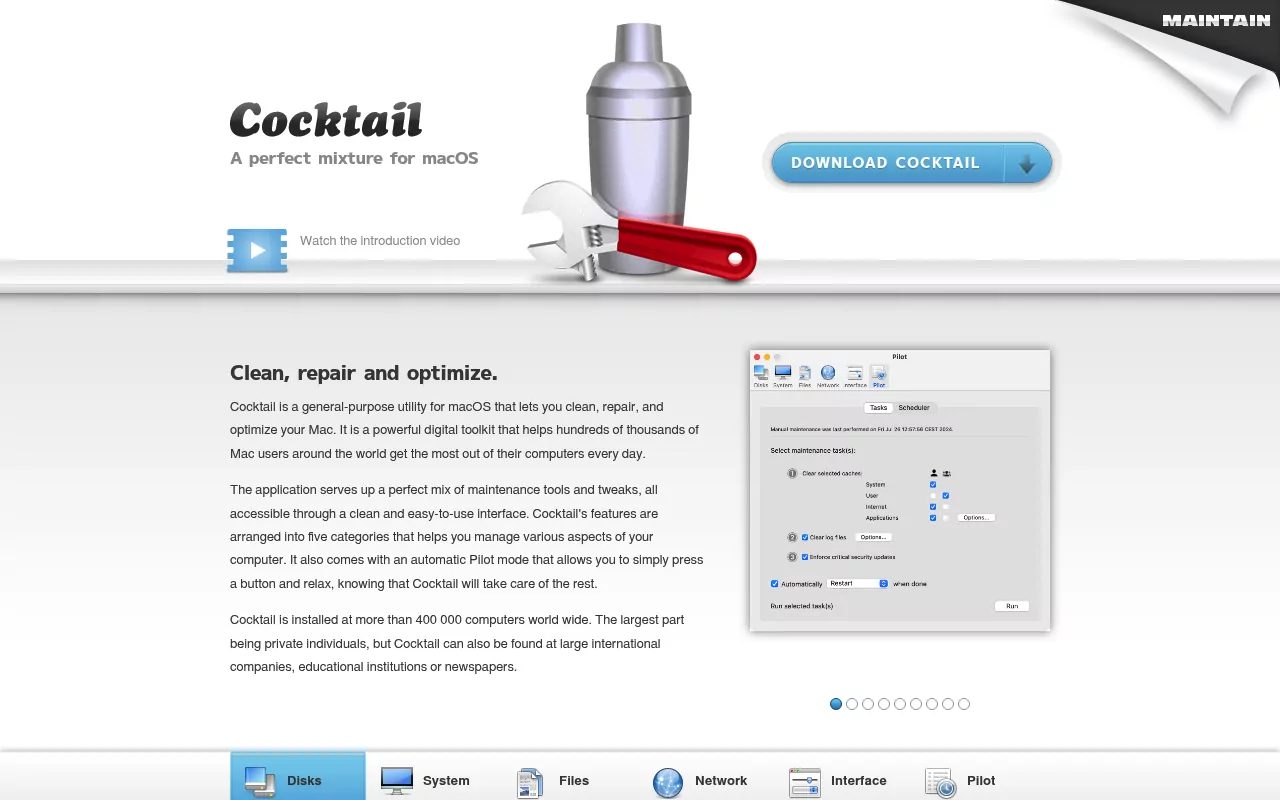
Paid, with a demo that stops after the fifth launch. At the time of writing a single user licence is listed at $19, reduced from $29. A family licence for five Macs is $39, a ten pack is $99, and a business licence for up to 100 Macs is $299.
Cocktail groups its features into Disks, System, Files, Network and Interface, and adds a one click Pilot mode. Like OnyX it ships a separate edition per macOS release, and the Tahoe Edition for macOS 26 is version 19.10.
Notable limitation. It costs money, the edition is tied to your macOS version, and some of what Pilot mode automates is work launchd already schedules.
First Aid in Disk Utility
Built in, no cost, already on your Mac. It checks and repairs the formatting and directory structure of a volume, the one OnyX job Apple ships an equivalent for.
Notable limitation. That is all it does. No caches, no hidden settings, no app removal. Apple also states that it cannot detect or repair every disk problem.
Comparison at a glance
| App | Licence and price | What it is for | Notable limitation |
|---|---|---|---|
| OnyX | Free, donations accepted | Disk checks, caches, database rebuilds, app removal, hidden settings | A separate build per macOS release, and some tasks macOS no longer needs |
| Maintenance | Free, donations accepted | Caches, database rebuilds, periodic scripts | A component of OnyX, so redundant if you run both |
| TinkerTool | Free | Hidden preference settings only | No cleaning, no disk checks, no app removal |
| TinkerTool System | $36.00 USD or €30.00 EUR, single licence | Maintenance, system settings and file operations | Paid, and easily confused with the free TinkerTool |
| Pearcleaner | Free, Apache 2.0 with Commons Clause | App removal and orphaned files | Project status is on hold; last release 5.4.3, November 2025 |
| Cocktail | $19 single user at the time of writing, up to $299 business | Disks, system, files, network and interface tasks | Paid, per release editions, and it automates scheduled work |
| First Aid in Disk Utility | Free, built into macOS | Checking and repairing volume structure | One job only, and it cannot fix every disk problem |
Frequently Asked Questions
Is the OnyX Mac app still safe to use on macOS 26 Tahoe?
OnyX is actively maintained, and the stable build for macOS 26 Tahoe is 5.0.3, from 31 August 2026. The risk is not the app but the build. There is one copy per macOS release, so running a version made for a different system is the mistake to avoid.
Do I still need to run maintenance scripts on my Mac?
No. On macOS 26 the old periodic mechanism is not installed, so there are no daily, weekly or monthly scripts waiting to be triggered. Log rotation runs hourly through newsyslog, and temporary files are cleared each day at 03:35. The system schedules both on its own.
Is a free Mac maintenance tool enough, or should I pay for one?
That depends on what you are buying. Paid apps here mostly sell a tidier interface, a support address and per release testing, not access to anything hidden. Every underlying task is available in Finder, System Settings, Disk Utility and Terminal at no cost.
Will deleting caches break my apps?
Usually not, if you work carefully. Quit the app first, clear only the folder named after it, then reopen it. Caches are meant to be disposable and get rebuilt. Some apps will ask you to sign in again.
What is the difference between TinkerTool and TinkerTool System?
TinkerTool is free and only exposes hidden preference settings. TinkerTool System is a separate paid product from the same developer, at $36.00 USD or €30.00 EUR for a single licence, and it adds maintenance and file tasks. The similar names catch people out regularly.
Does clearing caches make a Mac faster?
It frees disk space, which is a real result. Speed is a different question, and clearing caches can briefly make things slower while they rebuild. If one app misbehaves, clearing its cache is worth trying. If the whole Mac feels slow, look at storage and login items instead.
Where to go from here
If you came here for one job, take that job and skip the rest. Disk worries go to First Aid. Hidden settings go to a couple of commands you can undo. Maintenance scripts need nothing from you.
If an app you removed left a mess behind, that is the part worth doing properly, and no scheduler handles it for you. The per app removal guides on this site go through each one by hand, with the exact folders to check and a final pass to confirm nothing is still running. Nothing to install, nothing to buy.
Good places to start are the walkthroughs for Trend Micro and Kaspersky, since security software leaves the most behind.