How to Uninstall Dropbox on Mac Without Losing Your Files
To uninstall Dropbox on a Mac, click the Dropbox icon in the menu bar, click your avatar, choose Quit, then drag Dropbox from Applications to the Trash, as Dropbox documents. Uninstalling does not delete your account or the Dropbox folder. To remove this Mac from your device list, unlink it at dropbox.com under Settings, Security, Devices.
Most people who search for how to uninstall Dropbox on Mac have one real worry: will it delete my files? It will not touch the copies in your Dropbox account. The only files at risk are the ones that live nowhere else, so this guide deals with those first.
The steps are the same on a MacBook Air, a MacBook Pro or a desktop Mac.
Why dragging Dropbox to the Trash is not enough
Dropbox is more than one app icon. On current versions it plugs into Finder through Apple's File Provider system, which is why your Dropbox folder shows up in the Finder sidebar. It also installs Dropbox Update, a background process that Dropbox says can run even while the main app is closed.
Dropbox may also hold the Accessibility permission. It keeps support folders in your Library and, on some Macs, a second copy of itself.
Dragging the app to the Trash leaves all of that behind. The synced folder stays too, on purpose.
Apple's guide to deleting apps on a Mac says an app's own uninstaller is the best way to clear its login items and extensions. Dropbox has none for Mac, so this is a job done by hand, with no extra software. If you are weighing tools anyway, see AppCleaner alternatives and the by-hand method.
Before you uninstall Dropbox on Mac: protect your files and sign out
Check your Dropbox folder location
Click the Dropbox icon in the menu bar, click your avatar and choose Preferences. Open Sync and scroll to Dropbox folder location. Dropbox's guide to finding the Dropbox folder shows the same steps.
Dropbox on File Provider needs macOS 12.5 or later. It keeps the folder in ~/Library/CloudStorage and lists it under Locations in Finder, per Dropbox's File Provider notes.
The older setup uses your home folder, ~/Dropbox by default. Team accounts add the team name, and a linked personal account may show as Dropbox (Personal).
Online-only files are not stored on this Mac
An online-only file shows a cloud icon, and on macOS 12.3 and later it shows as zero bytes. It is a placeholder, not a copy. Dropbox on File Provider can also turn files online-only by itself when your disk runs low on space.
So before you sign out, right-click anything you want kept locally and choose Make available offline, as Dropbox's page on online-only files on macOS shows. Or confirm the files are safe at dropbox.com.
What uninstalling does not do
- It does not delete your Dropbox account or remove the Dropbox folder from your drive.
- It does not cancel a paid plan. Dropbox's billing help says deleting the app does not cancel your plan.
- It does not remove Dropbox Dash, a separate app.
Sign out of Dropbox on this Mac
In the app, click the Dropbox icon, click your avatar and choose Preferences. Open the Account tab, click Sign out and confirm. With a linked personal and work account, sign out of each one, because Dropbox keeps the other logged in.
Or use the web: at dropbox.com, click your avatar, then Settings, then the Security tab. Find this Mac under Devices, click the trash can icon and click Unlink. The device list guide confirms synced files stay on the Mac and changes stop syncing.
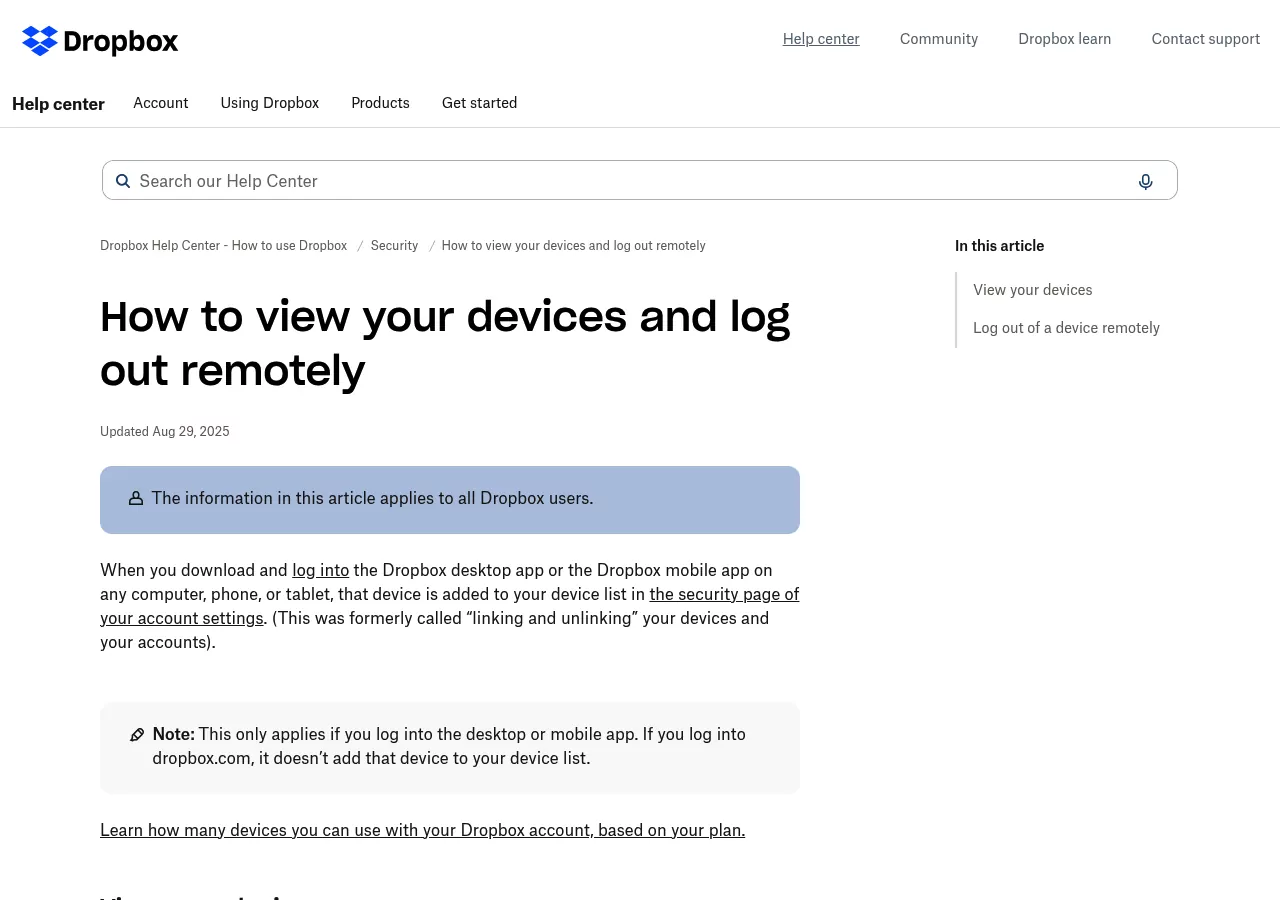
Warning: leave the box "Delete files from [account name] Dropbox the next time this computer comes online" unticked. It is a remote wipe for lost or stolen computers, and it would erase the local copies you meant to keep.
Afterwards, check the Devices list. If this Mac is still there, remove it.
Step 1: Quit Dropbox and move it to the Trash
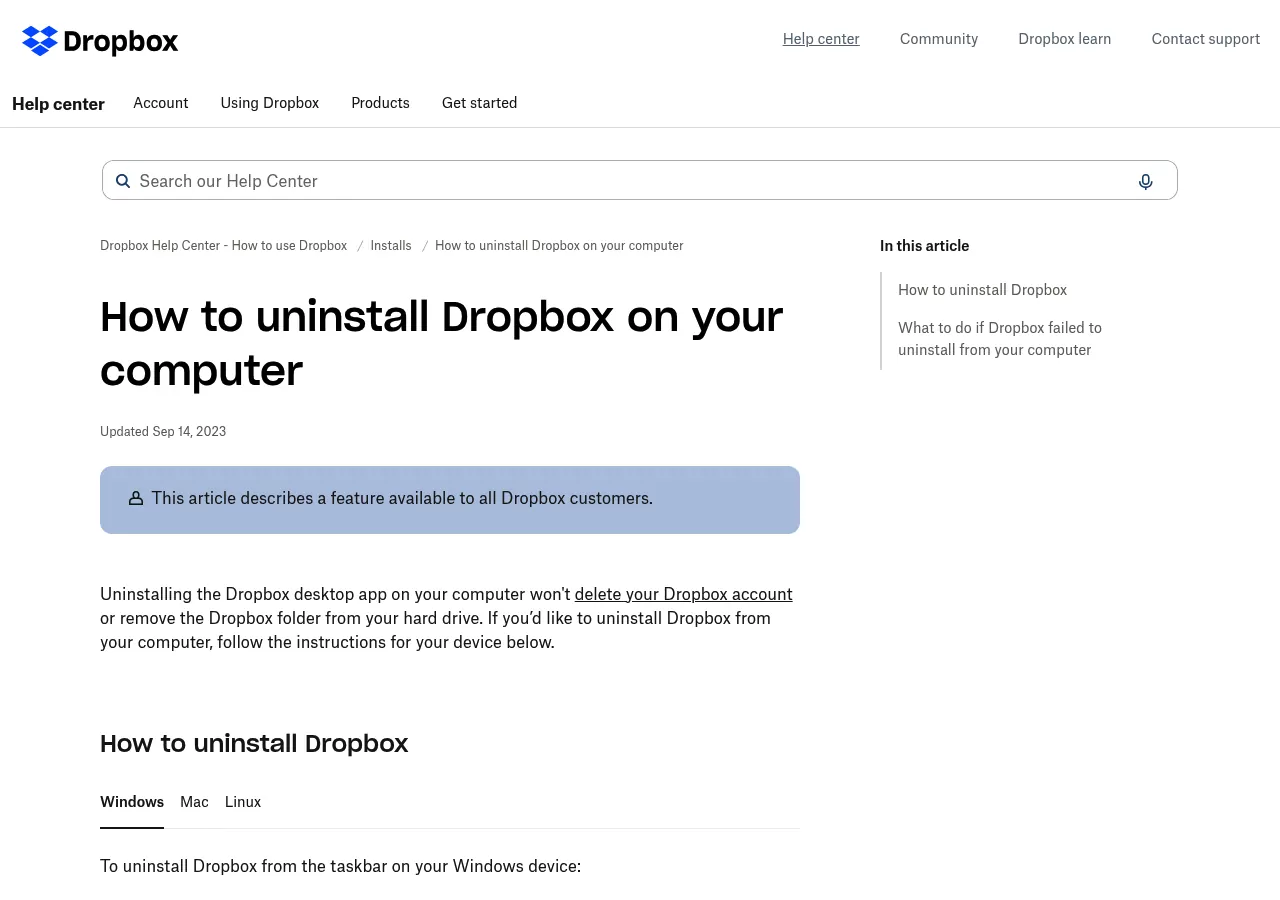
These steps come from Dropbox's page on how to uninstall Dropbox.
- Click the Dropbox icon in the menu bar.
- Click your avatar in the bottom left corner, then click Quit.
- Open Finder and click Applications.
- Drag Dropbox to the Trash.
If the menu no longer shows your avatar after signing out, or Dropbox will not quit, use Activity Monitor, which is Dropbox's own fallback. Search for Dropbox, select each process, click the stop button and choose Quit, as Apple's guide to quitting a process in Activity Monitor shows. A password prompt from Finder is normal.
Step 2: Check for a second copy of the Dropbox app
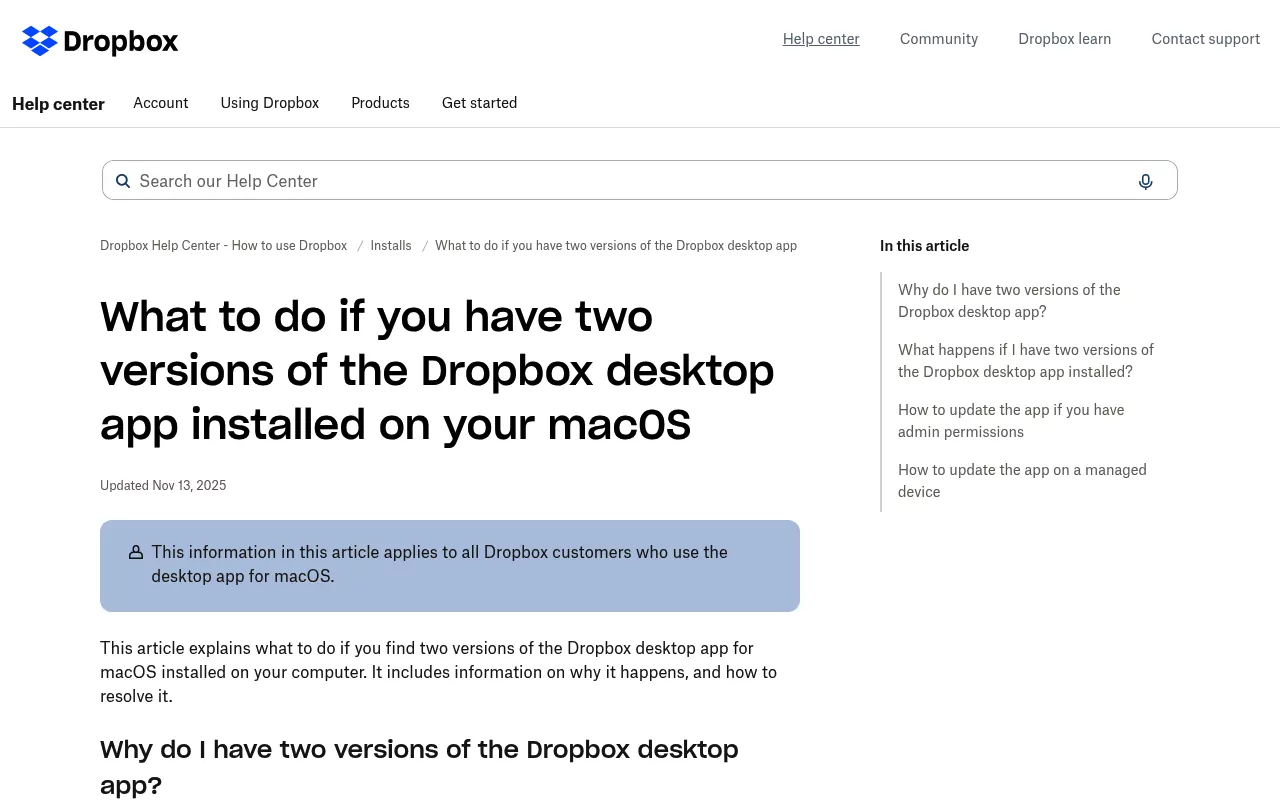
When the app cannot update itself, it installs a second copy in your home folder. Dropbox says this often happens on company-managed Macs. Its article on two versions of the desktop app gives the location:
~/Library/Application Support/Dropbox/DropboxIn Finder, choose Go, then Go to Folder, and paste ~/Library/Application Support/Dropbox. If a Dropbox app sits inside, drag it to the Trash. On a work Mac, ask your IT team first.
Step 3: Remove login items, extensions and the Accessibility permission
Most entries vanish with the app, but check. Open System Settings, click General, then Login Items & Extensions. Apple's guide to Login Items & Extensions settings lists these parts:
- Open at Login: select any Dropbox item and click the remove button below the list.
- Background items: turn off anything from Dropbox. Apple labels this list "Allow in the Background" on macOS Ventura 13 to Sequoia 15, and "App Background Activity" on macOS Tahoe 26 and later.
- Extensions: check File Providers and Finder, and turn Dropbox off if it is still listed.
On macOS Sonoma 14 and Ventura 13 the page is called Login Items, and Sonoma lists extensions under Privacy & Security.
Then open Privacy & Security, click Accessibility and turn Dropbox off if it is listed, per Apple's guide to accessibility app access.
Step 4: Clear Dropbox's support files in your Library folder
Start with a search that only reads. It lists items named "dropbox" near the top of your Library. It skips CloudStorage, where your synced files live, and deletes nothing.
find ~/Library -maxdepth 3 -iname "*dropbox*" -not -path "$HOME/Library/CloudStorage/*" 2>/dev/nullNames vary by version, so trust your own list. On a Mac that had run the File Provider version, it found items like these.
- A folder in
~/Library/Group Containersending in.com.getdropbox.dropbox.sync. Dropbox's cache folder guide calls it the File Provider cache. -
com.getdropbox.dropboxfolders in~/Library/Containersand~/Library/Application Scripts. -
~/Library/Application Support/DropboxElectron. - Dropbox Update's
~/Library/Preferences/com.dropbox.DropboxMacUpdate.plist, plus items in~/Library/HTTPStorages.
To remove one, paste its path into Go to Folder and drag the item to the Trash.
Leave these alone: the Dropbox folder in~/Library/CloudStorage, which Step 6 covers. Skip anything under~/Library/Mobile Documents, which belongs to iCloud Drive. Skip anything inside acom.applefolder, too.
Step 5: Remove the hidden ~/.dropbox folder and system-level helpers
Dropbox keeps settings, including its info.json file, in a hidden .dropbox folder in your home folder. Not every Mac has one. Open your home folder, press Command-Shift-Period to show hidden items, and drag .dropbox to the Trash if it appears.
Some Macs also have /Library/DropboxHelperTools. This read-only command checks for both:
ls -d ~/.dropbox /Library/DropboxHelperTools 2>/dev/nullPrefer Terminal? Warning: the next two lines use sudo and ask for your Mac password.
They come from Dropbox's advanced reinstall guide. Both move items rather than delete them, so a mistake can be undone.
sudo mv ~/.dropbox ~/.Trash/dropbox.old
sudo mv /Library/DropboxHelperTools ~/DropboxHelperTools.old
Later, drag DropboxHelperTools.old from your home folder to the Trash.
A Mac that ran Dropbox on an older macOS release may also hold a kernel extension. This check prints nothing if there is none.
ls /Library/Extensions | grep -i dropboxIf it names one, drag it from /Library/Extensions to the Trash with your admin password, then restart.
Step 6: Decide what to do with the local Dropbox folder
Warning: do this only after signing out and checking your files at dropbox.com or in a backup. While the Mac is signed in, deleting here can delete files from your account too.
On File Provider, click Dropbox under Locations in the Finder sidebar. Finder may show "This is an unlinked Dropbox" with a Delete "Dropbox" button. If so, use it.
That is the method on Dropbox's File Provider support page. If there is no prompt, open ~/Library/CloudStorage with Go to Folder. Check what the Dropbox folder holds before you move it to the Trash.
On the older setup, drag the Dropbox folder (usually ~/Dropbox) to the Trash, and its hidden .dropbox.cache goes with it. To keep files, move them to Documents first. To size the folder, use Get Info, or see DaisyDisk alternatives and the Finder method.
Confirm nothing from Dropbox is still running
Open Activity Monitor and search for Dropbox. Dropbox names two processes to look for: DropboxMacUpdate, its updater, and DropboxFileProviderExtension. Quit anything left, as in Step 1.
This check only reads. It prints any process with "dropbox" in its name. No output means nothing is running.
pgrep -il dropboxThis one looks for leftover launch items. It prints nothing when they are clean.
ls ~/Library/LaunchAgents /Library/LaunchAgents /Library/LaunchDaemons 2>/dev/null | grep -i dropbox
Check that the menu bar icon, the Login Items entry and the Finder sidebar entry are gone, and that dropbox.com no longer lists this Mac. Then empty the Trash and restart.
Reinstalling Dropbox cleanly
If you are fixing a broken sync, Dropbox advises removing every version of the app, then installing the latest, which is why Step 2 matters. If you kept the old folder on the older setup, the advanced reinstall guide shows how to point the new install at it with Advanced settings.
Frequently Asked Questions
Will uninstalling Dropbox delete my files?
No. Dropbox says uninstalling does not delete your account or remove the Dropbox folder, so synced files stay on the Mac and online. The exception is online-only files: they are placeholders, so they live only at dropbox.com unless you choose Make available offline before signing out.
Can I delete the Dropbox folder without deleting files on dropbox.com?
Yes, once this Mac is signed out or unlinked. Changes on this Mac then stop syncing, so removing the local folder leaves your files at dropbox.com untouched. Never delete it while the app is running and signed in.
Why does Dropbox still show in Finder after I uninstalled it?
The folder stays on purpose, and on File Provider it sits under Locations. If Finder says "This is an unlinked Dropbox", use its Delete "Dropbox" button. Otherwise check File Providers and Finder in Login Items & Extensions, then restart.
How do I stop Dropbox opening at startup without uninstalling it?
Open Dropbox Preferences, go to the General tab and turn off Start Dropbox on system startup. You can also remove Dropbox from Open at Login in System Settings. Keep in mind that Dropbox only syncs while the app is open.
What happens to shared folders if I uninstall Dropbox?
Nothing changes online. Shared folders belong to your Dropbox account, which uninstalling does not touch, so they stay at dropbox.com for you and every other member. Leaving one is a separate step at dropbox.com.
Does this also remove Dropbox Dash?
No, Dash is a separate app. Dropbox's guide to uninstalling Dropbox Dash says to drag it from Applications to the Trash. Removing it does not cancel a Dash subscription either.
Removing other apps from this Mac
With Dropbox, most of the care goes into your files. Security apps are a different job.
The guide on how to uninstall Kaspersky on Mac covers system extensions and a vendor removal tool. The Trend Micro removal guide covers its uninstall tool.
The Sublime Text uninstall guide shows a text editor that leaves a PATH line behind. Some apps cannot be removed at all, as the page on why Safari stays on your Mac explains. Each guide is done by hand, with nothing to download.