How to Uninstall Google Chrome on Mac and Clear What It Leaves Behind
To uninstall Google Chrome on a Mac, quit Chrome, open Applications in Finder and drag Google Chrome to the Trash, the method Google's own help page gives. To erase local bookmarks and history too, delete the contents of ~/Library/Application Support/Google/Chrome. Remove Google's updater only if no other Google app remains.
That is the short answer to how to uninstall Google Chrome on Mac. The steps below add the caches, web app shortcuts and updater it leaves behind, then a final check.
Why dragging Google Chrome to the Trash is not enough
Chrome keeps your profiles, meaning bookmarks, history, extensions and saved passwords, in ~/Library/Application Support/Google/Chrome. It also keeps a cache folder and a preference file. None of these leave with the app.
Chrome also relies on Google's updater. Google calls it Google Software Update, and its settings file is named com.google.Keystone.plist, so you will also see it called Keystone. Current versions run a newer updater named GoogleUpdater, and one Mac can hold folders for both.
The catch: Google Drive for desktop and other Google apps use the same updater. That is why Step 5 comes with a condition.
Before you uninstall Google Chrome on Mac
Set another default browser first
If Chrome is your default browser, pick a new one first. On macOS Ventura 13 or later, open System Settings, click Desktop & Dock, and use the Default web browser menu. On earlier versions the menu is in System Preferences under General, as Apple's page on changing the default web browser explains.
Safari is always there as a fallback. It is sealed system software that stays on every Mac.
Export your bookmarks and passwords
For bookmarks, choose More (the three dots) > Bookmarks and lists > Bookmark Manager, then More > Export Bookmarks. Google's page on exporting Chrome bookmarks notes they save as an HTML file.
For passwords, choose More > Passwords and autofill > Google Password Manager, then Settings. Next to Export passwords, choose Download file, as Google's password help page shows. The file holds your passwords, so keep it private and delete it once you have imported it.
Decide what happens to synced data
Deleting files on your Mac does not touch what is saved in your Google Account. To remove that too, open chrome.google.com/data in Chrome and choose Delete data, as Google's page on signing out and deleting saved info describes.
This step is optional and account wide. Google's page on deleting browsing data says that when you delete browsing data while signed in, Chrome also removes it from your other devices and your Google Account.
Check whether your Mac is managed
On a work or school Mac, IT can put Chrome back after you remove it. Ask IT first if the check below finds a profile from your employer or school.
To check for device management on macOS Sequoia 15 and later, look in System Settings > General > Device Management. On Ventura 13 and Sonoma 14, it is System Settings > Privacy & Security > Profiles, per Apple's guide to Device Management settings.
Step 1: Quit Chrome and move it to the Trash
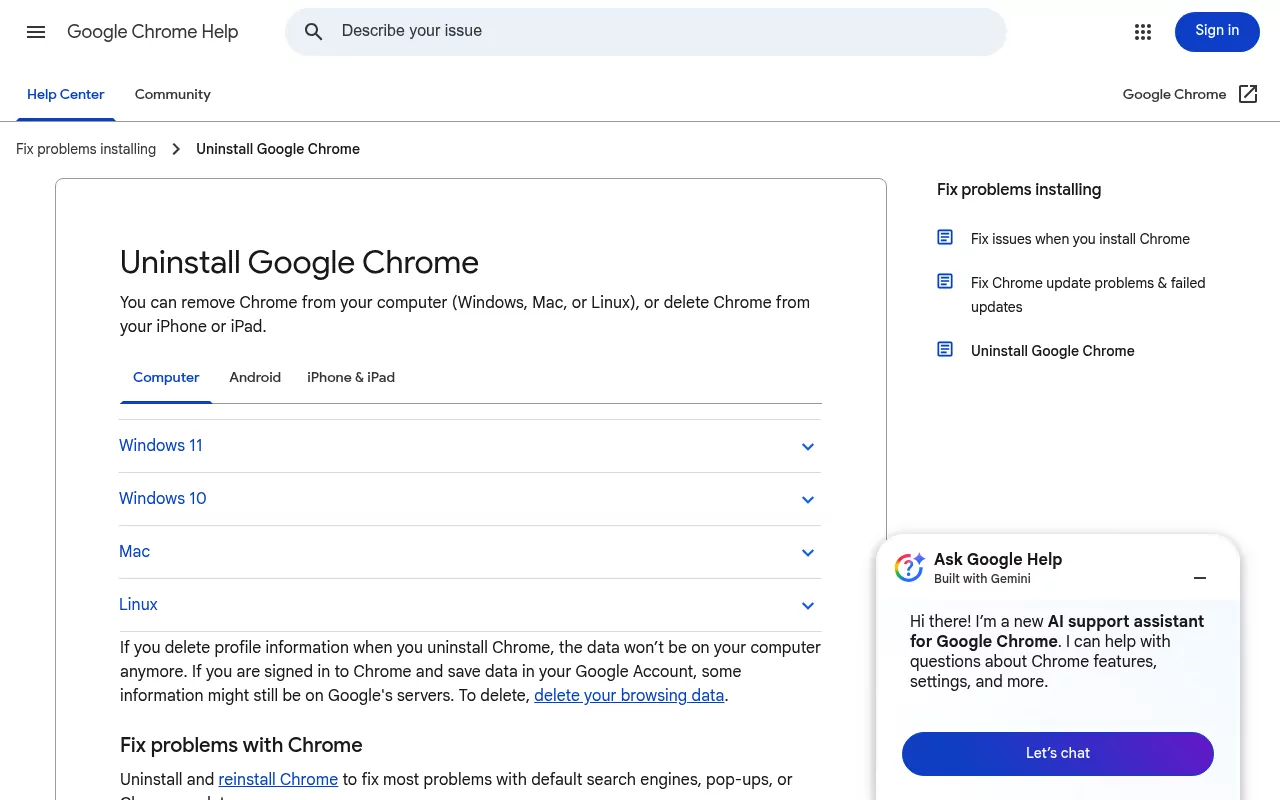
Google ships no uninstaller for Mac. This is the method on its Uninstall Google Chrome page, and Apple's advice on uninstalling Mac apps is the same when no uninstaller exists.
- Right-click Chrome in the Dock and choose Quit.
- Open Finder and click Applications in the sidebar.
- Drag Google Chrome to the Trash.
Can't find it? Google suggests File > Find in Finder, searching for Google Chrome. A copy may sit in ~/Applications inside your home folder.
If Finder asks for an administrator password, enter it.
If Chrome will not quit, press Option, Command and Esc together, or choose Force Quit from the Apple menu. Select Google Chrome and click Force Quit, as Apple's page on forcing an app to quit shows.
Step 2: Delete the Chrome profile folder (only if you want local data gone)
Warning: this erases every Chrome profile in your Mac user account, including bookmarks, history, extensions and passwords saved on this Mac. Export what you want to keep first. Anything synced stays in your Google Account.
- In Finder, choose Go > Go to Folder, or press Shift, Command and G.
- Enter
~/Library/Application Support/Google/Chromeand press Return. - Select all the folders inside and drag them to the Trash.
Stop there. Do not trash the parent Google folder, because it can also hold the GoogleUpdater folder and folders for other Google apps, such as DriveFS for Google Drive.
To see how much space it took, select the Chrome folder and press Command and I first. You can also find your biggest files with Finder and Storage settings. Beta, Dev and Canary builds are covered in the FAQ.
Step 3: Clear caches and preferences
Two more Chrome items sit in your own Library folder:
-
~/Library/Caches/Google/Chrome, the cache folder -
~/Library/Preferences/com.google.Chrome.plist, the preference file
For the cache, use Go to Folder with ~/Library/Caches/Google and drag the Chrome folder to the Trash. Leave any other folders there alone. For the preference file, Go to Folder with its full path opens Preferences with the file selected, so drag it to the Trash.
A tiny file named Google Chrome Brand.plist may also sit in ~/Library/Google. If it is there, trash it too, but leave the GoogleSoftwareUpdate folder beside it for Step 5.
Some Macs hold more Chrome items. To list them, open Terminal from Applications > Utilities and paste this read-only command:
find ~/Library/Caches ~/Library/Preferences ~/Library/HTTPStorages ~/Library/"Saved Application State" -maxdepth 1 -iname "*chrome*"It prints the full path of each match. Trash only items whose names start with com.google.Chrome. Leave anything else, such as chrome_crashpad_handler, because the name alone does not show which app made it.
If you keep Chrome Beta, Dev or Canary, leave items whose names continue with .beta, .dev or .canary, such as com.google.Chrome.beta.plist.
Step 4: Remove Chrome web app shortcuts
If you installed sites such as Gmail or Google Docs as apps, Chrome keeps their shortcuts in their own folder, ~/Applications/Chrome Apps.localized. Use Go to Folder with ~/Applications and find the folder Finder shows as Chrome Apps.
The shortcuts need Chrome to open, so drag the Chrome Apps folder to the Trash. Chrome Beta and Dev keep their web apps in this same folder, so if you keep either one, trash only the shortcuts you no longer need. No folder means no web apps, so skip this step.
Step 5: Remove Google's updater, but only if no other Google app remains
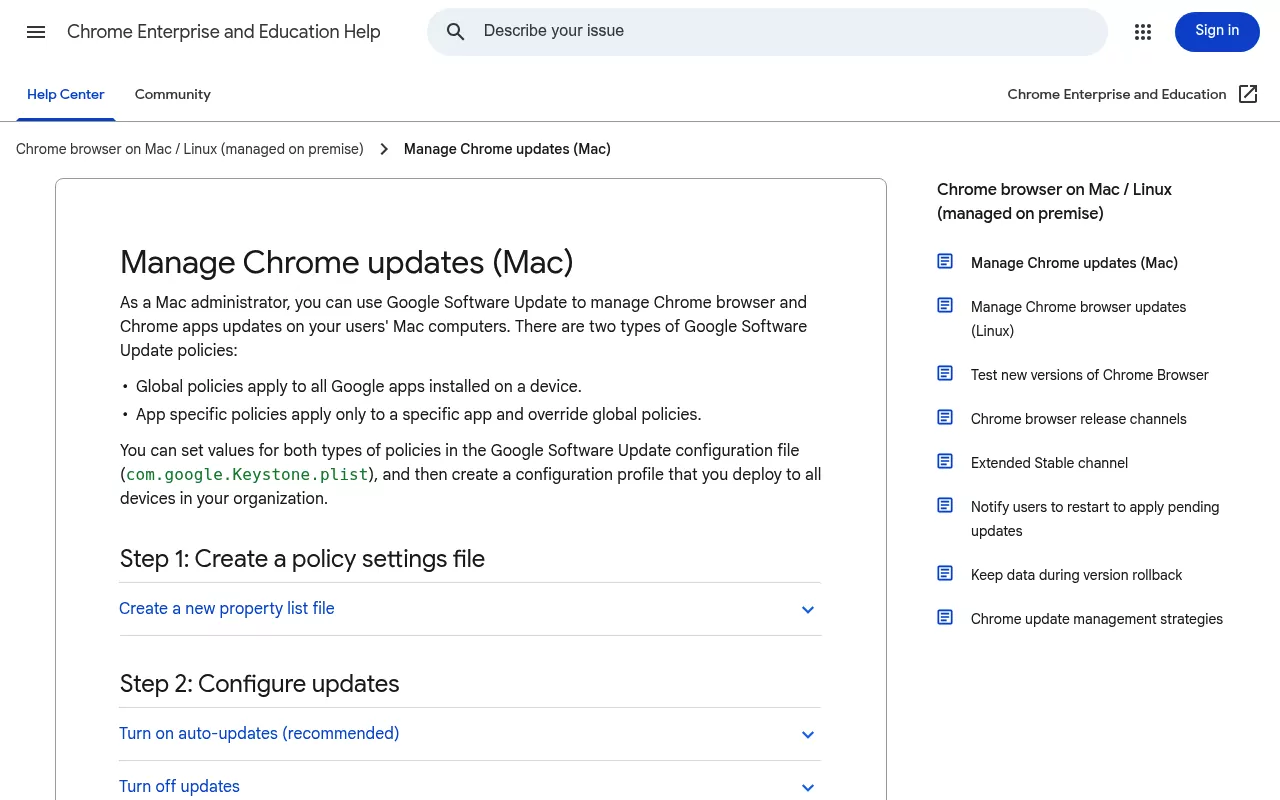
If Google Drive or any other Google app stays on this Mac, skip this step. Google's guide to managing Chrome updates on Mac says global updater policies apply to all Google apps installed on a device. Its Drive for desktop setup page adds that Drive updates itself with Google Software Update.
Warning: check each name before you drag. Remove only the items below. Never trash the whole Google folder, or anything with another vendor's name.
If Chrome was the last Google app, remove these with Go to Folder. For a folder, go to the folder that contains it (for example ~/Library/Google for GoogleSoftwareUpdate) and drag the named folder. For a .plist file, Go to Folder with the full path opens its folder with the file selected.
The items in /Library serve every user account on this Mac, so skip them if another account still uses Chrome, Google Drive or another Google app. Items outside your home folder need an administrator password.
~/Library/Application Support/Google/GoogleUpdater/Library/Application Support/Google/GoogleUpdater~/Library/Google/GoogleSoftwareUpdate/Library/Google/GoogleSoftwareUpdate~/Library/LaunchAgents/com.google.GoogleUpdater.wake.plist/Library/LaunchDaemons/com.google.GoogleUpdater.wake.system.plist
Google's admin guide puts the updater's logs in the two GoogleUpdater folders. The rest came from a Mac running Chrome 153 on macOS Tahoe 26, and any may be missing on yours.
Older installs can also leave launch files starting with com.google.keystone; the ls check below lists them all. Small items named com.google.GoogleUpdater or com.google.Keystone in your Caches, Preferences and HTTPStorages folders can go too.
Restart your Mac afterwards, so macOS stops loading the launch files you removed.
Confirm nothing from Google Chrome is still running
Open Activity Monitor from Applications > Utilities and search for Chrome, then Google. Nothing named Google Chrome or Google Chrome Helper should appear.
Next, open System Settings > General > Login Items & Extensions on macOS Sequoia 15 and later. On Ventura 13 and Sonoma 14, the pane is System Settings > General > Login Items.
Look for a Google entry in the background list. It is labelled Allow in the Background on Ventura 13 through Sequoia 15, and App Background Activity on macOS Tahoe 26 and later. Apple's Login Items guide shows how to switch items off.
Last, three read-only Terminal checks that change nothing:
launchctl list | grep -i 'com\.google\.'This shows background jobs in your own account. System-wide jobs do not appear here.
sudo launchctl list | grep -i 'com\.google\.'This shows system jobs. It asks for your admin password.
ls ~/Library/LaunchAgents /Library/LaunchAgents /Library/LaunchDaemons | grep -i 'com\.google\.'This lists any Google launch files left on disk.
No output from all three means no Google launch jobs or files remain. Any line, with no other Google app installed, means going back to Step 5.
Reinstalling Chrome cleanly later
Google's uninstall page says reinstalling fixes most problems with default search engines, pop-ups and Chrome updates. For a clean start, do Steps 1 to 3 first. A kept profile folder hands your old bookmarks and extensions back to the new install.
Chrome needs macOS 13 Ventura or later, according to Google's Chrome update page. Download a fresh copy from Google and drag it into Applications, as Google's install help page describes.
Frequently Asked Questions
Does Google Chrome have an uninstaller for Mac?
No. Google's Mac steps are to quit Chrome and drag it to the Trash, plus an optional profile folder step.
Will uninstalling Chrome delete my bookmarks and passwords?
Not on its own. Trashing the app leaves the profile folder, so a reinstall brings everything back. Deleting that folder erases the local copy, while synced data stays in your Google Account until you delete it at chrome.google.com/data.
Is it safe to delete GoogleSoftwareUpdate or GoogleUpdater?
Only when no other Google app remains. Google Drive for desktop and other Google apps use the same updater, so removing it stops their updates.
Why does Chrome keep coming back after I delete it?
Often a second copy, for example in ~/Applications or on the Desktop, which File > Find will show. Or the Mac is managed by an employer or school, and IT puts it back.
Do I need to empty the Trash to finish uninstalling Chrome?
Yes, to free the space. Apple's uninstall page says to choose Finder > Empty Trash. Until then you can still put anything back, so empty it once you are sure.
How do I uninstall Chrome Beta or Canary on a Mac?
The same way. Each channel has its own app with Beta, Dev or Canary in the name, so drag that app to the Trash.
Its profile has its own folder in ~/Library/Application Support/Google, named Chrome Beta, Chrome Dev or Chrome Canary. Canary also keeps its web apps in its own folder, ~/Applications/Chrome Canary Apps.localized. Remove the updater only after the last Chrome build is gone.
Removing other apps from this Mac
Chrome sits in the middle: one profile folder, a few caches and a shared updater. Security tools go deeper, as the guides to removing Kaspersky and its system extension and Trend Micro and its network filter show. A plain editor is simpler, as the Sublime Text guide shows, and Safari cannot be removed at all.
Each guide here follows the same shape: what the app installs, whether the vendor ships an uninstaller, the manual leftover steps, and a closing check. Finder, System Settings and, now and then, Terminal are all you need.