GrandPerspective Alternatives for Mac: Free Disk Maps and the Built-In Options
GrandPerspective draws a map of your disk. Every file becomes a rectangle, and the bigger the rectangle, the bigger the file. Most GrandPerspective alternatives do the same job in a different shape. macOS can also do it with nothing to install, using Finder, Storage in System Settings and one Terminal command.
What GrandPerspective actually does
GrandPerspective for Mac is a treemap tool. It scans a folder or a whole volume, then draws every file as a rectangle whose area matches its size. One glance shows where the space went.
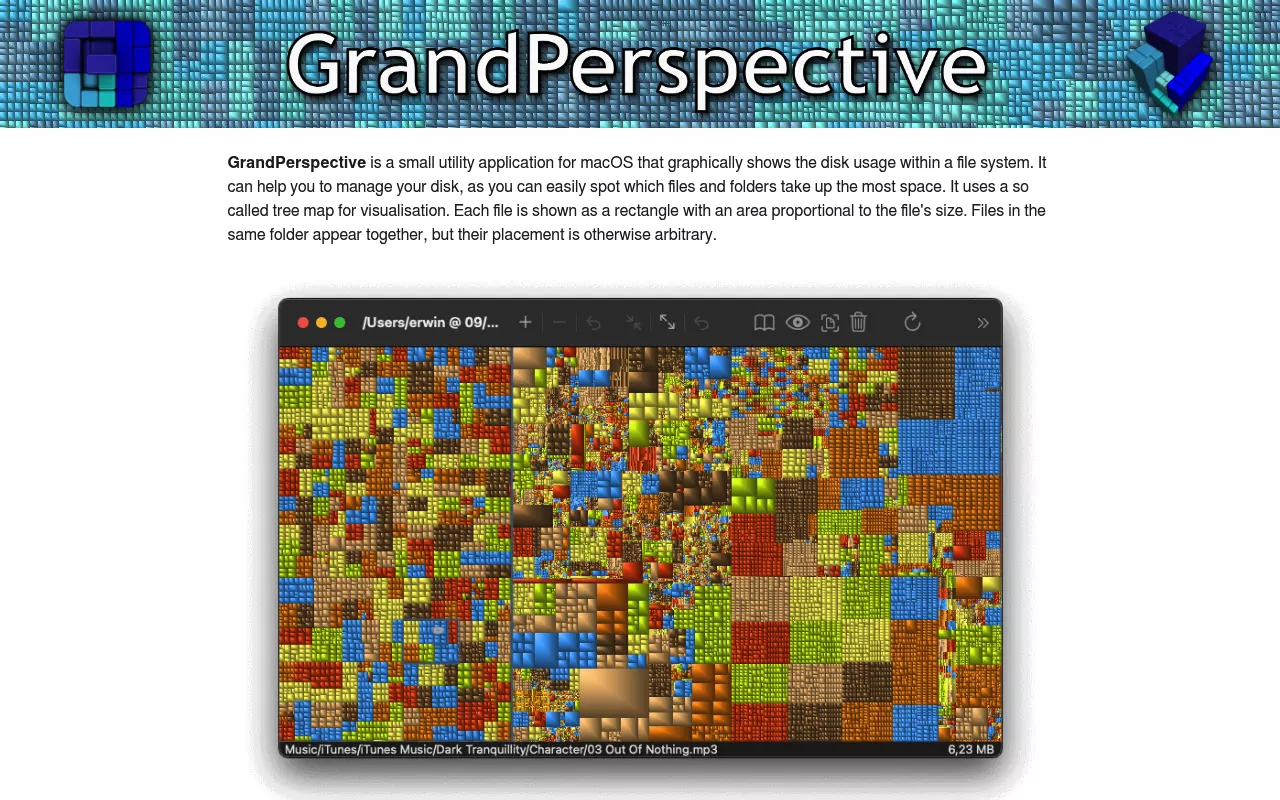
The current version is 3.8.0, and it is open source under the GNU General Public License. It is free from the project's own download page, and the same app costs $2.99 on the Mac App Store.
Version 3.8.0 needs macOS 14 or later, on Apple silicon or Intel. Older Macs are not shut out: the project still hosts its earlier releases. Version 3.7.2 covers macOS 11, 12 and 13, and the archive reaches back to macOS 10.5.
It can delete from the map as well as measure, moving files to the Trash for you. A big rectangle is not always safe to throw away, though. Leftovers from an app you removed long ago are one example, as the steps for removing Sublime Text and its leftovers show.
Why people look for something else
- Version hunting. Only the newest build gets new work, so an older Mac means digging out a legacy release.
- Shape. Some people read a sorted list faster than a map.
- Price. Paid disk tools split between a one-time licence and a subscription.
- Scope. A few have grown from measuring into general cleanup.
- Permissions. Any scanner skips folders macOS protects until you grant Full Disk Access.
- No new app. Plenty of people just want the answer.
Walkthrough videos exist if you would rather watch. The steps below cover the same ground in writing.
The manual method that needs none of these
Every step uses software you already have.
The treemap idea in plain words
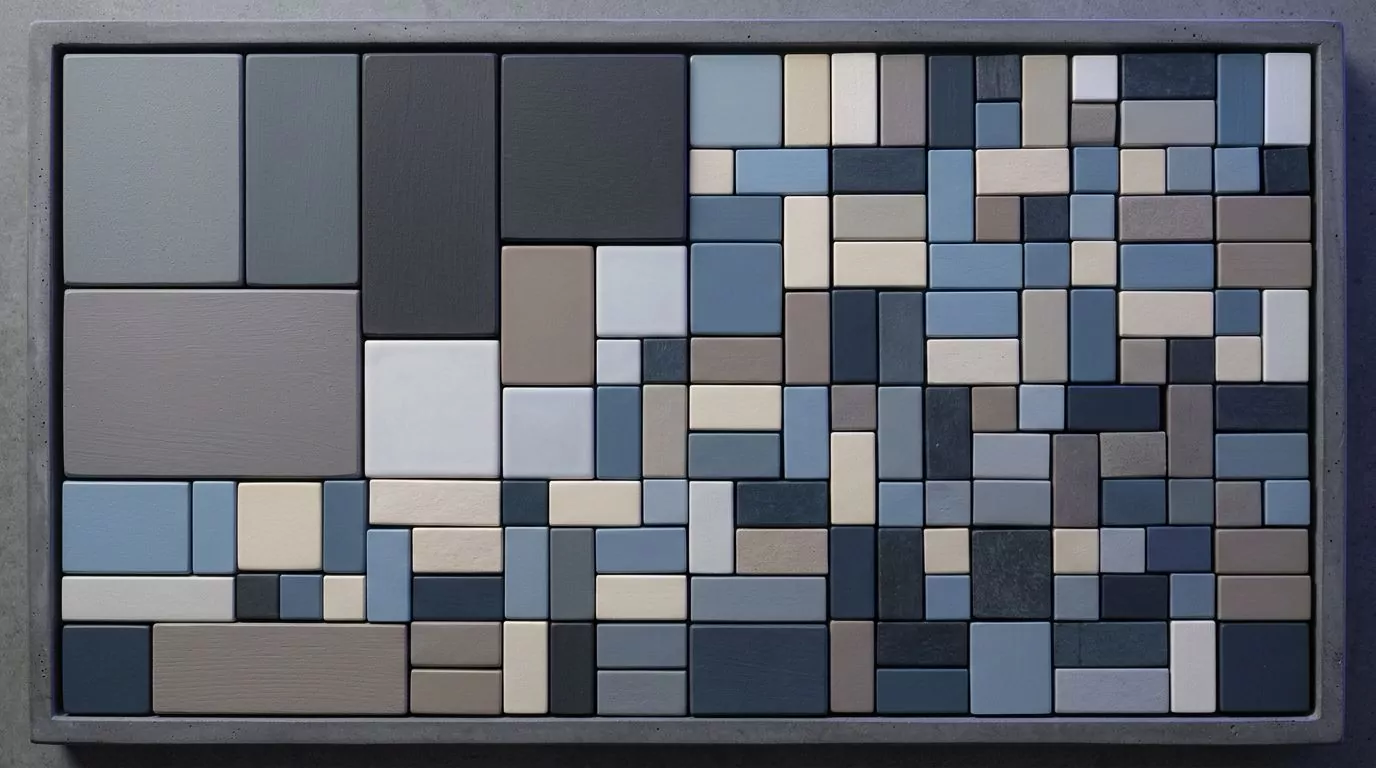
A treemap turns sizes into areas. The whole square is your disk, and each file gets a slice as big as it is. One giant video looks like a slab. You do not need the picture, only sizes sorted from big to small.
Make Finder add up folder sizes
By default Finder shows a size for files but a dash for folders. You can change that.
- Open the folder you want to inspect and switch to List view.
- Choose View, then Show View Options, or press Command-J. Apple documents this in Change view options in the Finder.
- Tick Calculate all sizes.
- Click the Size column heading to sort by size.
Finder then totals each folder's contents. Start at your home folder, open the biggest item, and repeat. That is how you find large files on a Mac with nothing installed.
Build a smart folder that only shows big files
A smart folder is a saved search. Point one at size for a standing list of your heaviest files.
- In Finder choose File, then New Smart Folder.
- Click the plus button to add a rule.
- Set the first menu to File Size. If it is not listed, choose Other and search for it.
- Set the rule to "is greater than" and enter a figure such as 500 MB.
- Click Save and give it a name.
Apple's guide to creating a smart folder covers the saving step. The list keeps itself current, so leave it in the sidebar.
Check Storage in System Settings first
Before scanning anything, see what macOS already thinks. On macOS Ventura 13 or later, choose System Settings from the Apple menu, click General, then click Storage. On earlier versions, choose About This Mac, then Storage.
You get a bar split into categories such as Applications, Documents and Trash. System Data holds everything without a named category, which is why it looks alarming. Much of it is ordinary support files, including leftovers from apps you removed, as the Kaspersky removal guide shows. Apple's page on how to free up storage space on Mac makes one point people forget: space does not return until you empty the Trash.
Get a sorted list in Terminal
One command does what a disk space analyzer does. Open Terminal and run:
du -h -d 1 ~ | sort -h
That lists every folder one level inside your home folder with a readable size, smallest first, so the biggest sits at the bottom. Move into it and run the command again.
Two variations help. Add -x to stop it wandering onto other disks. Use du -sh with one path for a single total, as in du -sh ~/Library/Caches. Apple's Terminal guide explains how to run commands and tools.
Why the numbers never quite agree
Compare a disk map, Finder and Terminal and you get three totals. There are four honest reasons.
Hard links are counted once. A file can sit in two places while using one block of storage. The macOS manual page for du says so: by default it counts a file with several hard links once per run, and -l counts it every time.
Copies can be nearly free. APFS clones share storage with the original until one of them changes, which Apple describes in its Apple File System features notes. A map may draw both copies full size while the disk holds barely more than one.
Protected folders go unread. Without Full Disk Access, granted in System Settings under Privacy and Security, an app cannot read everything, so its total comes out low. Apple covers this in controlling access to files and folders.
Purgeable space moves on its own. macOS holds space it can hand back when you need it, partly by using iCloud to make room. Any free space figure is a snapshot, not a fact.
The GrandPerspective alternatives people compare it with
What follows is description, not ranking. Readers usually want a free disk usage route on a Mac, or a DaisyDisk alternative that does not renew.
OmniDiskSweeper
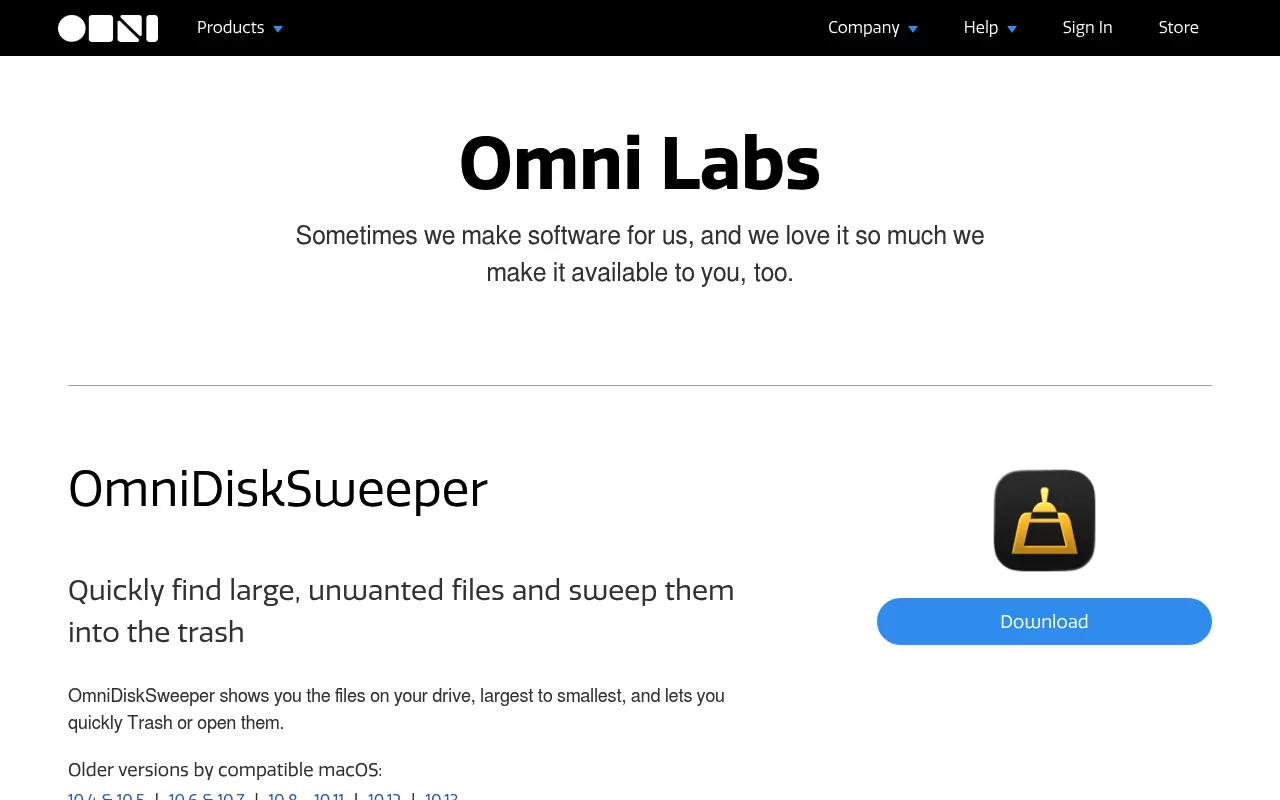
Free from The Omni Group, version 1.16, released in September 2025. It lists entries in columns, sorted and colour coded by size, biggest first, so it reads like Finder rather than a map. Omni still hosts older builds going back to OS X 10.4. The limitation is the missing picture, so you lose the shape a treemap gives you.
DaisyDisk

$9.99, a one-time purchase rather than a subscription. One licence covers up to five personal Macs, with a 30 day money back guarantee. Version 4.34.2 shipped in July 2026 and needs macOS 10.13 or newer. It draws a sunburst ring instead of rectangles. The limitation is the price, for a job Finder can do slowly.
Disk Xray
From Naarak Studio. On the Mac App Store it is a free download with purchases inside: $3.99 a month, $9.99 a year, or a $29.99 lifetime licence. That build is version 5.6.1, needs macOS 10.15 or later, and also finds duplicate files. The limitation is the pricing shape: two of the three options renew.
WhatSize
$14.99, or $9.99 for owners upgrading, and a key usually activates two machines. Version 8.2.9 supports macOS from Big Sur 11 up to Tahoe 26. It measures storage, then sorts and filters. The limitation is scope: it now bundles wider cleanup features.
Storage in System Settings
Built into macOS, with nothing to buy, download or permit. It shows the disk as a bar of categories with suggestions. The limitation is depth: it will say Documents is huge and never say which document.
Comparison at a glance
| App | Licence and price | What it is for | Notable limitation |
|---|---|---|---|
| GrandPerspective | Free, open source; $2.99 on the Mac App Store | Treemap of a folder or volume | Latest build needs macOS 14; older releases cover 10.5 to 13 |
| OmniDiskSweeper | Free | Column list sorted by size | No visual map |
| DaisyDisk | $9.99 one-time, five Macs | Sunburst view of disk usage | Paid, for a job Finder does free |
| Disk Xray | Free download; $3.99 monthly, $9.99 yearly, $29.99 lifetime | Disk usage plus duplicate finding | Two of three options renew |
| WhatSize | $14.99, two machines per key | Measuring, sorting, filtering | Wider scope than measuring alone |
| Storage in System Settings | Included with macOS | Category level overview | Cannot name the individual file |
Frequently Asked Questions
Is the free route really enough to find what is filling my Mac?
For finding the space, yes. Calculate all sizes in Finder plus one du command will name your biggest folders and files. Paid apps buy a nicer picture, not better information.
Why does my Mac say storage is full when the numbers do not add up?
Usually one of four things. The Trash is not empty, hard linked files are counted once, APFS clones share storage, or the counting app lacks Full Disk Access. Purgeable space moves the figure too.
Is it safe to delete whatever a disk map shows as big?
Not on sight. Delete files you recognise: your own videos, disk images and old downloads. Leave anything inside an app bundle or a system folder alone. Removing an app properly is a separate job, as the steps for Trend Micro and its leftovers show.
Do I need a cleaner app to reclaim space on a Mac?
No. Finder, Storage in System Settings and the occasional Terminal command cover it. A paid tool can save time, but nothing here requires one.
Why is GrandPerspective $2.99 on the Mac App Store if it is free?
Both are the same app. The project's download page offers it free, and the Mac App Store listing is $2.99.
When the big rectangle is an app you no longer want
Measuring is often the easy half. Dragging an app to the Trash leaves caches, preference files and background helpers behind, so something you removed months ago can still take up space.
That is what our per app removal guides cover, by hand, with nothing to install. Each one names what the app puts on your disk, whether its own uninstaller finishes the job, the manual steps for the leftovers, and a check that nothing is still running.
Security suites leave the most behind, so uninstalling Kaspersky on a Mac is a good place to see the pattern. If the map pointed at a built-in app, what to do about Safari explains why some things cannot be removed. Then check Storage again and watch the number move.