OmniDiskSweeper Alternatives for Mac: Free Disk Space Tools and the Finder Method
OmniDiskSweeper is a free Mac utility from The Omni Group. It lists every file on a drive from largest to smallest so you can trash the big ones. People look for OmniDiskSweeper alternatives when they want a visual treemap, a faster scan, or a Terminal tool. macOS can already do most of that job with nothing installed.
What OmniDiskSweeper actually does
OmniDiskSweeper scans a volume and shows it as columns, much like Finder's column view. Each folder carries its total size, and the biggest items sit at the top. You click down the columns to the file that is actually large.
The app is free. The current build is version 1.16, released in September 2025, and The Omni Group still keeps older builds on the same page for Macs running macOS 10.4 through 10.13.
Its scope is narrow on purpose. It measures and it trashes. It does not remove an app's support files, find duplicates, or clean on a schedule. If you are removing software rather than hunting big media files, a route like our guide to uninstalling Sublime Text on a Mac fits better.
Why people look for something else
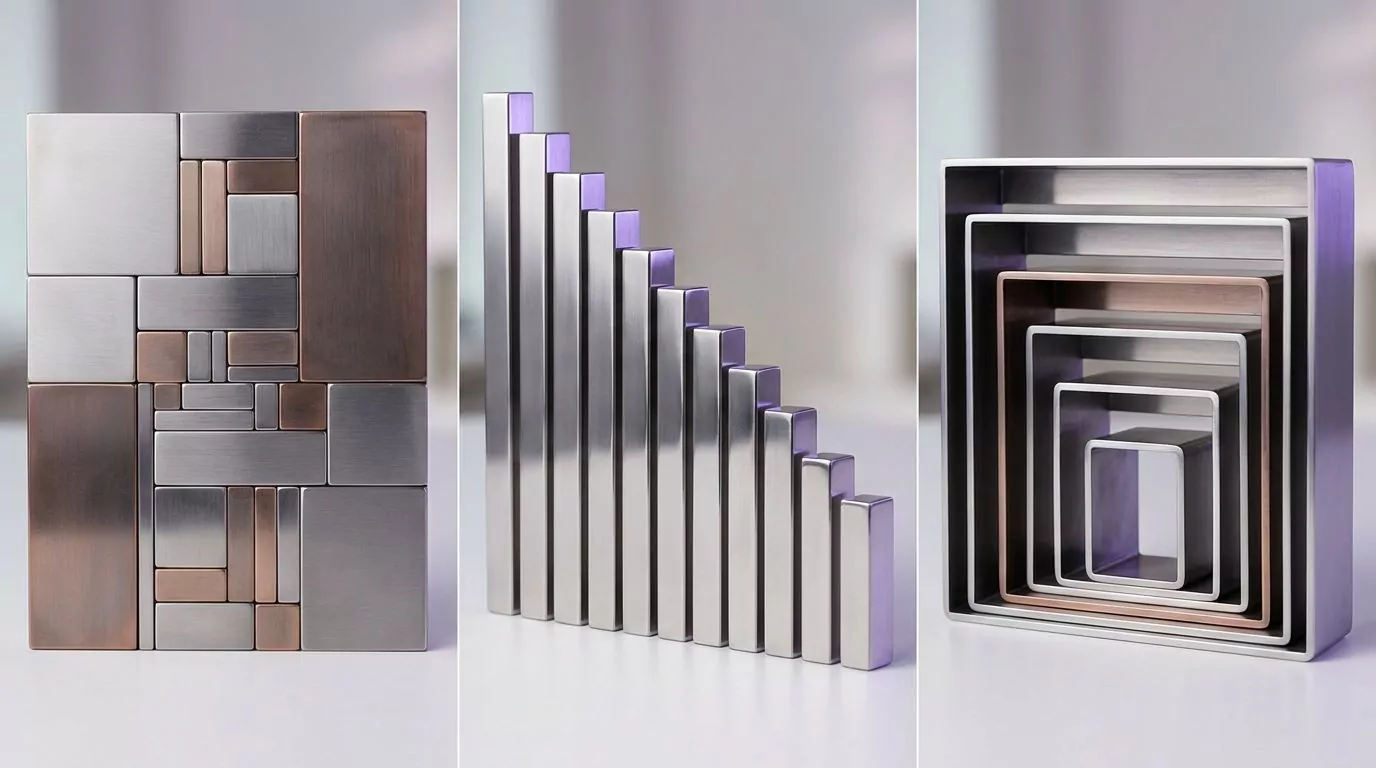
The reasons are practical. A full scan of a large volume takes time, and OmniDiskSweeper shows a plain list while it works. Some readers also think faster in pictures and want a treemap.
Permissions are the second reason. On current macOS, any scanner needs Full Disk Access before it can read every user folder, and some system paths still need an administrator. That is a macOS rule, not a flaw in any app.
Version support is the third. Some newer tools require macOS 14 or later, which older Macs cannot run. The fourth is scope: some readers want duplicate finding or app removal in the same window, and OmniDiskSweeper does neither.
The manual method that needs none of these
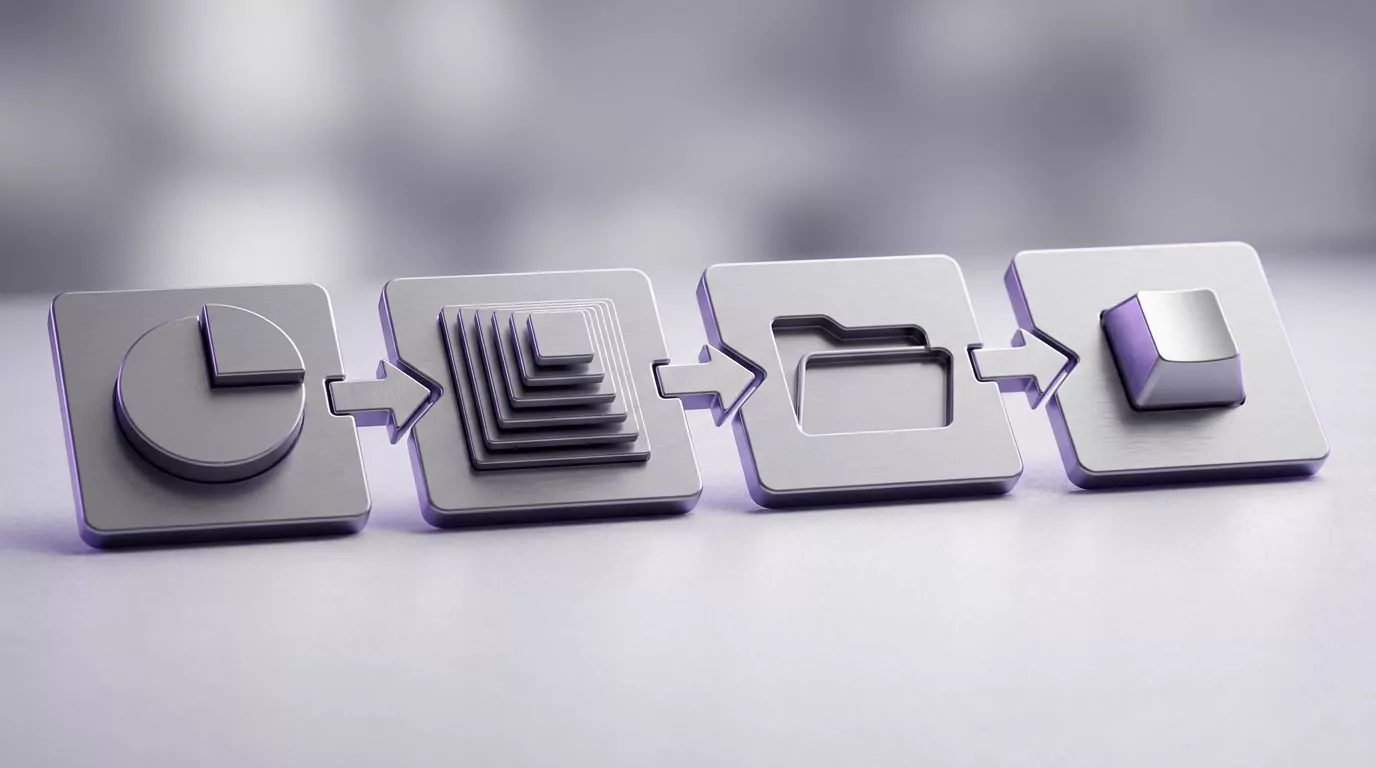
Every app below is optional. macOS ships with four ways to answer "what is taking up space on my Mac". Work through them in this order.
Step 1: read the Storage screen for the shape of the problem
Open the Apple menu, choose System Settings, click General in the sidebar, then click Storage. You may need to scroll to find General. The bar at the top splits your disk into categories such as Applications, Documents, Photos and System Data.
Treat those categories as rough buckets, not measurements. System Data collects whatever the other buckets do not claim, so it looks alarming when it is often caches and logs. Apple's page on optimizing storage space explains the recommendations here, and its guide to freeing up storage space covers the Trash and safe mode. Pick a direction here, then measure properly.
Step 2: turn on Calculate all sizes in the Finder
Finder can total folders for you, but the setting is off by default. Open any window, choose View then "as List", then press Command J. Tick "Calculate all sizes" and click the Size column header to sort. Apple documents this window in its page on how folders are displayed in the Finder.
Now go where the space usually hides. Press Shift Command G and type ~/Library. Sort by size and read the top of the list. The usual suspects are ~/Library/Caches, ~/Library/Application Support, ~/Library/Containers and ~/Library/Group Containers.
Then check ~/Downloads, ~/Movies, ~/Desktop and /Users/Shared, which many installers use and almost nobody opens. Developers should add ~/Library/Developer/Xcode/DerivedData, which can hold tens of gigabytes.
Step 3: build a smart folder that lists every big file
This is the closest built in match for a disk space analyzer. In the Finder choose File, then New Smart Folder. Click the plus button, set the rule to File Size is greater than 1 GB, and pick "This Mac" as the scope. Save it and it stays current on its own.
Add a second rule for Kind if you want only movies or only disk images. Apple's page on creating or changing a smart folder covers saving it. This one view often finds the whole problem in a minute.
Step 4: three Terminal lines for exact numbers
Terminal is optional, but it is quick and it rounds nothing. Open it from Applications, then Utilities, or read Apple's Terminal User Guide first. These three lines only read, they never delete.
- du -d 1 -h ~/Library | sort -h totals every folder one level inside your Library and sorts them smallest to largest.
- du -sh ~/Library/Caches/* | sort -h | tail -20 prints the twenty fattest cache folders.
- find ~ -type f -size +1G lists every file over a gigabyte in your home folder.
Deleting is the part that deserves care. Never delete inside /System, and leave files alone if you cannot name the app that made them. Caches come back, so clearing them buys space rather than fixing anything.
Why the numbers never match between tools
Four tools will give you four totals, and none of them is lying. Three things cause the gap.
First, purgeable space. macOS counts files it can delete on demand, such as cached iCloud items, as free, while a scanner counts them as bytes on disk.
Second, snapshots. Time Machine saves a local snapshot of your startup disk about once an hour and keeps it for roughly a day, plus one from the last successful backup. Apple explains this in About Time Machine local snapshots, and tmutil listlocalsnapshots / lists them. Deleted files stay inside those snapshots until macOS clears them.
Third, shared blocks. APFS lets two files point at the same data, so a duplicate can cost almost nothing. Finder reports a file's logical size, while du reports the blocks it really occupies. Expect a gap and stop chasing it.
OmniDiskSweeper alternatives people compare it with
Here is what each one does, with prices as of September 2026. This is a description, not a ranking, and none is required.
GrandPerspective
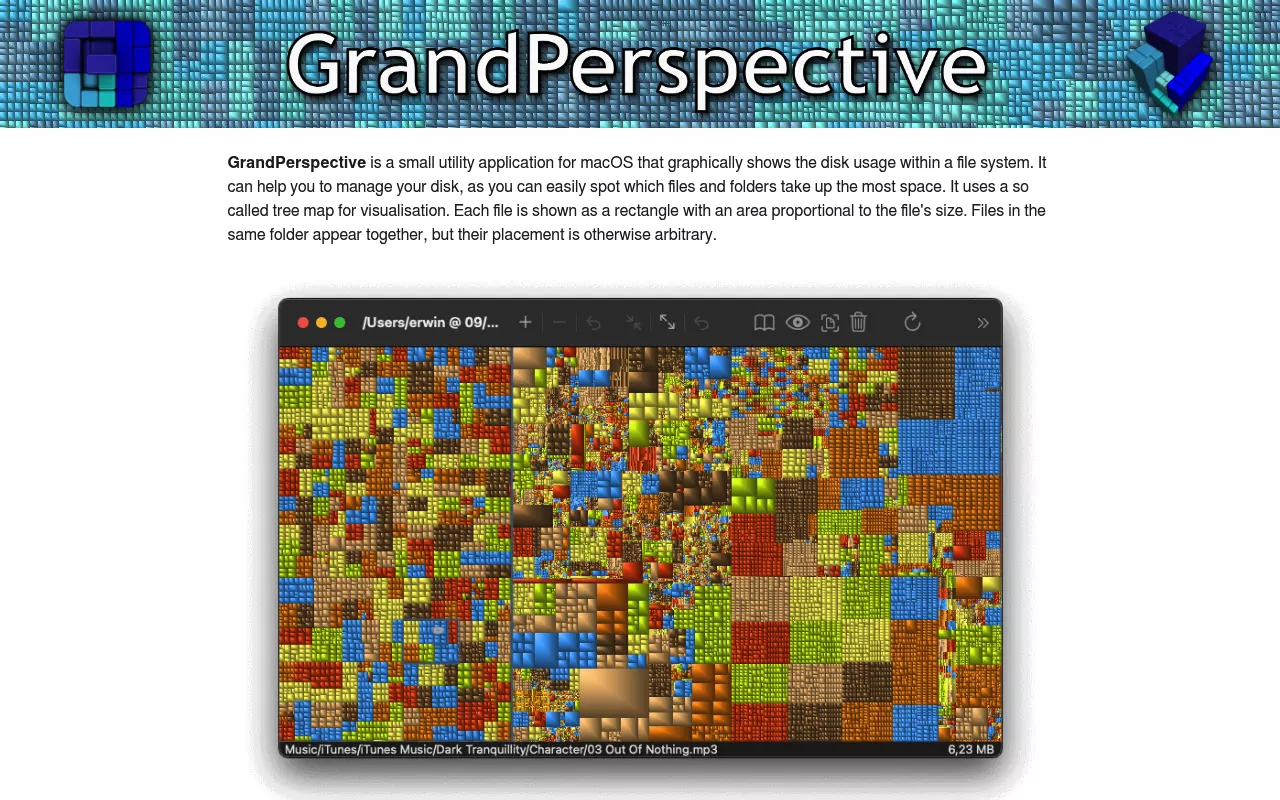
GrandPerspective builds a treemap: one rectangle per file, sized by bytes, packed into one picture. It is open source under the GPL, free from its SourceForge page, and $2.99 on the Mac App Store. Version 3.8.0 arrived in August 2026 and needs macOS 14 or later, which rules out older Macs. The treemap is dense, so small files blur into texture and the tooltip tells you what you clicked.
DaisyDisk
DaisyDisk draws a sunburst chart, the picture most readers have in mind. It costs $9.99 as a one time lifetime licence, version 4.34.2 shipped in July 2026, and it runs on macOS 10.13 or newer. The trial never expires but it only looks: deleting files, revealing hidden space, purging purgeable space and scanning as an administrator all need the licence.

Disk Xray
Disk Xray from Naarak Studio bundles several jobs: disk usage, duplicate finding, similar image finding and app uninstalling. On the Mac App Store it is a free download, and the full features unlock by in app purchase at $3.99 monthly, $9.99 yearly or $29.99 once. Version 5.6.1 requires macOS 10.15 or later. The bundling is the tradeoff, and no uninstaller reaches Apple's own apps, as our guide to removing Safari on a Mac explains.
WhatSize
WhatSize measures folders and drives and adds cleanup lists for caches and temporary files. It is $14.99 as a one time purchase, with a $9.99 upgrade price and a 30 day trial. Version 8.2.9 covers macOS Big Sur 11 through macOS Tahoe 26, the widest range here. Its interface is dense and utilitarian, so it rewards patience.
ncdu, for readers who already live in Terminal
ncdu is a free disk space analyzer you install through Homebrew or MacPorts. It draws a keyboard driven list inside Terminal, sorted by size, and you walk it with arrow keys. It is MIT licensed and version 2.9.2 landed in October 2025. It is the one cross platform tool here, though it has no graphics, no undo, and needs sudo to read outside your own files.
Comparison at a glance
| App | Licence and price | What it is for | Notable limitation |
|---|---|---|---|
| OmniDiskSweeper 1.16 | Free | Column list of files, largest first | No treemap, plain list only |
| GrandPerspective 3.8.0 | Free, or $2.99 on the Mac App Store | Treemap of the whole volume | Requires macOS 14 or later |
| DaisyDisk 4.34.2 | $9.99 one time | Sunburst chart with a delete queue | Trial cannot delete anything |
| Disk Xray 5.6.1 | Free download, unlock at $3.99 monthly, $9.99 yearly or $29.99 once | Usage, duplicates and uninstalling in one app | Bundles cleanup features you may not want |
| WhatSize 8.2.9 | $14.99 one time, 30 day trial | Folder sizes plus cleanup lists | Dense, utilitarian interface |
| ncdu 2.9.2 | Free, MIT licensed | Terminal list of folder sizes | No graphics, needs sudo for system paths |
Frequently Asked Questions
Is it safe to delete the big files an analyzer shows me?
It is safe when you can name the app or download that made the file. Media, disk images and old installers in your own folders are fine to remove. Treat files with no obvious owner as a no.
Is the free option good enough, or should I pay?
For finding what fills a disk, free is enough. OmniDiskSweeper, GrandPerspective and ncdu measure the same bytes as the paid apps. Paying buys a nicer picture and extras such as duplicate finding, not better numbers.
Why does my Mac say storage is full when the folder sizes do not add up?
Because purgeable space and local snapshots are counted differently on different screens. Storage settings treat some files as free because macOS can delete them on demand. Run tmutil listlocalsnapshots / to see snapshots holding recently deleted files.
Will deleting an app's leftover files break the app?
Removing a cache folder is usually harmless, since the app rebuilds it. Removing preferences resets settings, and removing a container can lose that app's local data. If the app is going anyway, follow a per app route such as our Trend Micro removal guide.
Does macOS have a built in disk space analyzer?
Not as one window, but the pieces are there. Storage settings give the overview, Finder totals folders once Calculate all sizes is on, a smart folder lists files above a size you pick, and du reports exact totals.
Do these tools uninstall apps as well?
OmniDiskSweeper, GrandPerspective and ncdu do not. Disk Xray and WhatSize include cleanup or uninstall features. Dragging an app to the Trash still leaves caches, preferences and background helpers behind, as our Kaspersky removal guide shows.
Where to go from here
If the space you were hunting turned out to be an app you no longer use, measuring was half the work. Removing it means the app bundle, its support files, and the helpers that keep running afterwards.
That is what our per app guides cover, by hand, with Finder, System Settings and occasionally Terminal, and nothing to install. Start with the app you are trying to remove, such as Trend Micro or Sublime Text.