PhotoSweeper Alternatives for Mac: Duplicate Photo Tools and the Photos App Method
PhotoSweeper is a paid Mac app that finds duplicate and similar photos across folders, Photos, Lightroom Classic and Capture One. Most people searching for PhotoSweeper alternatives want the same result for less money. macOS can already do a large part of the job, because the Photos app builds a Duplicates album on its own.
What PhotoSweeper actually does
PhotoSweeper sells on the Mac App Store for $14.99. That is a one time price, and the listing shows no in-app purchases. It runs on macOS 10.15 or later.
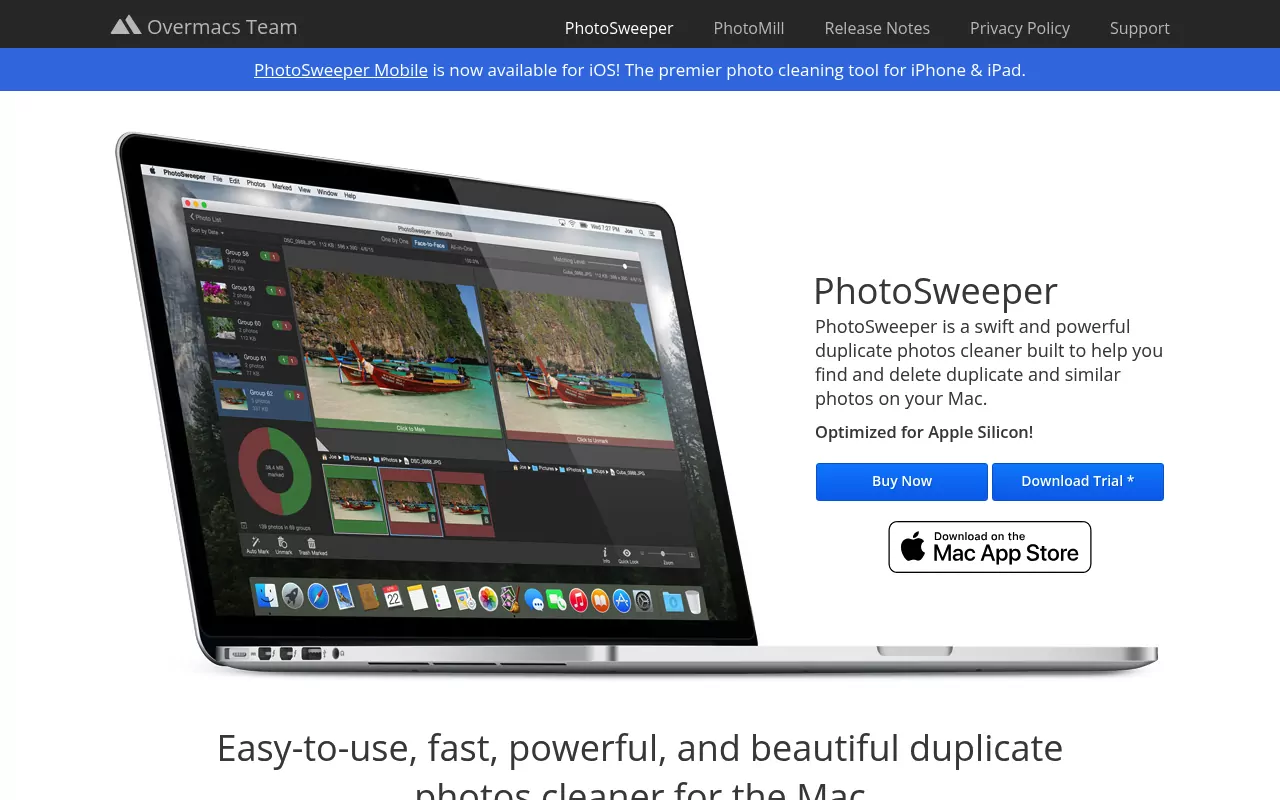
The app scans the places you point it at: folders on your disk, your Photos library, Lightroom Classic catalogs and Capture One catalogs. It then groups shots that match exactly or simply look alike.
You review each group and choose what stays. The app marks the rest for removal. That is the whole job: a duplicate photo finder for Mac, not a cleaner and not a backup.
Why Mac owners look for PhotoSweeper alternatives
The reasons people give are practical. None is a fault in the app.
- Price. Some readers would rather pay nothing for a yearly chore.
- Scope. PhotoSweeper handles images. If your clutter is videos and old downloads too, you may want one tool for all of it.
- macOS version. A Mac on macOS 10.14 or older cannot run the current release.
- Second thoughts. Trying three duplicate finders leaves three apps to remove later.
That last point deserves a note. Dragging an app to the Trash leaves caches and preference files behind. Our guide to removing Sublime Text on a Mac shows the shape of a full removal.
The manual method that needs none of these apps
This is the part most roundups skip. On a current Mac you can remove duplicate photos without installing anything. Work through it in order.
Back up before you delete anything
Bulk photo deletion is the one job where a mistake is costly. Connect an external drive and let a Time Machine backup finish first. Apple walks through the setup in its guide to backing up your Mac with Time Machine.
This site publishes guides, not software. It is not a backup or recovery service. Time Machine is your safety net, so do not skip it.
Open the Photos app Duplicates album
The Photos app has kept a Duplicates collection since macOS Ventura. It fills itself in. There is no scan to start and nothing to buy.
- Open Photos.
- Click Duplicates below Utilities in the sidebar.
- Give it time. On a large library the list takes a while, because Photos studies images in the background.
- Select one row, or press Command-A to select every row.
- Click Merge, then confirm in the dialog.
Apple lists the same steps in Remove duplicate photos and videos on Mac. If you use an iCloud Shared Photo Library, set the Library menu to Both Libraries before you merge.

How merging differs from deleting
Merging is not the same as picking copies and pressing delete. A merge collapses a group into one item and leaves it in place. The copies it takes away go to Recently Deleted.
A plain delete removes everything you selected, including the version you meant to keep. That is why the Duplicates album is a safer starting point than sorting the main grid by hand.
Where deleted photos actually go
Nothing leaves your Mac right away. Removed items sit in Recently Deleted for 30 days, then go for good. You can bring anything back inside that window.
Click Recently Deleted below Utilities, select what you want and click Recover. Apple covers both directions in its guide to deleting and recovering photos on Mac.
Two things follow. Your free space does not grow until that window passes or you empty the album yourself. And if iCloud Photos is on, a deletion on the Mac also clears the item from iCloud and your other devices.
Never delete inside the Photos library package
Your library lives in the Pictures folder as a file named Photos Library. In the Finder it looks like one item, but it is really a package of images and database files.
Do not open it and start deleting. Apple is blunt about this: to avoid accidentally deleting or corrupting a photo library, do not manually access or alter the contents of a library in the Finder. The Photos user guide repeats it.
Removing a file by hand inside that package does not free clean space. It breaks the link between the database and the image, and the library can stop opening. If you want copies outside Photos, export them first and work on those.
Check your Mac photo library size and free space
Finish by measuring the result. In the Finder, open your Pictures folder, click the library once and press Command-I to read its size.
For the whole disk, open System Settings, click General, then Storage. On older releases the same view sits under About This Mac. Apple explains it in Free up storage space on Mac.
If the number barely moved, the 30 day window is the usual reason. Empty Recently Deleted and check again.
Apps people compare with PhotoSweeper
These tools come up most often next to PhotoSweeper. Prices below are as listed by the seller. There is no ranking and no recommendation, because none of them is required. Video walkthroughs exist if you prefer watching to reading.
If you try one and it does not suit you, remove it fully rather than dragging it to the Trash. Utility apps leave the most behind, as our Kaspersky removal guide shows.
The Duplicates album in Photos, free with macOS
The built in option costs nothing and ships with the system. It looks inside your Photos library and groups what it judges to be duplicates.
Honest limit: it ignores everything outside Photos. Loose images in Downloads stay untouched.
Gemini 2, subscription
Gemini 2 for Mac is a duplicate finder that works across your whole drive, not just your photos. On the Mac App Store it downloads free and unlocks through an in-app purchase listed at $19.99 for a year. The seller's own site advertises pricing from $1.95 per month. The listing asks for macOS 10.13 or later.
Honest limit: access is rented, not owned. When you stop paying, you stop using it.
PowerPhotos, one time licence
PowerPhotos is a library manager rather than a pure duplicate finder. It merges Photos libraries, splits them and finds duplicates inside. A new licence costs $39.95, and the seller states that all its products are one time purchases with no subscriptions. Version 3.4.6 needs macOS 14 or later.
Honest limit: it costs the most here, and much of that price is library management you may never need.
dupeGuru, free and open source
dupeGuru is a free duplicate file finder released under the GPL-3.0 licence. It scans folders you choose. It does not read a Photos library, so it suits loose files on a disk.
Honest limit: the last release, 4.3.1, came out in July 2022. The Mac build is signed, but not with a paid developer account, so macOS blocks it on first launch. Apple explains that prompt in Safely open apps on your Mac.
Duplicate Detective 2, one time price
Duplicate Detective 2 from FIPLAB sells on the Mac App Store for $6.99 with no in-app purchases. It finds identical files across folders and offers a guided pass over your photo library. It needs macOS 10.13 or later.
Honest limit: it matches files that are truly identical. Two sizes of the same shot are not identical files, so they may not appear.
Comparison at a glance
| App | Licence and price | What it is for | Notable limitation |
|---|---|---|---|
| Photos Duplicates album. | Free with macOS. | Duplicates inside your Photos library. | Sees nothing outside Photos. |
| PhotoSweeper. | $14.99 one time. | Similar and duplicate images in folders. | Images only. |
| Gemini 2. | From $1.95 a month, or $19.99 a year. | Duplicates across the whole drive. | Rented, not owned. |
| PowerPhotos. | $39.95 one time. | Managing and merging Photos libraries. | Costs the most, needs macOS 14. |
| dupeGuru. | Free, GPL-3.0. | Duplicate files in folders you pick. | Last release July 2022. |
| Duplicate Detective 2. | $6.99 one time. | Identical files, plus a photo library pass. | Misses near matches. |
Frequently Asked Questions
Is it safe to remove duplicate photos on a Mac?
Yes, provided you back up first and use Merge in the Duplicates album. Merged copies wait in Recently Deleted for 30 days, so a mistake is easy to undo. Deleting inside the library package is the unsafe route.
Does the Photos app duplicates album find every duplicate?
No. It only looks inside your Photos library. Copies in Downloads or on an external drive are invisible to it. That gap is the main reason people buy a scanner.
Is the free option enough, or do I need a paid app?
For most Mac owners the built in album handles the bulk of it. A paid duplicate photo finder for Mac earns its price when your images live in many folders. Start free and see what is left.
Why did my free space not change after I removed duplicates?
Because the files are still on the disk. They sit in Recently Deleted for 30 days. Open that album, delete everything permanently, then check System Settings again.
How do I check my Mac photo library size?
Open the Pictures folder in the Finder, click Photos Library once and press Command-I. The Info window shows the size. Compare it before and after to see what you recovered.
Can I remove the Photos app if I never use it?
No. Photos ships as part of macOS and cannot be uninstalled like a normal app. Our guide to uninstalling Safari on a Mac explains what macOS does and does not allow.
Start with what your Mac already has
None of the apps above is a requirement. Photos finds duplicates on its own, Recently Deleted gives you a month to change your mind, and System Settings shows what you got back. Try that first.
If you did install a scanner and want it gone, take it off properly. Security tools leave the most behind, which is why our Trend Micro removal guide runs so long.
That is what the rest of this site is for: per app removal guides, done by hand with Finder, System Settings and the occasional Terminal command. Nothing to install, nothing to buy.