How to Uninstall Microsoft Office on Mac and Clear the Leftovers
Here is how to uninstall Microsoft Office on Mac: quit every Office app, then move Word, Excel, PowerPoint, Outlook and OneNote from Applications to the Trash. Next, delete the Office folders in ~/Library/Containers and ~/Library/Group Containers, backing up Outlook first. Remove the Dock icons and restart; uninstalling does not cancel Microsoft 365.
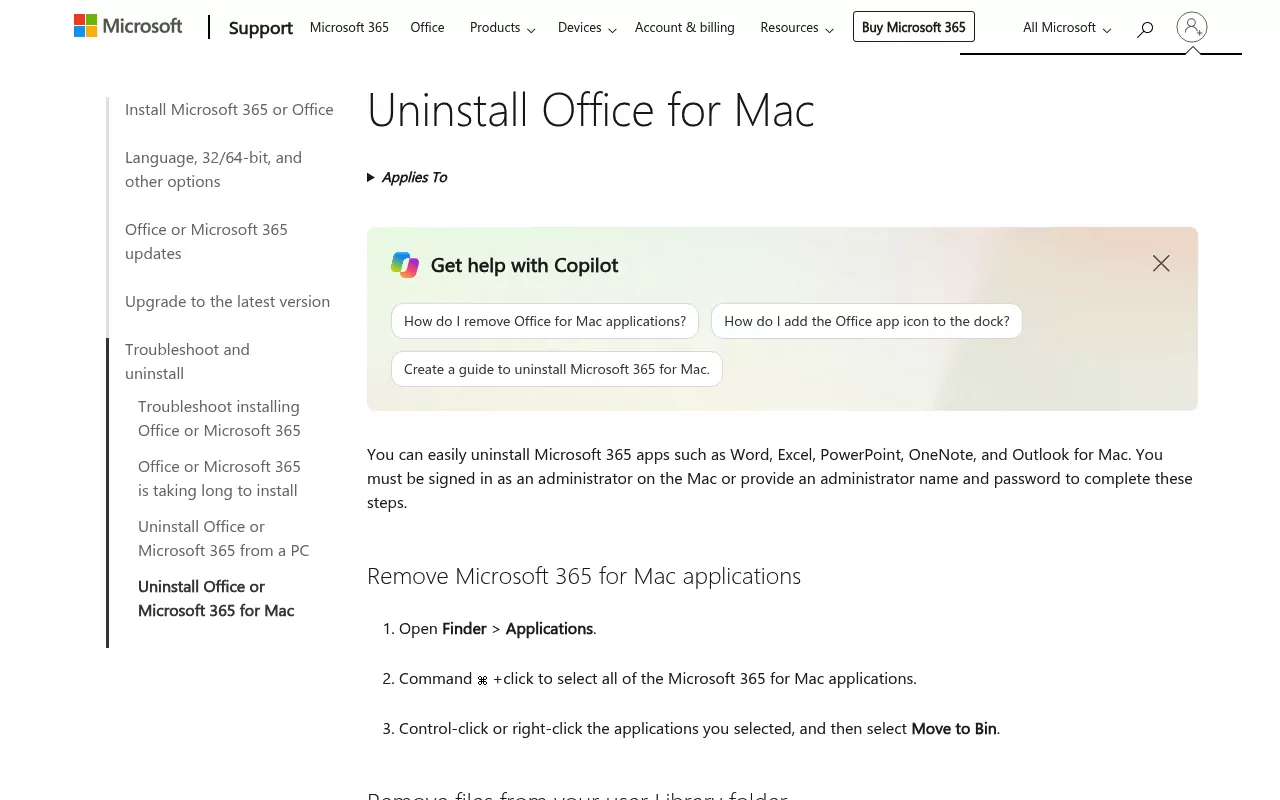
The steps start with the vendor's own Uninstall Office for Mac article. Then they add the parts it leaves to a separate page: the licensing helper, AutoUpdate and OneDrive.
They cover Microsoft 365, Office 2024 and Office 2021, whether you call it MS Office or Office 365. Office 2011 gets a short section near the end.
Why dragging Office to the Trash is not enough
Office is not one app. Each app keeps its own folder in ~/Library/Containers, and all of them share folders in ~/Library/Group Containers. Those shared folders hold your Outlook profile, licence files, your own templates and the custom dictionary.
Outside your home folder, the main /Library folder holds a licensing helper and the AutoUpdate tool. Both run in the background, outside Applications, so the Trash never sees them.
On a Mac we checked, running macOS Tahoe 26.6, every Office app was long gone. Yet Outlook's containers, 48 MB of shared Office data and the licensing helper were still there. Office is not the worst case: security apps such as Kaspersky leave system extensions behind too.
How to uninstall Microsoft Office on Mac without losing Outlook data
- Find out where your Outlook mail lives. Exchange accounts keep items on the server, says the Outlook help page on On My Computer folders. With IMAP and POP accounts, items other than email stay on your Mac, as do POP mail and anything in an On My Computer folder.
- Back up Outlook. In legacy Outlook, which loses support in October 2026, choose Tools, then Export, to save an .olm archive (the export steps say to check the File menu if the button is missing). The new Outlook may have no Export command at all. If so, use the folder copy in Step 3 and the Time Machine backup below.
- Make a full backup too. Apple's Time Machine guide shows how.
- Have your admin password and Microsoft account ready. You need the email and password tied to your copy of Office to activate it again.
- Passing the Mac on? Sign it out of your account too; the subscription section below shows how.
- Know what stays. Apple's page on deleting apps on a Mac says removing an app does not delete the documents you made with it. It does not cancel a subscription either.
To see where your copy came from, run this Terminal check from the page on updating Office for Mac:
mdls -name kMDItemAppStoreReceiptType /Applications/Microsoft\ Word.appA result of (null) means Office came from the vendor's site and uses AutoUpdate. "Production" means it came from the Mac App Store, and a subscription bought there is billed by Apple.
Step 1: Quit Office and move the apps to the Trash
- Quit every Office app with Command-Q, Outlook included.
- Open Finder and click Applications.
- Hold Command and click Word, Excel, PowerPoint, Outlook and OneNote to select them.
- Control-click one of them and choose Move to Trash. Enter your admin password if asked.
Teams and OneDrive are separate apps, so leave them unless you want them gone too. The Office update history page notes that the suite installer has added Teams by default since version 16.21.
Step 2: Remove the Office folders in ~/Library/Containers
In Finder, choose Go, then Go to Folder (or press Command-Shift-G). Type ~/Library/Containers and press Return.
Do not delete every folder that starts with com.microsoft. Other Microsoft apps use the same prefix: on our test Mac,
com.microsoft.edgemac.wdgExtensionbelongs to Edge, and OneDrive has one that waits for Step 5. Move only the folders in this table.
Finder may show each folder by the app's name or by its bundle ID. The vendor's two articles use different forms, so both are listed here. Some may not be present.
| What it is | Name form | Bundle ID form |
|---|---|---|
| Word | Microsoft Word | com.microsoft.Word |
| Excel | Microsoft Excel | com.microsoft.Excel |
| PowerPoint | Microsoft PowerPoint | com.microsoft.Powerpoint |
| Outlook | Microsoft Outlook | com.microsoft.Outlook |
| OneNote | Microsoft OneNote | com.microsoft.onenote.mac |
| Error reporting | Microsoft Error Reporting | com.microsoft.errorreporting |
| Office helper | com.microsoft.Office365ServiceV2 | |
| Office helper | com.microsoft.RMS-XPCService | |
| Office helper | com.microsoft.netlib.shipassertprocess | |
Control-click each one and choose Move to Trash. Our test Mac also had two small Outlook folders that neither list names: com.microsoft.Outlook.CalendarWidget and com.microsoft.outlook.profilemanager. Treat them as optional; each was only 36 KB.

Step 3: Back up, then remove the Office Group Containers
Back up before you touch this folder. Microsoft warns that Outlook data is removed with the three folders below. Its note on where Outlook keeps its data puts your Outlook profile inside
UBF8T346G9.Office, and your own Word templates are saved there too.
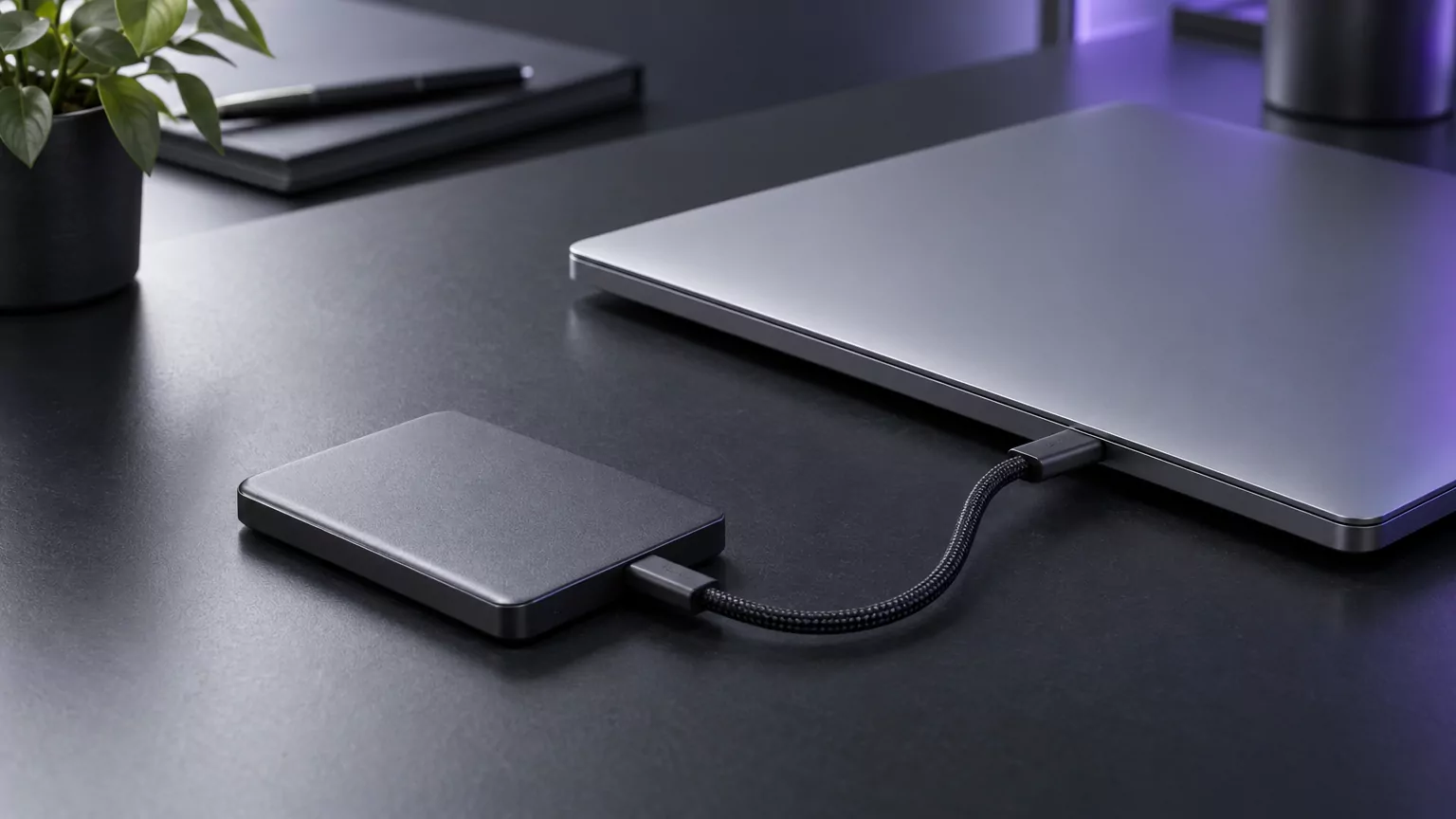
- Plug in an external drive.
- Press Command-Shift-G, type
~/Library/Group Containersand press Return. - Drag
UBF8T346G9.ms,UBF8T346G9.OfficeandUBF8T346G9.OfficeOsfWebHostonto the external drive. Dragging to another drive copies the folders rather than moving them. - Open the copy on the drive and check the Outlook folder is there.
- Back in Group Containers, move those same three folders to the Trash.
UBF8T346G9 is the team ID that signs Microsoft's Mac apps, so its other apps use it too. On our test Mac, Teams had its own folder here, and two more ended in oneauth and entrabroker, names that point to sign-in.
Leave all of those alone, and let OneDrive's two folders wait for Step 5.
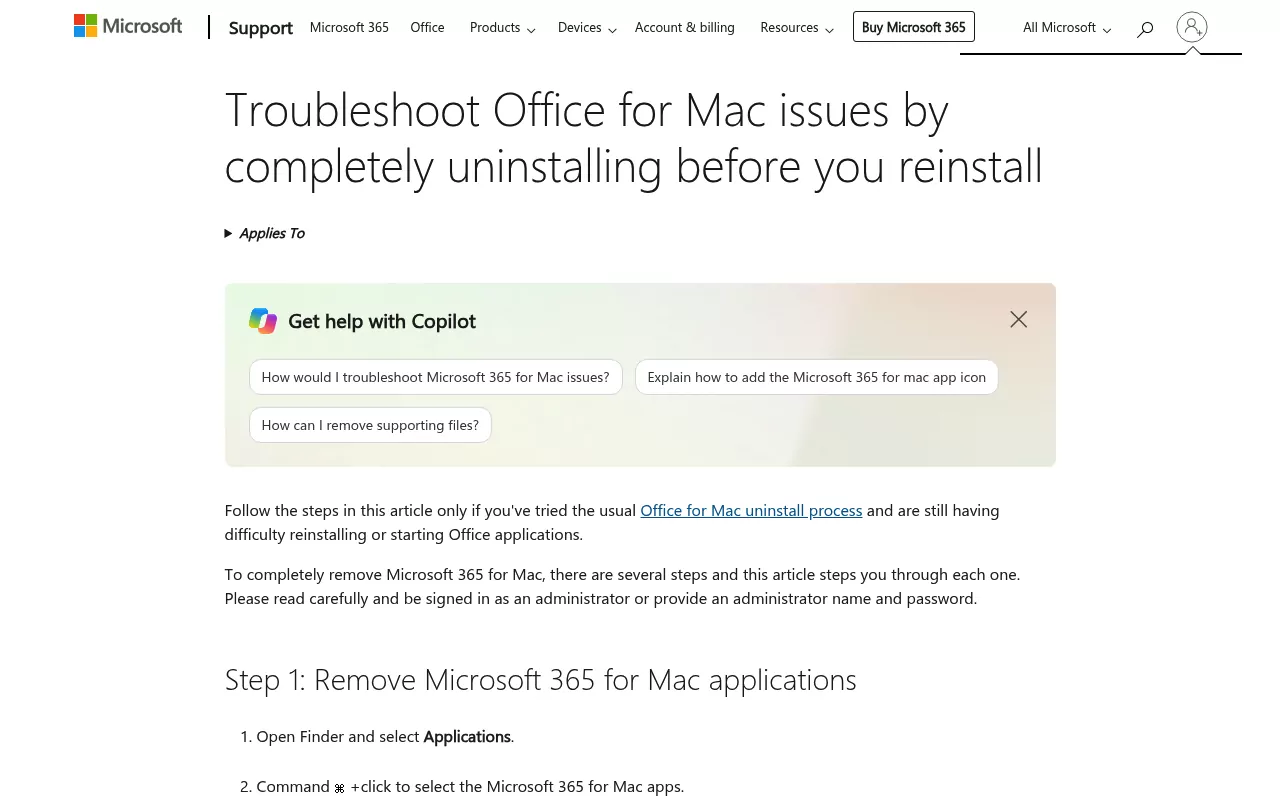
Step 4: Remove the Office licensing helper from /Library
These files appear only in the article on completely uninstalling before you reinstall. It is meant for when the usual uninstall did not fix trouble reinstalling or starting Office.
Do this step for a full removal. Skip it if you only plan to reinstall.
These files are in the main
/Libraryfolder, not the one in your home folder. Moving them needs your admin password. Move only the names listed here.
Use Go to Folder to open each folder, then move these files if present:
-
/Library/LaunchDaemons/com.microsoft.office.licensingV2.helper.plist. A Mac with an older Office install may havecom.microsoft.office.licensing.helper.plistinstead, as our test Mac did, so look for both. /Library/PrivilegedHelperTools/com.microsoft.office.licensingV2.helper-
/Library/Preferences/com.microsoft.office.licensingV2.plist, if present.
Leave any other Microsoft file there alone. Our test Mac had a Teams updater in LaunchDaemons, and the AutoUpdate helper waits for Step 5.
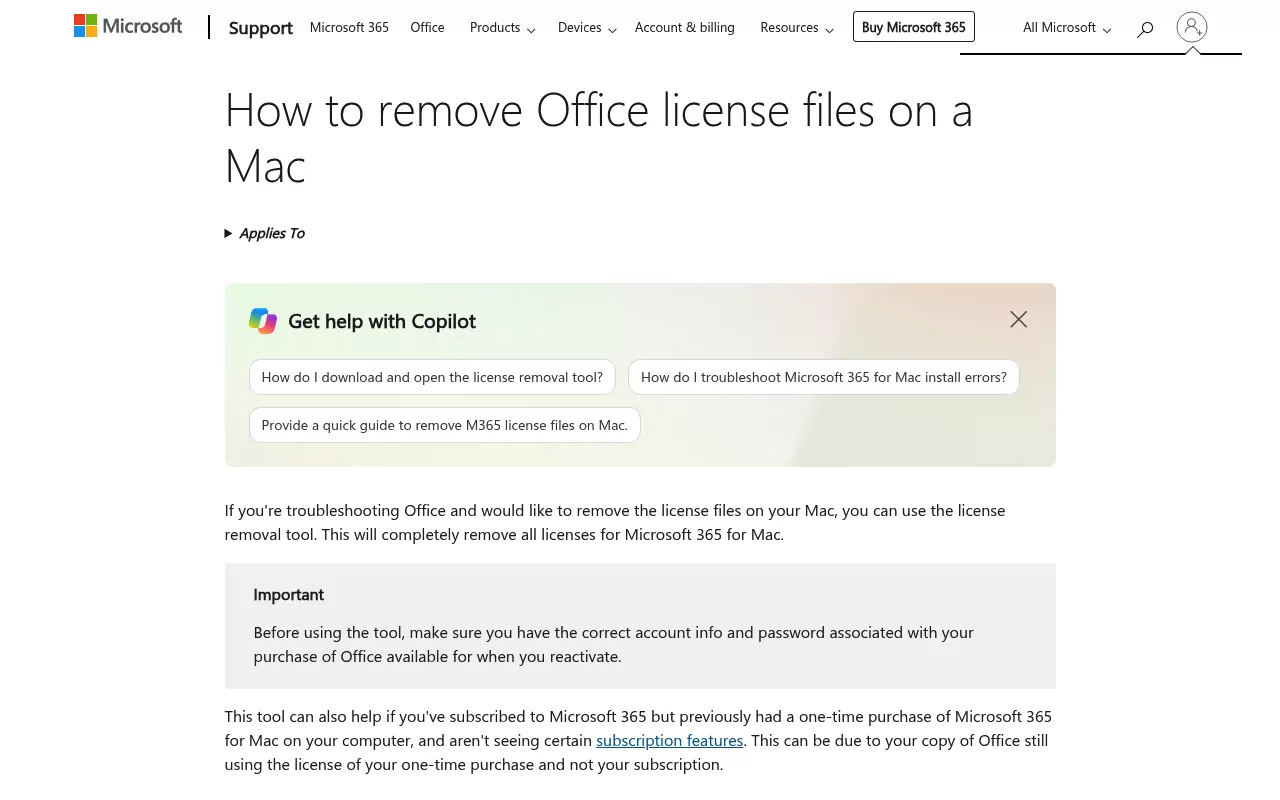
The vendor also has a licence removal tool, which clears every Office licence on the Mac. Download it, open the .pkg file from Downloads, choose Continue, then Install, and enter your admin password. When it is done, drag Microsoft_Office_License_Removal from Downloads to the Trash.
Step 5: Decide whether to remove Microsoft AutoUpdate
AutoUpdate lives at /Library/Application Support/Microsoft/MAU2.0/Microsoft AutoUpdate.app. It updates far more than Office. The AutoUpdate guide lists Defender, OneDrive, Teams, Intune Company Portal, Copilot, Quick Assist, Remote Help, Windows App and Skype for Business.
If any of those remain, leave AutoUpdate and its helpers in place. Defender is on that list. If you keep Defender, keep AutoUpdate too. Removing a security app is a separate job, as our Trend Micro removal guide shows.
If none remain, move these three files from the troubleshooting list to the Trash:
/Library/LaunchDaemons/com.microsoft.autoupdate.helper.plist/Library/LaunchAgents/com.microsoft.update.agent.plist/Library/PrivilegedHelperTools/com.microsoft.autoupdate.helper
No vendor page gives steps for removing the AutoUpdate app itself. If you want it gone as well, move only the MAU2.0 folder, and only when no Microsoft app is left on the Mac.
OneDrive items
These go only if OneDrive goes too. Make sure your OneDrive files are synced or copied first, then quit OneDrive and move the app to the Trash. The troubleshooting article lists these leftovers:
/Library/LaunchDaemons/com.microsoft.onedriveupdaterdaemon.plist~/Library/Containers/com.microsoft.onedrive.findersync-
~/Library/Cookies/com.microsoft.onedrive.binarycookiesandcom.microsoft.onedriveupdater.binarycookies -
~/Library/Group Containers/UBF8T346G9.OfficeOneDriveSyncIntegrationandUBF8T346G9.OneDriveStandaloneSuite
Step 6: Clear the Dock, empty the Trash and restart
- Control-click each Office icon left in the Dock and choose Options, then Remove from Dock.
- Open the Trash and check nothing you want is in it. Then choose Finder, then Empty Trash.
- Choose Apple menu, then Restart. This completes the uninstall.

Confirm nothing from Microsoft Office is still running
Open Activity Monitor (it is in the Utilities folder) and search for Microsoft. Nothing named for Word, Excel, Outlook or Office licensing should show up.
Next, open System Settings, then General. On macOS Sequoia 15 and later the pane is Login Items & Extensions. On Ventura 13 and Sonoma 14 it is Login Items.
Apple's Login Items guide calls the background list App Background Activity on macOS Tahoe 26 and later. On Ventura 13 through Sequoia 15, it is Allow in the Background. Look there for Microsoft entries.
Then run two Terminal checks. The first lists jobs loaded for your user account:
launchctl list | grep -i microsoftThe second lists system-wide jobs, such as the licensing and AutoUpdate helpers, which the first cannot see. On our test Mac it worked without an admin password:
launchctl print system | grep -i microsoftLast, list any Microsoft files left in the three /Library folders:
ls /Library/LaunchDaemons /Library/LaunchAgents /Library/PrivilegedHelperTools | grep -i microsoftEntries for Microsoft apps you kept are normal. On our test Mac, Edge showed up in the first check and Teams in the other two.
Removing one Office app instead of the whole suite
To remove just one app, such as Word, drag only that app to the Trash, empty the Trash and restart. Leave the shared Group Containers and the /Library helpers alone, because the other Office apps still use them.
To put it back, the update history page lists install packages for Word, Excel, PowerPoint and Outlook. OneNote has only an update package there. Or run the full Office installer again. Sign in when the app asks.
Your Microsoft 365 subscription and licence
Uninstalling does not stop billing. The cancellation steps start at account.microsoft.com, where you choose Cancel subscription. If you subscribed through the App Store, follow Apple's steps to cancel a subscription from Apple instead.
Cancelling cuts your cloud storage back to the free 5 GB. One-time purchases such as Office Home & Student cannot be deactivated at all.
To sign a Mac out of Office remotely, use the Installs page of your Microsoft account. Work or school accounts use portal.office.com instead. The sign-out page says this can take up to 72 hours.

Office 2011 for Mac
Office 2011 support ended on October 10, 2017, according to the end of support notice. Apple's page on 32-bit apps says they stopped working in macOS Catalina 10.15. The vendor's note on Outlook 2011 and Catalina ties Office 2011 to that change.
Outlook 2011 kept mail in ~/Documents/Microsoft User Data/Office 2011 Identities, so copy that folder to a drive first. Then find the Office 2011 apps in Applications, and if they sit inside a folder, move the whole folder to the Trash.
Reinstalling Microsoft Office cleanly
The install page gives the route for Microsoft 365 and Office 2024:
- Go to m365.cloud.microsoft/apps and sign in with the account tied to Office.
- Select Install apps.
- In Downloads, double-click
Microsoft Office installer.pkg(the name can vary). - Work through the prompts (Continue, Agree, then Install Software) and enter your Mac password when asked. Use Customize to install only some apps.
- Open Word and click Get Started to activate.
If you saved an .olm archive, choose Tools, then Import in legacy Outlook.
Frequently Asked Questions
Will I lose my Outlook email if I uninstall Office?
Mail kept on a server, as with Exchange and IMAP accounts, syncs back when you add the account again. POP mail, On My Computer folders and some IMAP items live only on your Mac. Copy the Step 3 folders first, and export an .olm file if you use legacy Outlook.
Will uninstalling Office delete my Word and Excel documents?
No. Apple says removing an app does not remove files you made with it, so your documents stay where you saved them. Only templates you saved inside the Office folder go with Step 3, so copy it first.
Why won't Office activate after I reinstall it?
Sign in with the exact account that bought Office. You need that email and password to activate again. If it still fails, remove the licensing files in Step 4 or run the licence removal tool, then sign in again.
Why do Office icons show a question mark in the Dock?
The troubleshooting article notes that Office icons in the Dock may turn into question marks after you uninstall. Control-click each one and choose Options, then Remove from Dock.
Is it safe to delete every folder that starts with UBF8T346G9?
No. The prefix is shared by Microsoft's other Mac apps, including Teams, OneDrive and sign-in folders. Remove only the three Office folders in Step 3, plus OneDrive's two if OneDrive goes as well.
Removing other apps from this Mac
Office leaves more behind than most apps. Each guide here covers what one app installs, what its own tool removes and how to check nothing is left running.
- How to uninstall Kaspersky on Mac, for security software.
- How to uninstall Trend Micro on Mac, work agents included.
- How to uninstall Sublime Text on Mac, a much tidier app.
- Removing Safari on a Mac, which is built into macOS.
Weighing a removal app instead of doing it by hand? Our look at AppCleaner alternatives compares what those tools do and the manual method that needs none.