How to Uninstall Grammarly on Mac and Clear the Leftovers
The short answer to how to uninstall Grammarly on Mac: click the Grammarly icon in the menu bar and choose Quit. Then move Grammarly Desktop from Applications to the Trash, which is Grammarly's own method. Last, remove the browser extensions, the Grammarly for Safari app and the Word add-in if you have them, and turn off the app's Accessibility access.

Why dragging Grammarly to the Trash is not enough
Grammarly is rarely one app. A full setup can include the desktop app and three background helpers. It can also add a Grammarly for Safari app, extensions for Chrome, Edge or Firefox, an old Word add-in, and an Accessibility permission.
Grammarly says its uninstall helper notices when the app is deleted. It then removes the other helpers and their files.
The extensions, Safari app, Word add-in, permission and account each need their own step. Security suites take this layering much further.
Before you uninstall Grammarly on Mac
- List what you have. Look in Applications for Grammarly Desktop, Grammarly for Safari and Superhuman Go. Then check each browser for a G icon, and Word for the add-in.
- On a work Mac, ask IT first. Grammarly has a guide for admins who deploy it to many Macs at once, so a managed copy may come straight back.
- Your account stays. Removing the app does not cancel a plan or delete your account. The FAQ covers both.
Step 1: Quit Grammarly and delete the app
Grammarly for Mac (the Grammarly Desktop app)
The vendor uses both names for the same app. These steps come from the vendor's page on how to uninstall Grammarly for Mac.
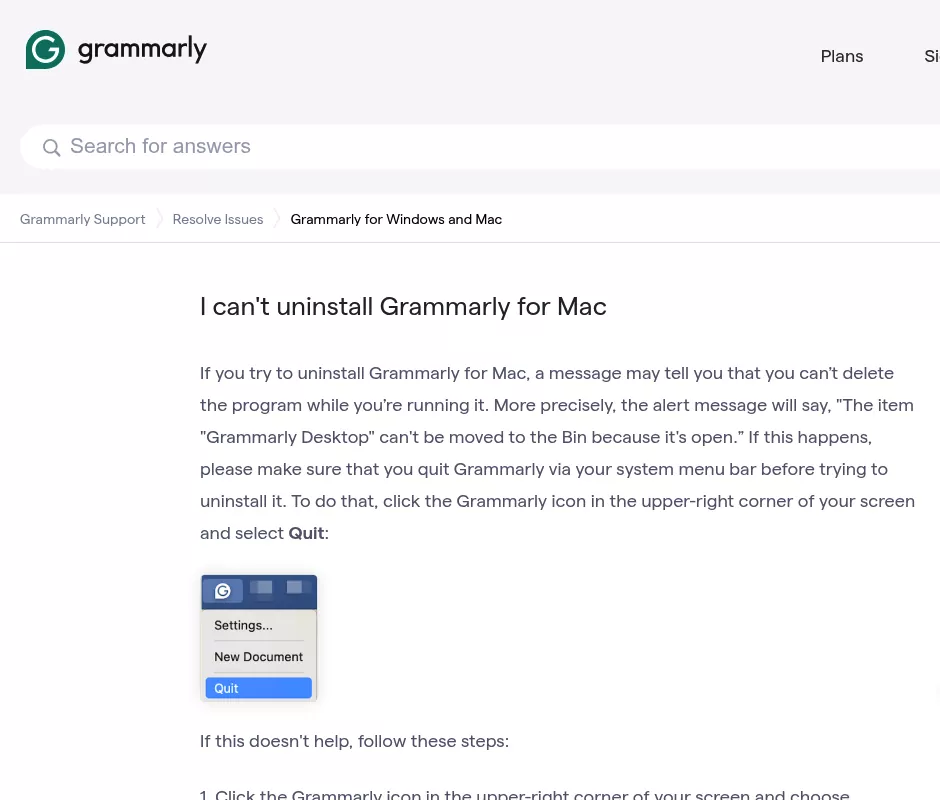
- Click the Grammarly icon in the menu bar and choose Quit.
- Open Finder and click Applications.
- Find Grammarly Desktop and move it to the Trash.
Not there? Users without admin rights will find it in the Applications folder inside their home folder.
The vendor's reinstall guide gives this fix. In Finder, press Command + Shift + G, paste ~/Applications and press Return.
If the menu bar icon now says Superhuman
Grammarly is now part of Superhuman. If you turned on Superhuman Go inside Grammarly for Mac, it is the same app, so the Grammarly Desktop steps above apply.
For the separate Superhuman Go app, the vendor's page on removing Superhuman Go for Mac gives two routes.
- macOS Monterey 12 or later: click the Superhuman icon and choose Manage Superhuman Apps. Click the three dots next to Superhuman Go, then Uninstall.
- Any version, Big Sur 11 too: quit Superhuman Go from the menu bar, then move it from Applications to the Trash.
Trash Superhuman Apps Manager too if you no longer need it.
"Grammarly Desktop can't be moved to the Trash because it's open"
This alert means the app is still running. Work through the vendor's fix for this exact alert:
- Quit from the menu bar, then try again.
- If that fails, click the icon and choose Settings. On the Customization tab, turn off Launch at startup.
- Restart your Mac, and choose not to reopen windows.
- Move Grammarly Desktop to the Trash before you open anything else.
Still stuck? Grammarly runs from the menu bar, so the Force Quit window may not list it. Use Apple's steps to quit a process in Activity Monitor instead:
- Open Activity Monitor from Applications, then Utilities.
- Type Grammarly in the search field and select the process.
- Click the Stop button in the toolbar, then choose Quit.
- Choose Force Quit only if it will not quit.
You do not need sudo or rm -rf for any of this.
No icon in the menu bar? On macOS Tahoe 26 and later, open System Settings and click Menu Bar.
Then turn on the Grammarly entry under Allow in the Menu Bar. Apple's page on Menu Bar settings covers it.
Step 2: Check the background helpers are gone
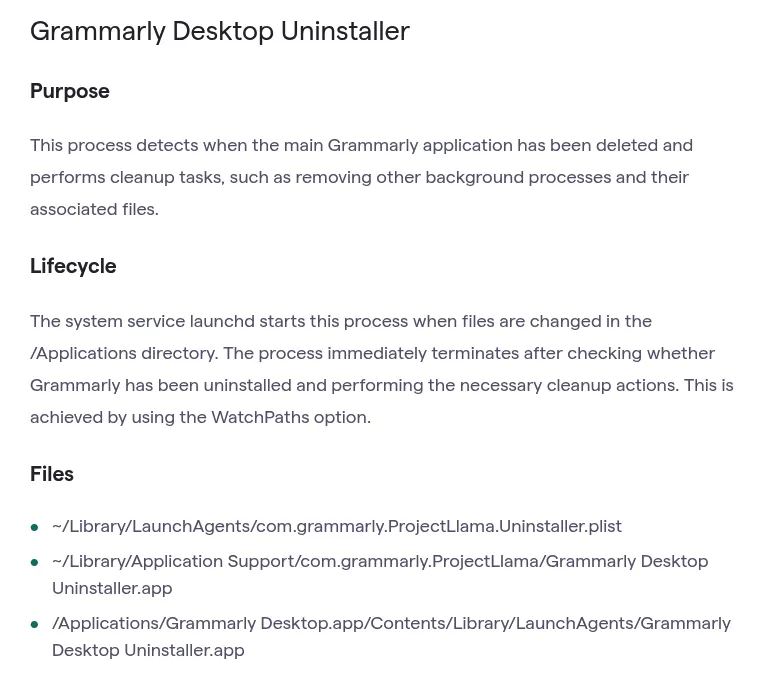
The vendor lists its helpers and their files in its background processes overview. These sit outside the app:
~/Library/LaunchAgents/com.grammarly.ProjectLlama.Shepherd.plist
~/Library/LaunchAgents/com.grammarly.ProjectLlama.UpdateService.plist
~/Library/LaunchAgents/com.grammarly.ProjectLlama.Uninstaller.plist
~/Library/Application Support/com.grammarly.ProjectLlama
Per that page, the uninstall helper wakes when files change in /Applications and clears the rest. It does not say the helper also watches ~/Applications. So check either way.
This shows any launch agent files left. No output means none:
ls ~/Library/LaunchAgents | grep -i grammarlyThis shows any job macOS still has loaded:
launchctl list | grep -i grammarlyBoth commands only read. One catch: Superhuman Go uses the same names with superhuman added.
It also keeps its own uninstall helper in that same Application Support folder. If you still use it, leave its files and that folder alone.
Found a leftover? Remove only files that match the names above.
In Finder, choose Go, then Go to Folder, and paste ~/Library/LaunchAgents. Drag the matches to the Trash and restart. Unlike Terminal, the Trash lets you undo a mistake.
Step 3: Clear the remaining Library files
There is no public list of the app's caches or settings files. But its admin guide does give the app's ID, com.grammarly.ProjectLlama. Look for items with that ID or the Grammarly name.
This prints any match in your Library folders, two levels deep. It deletes nothing:
find ~/Library -maxdepth 2 -iname '*grammarly*' 2>/dev/nullIf macOS asks to let Terminal see other apps' data, you can say no. Then check Caches, Preferences and Application Support in Finder instead.
Trash only items clearly named for Grammarly. If you still use Superhuman Go, skip anything with superhuman in its name. Keep the shared folder from Step 2 as well.
The vendor does not list the folders its Safari app uses. So once Grammarly for Safari is gone, check ~/Library/Containers and ~/Library/Group Containers for a folder with Grammarly in its name.
Step 4: Turn off Accessibility access and login items
Grammarly needs Accessibility access to work in your apps. Its page on why it needs this access says you can take it back at any time. Apple's guide to this setting gives the current steps.
- Choose Apple menu, then System Settings, then Privacy & Security, then Accessibility.
- Find the Grammarly entry, or Superhuman Go if you moved, and turn it off.
On Monterey 12 and Big Sur 11, go to System Preferences, then Security & Privacy, then Privacy. Pick Accessibility, then click the lock and enter your admin password. Now clear the checkbox.
Next, open System Settings, then General, then Login Items & Extensions. On Ventura 13 and Sonoma 14 it is called Login Items. Apple's Login Items guide names two places to check:
- Open at Login, where the app may start when you log in.
- The background list. It is called Allow in the Background on Ventura 13 to Sequoia 15, and App Background Activity on Tahoe 26 and later. Turn off any Grammarly entry.
On Monterey 12 and Big Sur 11, login items sit in System Preferences, then Users & Groups, then Login Items.

Step 5: Remove the Grammarly browser extensions
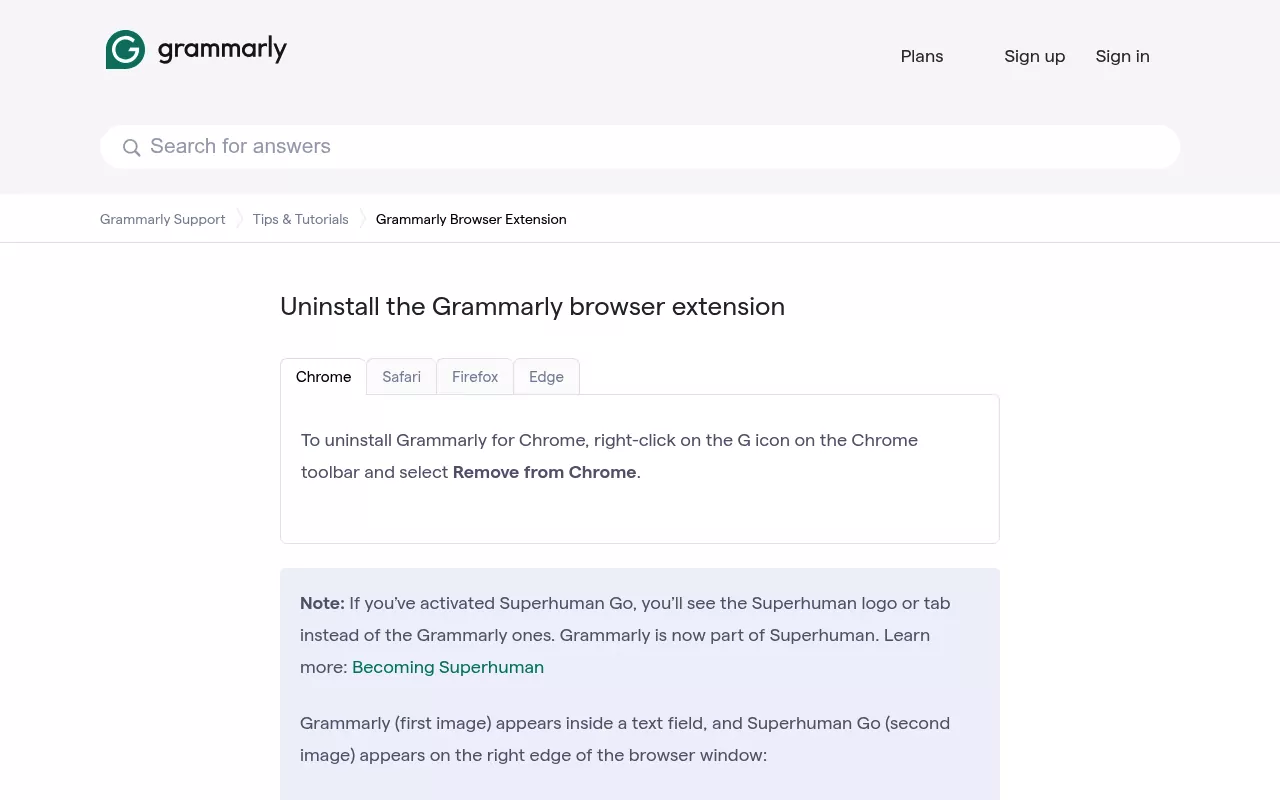
The vendor's page on how to uninstall the Grammarly browser extension covers each browser. Repeat the steps in every browser profile you use.
Safari
Choose Safari, then Settings, then Extensions. On Monterey 12 and Big Sur 11 it is Safari, then Preferences. Select Grammarly for Safari and click Uninstall.
Apple's guide to Safari extensions says deleting the app that holds the extension works too. So you can quit Grammarly for Safari and move it from Applications to the Trash.
That removes the add-on, not Safari, which is part of macOS. The Safari guide explains why.
Chrome, Edge and Firefox
- Chrome: right-click the G icon in the toolbar and choose Remove from Chrome.
- Edge: open Extensions, click Grammarly for Microsoft Edge, then Uninstall.
-
Firefox: go to
about:addons, open Extensions, select Grammarly and click Remove. - Superhuman Go: right-click its icon and choose Remove from Chrome or Remove from Microsoft Edge. The vendor has a separate page to uninstall the Superhuman Go browser extension.
Step 6: Remove the Grammarly add-in from Microsoft Word
The Word add-in for Mac has been discontinued, but an old copy can still be listed. The vendor's steps to uninstall Grammarly for Microsoft Word on Mac:
- Open Word.
- In the Insert menu, go to My Add-ins.
- Select Grammarly for Microsoft Word and click the three dots next to it.
- Click Remove.
If My Add-ins is elsewhere in your copy of Word, search for "add-ins" in Word's Help menu.
Confirm nothing from Grammarly is still running
- Restart your Mac.
- Check the menu bar for a Grammarly or Superhuman icon.
- Open Activity Monitor and search for Grammarly, then Superhuman.
- Check Login Items & Extensions again for any Grammarly entry.
- Run the two Step 2 checks again. No output means the helpers are gone. Superhuman Go users will still see superhuman items, and that is expected.
Reinstalling Grammarly cleanly
The vendor's route to reinstall Grammarly for Mac is short. Quit from the menu bar and trash Grammarly Desktop. Then download the installer, follow the prompts, and log in to your account.
The Mac app needs macOS 11 or newer, per its system requirements. Expect it to ask for Accessibility access again.
Frequently Asked Questions
Does uninstalling Grammarly cancel my subscription or delete my account?
No. Apple's page on deleting apps on Mac says deleting an app does not cancel a plan.
To cancel your Grammarly subscription, sign in and go to Account, then Your account, then Subscription. If you paid through the App Store, cancel through Apple.
Deleting your account is a separate step. The page on how to delete your Grammarly account warns it cannot be undone. It also removes documents saved in the Grammarly Editor.
If you are a Superhuman user, email care@superhuman.com to delete your account. With a paid plan still active, the vendor asks you to submit a support ticket instead.
Why is Grammarly still underlining text after I uninstalled it?
Another piece is still active. The usual cause is an extension in another browser or profile, Grammarly for Safari, the Word add-in, or Superhuman Go. Work back through Steps 1, 5 and 6.
Do I need admin rights to uninstall Grammarly on a Mac?
Usually not. The vendor tells users without admin rights to find the app in ~/Applications and trash it from there. For a copy in /Applications, Apple says macOS may ask for an admin name and password.
Can I turn Grammarly off instead of uninstalling it?
Yes. Click the icon in the menu bar and choose Turn off Grammarly or Turn off Grammarly for 1 hour. The page on choosing where Grammarly works also covers the Block list in Settings.
Removing other apps from this Mac
Grammarly sits in the middle: one app, a few helpers and a permission. A text editor like Sublime Text leaves less behind. Security apps such as Trend Micro or Kaspersky add system extensions that need their own steps.
Each guide covers what the app installs, whether the vendor ships an uninstaller, and how to check nothing is still running. It is all done by hand, with nothing to download.
Weighing an uninstaller app against doing it by hand? The AppCleaner alternatives page compares both.