How to Uninstall GlobalProtect on Mac (Even When It Won't Quit)
To uninstall GlobalProtect on Mac, first check who manages the Mac: on a work or school Mac, ask IT. On your own Mac, open Palo Alto Networks' GlobalProtect installer and choose Uninstall GlobalProtect, or run sudo /Applications/GlobalProtect.app/Contents/Resources/uninstall_gp.sh in Terminal. Then check for a leftover extension, VPN setting and background items.
Most people who want to uninstall the GlobalProtect VPN land here for one of three reasons. The app will not quit, it comes back after a restart, or Terminal cannot find the uninstall script because the app is already in the Trash. Each case has a fix below, and none of them needs extra software.

Why dragging GlobalProtect to the Trash is not enough
GlobalProtect is a VPN client, and it is built to stay connected. Palo Alto's directory article for macOS shows it spread well beyond the icon in Applications.
- A service and an agent. PanGPS is the service. The app you see, which Palo Alto calls PanGPA, runs as a process named GlobalProtect.
- Two launch agents. Files in /Library/LaunchAgents tell macOS to start those parts at login. Palo Alto names both in its PanGPS troubleshooting article.
- An optional system extension. From macOS Catalina 10.15.4, the app can use one for features such as split tunnel, though Palo Alto says it is off by default. Security tools add the same kind of part, as the Trend Micro removal guide shows.
- Settings, cookies and logs in the main Library folder and in the one inside your home folder.
There is one more catch. The uninstall script lives inside the app, so a Trash drag throws away the easy way out. Apple's own advice on removing apps is to use an app's uninstaller when it has one, and this app does.
Before you start
Check whether an organisation manages this Mac
Do this first. If your employer or school gave you GlobalProtect, they probably need it on the Mac. Device management can also put it straight back after you remove it.
Look for a configuration profile. Apple's guide to profiles puts them in a different place for each macOS version:
- macOS Sequoia 15 and later: System Settings, then General, then Device Management.
- macOS Ventura 13 and Sonoma 14: System Settings, then Privacy & Security, then Profiles.
- macOS Monterey 12 and earlier: System Preferences, then Profiles. The pane only shows if a profile is installed.
If you see a profile from your employer or school, stop and ask IT. Apple says to ask whoever gave you a profile when you cannot remove it.
Palo Alto also lets IT stop users from turning off the system extension in System Settings on macOS Sequoia 15 and later. Profiles reach far beyond VPN settings, as profiles that hijack Safari's homepage show, so do not look for a workaround.
What you need and what you lose
- An admin account. Palo Alto says only users with admin rights can uninstall GlobalProtect from a Mac.
- Your VPN access ends. Palo Alto notes you lose access to your work network, and the Mac is no longer covered by your company's security policies.
- The installer comes from your portal. Palo Alto has no public download.
- Already dragged it to the Trash? Open the Trash, select the app, then choose File, then Put Back. The script needs the app in Applications.
- This is not a security choice. This guide removes an app. It does not replace anything your IT team relied on it for.
Step 1: Uninstall GlobalProtect on Mac with the installer package
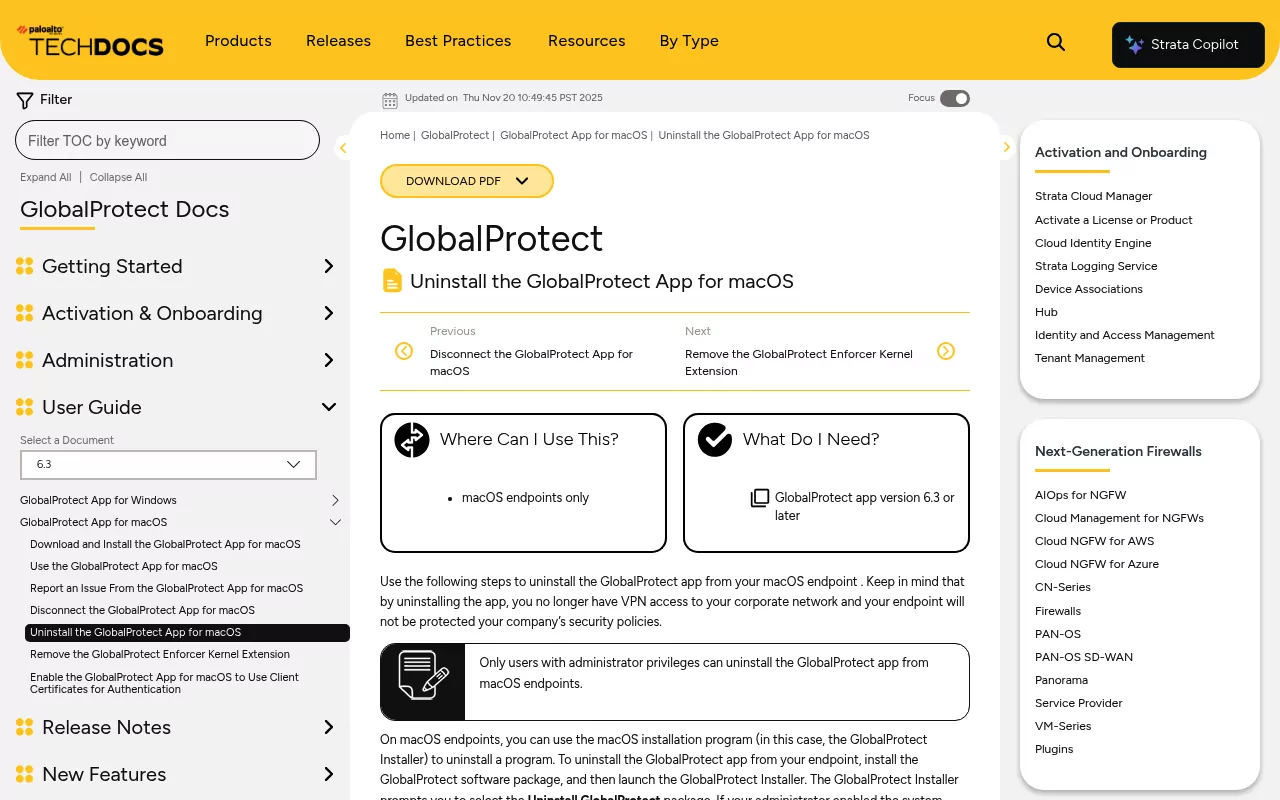
This is Palo Alto's main route, from its uninstall guide for GlobalProtect 6.3. You run the same installer that put the app on the Mac and tell it to uninstall instead.
- Open your GlobalProtect portal in a web browser and sign in, usually with your work or school login.
- On the download page, choose the Mac agent. Palo Alto's guide calls the link Download Mac 32/64 bit GlobalProtect agent, though your portal may look different.
- Open the downloaded package to start the GlobalProtect Installer, then click Continue.
- On the Destination Select screen, click Continue.
- On the Installation Type screen, select Uninstall GlobalProtect, then click Continue. If the GlobalProtect box is also ticked, untick it, as Palo Alto's knowledge base says.
- Click Install. The button still says Install, even though you are removing the app.
- Enter your admin name and password, then click Install Software.
- If a second prompt asks to remove the system extensions, enter your name and password again and click OK.
- Wait for the message that the Uninstall GlobalProtect package was installed. That means the app is gone.
Palo Alto's page stops there. Restart the Mac now, because a system extension can wait for a reboot before it goes, then go to Step 3.
Step 2: No installer? Run uninstall_gp.sh in Terminal
If you cannot get the package, Palo Alto gives a Terminal command instead. It runs the uninstall script that ships inside the app.
Before you run it: this command starts with sudo, which runs it with admin rights. Copy it exactly as shown, and do not change the path.
sudo /Applications/GlobalProtect.app/Contents/Resources/uninstall_gp.shOpen Terminal from Applications, then Utilities. Paste the command and press Return. Terminal asks for your Mac password and shows nothing as you type, which is normal.
You may also be asked to approve removing the system extension. Enter your password there too. Then restart the Mac.
If Terminal says it cannot find the file, the app is no longer at that path. It has most likely gone to the Trash or been moved. Put it back in Applications and run the command again.
If the app is gone for good, use the package from Step 1. It carries its own uninstall option, so it is also the fix when macOS cannot find GlobalProtect but it still runs.
Palo Alto does not list what the script removes. So treat Steps 3 to 6 as your check, whichever route you used.
Step 3: Check the system extension is gone
Not every Mac has this extension, because it is optional. If yours had one, the uninstall should take it off, but it can hang on until a restart.
In System Settings: on macOS Sequoia 15 and later, open System Settings, then General, then Login Items & Extensions. Click the Info button next to Network Extensions and look for GlobalProtect. On older versions, Apple's system extension page points you to Privacy & Security instead.
In Terminal: this command only reads and reports, and it changes nothing.
systemextensionsctl list | grep -i globalprotectNo output means no GlobalProtect extension is left. Palo Alto's admin docs give its ID as com.paloaltonetworks.GlobalProtect.client.extension, with the team ID PXPZ95SK77.
If that line ends with terminated waiting to uninstall on reboot, macOS drops it at the next restart. Restart, then run the command again.
Never run the reset option of systemextensionsctl. It resets every system extension on the Mac, not just this one. Security apps leave the same kind of extension behind, as the Kaspersky removal guide shows.
Kernel extensions: the pangpd driver and the gplock enforcer
Older setups used kernel extensions. Palo Alto says version 5.1.4 and later, on macOS Catalina 10.15.4 and later, no longer uses the com.paloaltonetworks.kext.pangpd one. It also documents an enforcer kernel extension called gplock, which can cause connection trouble after a reinstall. This read-only command checks for either:
kextstat 2>/dev/null | grep -i paloaltoNo output means neither is loaded. The 2>/dev/null part just hides the status lines, because newer macOS versions hand kextstat over to kmutil and say so.
If a line does appear, ask IT, or use only the unload step on Palo Alto's enforcer removal page. Skip its delete command: it targets /System, which Apple made read-only in macOS Catalina 10.15.

Step 4: Remove any leftover GlobalProtect VPN setting
Open System Settings and click VPN in the sidebar, as Apple's VPN guide describes. If an entry named for GlobalProtect or Palo Alto Networks is still there after the app is gone, click the Info button next to it. Then click Remove configuration.
If nothing like that is listed, there is nothing to do here. If an entry will not go, it may come from a profile. Check the profile list from Before you start, and ask IT if one is there.
Step 5: Clear login items and background items
Next, check what still starts at login. Open System Settings, then General, then Login Items & Extensions (just Login Items on Ventura 13 and Sonoma 14). The section is called App Background Activity on macOS Tahoe 26 and later, and Allow in the Background on earlier versions.
Turn off any entry named for GlobalProtect or Palo Alto Networks. Entries like these usually point to launch agent files, which you remove next.
Palo Alto names two launch agents for the app. This read-only command shows whether they are still there:
ls /Library/LaunchAgents | grep -i pangpIf it lists com.paloaltonetworks.gp.pangpa.plist or com.paloaltonetworks.gp.pangps.plist and the app is gone, remove them.
Warning: delete only those two files. Palo Alto Networks makes other Mac software, such as its Cortex XDR agent, and those files can sit in the same folders. Leave anything else alone.
- In Finder, choose Go, then Go to Folder. Type /Library/LaunchAgents and press Return.
- Drag the two files named above to the Trash. Finder asks for your admin password.
- Restart the Mac so nothing loads them again.
Step 6: Delete leftover files in the Library folders
Your Mac has two Library folders. The main one at /Library holds files for every user, while the one in your home folder, written ~/Library, holds your own settings and is hidden by default. Go to Folder opens both.
Palo Alto's directory article lists where GlobalProtect keeps its files. These are the ones outside the app itself:
| Location | What Palo Alto says is there |
|---|---|
| /Library/Application Support/PaloAltoNetworks/GlobalProtect | Portal pre-logon cookie |
| ~/Library/Application Support/PaloAltoNetworks/GlobalProtect | Host Information Profile data, portal settings and sign-in cookies |
| /Library/Logs/PaloAltoNetworks/GlobalProtect | Service, device check and install logs |
| ~/Library/Logs/PaloAltoNetworks/GlobalProtect | The app's own log |
| /Library/Preferences/com.paloaltonetworks.GlobalProtect.settings.plist | Settings file |
| ~/Library/Preferences/com.paloaltonetworks.GlobalProtect.settings.plist and com.paloaltonetworks.GlobalProtect.client.plist | Your settings files |
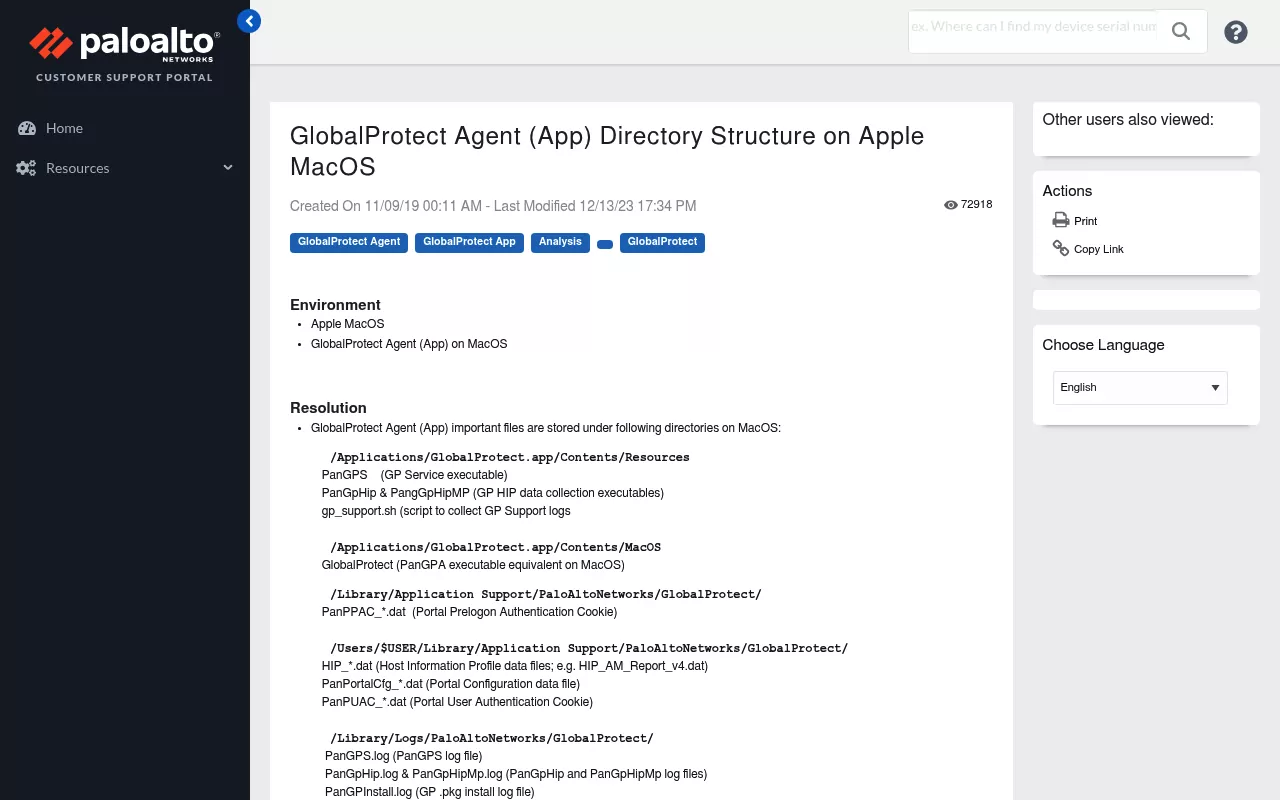
Before you delete: open each location with Go to Folder and drag only the GlobalProtect item to the Trash. Use Finder, not Terminal, so you can still put items back. Files in /Library ask for your admin password.
If GlobalProtect is the only Palo Alto software on this Mac, you can remove the whole PaloAltoNetworks folder from ~/Library/Application Support. Palo Alto's own uninstall and reinstall article does just that. If you run another Palo Alto product, remove only the GlobalProtect folder inside each PaloAltoNetworks folder.
Palo Alto's directory article also lists a Collect folder in your home folder for support logs. Remove it only if it holds nothing but GlobalProtect logs.
One last read-only check shows whether macOS still keeps an install record:
pkgutil --pkgs | grep -i paloaltoThese receipts are small records of the install, not the app, so you can leave them. You do not need a cleaner app for any of this. If you are weighing one anyway, this look at AppCleaner alternatives and the by-hand method sets out the options.

Confirm nothing from GlobalProtect is still running
Restart the Mac first. After that, the GlobalProtect icon should be gone from the menu bar.
Next, open Activity Monitor from Applications, then Utilities. Type GlobalProtect in the search field, then try PanGP.
Palo Alto's process names are GlobalProtect for the app, PanGPS for the service and PanGpHip for its device checks. Nothing should match.
For a final check, run these three commands in Terminal. Each one only reads and reports.
pgrep -il 'globalprotect|pangp'
launchctl list | grep -i pangp
systemextensionsctl list | grep -i globalprotect
The first looks for running processes. The second looks for loaded launch agents, and the third for the system extension. When the app is fully gone, all three print nothing.

If GlobalProtect keeps coming back
- Your employer or school manages the Mac. Device management can reinstall the app on its own, and only IT can change that. The same goes for other work tools, such as managed Trend Micro agents.
- Launch agents survived a Trash drag. If the app went to the Trash without the script, its launch agents can stay behind. Go back to Step 5.
- macOS cannot find the app, but it still runs. That points to a half removal. Use the package from Step 1, then work through Steps 3 to 6.
- You reinstalled and now cannot connect. Run the kernel extension check from Step 3. If gplock shows up, ask IT, or use only the unload step on Palo Alto's enforcer page, never its delete command.
Reinstalling GlobalProtect cleanly
Get the new copy from your own portal. Palo Alto's install guide says there is no direct download on its own site, because the right app depends on your employer's or school's setup.
For a clean start, Palo Alto's reinstall article gives a short order. Uninstall, delete the PaloAltoNetworks folder in ~/Library/Application Support, restart, then install again. If your IT team uses the system extension, you may be asked to allow it after the install, unless they approved it in advance.
Frequently Asked Questions
Can I uninstall GlobalProtect from a work or school Mac?
Ask your IT team first. A managed Mac often needs the app, device management can reinstall it, and IT can lock the system extension so you cannot turn it off. There is no safe workaround on a Mac you do not own.
Why won't GlobalProtect quit on my Mac?
It is not a normal app you open and close. Launch agents start its parts at login, and the PanGPS service runs in the background. Your IT team's setup decides how much control you have, including whether you may disconnect at all.
Can I just disconnect GlobalProtect instead of uninstalling it?
Sometimes. Palo Alto's disconnect guide says that with the Always On connect method, you may be able to choose Disconnect from the settings menu, and then use the internet without the VPN. IT can block this, or ask for a reason, a passcode or a ticket number first.
I already dragged GlobalProtect to the Trash. What now?
If the Trash is not empty yet, put the app back in Applications and use Step 1 or Step 2. If it is gone, get the package from your portal and use Step 1. Then work through Steps 3 to 6 to catch anything the Trash drag left behind.
Where do I get the GlobalProtect installer to uninstall it?
From your GlobalProtect portal, the same place the app came from. Palo Alto's knowledge base says you can download it again there. If you have lost portal access, ask the IT team that set it up, or use the Terminal route in Step 2.
Does uninstalling GlobalProtect affect my internet connection?
Palo Alto says you lose VPN access to your work or school network, and the Mac is no longer covered by your company's security policies. It does not describe any other change to your connection. If something still seems wrong after a restart, check Steps 3 and 4 for a leftover extension or VPN entry.
Removing other apps from this Mac
Removing GlobalProtect from a Mac is one of the harder jobs, because the app adds a service, launch agents and sometimes an extension. Simpler apps leave less behind. Sublime Text, for example, has no service at all, only files and perhaps a command line helper, as the guide to uninstalling Sublime Text on Mac shows.
Every guide here covers one app the same way: what it installs, whether the vendor ships an uninstaller, the leftovers, and a final check that nothing still runs. For an app with no background parts, the standard route is enough, and Apple's short video shows it.