How to Uninstall Docker on Mac: Docker Desktop, Docker.raw and Leftover Helpers
To uninstall Docker on a Mac, first export any volumes or images you want to keep. Then click the Troubleshoot icon at the top right of the Docker Desktop Dashboard, choose Uninstall, and drag Docker to the Trash. Last, delete ~/.docker, Docker's Library folders, its root helpers, and old links in /usr/local/bin.
That is the short answer to how to uninstall Docker on Mac. On the Mac we tested, the Docker.raw disk image alone used 49 GB, and old update files held 6.5 GB more.
What Docker Desktop installs on your Mac, and where
Sizes come from a Mac running Docker Desktop 4.76.0. Yours will differ.
| Location | What it is | Size on the test Mac |
|---|---|---|
/Applications/Docker.app |
The app, with Docker's uninstaller inside | 2.2 GB |
~/Library/Containers/com.docker.docker |
Holds Docker.raw, the Linux disk with all your images, containers and volumes | 49 GB |
~/Library/Application Support/com.docker.install |
A staged update: a full second copy of the app | 2.2 GB |
$TMPDIR/com.docker.install |
Three old update downloads | 6.5 GB |
~/.docker |
CLI settings, Scout data, plugins and AI tool folders | 1.1 GB |
Two folders in /Library
|
Root helpers | About 1.5 MB |
/usr/local/bin |
Command links such as docker, docker-compose and kubectl
|
Links only |
How big is Docker.raw really?
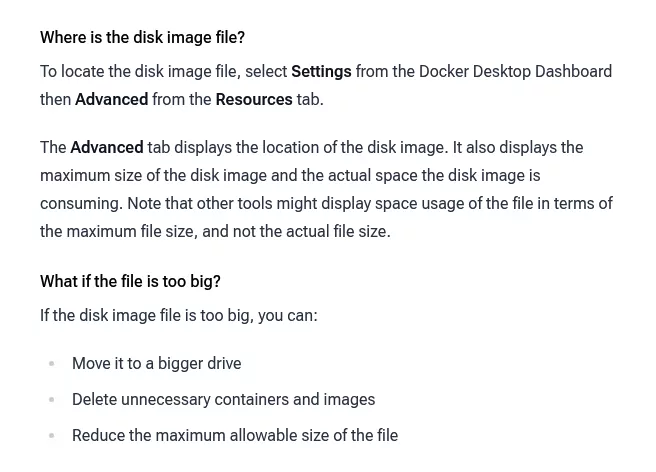
Docker.raw is a sparse file, so ls and other tools show its full size, not what it uses. For the real number, run du -sh ~/Library/Containers/com.docker.docker in Terminal, or open Settings > Resources > Advanced in Docker Desktop.
To see Docker.raw next to the rest of your disk, try these free disk maps and the Finder method.
Why dragging Docker to the Trash is not enough
The Trash takes only the 2.2 GB app. Docker.raw and the update files stay put.
Also left behind: a root helper, broken command links, shell lines, saved logins and MCP Toolkit settings.
Before you uninstall Docker on Mac: decide what to keep
Warning: removing Docker Desktop wipes all local containers, images and volumes. Time Machine has no copy. Docker leaves its VM out of backups unless you turned on Include VM in Time Machine backups in Settings > General.
- Note where Docker.raw lives. If the Disk image location in Settings > Resources > Advanced is not the default, write it down for Step 2.
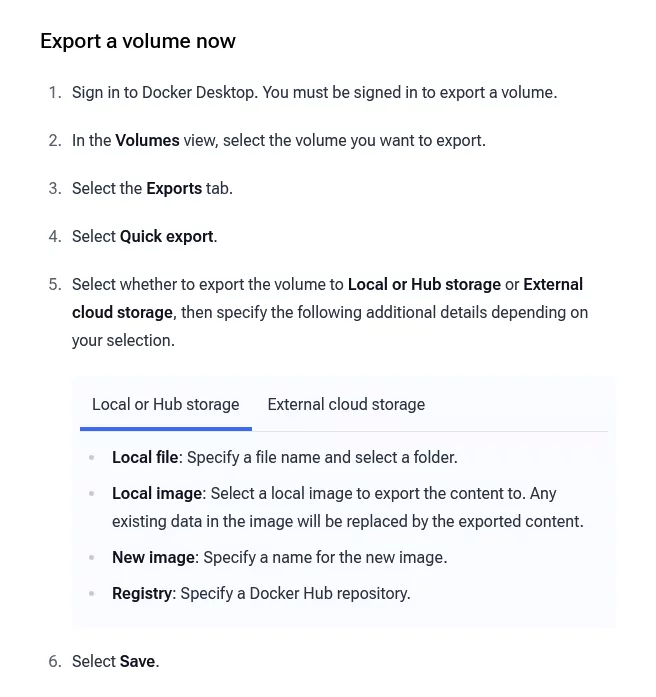
- Export volumes. Databases and uploads live in volumes, not in images. In Docker Desktop, open Volumes, pick a volume, then Exports > Quick export > Local file, as Docker's Volumes guide shows. You must be signed in. Mounted Mac folders are not touched.
-
Save images. Push them to a registry, or run
docker image save -o images.tar image1 image2. Commit container changes first withdocker container commit. -
If Docker will not start, quit it and copy Docker.raw to an external drive with room for its full size, as Docker's backup and restore page says. By default it is at
~/Library/Containers/com.docker.docker/Data/vms/0/data/Docker.raw. If you set a custom Disk image location, look there. -
AI tools. Model Runner models can be pulled again. Disconnect any app that uses the MCP Toolkit, such as Claude or Cursor, under MCP Toolkit > Clients. If Docker is gone, delete the
MCP_DOCKERentry in that app's MCP settings. -
Log out. While the CLI still works, run
docker logout, plusdocker logout <registry>for each other one, so those logins leave your Keychain. Then sign out of Docker Desktop, after any Quick export.
Keep backups outside ~/.docker and Docker's Containers folder.
Step 1: Uninstall Docker Desktop with Docker's own tool
To uninstall Docker Desktop on Mac, follow Docker's uninstall page:
- Open Docker Desktop.
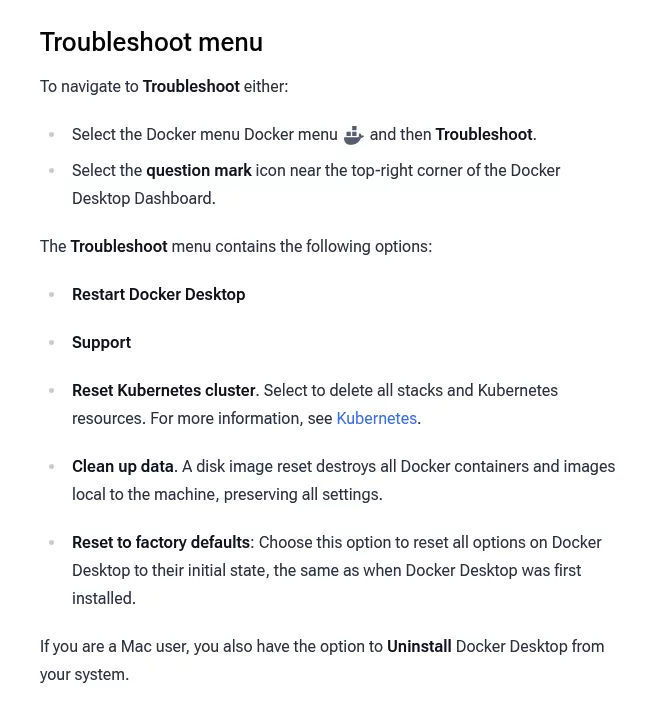
- Select the Troubleshoot icon in the top right corner of the Dashboard, or choose Troubleshoot from the Docker menu in the menu bar.
- Select Uninstall, then select Uninstall again to confirm.
- If Docker Desktop is still open, quit it. Then drag Docker from Applications to the Trash.
Or run the same tool in Terminal:
/Applications/Docker.app/Contents/MacOS/uninstallRun it once, without sudo. It asks for your Mac password. Running it twice with sudo once left folders owned by root, per Docker's release notes.
Docker says it removes your containers, images, volumes and app files. It leaves ~/.docker and its Group Containers folder for you.
If Terminal reports "operation not permitted", Docker says the uninstall still worked. Step 2 deals with the folder it could not delete.
If you installed Docker with Homebrew
A plain brew uninstall --cask docker-desktop quits Docker and deletes its two helpers. It never runs Docker's uninstaller, so Docker.raw and ~/.docker stay. Adding --zap trashes both with no keep option.
The safe order: export, run Troubleshoot > Uninstall without trashing the app, then run the plain brew command. brew uninstall docker can target Homebrew's docker formula, which is not Docker Desktop.
Step 2: Delete Docker's data and Library folders
Docker's tool may have removed some of these. Delete what is left. To open each path, use Go > Go to Folder in Finder.
Warning: items 2 and 6 hold your images, volumes, models and settings. The rm command in item 2 deletes at once and skips the Trash. What you drag to the Trash is gone once you empty it.
- Quit Docker Desktop from the Docker menu if it is running.
- Delete
~/Library/Containers/com.docker.docker, the folder that holds Docker.raw. If macOS blocks you, give Terminal Full Disk Access in System Settings > Privacy & Security. Then runrm -rf ~/Library/Containers/com.docker.docker. It deletes that one folder and all it holds. Then switch the access off. If you moved the Disk image, delete Docker.raw from there too. - Delete
~/Library/Group Containers/group.com.dockerand~/Library/Application Scripts/group.com.docker. - Delete these if you find them:
- In
~/Library/Application Support:Docker Desktop,com.docker.install,docker-secrets-engine, and thecom.docker.dockerfolder insidecom.bugsnag.Bugsnag - In
~/Library/Caches:Docker Desktopanddocker-secrets-engine - In
~/Library/Preferences:com.docker.docker.plistandcom.electron.dockerdesktop.plist - In
~/Library/HTTPStorages:com.docker.docker - In
~/Library/Logs:Docker Desktop, on older installs
- In
- Delete the update files. In Terminal, run
open "$TMPDIR"to show your private temp folder in Finder (it is not/tmp), then dragcom.docker.installto the Trash. - Delete
~/.docker. Moving to a new Docker engine? Keepconfig.jsonbut remove itscredsStoreandcurrentContextlines, which Docker says "may conflict with a future Docker setup." Keepcontextsand anycerts.dfolder, and delete the rest.
Step 3: Remove Docker's root helpers
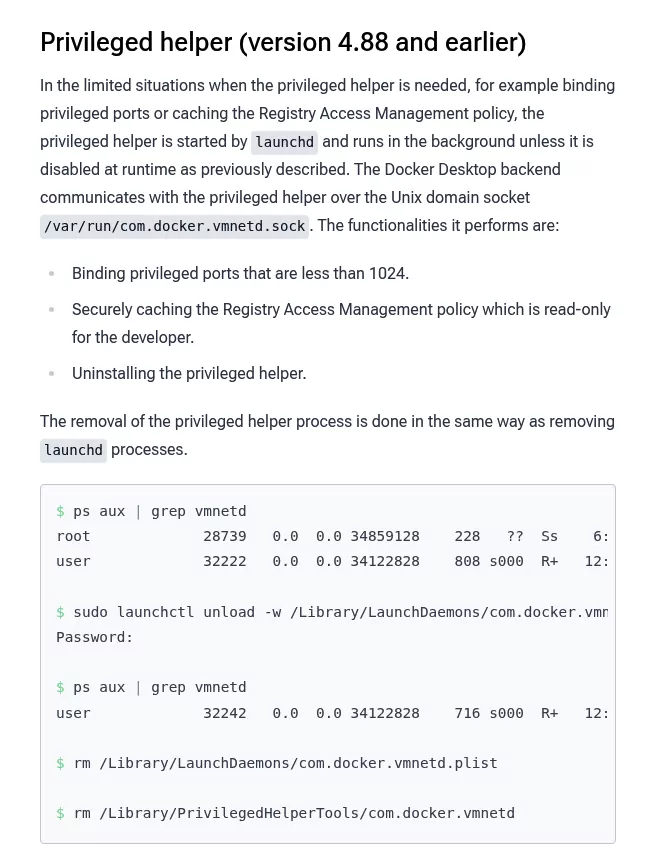
Two root jobs may exist. com.docker.socket rebuilds the Docker socket link at each boot. com.docker.vmnetd is the port helper from Docker Desktop 4.88 and older. A Mac can have one, both or none, so list them first:
ls /Library/LaunchDaemons /Library/PrivilegedHelperTools | grep -i dockerIf it lists socket files, run these lines one at a time. sudo runs a command as an admin and asks for your Mac password.
sudo launchctl unload -w /Library/LaunchDaemons/com.docker.socket.plist
sudo rm /Library/LaunchDaemons/com.docker.socket.plist
sudo rm /Library/PrivilegedHelperTools/com.docker.socket
The first line stops the job. The second deletes its plist. The third deletes the helper.
If it lists vmnetd files, run these lines one at a time, as Docker's Mac permissions page shows:
sudo launchctl unload -w /Library/LaunchDaemons/com.docker.vmnetd.plist
sudo rm /Library/LaunchDaemons/com.docker.vmnetd.plist
sudo rm /Library/PrivilegedHelperTools/com.docker.vmnetd
Skip any line whose file was not listed. Never use wildcards here. On the test Mac, the socket helper was a stale 2024 copy, a problem the Creative Cloud guide also shows.
Step 4: Remove broken Docker command links
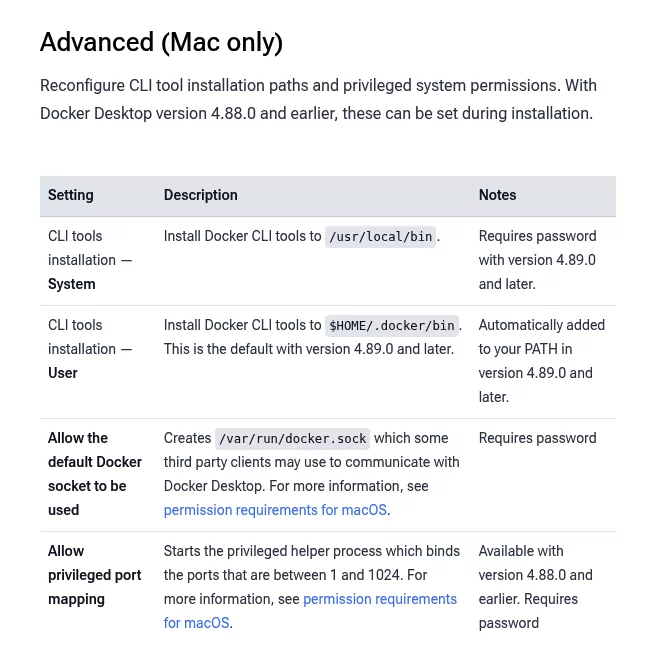
Since Docker Desktop 4.89, command tools go to ~/.docker/bin by default, which you just deleted. Older or upgraded Macs may also have links in /usr/local/bin. This read-only command prints only links that point into Docker.app:
find /usr/local/bin -lname '*Docker.app*'Delete each printed path one at a time, for example sudo rm /usr/local/bin/docker. Use sudo, since /usr/local/bin often belongs to root. If you see docker.backup or docker-compose.backup there, delete it too.
Never run sudo rm /usr/local/bin/*. On Intel Macs, Homebrew keeps its own tools in that folder. The Sublime Text guide walks through the same kind of link cleanup.
Step 5: Clean shell files and Keychain, then empty the Trash
- In Finder, open your home folder and press Shift, Command and the period key to show hidden files. Open any of
.zprofile,.zshrc,.bash_profile,.bashrcand, for fish,~/.config/fish/config.fishin TextEdit. Delete only lines that mention.docker/or say "Added by Docker Desktop", such as.docker/bin,.docker/completionsor.docker/init-zsh.sh. Keep anycompinitlines, then open a new Terminal window. - If you skipped
docker logout, open Keychain Access, search for docker, and delete Docker login items you no longer need. - Empty the Trash. With Time Machine on, the freed space can show as purgeable for up to 24 hours while local snapshots expire.
Leave /etc/hosts alone. Docker's lines there are harmless.
Your Docker account, plan and tokens
Images you pushed to Docker Hub stay online.
- Removing Docker does not cancel a paid plan. Manage Pro, Team or Business under Billing in Docker Home, per Docker's Manage plans page, or ask your admin about a company seat.
- Docker Desktop makes up to five tokens with full access when you sign in. Delete them, and any you made, in Docker Home under Account settings > Personal access tokens, per Docker's access tokens page.
Confirm nothing from Docker is still running
Open Activity Monitor from Applications > Utilities and search for docker. Names such as Docker Desktop or com.docker.backend should be gone.
Next, run three read-only checks in Terminal. Each should print nothing:
launchctl list | grep -i dockerThis covers jobs in your own account, such as com.docker.helper. It cannot see root helpers, so also run:
ls /Library/LaunchDaemons /Library/PrivilegedHelperTools | grep -i dockerLast, look for broken links:
find /usr/local/bin -lname '*Docker.app*'Then check System Settings > General > Login Items & Extensions (Login Items on Sonoma 14) for any Docker entry, per Apple's Login Items guide. Restart, then run ls -l /var/run/docker.sock. It should say "No such file or directory".
Reinstalling Docker Desktop cleanly
To fully uninstall Docker and reinstall it, finish the steps above and restart. Then get a fresh copy from Docker's Mac install page. Docker supports the current macOS and the two before it.
Nothing comes back unless you saved it. Load saved images with docker image load -i images.tar.
Frequently Asked Questions
Does uninstalling Docker Desktop delete my containers, images and volumes?
Yes, all of them, and so does deleting Docker.raw by hand. docker rm and docker rmi are different: they remove one container or image and leave Docker in place.
What is Docker.raw, and can I shrink it without uninstalling?
It is the disk of Docker's Linux VM. docker system prune clears stopped containers, unused networks, dangling images and build cache. Clean up data in the Troubleshoot menu, or a smaller Disk image size in Settings, wipes the whole disk.
Why do I get "command not found: docker" after uninstalling?
The links in /usr/local/bin point at an app that is gone. Delete them as in Step 4. A docker command that still works comes from another install, such as Homebrew's docker formula.
Why do I get "docker-credential-desktop: executable file not found in $PATH"?
Your ~/.docker/config.json still has a credsStore line that points at Docker Desktop's login helper. Remove that line, or delete the file, as in Step 2.
Why does my Mac say com.docker.vmnetd or com.docker.socket contains malware?
Old copies of these helpers set off a macOS malware warning in January 2025, per Docker's release notes. Step 3 deletes them.
Removing other apps from this Mac
Docker is not the only app that leaves gigabytes behind. Parallels Desktop keeps whole virtual machines on disk, and the Steam guide covers getting large game storage back.
Each guide here follows the same shape: what the app installs, whether the vendor ships an uninstaller, the manual leftover steps, and a closing check. Finder, System Settings and, now and then, Terminal are all you need.