How to Uninstall League of Legends on Mac, Riot Client Included
To uninstall League of Legends on a Mac, quit League and the Riot Client, then move League of Legends.app from the Applications folder to the Trash, as Riot Support documents. That leaves the Riot Client behind, so also delete /Users/Shared/Riot Games, the Riot launch agent and the Riot folders in ~/Library, empty the Trash and restart.
The five steps below show how to uninstall League of Legends on Mac. If you only want to reinstall, jump to the section on reinstalling cleanly near the end.
Why moving League of Legends to the Trash is not enough
Riot's Uninstall and Reinstall Games steps for Mac stop at the app: close League and the Riot Client, trash League of Legends.app, empty the Trash and restart. That also removes the Logs and Config folders, which Riot's Network, System and Logs (Mac) page places inside the app.
The Riot Client is a separate install, which Riot says the League download sets up first. It lives in /Users/Shared/Riot Games, a folder that Riot's Fix My League page has Mac players trash after the game. Any Riot Client item in Applications, sometimes under a translated name, is only a shortcut to it (its icon has a small arrow). Trashing that shortcut leaves the client in place.
The Riot Client's logs in ~/Library/Logs/Riot Games, League settings files and a launch agent stay behind too. Your Library is hidden by default (see how to show hidden files on Mac), but Go to Folder reaches it either way.
Before you uninstall League of Legends on Mac
Teamfight Tactics goes with it, for now
Riot lists one set of Mac steps under League of Legends/TFT (Mac), so removing League also removes desktop Teamfight Tactics from this Mac. Its Riot Client FAQ explains that, until TFT gets its own client, launching TFT opens the TFT section of the League client. TFT on a phone or tablet is separate.
Keep replays and highlights you want
Riot's Replays FAQ says you set where Replays and Highlights are saved in the League client settings, under Replays. Check that setting while League is still installed. Unless it points elsewhere, on a Mac with League installed you will find a Replays folder in ~/Documents/League of Legends. Copy out anything you want to keep.
Decide whether to keep the Riot Client
League of Legends.app and the Riot Client in /Users/Shared/Riot Games serve every account on this Mac. If someone else here still plays, leave both in place and clear only your own files in Step 3.
Otherwise, remove the Riot Client unless another Riot game installed through it stays. Reinstalling is no reason to keep it, since Riot's installer puts it back.
Step 1: Quit League of Legends and the Riot Client
Fully close the game, the League client and the Riot Client, as Riot's first step says. Riot's System Tray/Menu Bar Launch page notes that the menu bar Riot icon closes once all Riot games are closed.
Then open Activity Monitor (in Applications > Utilities), search for Riot and then League, and quit any process listed, such as RiotClientServices or LeagueClientUx. If something will not close, force quit it.
Riot's Full Client Repair Failed page uses the same check and asks you to make sure League is not running in other accounts too.
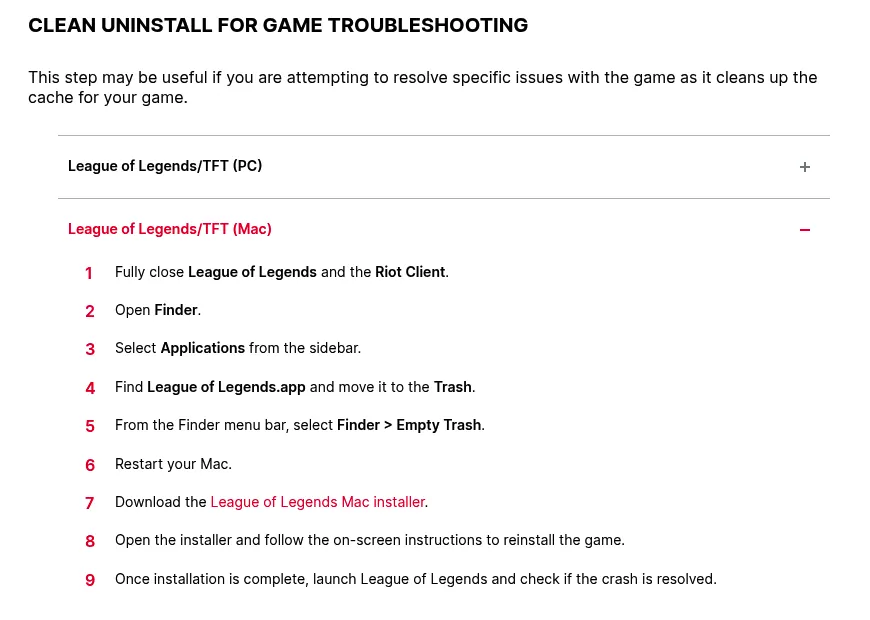
Step 2: Move League of Legends to the Trash, the way Riot documents it
- Open Finder and select Applications in the sidebar.
- Find League of Legends.app, which Riot's Patching Issues page places at
/Applications/League of Legends.app. If it is not there, find it with Spotlight, then hold Command while you double-click the result to show it in Finder. - Choose File > Move to Trash, and enter an administrator name and password if macOS asks, as Apple's Delete or uninstall apps on Mac page notes.
This deletes League of Legends and desktop TFT from your Mac.
Step 3: Remove League of Legends files in your Library and Documents
Open each path with Go to Folder (Shift-Command-G, see Apple's Go to Folder guide) and trash it if it exists. These belong to League alone, so remove them even if you keep the Riot Client.
~/Library/Application Support/com.riotgames.LeagueofLegends.LeagueClient~/Library/Application Support/com.riotgames.LeagueofLegends.GameClient-
~/Library/Application Support/Riot Games/League of Legends(just this subfolder; Step 4 removes the rest) ~/Library/Preferences/com.riotgames.LeagueofLegends.LeagueClientUxHelper.plist~/Library/Logs/LeagueClientUx_debug.log-
~/Documents/League of Legends, once you have copied out any replays - The installer in Downloads, named Install League of Legends plus a region code, such as
Install League of Legends euw.appand its .zip
Riot's docs name only the first item. On a Mac with League installed you may also find items 2 to 7, so skip any that are not on yours.
Step 4: Remove the Riot Client and its launch agent
Skip this step if you keep the Riot Client. Otherwise, go through this list in order.
-
~/Library/LaunchAgents/com.riot.riotclient.checkinstalls.plist, a launch agent that starts RiotClientServices, the Riot Client's background service, whenever Applications changes. That is why a Riot process can reappear after Step 2. Trashing it stops it loading at login, and the restart in Step 5 unloads the running copy. - Search Activity Monitor for Riot again and quit RiotClientServices if it came back.
-
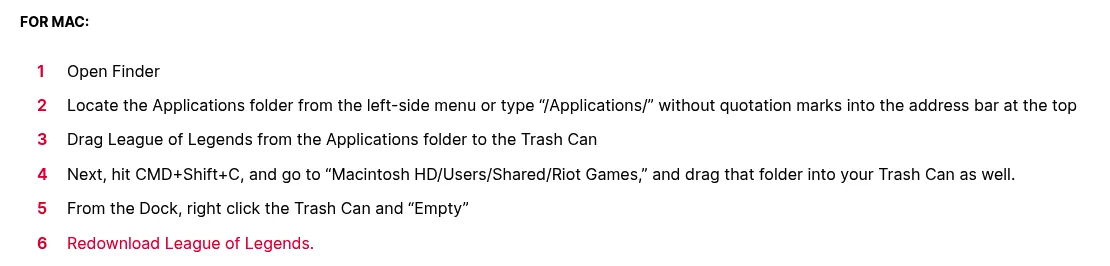
/Users/Shared/Riot Games, which holds Riot Client.app and Riot's install records. Go to Folder/Users/Sharedto see it. This affects every account on the Mac. - The Riot Client shortcut in
/Applications, if there is one. Remove it after the folder above, so the launch agent has nothing left to start. ~/Library/Application Support/Riot Client~/Library/Application Support/riot-client-ux-
~/Library/Application Support/Riot Games(what is left of it) -
~/Library/Logs/Riot Games, the Riot Client logs folder Riot names, plus~/Library/Logs/Riot Clientand~/Library/Logs/riot-client-ux -
~/Library/Preferences/com.riotgames.RiotGames.RiotClient.plistand~/Library/Preferences/com.riotgames.RiotGames.RiotClientUxHelper.plist ~/Library/Saved Application State/com.riotgames.RiotGames.RiotClientUx.savedState
To check for anything else, paste this into Terminal (also in Utilities) and press Return. It only lists matches and deletes nothing:
find /Applications ~/Library/"Application Support" ~/Library/Preferences ~/Library/Logs ~/Library/LaunchAgents ~/Library/"Saved Application State" ~/Library/Caches /Users/Shared ~/Documents ~/Downloads -maxdepth 1 \( -iname "*riot*" -o -iname "*league*legends*" -o -iname "leagueclient*" \) 2>/dev/nullIf it prints nothing, nothing matched. Otherwise, trash only items it prints that are clearly named for Riot or League of Legends, opening each one with Go to Folder. Never trash the parent folders, such as Application Support or Preferences, since every app uses them.
Each Mac user has their own Library, so repeat Steps 3 and 4 in every account that played, apart from the shared folder and the shortcut.
Step 5: Empty the Trash and restart
Riot's steps end with Finder > Empty Trash and a restart. If an item will not delete, see how to empty the Trash on Mac. To see the space you got back, open System Settings > General > Storage, as Apple's Free up storage space on Mac page shows.
Confirm nothing from Riot is still running
After the restart, search Activity Monitor for Riot and League again. Nothing should appear.
Then open System Settings > General > Login Items & Extensions. Check the App Background Activity list (Allow in the Background on older macOS versions) for Riot Games. Turn off anything left, as Apple's Login Items & Extensions guide describes, or see how to stop apps from opening on startup.
Riot says the menu bar icon goes away once all Riot games are uninstalled. If it comes back, run the find check from Step 4 again.
Reinstalling League of Legends cleanly
If you are fixing the game, try Riot's repair first. In the Riot Client, select the profile icon, then Settings, choose League of Legends and select Repair, per Riot's Riot Client Full Repair Tool page. Riot's Troubleshoot Mac Game Crashes page saves a reinstall for last, after a restart, a macOS update and an administrator check.
To reinstall, do Steps 1, 2 and 5. You can also trash /Users/Shared/Riot Games before Step 5, as Riot's Fix My League page does. The Library cleanup in Steps 3 and 4 is optional.
Then run the Mac installer from the League of Legends download page. It sets up the Riot Client, which downloads the game. Riot's Patching Issues page says the Mac version needs administrator privileges, or installing, patching and playing may run into problems.
Frequently Asked Questions
Does uninstalling League of Legends delete my Riot account?
No. Your skins and progress stay with your Riot account. Riot deletes an account only through a separate request on its Deleting Your Riot Account and All Your Data page, which covers every Riot game and has a 30-day grace period.
How do I uninstall the Riot Client on Mac?
It lives in /Users/Shared/Riot Games, and any Riot Client item in Applications is only a shortcut to it. Quit it, trash its launch agent, then the folder, the shortcut and the Library folders in Step 4, unless someone else on this Mac still plays.
Can I uninstall League of Legends without removing the Riot Client?
Yes. Follow Steps 1, 2, 3 and 5 and skip Step 4. That suits you if another Riot game uses the client, but the launch agent stays, so a Riot process may still appear in Activity Monitor.
Why can't I uninstall League of Legends on my Mac?
Usually a Riot process is still running, sometimes restarted by the launch agent, so check Activity Monitor and remove the agent (Step 4). macOS may also want an administrator password, or League may be running in another account. If Riot processes keep returning, also remove /Users/Shared/Riot Games.
Removing other apps from this Mac
More game removals that follow the same pattern:
- How to uninstall Steam on Mac, game libraries included
- How to uninstall Roblox on Mac, Player and Studio
Ready for the next one? Browse every guide on the Uninstall on Mac blog, and if an app is not covered yet, email hello@uninstallonmac.com with the app's name and version and your macOS version.