How to Uninstall Roblox on Mac (Player, Studio and the Files Left Behind)
To uninstall Roblox on Mac, quit Roblox and Roblox Studio (press Command + Option + Esc and force quit either one if it is listed), open Finder > Applications, drag Roblox to the Trash and empty it. That is Roblox's own documented method. Then delete ~/Library/Logs/Roblox and the Roblox preference files in ~/Library/Preferences, which the Trash leaves behind.
Most people who look up how to uninstall Roblox on Mac want one of two things. Some are fixing a crash or an "Upgrade Failed" message and plan to reinstall. Others want Roblox off a family Mac for good.
This guide covers both. It treats the Roblox Player and Roblox Studio as the separate apps they are, shows where each one leaves files, and ends with a check that nothing is still running.
Why dragging Roblox to the Trash is not enough
Roblox's How to Uninstall Roblox article says the app icon in Finder holds all of the Roblox files that were installed. Its Mac troubleshooting page then points to two places outside the app: a logs folder and the Roblox settings files in your Preferences folder.
Roblox Studio adds a few more. Roblox's Creator Hub docs place its recovery files, web data and caches in your Library folder, and a settings folder in Documents. The Player and Studio also share one logs folder.
None of this reaches deep into macOS. Roblox's docs describe no background helper or system extension, unlike security apps such as Trend Micro. So removing Roblox is mostly a Finder job.
Before you uninstall Roblox on Mac
Removing the app does not touch your Roblox account. The FAQ at the end covers your account, Robux and purchases.
Keep any Roblox Studio work saved on this Mac
Places you saved or published to Roblox live on Roblox's servers, so they are safe. Files you exported with Save to File or Download a Copy are different. Those .rbxl and .rbxlx files sit wherever you saved them, and Studio's recovery files sit in your Library folder (see Step 6).
Copy anything you want to keep to another folder or an external drive first. Roblox's place files guide explains both formats.
Repeat for each Mac user account
Each user on a Mac has their own Library folder. If two children played Roblox under their own Mac accounts, the leftovers in Steps 3 to 6 exist once per account. Sign in as each user and repeat those steps, but remove the app itself only once.
Step 1: Quit Roblox and Roblox Studio
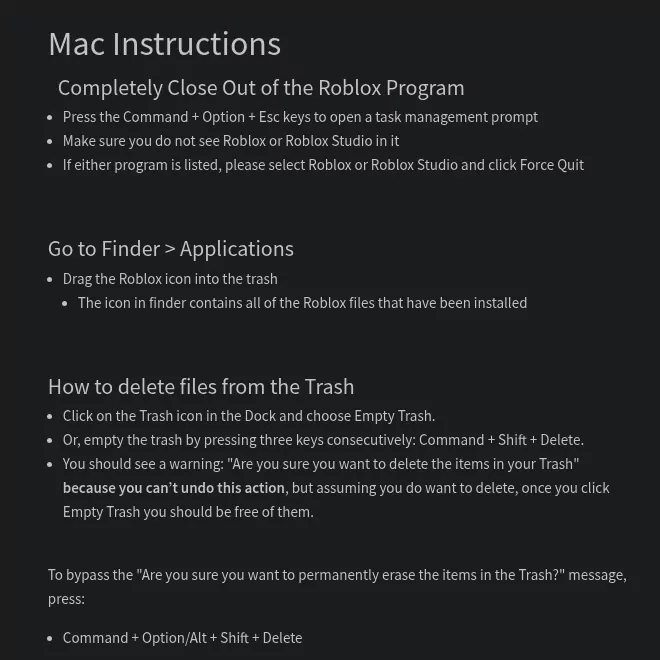
Roblox's first step is to close both apps completely. Press Command + Option + Esc to open the Force Quit window. If Roblox or Roblox Studio is listed, select it and click Force Quit.
If the app still responds, press Command + Q first, so Studio can save your work. Apple's guide on how to force an app to quit on Mac covers the same window, which you can also open from the Apple menu.
Step 2: Move Roblox to the Trash, the way Roblox documents it
Open Finder, click Applications in the sidebar, and drag Roblox to the Trash. The Player lives at /Applications/Roblox.app, the path Roblox's own install guide uses. Roblox ships no uninstaller for Mac, which fits Apple's advice for apps installed from the internet: drag them to the Trash.
Before you empty the Trash, look inside it for anything you still want, because emptying it cannot be undone. Then click the Trash in the Dock and choose Empty Trash, or press Command + Shift + Delete, as Roblox suggests.
Remove Roblox Studio as a separate app
Roblox Studio is its own app. The Creator Hub lists it at /Applications/RobloxStudio.app, so drag that to the Trash too if you have it. The two are separate apps, so you can remove Studio and keep the Player, or the other way round.
If you keep one of them, you can still clear the shared logs folder in Step 3. Roblox simply writes new logs on the next launch.
Step 3: Delete the Roblox logs folder
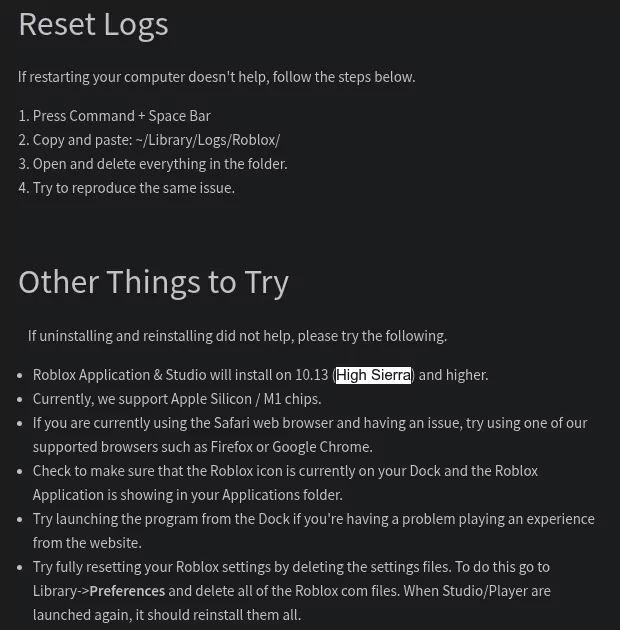
Roblox writes Player logs, Studio logs and installer logs to one folder: ~/Library/Logs/Roblox. Its troubleshooting page says to open that folder and delete everything in it.
Your Library folder is hidden in Finder, so go there directly. In Finder, choose Go > Go to Folder (or press Shift + Command + G), type ~/Library/Logs/ and press Return. Apple explains this in Go directly to a specific folder on Mac.
Drag the Roblox folder to the Trash. If Roblox support asked you for logs, send them first, because this is where they live.
Step 4: Remove the Roblox preference files
Roblox's troubleshooting page says to open Library, then Preferences, and delete all of the Roblox "com" files. It does not list their names. The Player and Studio create them again if you reinstall.
To see exactly which files you have, paste this into Terminal. It only lists names and changes nothing:
ls ~/Library/Preferences | grep -i robloxOpen ~/Library/Preferences/ with Go to Folder and drag each file that command printed to the Trash. Leave every other file alone. Then restart your Mac, so no old settings stay loaded in memory.
Step 5: Clear caches, saved state and web data
Studio's Toolbox runs through a web view, so macOS keeps web data for it. Roblox's Toolbox guide says Studio's web data folders are safe to delete, in these two places:
~/Library/WebKit/com.Roblox.RobloxStudio-
~/Library/Caches/com.Roblox.RobloxStudio(Roblox names the WebKit folder inside it, and with Studio gone the whole folder can go)
For the Player and anything else, check four folders for items with Roblox in the name. This command lists matches and deletes nothing:
find ~/Library/Caches ~/Library/HTTPStorages ~/Library/WebKit ~/Library/"Saved Application State" -maxdepth 1 -iname "*roblox*" 2>/dev/nullOpen each folder with Go to Folder and move only the items it printed to the Trash. These folders hold data for all of your apps, so never delete the folders themselves.
Step 6: Check Application Support, Documents and Downloads
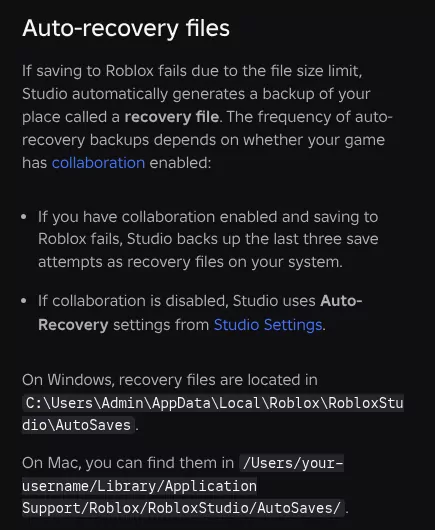
Studio keeps recovery files in ~/Library/Application Support/Roblox/RobloxStudio/AutoSaves/, according to Roblox's place files guide. Open ~/Library/Application Support/Roblox and copy any recovery file you want. Then drag the whole Roblox folder to the Trash.
Next, look in your Documents folder for a folder named Roblox. Studio saves custom toolbar tabs in ~/Documents/Roblox/<userID>/CustomRibbonTabs, and you may have saved places there yourself. Open it, keep what you need, then delete it.
Last, check Downloads for old Roblox installers, such as RobloxStudio.dmg, and move them to the Trash.
Step 7: Search for anything left
A final search catches anything the steps above missed. Paste this into Terminal. It prints every file or folder with Roblox in its name and deletes nothing:
find ~/Library ~/Documents ~/Downloads ~/Applications /Applications /Library -iname "*roblox*" 2>/dev/nullThe 2>/dev/null part hides "permission denied" noise. An empty result means you are done. If it lists anything in /Library, the shared folder for all users, check what it is before you remove it.
Confirm nothing from Roblox is still running
Open Activity Monitor from Applications > Utilities and type Roblox in its search field. If anything shows, select it, click the Stop button, then click Quit. Apple covers this in Quit an app or process in Activity Monitor.
Next, open System Settings > General > Login Items & Extensions. Check Open at Login, then App Background Activity on macOS Tahoe 26 and later, or Allow in the Background on macOS Sequoia 15. Roblox's docs describe no login item, so expect nothing there, but remove or switch off any Roblox entry you find.
That is a big difference from security apps, where a guide like removing Kaspersky from a Mac spends most of its time on helpers. For a Terminal check, run this. It prints nothing when Roblox is fully closed:
pgrep -il robloxOne thing will still look like Roblox. Clicking Play on roblox.com starts the Roblox installer again. That is how Roblox installs, not a sign the uninstall failed.
Reinstalling Roblox cleanly
Roblox advises restarting your Mac before you reinstall. Then sign in at roblox.com, open any experience and click the green Play button. Roblox's install guide says a pop-up then tells you the Player is installing.
If nothing installs, open the Roblox installer from your Downloads folder. Roblox's reinstall article calls it Roblox.dmg, but that article is older, so the name on your Mac may differ.
For Studio, the Creator Hub's Studio setup page has a Download Studio button that saves RobloxStudio.dmg. Roblox's system requirements list macOS 10.13 High Sierra or later for the Player and about 300 MB of free space. Studio's own page asks for macOS 10.14 or later.
Frequently Asked Questions
Does uninstalling Roblox delete my account, Robux or purchases?
No. Your account, Robux and purchases belong to your Roblox account, not to the app on this Mac. Deleting or deactivating an account is a separate step in Roblox's privacy settings, as its account article explains.
How do I uninstall Roblox on a MacBook Air?
Follow the same steps as above. Roblox supports Apple silicon, so a MacBook Air runs the same app, in the same place, with the same leftovers.
Is it safe to delete the Roblox logs folder?
Yes. Roblox's troubleshooting page tells you to delete everything in it, and new logs are written the next time Roblox runs. If Roblox support asked for logs, send those first.
Why does Roblox still show up after I deleted it?
Usually the Trash has not been emptied, or an old Roblox icon is still in the Dock. Drag that icon out of the Dock to remove it. Also check the other user accounts on the Mac, and remember that clicking Play on roblox.com installs Roblox again.
Do I need to uninstall Roblox to fix an "Upgrade Failed" message?
Usually not. Roblox's Upgrade Fail article says to open the experience's page in your web browser and click Play, which installs the latest Player. Uninstall only if that does not help.
Can I block Roblox on a child's Mac?
Screen Time can limit it, but the names vary by macOS version. On macOS Tahoe 26, App Limits sets a time limit on the Roblox app, and Content & Privacy lets you add roblox.com to the Restricted list under Limit Adult Websites. Newer versions rename some of these, so follow Apple's Screen Time guide for your version.
Removing other apps from this Mac
Roblox is one of the simpler removals. Other apps leave more behind, and each guide below follows the same pattern as this one:
- How to uninstall Kaspersky on Mac, a security suite with its own uninstaller and system extension
- How to uninstall Trend Micro on Mac, including the network filter it leaves
- How to uninstall Sublime Text on Mac, a text editor with a command line helper
- How to uninstall Safari on Mac, the app macOS keeps, and what to do instead
If you want to see what else is using space, the DaisyDisk alternatives roundup compares disk space viewers. If you are weighing a tool against doing it by hand, the AppCleaner alternatives guide covers the manual method too, and every step here needs only Finder, System Settings and Terminal.