How to Uninstall Spotify on Mac (Full Removal or Clean Reinstall)
To uninstall Spotify on a Mac, quit Spotify and drag it from Applications to the Trash. Then open your user Library folder (Finder, Go menu, hold Option, Library), delete com.spotify.client and com.spotify.client.helper in Caches and the Spotify folder in Application Support, empty the Trash and restart. These steps combine Spotify's own quick and clean reinstall instructions.
Most people looking up how to uninstall Spotify on Mac want one of two things. If you are leaving Spotify or want disk space back, follow every step. If you need a clean reinstall because playback or sign-in is broken, do Steps 1 to 4 and Step 7, then go to the reinstall section.
Spotify ships no uninstaller for the Mac. Its Reinstalling your Spotify app page documents a quick and a clean reinstall, and this guide builds on it.

Why dragging Spotify to the Trash is not enough
The app itself is the small part. Spotify's clean reinstall steps name two cache folders in ~/Library/Caches and a Spotify folder in ~/Library/Application Support, and a drag to the Trash leaves all three behind.
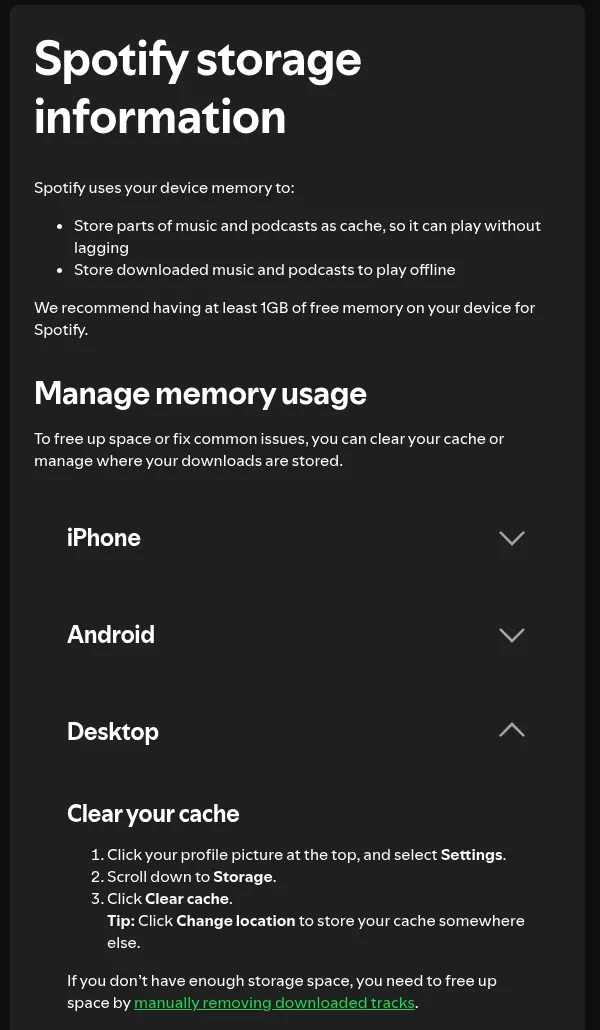
Spotify's storage information page says the app stores music as cache and downloads for offline play, and it recommends at least 1GB of free space. Sizes vary, so measure yours: select a folder in Finder and press Command-I to open Get Info.
Still, this is a simple removal. Spotify's documented steps involve no system extension, unlike security software that installs in layers.
Before you uninstall Spotify on Mac: what you keep and what you lose
Your playlists and library stay with your account
Playlists and saved music belong to your Spotify account, not to this Mac, so they return when you sign in anywhere. Local audio files you play in Spotify stay where they are, because these steps never touch them. If you are giving the Mac away, log out first: click your profile picture and choose Log out, as Spotify's log out help describes.
Downloaded music and podcasts must be downloaded again
Spotify says you need to re-download any downloaded music and podcasts after reinstalling. Its Listen offline page allows up to 10,000 tracks on each of up to 5 devices. Past five devices, downloads are removed from the one you used least recently.
Uninstalling does not cancel Premium
Your plan keeps running with the app gone. To stop paying, open your account page, go to Manage your plan and select Cancel subscription.
Spotify's cancel Premium page says Premium stays until your next billing date. If you cancel during a free trial, the account switches to free straight away, and a plan billed through a partner such as your phone or internet provider has to be cancelled with that partner.
Check where your cache is stored
Spotify's desktop settings have a Change location option that moves the cache elsewhere. If you ever used it, the cache sits in a folder you picked yourself, which the Library steps below do not reach. Note which folder it is now; Step 5 tells you what to remove there.
Step 1: Quit Spotify and its helper processes
Choose Spotify, then Quit Spotify in the menu bar, or press Command-Q. Closing the window is not enough, because a Mac app can keep running with no window open.
Next, open Activity Monitor from Applications, then Utilities, and type Spotify in the search field. You may see more than one Spotify process. Select each one, click the stop button (an X) and choose Quit, as Apple's guide to quitting a process in Activity Monitor shows.
Step 2: Move the Spotify app to the Trash
Open Finder, click Applications in the sidebar and drag Spotify to the Trash. That is Spotify's quick reinstall step, and it matches Apple's advice to uninstall apps from the internet that have no uninstaller.
The Mac app comes from Spotify's website. Apple's App Store listing for Spotify covers iPhone, iPad, Apple TV and Apple Watch, not the Mac. If Finder says the app is in use, go back to Step 1, or restart and try again.
Step 3: Delete Spotify's cache folders
Remove only the folders named here. Finder moves them to the Trash, so a wrong pick can be put back until Step 7.
- In Finder, click Go in the menu bar, hold the Option key and choose Library.
- Open the Caches folder.
- Drag
com.spotify.clientandcom.spotify.client.helperto the Trash.
The Option key reveals the hidden Library folder. You can also choose Go to Folder (Shift-Command-G) and type ~/Library/Caches.
Step 4: Delete the Spotify folder in Application Support
A warning first. This folder holds Spotify's local data, and Spotify does not document every file in it. After the Trash is emptied, expect to download your music and set the app up again, so keep your login details handy.
- Click the back arrow in Finder to return to Library.
- Open the Application Support folder.
- Drag the folder named
Spotifyto the Trash.
The full path is ~/Library/Application Support/Spotify. Leave every other folder there alone, since those belong to other apps.
Step 5: Remove the leftovers Spotify's article does not mention
Apps often leave small files elsewhere in your Library too. Rather than guess at file names, use Go to Folder to open each folder below. Drag only items whose names start with com.spotify or contain the word Spotify to the Trash, unless the name shows it belongs to another app you still use.
-
~/Library/Preferences, where apps keep settings files -
~/Library/Saved Application State, which stores window positions -
~/Library/HTTPStoragesand~/Library/Cookies, which hold web data -
~/Library/Logsand~/Library/WebKit -
~/Library/LaunchAgents, where apps register items that start at login
Finding nothing in some folders is normal. If you moved the cache with Change location, open the folder you chose and remove only Spotify's cache data inside it. Keep the folder itself if it holds anything else.
Step 6: Take Spotify out of Login Items
If Spotify was set to open at login, macOS can keep that entry after the app is gone.
- Choose Apple menu, then System Settings, and click General.
- Click Login Items & Extensions on macOS Sequoia 15 and later, or Login Items on macOS Ventura 13 and Sonoma 14.
- Under Open at Login, select Spotify if it is listed and click the minus button.
Apple's page on opening items at login covers this list. Spotify's supported devices page lists macOS 13 or later, so these two layouts cover any current install.
Apple's Login Items & Extensions guide adds two details. A deleted app's entry shows a warning icon. The background list is called Allow in the Background on macOS Ventura 13 to Sequoia 15, and App Background Activity on macOS Tahoe 26 and later, so turn off any Spotify entry there.
Step 7: Empty the Trash and restart
Check the Trash one last time for anything that is not Spotify's. Emptying it deletes the files for good. Then restart your Mac, which is how Spotify's clean reinstall ends.
Confirm nothing from Spotify is still running
In Activity Monitor, search for Spotify: the list should be empty. In Login Items, confirm Spotify is gone. Then run two read-only Terminal commands.
This lists any Spotify process still running. No output means none:
pgrep -il spotifyThis lists files and folders with Spotify in their names, up to three levels into your Library:
find ~/Library -maxdepth 3 -iname "*spotify*" 2>/dev/nullThe last part hides errors from folders macOS keeps private. If a path appears, check it in Finder before removing it, since a file you named yourself can match too.
Reinstalling Spotify cleanly
- Download the installer from Spotify's Mac download page, open it and follow the prompts.
- Open Spotify and sign in.
- If you keep the cache on another drive, set it first: profile picture, Settings, Storage, Change location.
- Download your playlists and podcasts again.
If you do not want Spotify to launch at login, open Settings, find Startup and window behaviour, and set Open Spotify as soon as you log into the computer to No.
If you only want the disk space back
You may not need to uninstall at all. Click your profile picture, choose Settings, scroll to Storage and click Clear cache. To remove downloads, open a downloaded playlist or album and click the green download arrow.
Some pages suggest editing a file inside Application Support to cap the cache. Spotify does not document that, so use the Storage settings instead. If Spotify is only a small share of a full disk, compare disk space analyzers and the built-in Finder method.
Listening without the desktop app
The web player at open.spotify.com runs in recent Chrome, Firefox, Edge, Opera and Safari, according to Spotify's web player help. Spotify's offline help only covers downloads in the mobile and desktop apps, so treat the web player as streaming only.
Frequently Asked Questions
Does deleting Spotify from my Mac delete my Spotify account?
No. Your account, playlists and plan stay in place. Closing the account is a separate step on Spotify's close your account page.
What is the com.spotify.client folder on my Mac?
It is Spotify's cache in ~/Library/Caches. Spotify's clean reinstall steps tell you to delete it along with com.spotify.client.helper.
Why can't I delete Spotify from my Mac?
It is almost always still running. Quit it in Activity Monitor, then try again, and restart if Finder still refuses. Many apps built into macOS, Safari among them, cannot be removed, but Spotify is not one of them.
Why does Spotify still open when I log in?
If the app is installed, its Startup and window behaviour setting is on, so set it to No. If you removed the app, check Login Items for a leftover entry, as in Step 6.
How much space does Spotify use on a Mac?
It depends on your cache and downloads, so there is no fixed figure. Select each Spotify folder from Steps 3 and 4 and press Command-I to see its size.
Is uninstalling Spotify on a MacBook any different?
No. The steps are the same on a MacBook Air, MacBook Pro, iMac or Mac mini. Only your macOS version changes the Login Items labels in Step 6.
Removing other apps from this Mac
Spotify is one of the easier removals: an app, a few Library folders and perhaps a login entry. Others reach further. Removing Sublime Text can leave a line in your shell profile that breaks other tools.
Security apps sit at the other end. Kaspersky and Trend Micro ship their own uninstallers, and you still need to check for system extensions afterwards. Each guide here covers what one app puts on your Mac and ends with a check that nothing is still running.