How to Uninstall Homebrew on Mac, Packages and Leftover Folders Included
To uninstall Homebrew on Mac, first remove any Homebrew apps you no longer want with brew uninstall --cask. Next, run Homebrew's official uninstall script in Terminal. It removes Homebrew and every command line tool it installed from /opt/homebrew (Apple silicon) or /usr/local (Intel). Then delete the brew shellenv line from ~/.zprofile and any folders the script lists as not deleted.
/bin/bash -c "$(curl -fsSL https://raw.githubusercontent.com/Homebrew/install/HEAD/uninstall.sh)"Save your package list and try the dry run first, as shown below. Only want one package or app gone? brew uninstall is enough. See How to uninstall a package with brew uninstall below.
Why the Trash cannot remove Homebrew
Homebrew is not an app in /Applications, so there is nothing to drag to the Trash. It is a folder tree called its prefix, plus a PATH entry, a shell profile line, caches, logs and any services you started.
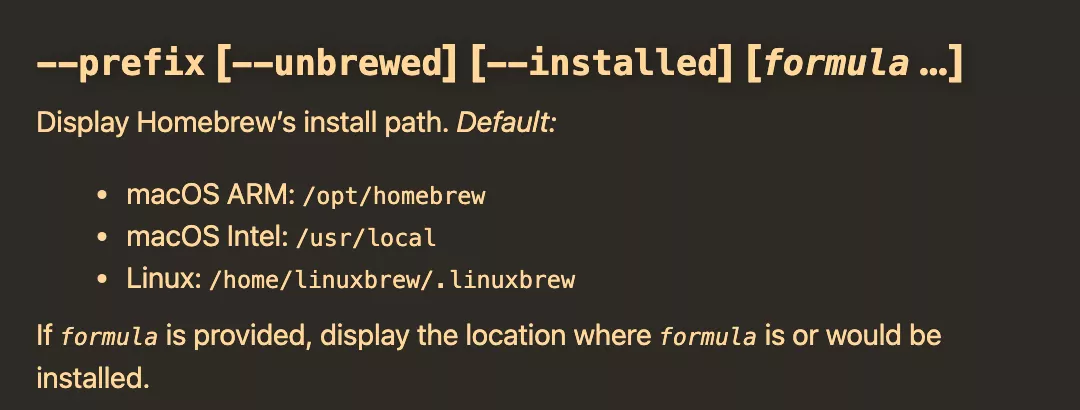
The prefix depends on your Mac's chip:
| Mac | Homebrew prefix | brew command |
|---|---|---|
| Apple silicon | /opt/homebrew |
/opt/homebrew/bin/brew |
| Intel | /usr/local |
/usr/local/bin/brew |
To check yours, run uname -m (arm64 means Apple silicon), brew --prefix and which brew.
On Intel, /usr/local is shared with other software, so never delete it. The script clears only Homebrew's files there.
To open these folders in Finder, see how to show hidden files on Mac.
What uninstalling Homebrew takes with it
Removing Homebrew takes every formula with it, such as git, node and python. Scripts and apps that call those tools stop finding them. The uninstaller leaves Apple's Command Line Tools, so Apple's git in /usr/bin still works if they are installed. The Xcode uninstall guide covers removing them and what that breaks.
Before you uninstall Homebrew: save your list and stop services
On an Intel Mac, decide first. Homebrew's current install script stops with "Homebrew on macOS is only supported on Apple Silicon processors!", and the Installation page lists Intel Macs as Tier 3, so you may not get it back.
-
Save your list.
brew bundle dump --file=~/Desktop/Brewfilewrites your casks, formulae and taps to a file you can reinstall from. -
Remove unwanted apps while brew still works. The script leaves cask apps in
/Applications, so runbrew uninstall --cask, or--zap, for each one you want gone. Apps you keep become normal apps that Homebrew no longer updates. -
Stop services. Run
brew services list, thenbrew services stop --all, which also stops them from starting at login. Usesudo brew services stop --allfor any started with sudo. -
Copy out data. Files that packages wrote, such as a local database, live in
/opt/homebrew/etcand/opt/homebrew/var(/usr/local/etcand/usr/local/varon Intel). Save what you need and keep a Time Machine backup.
How to uninstall Homebrew with the official script
Homebrew's FAQ says to run the uninstall script from the Homebrew/install repository. New to Terminal? Apple explains how to open Terminal on Mac.
Preview what will be removed first
Download the script and do a dry run, which its help text describes as "Simulate uninstall but don't remove anything":
curl -fsSLO https://raw.githubusercontent.com/Homebrew/install/HEAD/uninstall.sh
/bin/bash uninstall.sh --dry-run
The script needs an admin account. It may ask for your password even in a dry run, since it uses sudo to list empty folders. Nothing is removed.
Run the uninstall
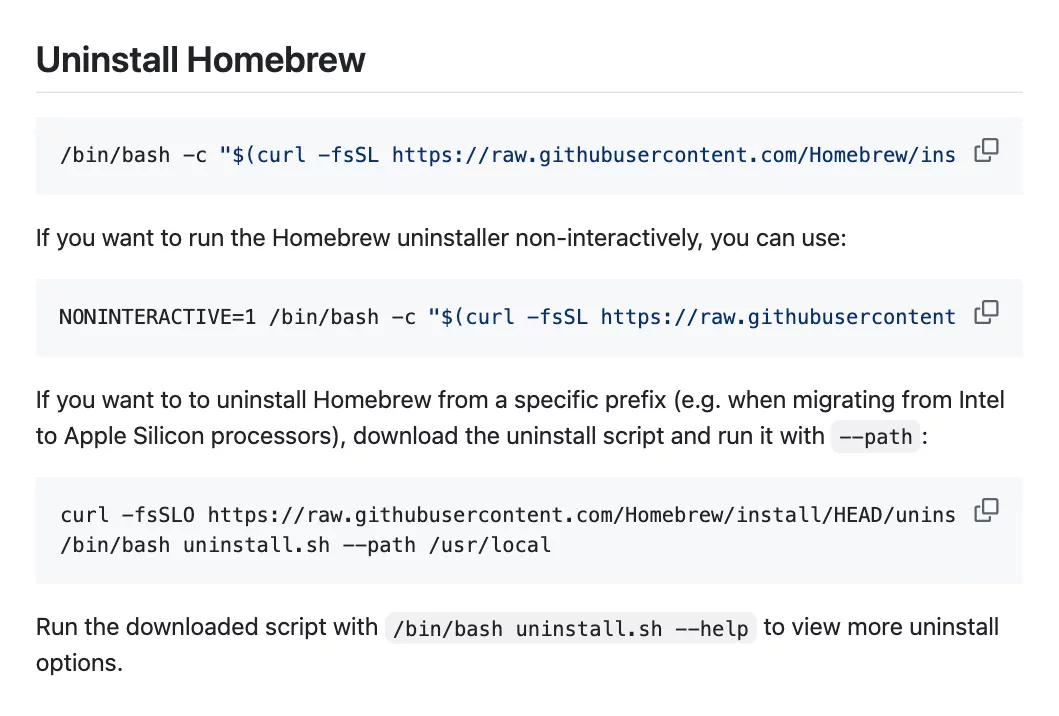
Run /bin/bash uninstall.sh, or the one-liner from the Homebrew/install README:
/bin/bash -c "$(curl -fsSL https://raw.githubusercontent.com/Homebrew/install/HEAD/uninstall.sh)"- Read the list it prints. At "Are you sure you want to uninstall Homebrew? This will remove your installed packages!", type
yand press Return. - Enter your Mac login password if asked. Nothing appears as you type.
- A clean run ends with "Homebrew uninstalled!". If it says "Homebrew partially uninstalled (but there were steps that failed)!", rerun it with sudo.
- Copy the list under "The following possible Homebrew files were not deleted:" for the leftover steps.
Remove a second Homebrew in /usr/local on Apple silicon
A Mac migrated from Intel can keep an old Homebrew in /usr/local, the README notes. Remove it with the downloaded script (add --dry-run first to preview):
/bin/bash uninstall.sh --path /usr/localDelete what the Homebrew uninstaller leaves behind
The uninstall.sh source shows what goes and what stays:
| Removed by the script | Left for you to check |
|---|---|
| Cellar and Caskroom | The brew shellenv line in your shell profile |
| Homebrew's own files and broken links in the prefix | ~/.homebrew |
~/Library/Caches/Homebrew, ~/Library/Logs/Homebrew, /Library/Caches/Homebrew
|
Cask apps in /Applications
|
/etc/paths.d/homebrew |
Apple silicon: what remains in /opt/homebrew, which the script lists. Intel: only what remains inside /usr/local/Homebrew is listed |
On Intel, leave /usr/local/etc and /usr/local/var alone unless you know a Homebrew package wrote those files.
-
Listed folders on Apple silicon. These sit under
/opt/homebrew, oftenetcorvar, and an empty/opt/homebrewcan remain. After saving what you need, choose Go > Go to Folder in Finder, type/opt, then drag the homebrew folder to the Trash and enter your password. Or use Terminal:sudo rm -rf /opt/homebrewCopy it exactly, since a typo can delete the wrong files.
-
Listed items on Intel. Delete only
/usr/local/Homebrewand what it holds. -
The shell profile line. The installer has you add a line such as
eval "$(/opt/homebrew/bin/brew shellenv)"to~/.zprofile(zsh) or~/.bash_profile(bash); newer installs may end it withshellenv zsh. Find it with this command:grep -n "brew shellenv" ~/.zprofile ~/.zshrc ~/.bash_profileDelete that line in TextEdit or nano. If you skip it, each new Terminal window shows "no such file or directory: /opt/homebrew/bin/brew". Command-Shift-Period shows these hidden files in Finder.
-
The settings folder. The manual lists
~/.homebrewas the home ofbrew.env, a global Brewfile and service.envfiles. Delete it unless you plan to reinstall. -
Service files. Homebrew's service.rb names them
sh.brew.<name>.plist, orhomebrew.mxcl.<name>.pliston older installs. They sit in~/Library/LaunchAgentsor, for sudo services,/Library/LaunchDaemons. List them withls ~/Library/LaunchAgents /Library/LaunchDaemons | grep -E "sh.brew|homebrew.mxcl", delete only those files, then restart. More in how to stop apps from opening on startup. -
The PATH file. If
ls /etc/paths.dstill showshomebrewand you have no other Homebrew install, delete it with your admin password. -
Cask apps you kept. Drag any you no longer want to the Trash, then follow that app's guide for its
~/Libraryleftovers. - Empty the Trash.
Back up first, never touch /System, never disable SIP, and delete only paths that clearly belong to Homebrew.
Check that Homebrew is gone and nothing is still running
Open a new Terminal window, which should show no brew error, and run these:
-
which brewanswers "brew not found" (bash prints nothing). Typingbrewgives "zsh: command not found: brew", which is what you want. -
echo $PATHno longer shows/opt/homebrew/bin. -
ls /opt/homebrewsays "No such file or directory" on Apple silicon. -
launchctl list | grep -E "sh.brew|homebrew.mxcl"prints nothing, with or withoutsudoin front. If a line appears, delete that plist (step 5) and restart.
How to uninstall a package with brew uninstall
Uninstall a formula (a command line tool)
- Find the exact name with
brew list --formula. - See what depends on it with
brew uses --installed <formula>. - Remove it with
brew uninstall <formula>. Its settings and data in Homebrew'setcandvarfolders stay until you delete them.
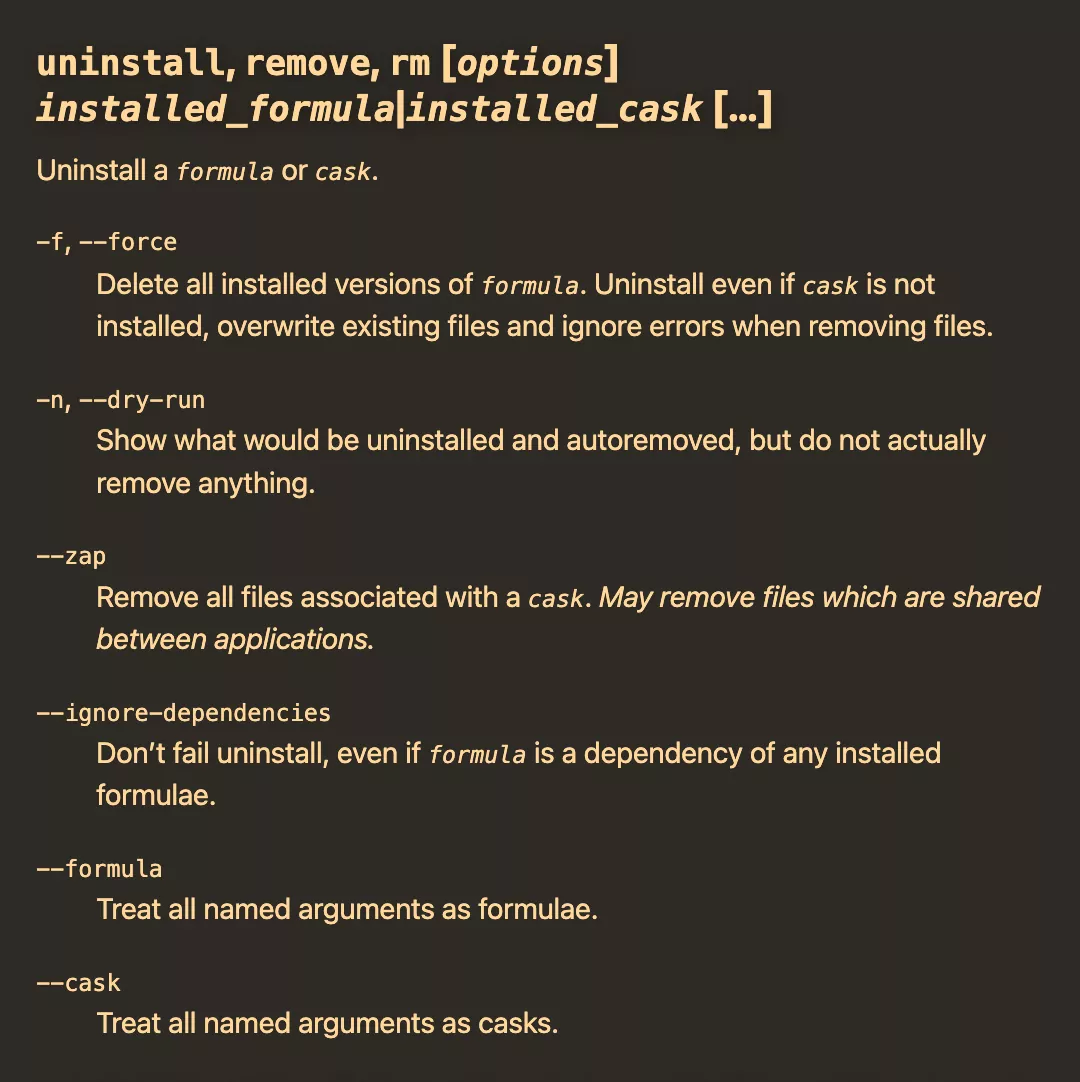
Per Homebrew's manual, brew uninstall also removes dependencies nothing else needs, unless HOMEBREW_NO_AUTOREMOVE is set. brew autoremove --dry-run lists any left over, and brew autoremove clears them. brew remove and brew rm are the same command.
Avoid --ignore-dependencies unless the packages that need the formula can go too.
Uninstall an app with brew uninstall --cask
Apps that Homebrew installed are called casks. brew list --cask shows them, and brew uninstall --cask <cask> removes the app from /Applications.
Remove an app's settings too with brew uninstall --zap
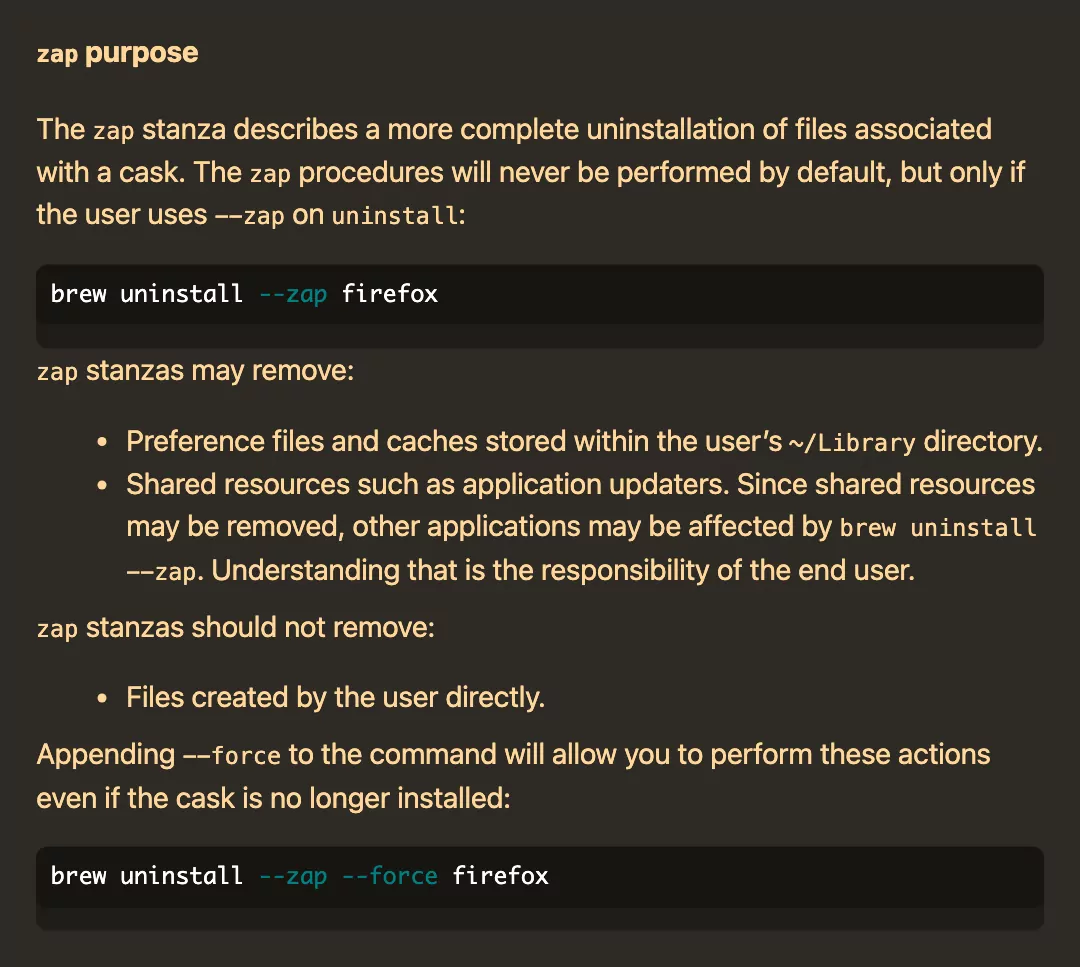
brew uninstall --zap --cask <cask>The Cask Cookbook says zap runs only with --zap. It removes the files in the cask's zap stanza, usually preferences and caches in ~/Library. It may also remove shared resources, such as app updaters that other apps use.
Run brew cat --cask <cask> to read that list first. For a cask that is already gone, brew uninstall --zap --force <cask> works only while Homebrew is still installed.
VS Code and Docker leave more behind. See how to uninstall VS Code on Mac and uninstall Docker on Mac.
Free up space without removing packages: brew cleanup
Per the manual, brew cleanup clears old versions of installed formulae, outdated downloads and downloads over 120 days old. Add --dry-run to preview, -s to scrub the cache, or --prune=all to remove all cached files.
Frequently Asked Questions
What does "Failed to locate Homebrew!" mean?
The uninstall script found no Homebrew in the default prefix or the other places it checks. If brew --prefix shows another folder, run the downloaded script with --path set to it. If which brew finds nothing, Homebrew is already gone and only the leftover steps apply.
How do I uninstall Node or Python with brew?
Run brew uses --installed node to see what needs it, then brew uninstall node (versioned installs are named node@ plus the version). Python works the same way, and brew list --formula shows its exact python@ name. macOS's own /usr/bin/python3 is not affected.
Does uninstalling Homebrew delete the apps I installed with it?
Every formula goes, but cask apps in /Applications stay, since the script deletes only Homebrew's records of them. Remove casks with brew uninstall --cask first.
Why does Terminal say command not found: brew?
After you uninstall Homebrew, that message is the expected result. If you reinstalled and still see it, add the brew shellenv line the installer prints under "Next steps" back to ~/.zprofile, then open a new window.
How do I reinstall Homebrew later?
On Apple silicon, copy the current install command from brew.sh and run it, then restore your list with brew bundle install --file=~/Desktop/Brewfile. On an Intel Mac, the current install script stops, so keep Homebrew if you still need it.
Removing other apps from this Mac
Other developer tools keep their own leftovers:
The full guide index lists every app covered. If yours is missing, email hello@uninstallonmac.com with the app's name and version and your macOS version.