How to Uninstall Java on Mac (Runtime, JDKs and Leftovers)
To uninstall Java on a Mac, first check which Java you have. For Oracle's Java runtime, run Oracle's Java Uninstall Tool or its three documented Terminal commands. For each JDK, list it with /usr/libexec/java_home -V, then delete its folder in /Library/Java/JavaVirtualMachines, or remove it with brew or sdk if that is how you installed it.
Most advice on how to uninstall Java on Mac treats Java as one thing. It is often two: the old runtime that browsers and desktop apps used, and one or more JDKs that developers set up. Each leaves different files, so this guide takes them in turn and ends with a check.
Why dragging Java to the Trash is not enough
There is no Java app in your Applications folder to drag. The Oracle runtime adds a browser plug-in, a Java Control Panel pane in settings and a folder in your user Library. JDKs sit in a shared Java folder, while Homebrew and SDKMAN keep theirs somewhere else.
Leave /usr/bin/java alone. Oracle says that folder is part of the system and that macOS updates reset any change to it. It belongs to macOS, much like Safari does, and hands commands to whatever Java is installed.
Before you start: find out which Java you have
Check whether any app still needs Java
Taking out every copy of Java can stop older desktop apps and build tools from starting. If a project still needs a JDK, keep that one and clear the rest.
Apps that ship their own runtime do not care. IntelliJ IDEA, for example, runs on JetBrains Runtime, which comes inside the IDE.
Back up first and know what stays
Several steps use sudo and delete files for good, so back up your Mac with Time Machine before you begin. This guide does not touch your own projects or build tool caches, such as Maven's ~/.m2 folder and Gradle's ~/.gradle folder.
Look for the Oracle runtime
Oracle's steps open the Java Control Panel from a Java icon in System Preferences. On newer macOS, look through the System Settings sidebar for a Java item. The plug-in check in Terminal is the sure one:
ls "/Library/Internet Plug-Ins"If JavaAppletPlugin.plugin shows up, the runtime is there.
Find every JDK and how it got there
Start with the tool macOS provides:
/usr/libexec/java_home -VIt lists JDKs in /Library/Java/JavaVirtualMachines and in the same folder inside your own Library. It does not see all of them.
On our test Mac, on macOS Tahoe 26, it missed a Homebrew JDK that was never linked into that folder. So also run:
ls /Library/Java/JavaVirtualMachines ~/Library/Java/JavaVirtualMachines
brew list --formula | grep -i openjdk
brew list --cask
sdk list java
A "command not found" or "No such file or directory" reply means that route was never used. Empty output from the brew list --formula line means the same: no openjdk formula.
brew list --cask prints every cask you have, so scan it for JDK casks such as temurin, zulu or corretto. How each JDK got there decides which step clears it.
Step 1: How to uninstall Java on Mac with the Java Uninstall Tool
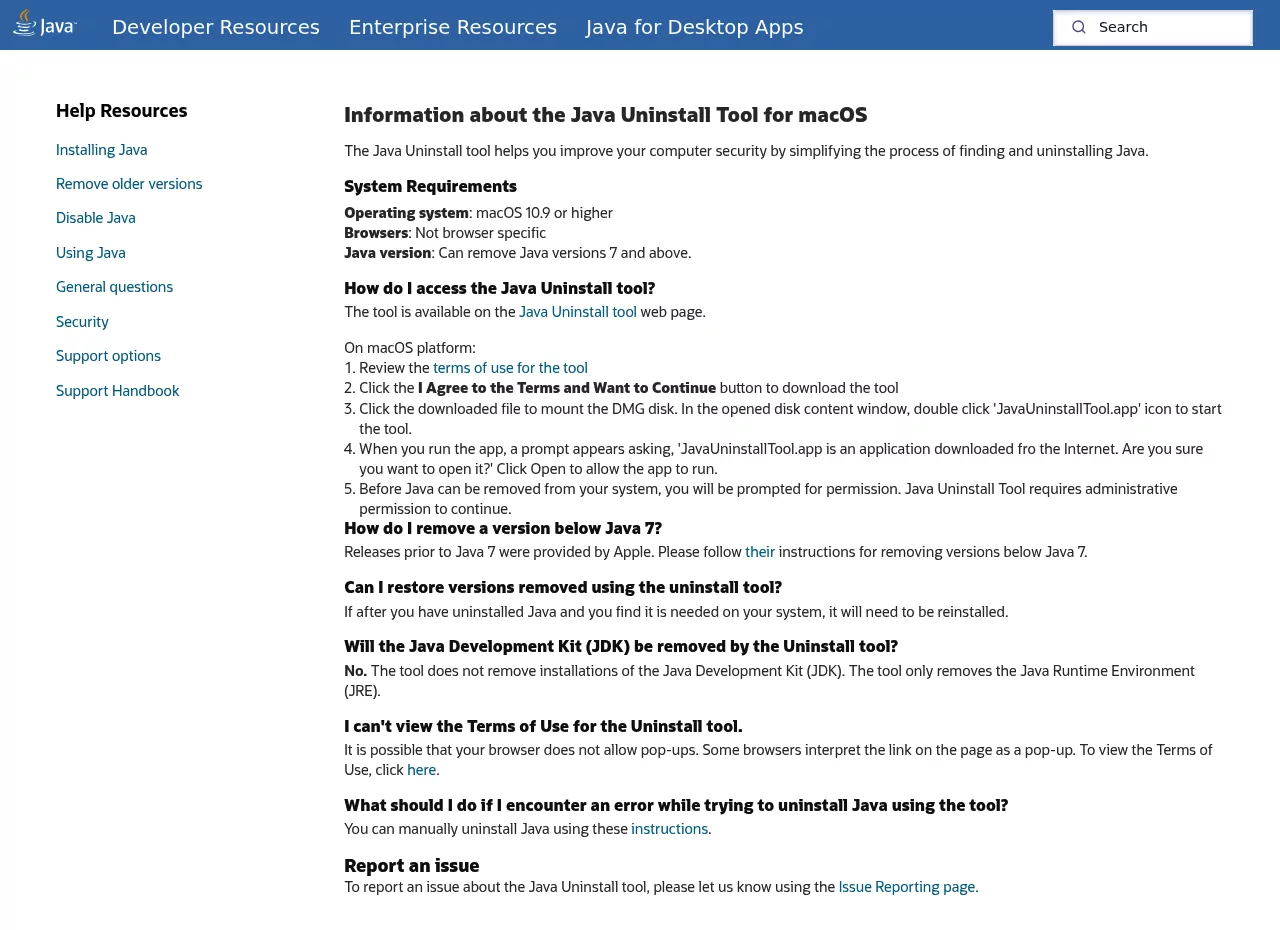
For the runtime, start with Oracle's own Java Uninstall Tool. It needs macOS 10.9 or later and handles Java 7 and above. Close your browsers and other apps first.
- On the tool's page, accept the terms to download it.
- Open the DMG and double-click
JavaUninstallTool.app. - macOS asks whether to open an app downloaded from the internet. Click Open.
- Give admin permission when asked, then follow the prompts.
The tool FAQ is clear about scope. It takes out the Java Runtime Environment (JRE) only, never a JDK. Versions older than Java 7 came from Apple, so the tool skips them.
Step 2: Or remove the runtime with Oracle's Terminal commands
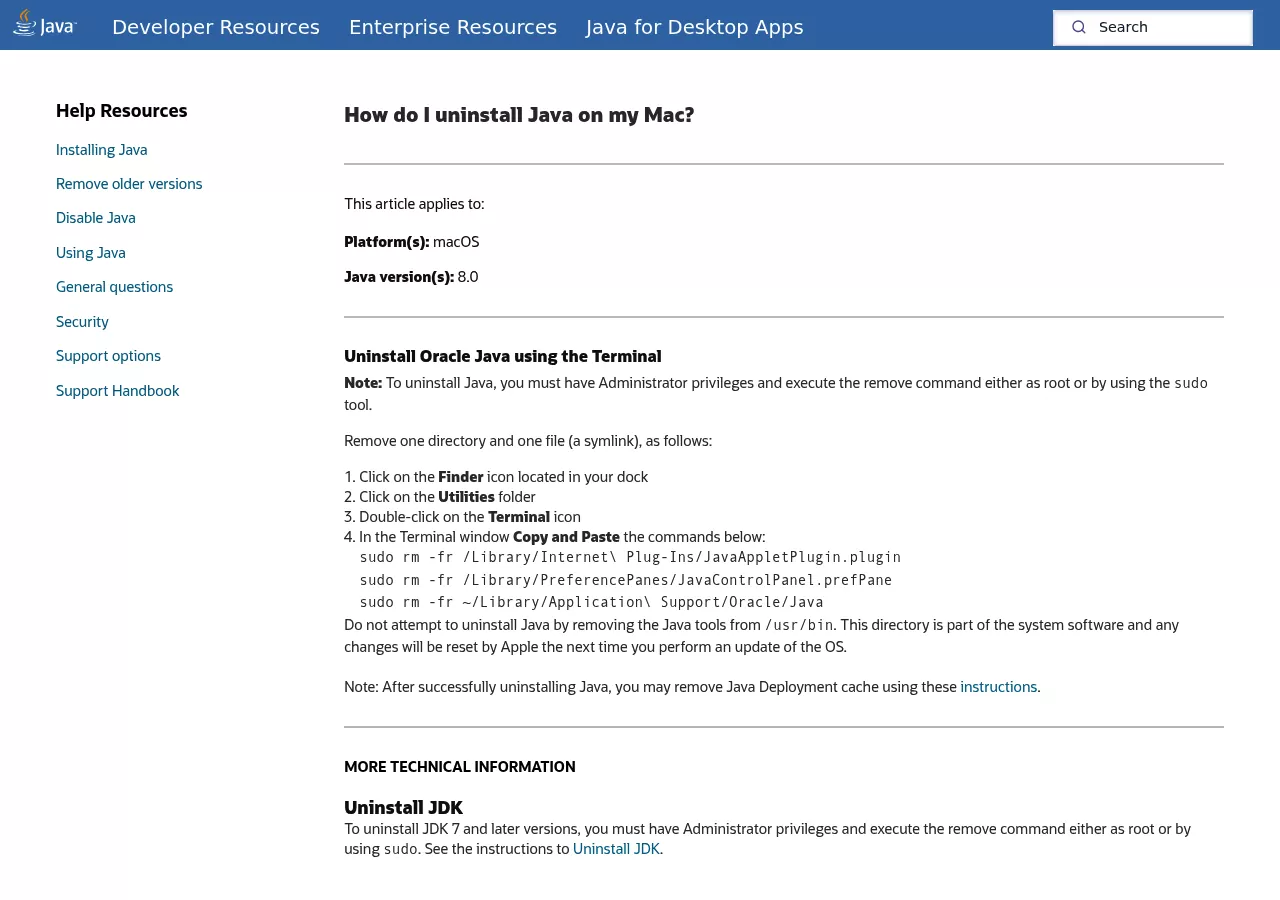
If the tool fails, Oracle has a manual Terminal route. You need an admin account.
Warning: sudo rm -fr deletes at once, skips the Trash and cannot be undone. Paste each line exactly as shown. Do not add wildcards or cut a path short.
sudo rm -fr /Library/Internet\ Plug-Ins/JavaAppletPlugin.plugin
sudo rm -fr /Library/PreferencePanes/JavaControlPanel.prefPane
sudo rm -fr ~/Library/Application\ Support/Oracle/Java
The first line clears the browser plug-in, and the runtime lives inside it. The second clears the Java Control Panel pane. The third clears your own Java folder, which holds the Java cache.
Step 3: Clear the Java cache and Oracle's updater leftovers
If you used the tool and did not choose its option to remove the Java cache, clear the cache with the command Oracle gives. After Step 2 it is gone already.
Warning: rm -r deletes this folder at once, skips the Trash and cannot be undone. It also clears any Java Control Panel settings saved there. Paste the line exactly as shown.
rm -r ~/"Library/Application Support/Oracle/Java"Some runtime installs also set up a background update check. Do not guess at file names. List what is there:
ls /Library/LaunchAgents /Library/LaunchDaemons | grep -i oracle
ls "/Library/Application Support" ~/Library/Preferences | grep -i oracle
Delete only what belongs to Java, one exact item at a time:
- Launch files and preferences: remove only files whose names mention both Oracle and Java.
- Application Support: if the list shows a folder named Oracle, open it and remove only the Java folder inside it. Leave the Oracle folder itself and anything else in it.
Other Oracle software can use the same folders, so never delete by pattern. Items in /Library belong to the whole Mac and need an admin password. The simplest way is Finder: choose Go, then Go to Folder, enter the folder path, drag the item to the Trash, type your password when asked, then restart.
Step 4: Delete JDKs you installed from Oracle or Adoptium
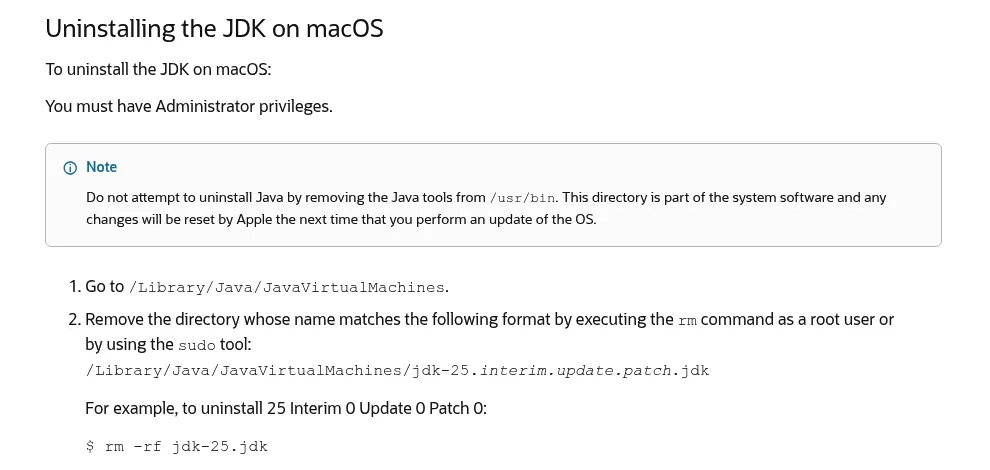
Oracle's JDK 25 guide has you delete the JDK's own folder and nothing else.
Current Oracle names look like jdk-25.jdk, or jdk-1.8.jdk for JDK 8. Eclipse Temurin installs into temurin-VERSION.jdk or .jre. Names vary, so copy yours from the list:
cd /Library/Java/JavaVirtualMachines
ls
Warning: the next command deletes at once and cannot be undone. Remove one folder at a time, and never the parent folder itself. Swap jdk-25.jdk for a name from your own list:
sudo rm -rf jdk-25.jdkThe JDK 8 installer also puts the runtime on your Mac, so after you clear JDK 8, run Step 1 or Step 2 too. Each JDK is big: the Temurin 23 folder on our test Mac took 313 MB. If space is your real goal, find what is filling your disk before you delete more.
macOS keeps an install receipt for each package, even after its files are gone. If an inventory tool still reports Java, check the receipts.
Warning: forgetting a receipt cannot be undone. Forget only the receipt of a JDK whose folder you have already deleted. For a Homebrew cask, run brew uninstall --cask first (Step 5); it uses the receipt to remove the JDK and then forgets it for you.
pkgutil --pkgs | grep -i -E 'java|jdk|temurin'
sudo pkgutil --forget PACKAGE-ID
Swap PACKAGE-ID for a line from the first command. Apple's man page says --forget drops the receipt but leaves files alone.
Step 5: Remove JDKs installed with Homebrew, SDKMAN or an IDE
Homebrew casks such as temurin
brew list --cask
brew uninstall --cask temurin
Use the name the list prints, such as temurin or temurin@21. These casks set up a package, and their own uninstall step takes that package back out.
The Homebrew openjdk formula
brew uninstall openjdkUse openjdk@21 or similar if that is what you have. After install, Homebrew asked you to link the JDK into the shared Java folder as openjdk.jdk, or openjdk-21.jdk for openjdk@21. Homebrew did not make that link, so it will not delete it.
Warning: check the name first, and use plain rm here. It deletes the link and nothing else:
cd /Library/Java/JavaVirtualMachines
ls -l
sudo rm openjdk.jdk
Deleting only the link, with no brew uninstall, leaves the whole JDK in Homebrew's folders.
SDKMAN
sdk list java
sdk uninstall java 21.0.4-tem
Use the names that sdk list java marks as installed. SDKMAN keeps these JDKs under ~/.sdkman/candidates/java.
A version you added from your own local path is only unlinked. Its folder stays where it was.
JDKs an IDE downloaded
IntelliJ IDEA can download a JDK and lets you pick where it goes. Its SDK settings (File, then Project Structure, then Platform Settings, then SDKs) show the path. Drop the entry there, then delete the folder.
If the path starts with ~/Library/Java/JavaVirtualMachines, java_home -V lists it too.
Step 6: Clean up JAVA_HOME and PATH lines
Old shell settings can point at a JDK that is gone and break build tools. Find them:
grep -n -i -E 'java_home|jdk' ~/.zshrc ~/.zprofile ~/.bash_profileDelete lines that only set Java. If a PATH line also holds other folders, edit out just the Java part.
It is the same trap as a stale subl line after you remove an editor. Then open a new Terminal window.
Confirm nothing from Java is still running
Run these checks after a restart:
-
JDK list:
/usr/libexec/java_home -Vshould list no JDKs. On macOS Tahoe 26 it prints "Unable to locate a Java Runtime" when none are left. -
The java command:
java -versiongives that same message, not a version number. -
Runtime:
ls "/Library/Internet Plug-Ins"shows noJavaAppletPlugin.plugin. Oracle's runtime never answersjava -version, so this is the check that counts for it. -
Package tools:
brew listandsdk list javashow no JDKs you meant to remove. - Processes: in Activity Monitor, type java in the search field. Nothing should show.
- Background items: open System Settings, General, then Login Items & Extensions. Look for Oracle or Java under "Allow in the Background" on macOS Sequoia 15, or "App Background Activity" on macOS Tahoe 26 and later. On macOS Ventura 13 and Sonoma 14, it is System Settings, General, Login Items; on Monterey 12 and earlier, System Preferences, Users & Groups, Login Items.
-
Settings pane: no Java item is left in System Settings, and
ls /Library/PreferencePanesshows no Java Control Panel. -
Launch files:
ls /Library/LaunchAgents /Library/LaunchDaemons | grep -i oracleprints nothing tied to Java.

Reinstalling Java cleanly later
Install one JDK from its vendor, then run /usr/libexec/java_home -V to confirm it is the only one listed. Oracle's installers keep one install per feature release, so a newer JDK 25 update replaces the older one.
Frequently Asked Questions
Is it safe to uninstall Java on a Mac?
Yes, as long as nothing you use still needs it. Apps with their own runtime keep working. Tools that call the system Java will stop until you install a JDK again.
Is there an official Java uninstaller for Mac?
Yes, Oracle's Java Uninstall Tool. It clears the runtime only, so JDKs need Steps 4 and 5.
Why does java -version still answer after I removed Java?
Another JDK is still there, so run java_home -V and the Homebrew and SDKMAN lists again. If all it prints is "Unable to locate a Java Runtime", no JDK is left for the command line. Oracle's runtime never answers java -version, so check it on its own: if ls "/Library/Internet Plug-Ins" still shows JavaAppletPlugin.plugin, go back to Step 1 or Step 2.
Why is Java still listed in System Settings?
The Java item comes from the Java Control Panel pane. Clear it with the second command in Step 2, then quit and reopen System Settings.
Can I delete /usr/bin/java?
No. Oracle warns that /usr/bin is part of the system and that macOS updates reset changes there. It is a small stub, not a Java install.
How do I remove one JDK version and keep the others?
Delete only that version's folder, or uninstall only its cask, formula or SDKMAN version. Then check java_home -V and fix any JAVA_HOME line that pointed at it.
Removing other apps from this Mac
Java is odd because it has no app icon. Many apps are the reverse: one icon, plus system extensions and background parts hidden elsewhere. Security software is the clearest case, and removing Trend Micro and its leftovers follows the same shape as this guide: vendor method first, then the leftovers, then a final check.