How to Uninstall Xcode on Mac: Reclaim Simulator Space Without Breaking the Command Line Tools
To uninstall Xcode on a Mac, first delete its simulator runtimes in Xcode > Settings > Components, then run sudo xcode-select --switch /Library/Developer/CommandLineTools so git keeps working. Quit Xcode, move it to the Trash, and delete ~/Library/Developer/Xcode (copy its Archives first if you ship apps) and ~/Library/Developer/CoreSimulator. Projects saved in other folders are not touched.
That is the short answer to how to uninstall Xcode on Mac. The steps below show why the order matters.
On our test Mac the app was 3.9 GB. The files around it took about 58 GB more.
What Xcode installs and where
We measured a Mac App Store copy of Xcode 27.0 (27A266a) on macOS Tahoe 26.6.2. Your sizes will differ.
| What it is | Where it lives | Size on our test Mac |
|---|---|---|
| The app | /Applications/Xcode.app |
3.9 GB |
| Simulator devices (38 here) | ~/Library/Developer/CoreSimulator |
35 GB |
| iOS and watchOS simulator runtimes | /System/Library/AssetsV2 |
11.4 GB |
| Simulator shared caches | /Library/Developer/CoreSimulator |
6.3 GB |
| Old iPhone symbol files | iOS DeviceSupport, in ~/Library/Developer/Xcode
|
5.2 GB |
| Developer documentation | /System/Library/AssetsV2 |
1.6 GB |
| Device support files | Four small folders in /Library/Developer
|
0.3 GB |
| Build files and indexes | DerivedData, in the same Xcode folder | 26 MB (often many GB) |
| Command Line Tools (keep) | /Library/Developer/CommandLineTools |
2.1 GB |
The same Xcode folder holds Archives of shipped builds, plus your themes and key bindings in UserData.
Do not count twice: Disk tools such as du can show the CoreSimulator folder outside your home folder as about 30 GB, because they count the runtime images macOS mounts in its Volumes folder. The real cost there is the 6.3 GB of caches. Never delete Volumes by hand.
System Integrity Protection guards the AssetsV2 folder. You cannot delete the runtimes in Finder. See which folders hold the space with Finder alone.
Xcode adds no third-party launch agents, login items or helpers.
Why dragging Xcode to the Trash is not enough
There are three reasons. First, about 58 GB stays behind.
Second, the runtime images get stuck in that protected folder. The tool that deletes them, simctl, comes with Xcode, not the Command Line Tools, and xcrun can only reach it while Xcode is installed.
Third, your Mac may use Xcode as its developer folder. Once the app is gone, git, clang and make can fail with an "active developer path does not exist" error.
Before you uninstall Xcode on Mac
Will you ever ship an app again? If so, copy ~/Library/Developer/Xcode/Archives somewhere safe first. Archives hold the symbol files that make crash reports readable.
Leave your signing certificates in Keychain Access.
How to uninstall Xcode on Mac: Apple's own route
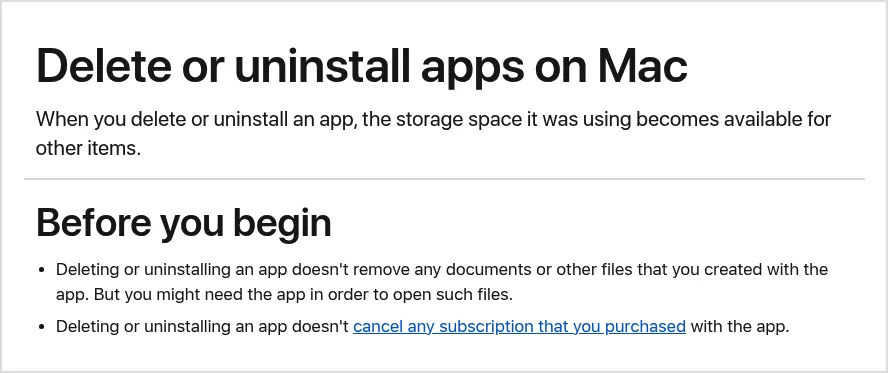
Xcode has no uninstaller. Apple's page on deleting apps on Mac covers moving an app to the Trash.
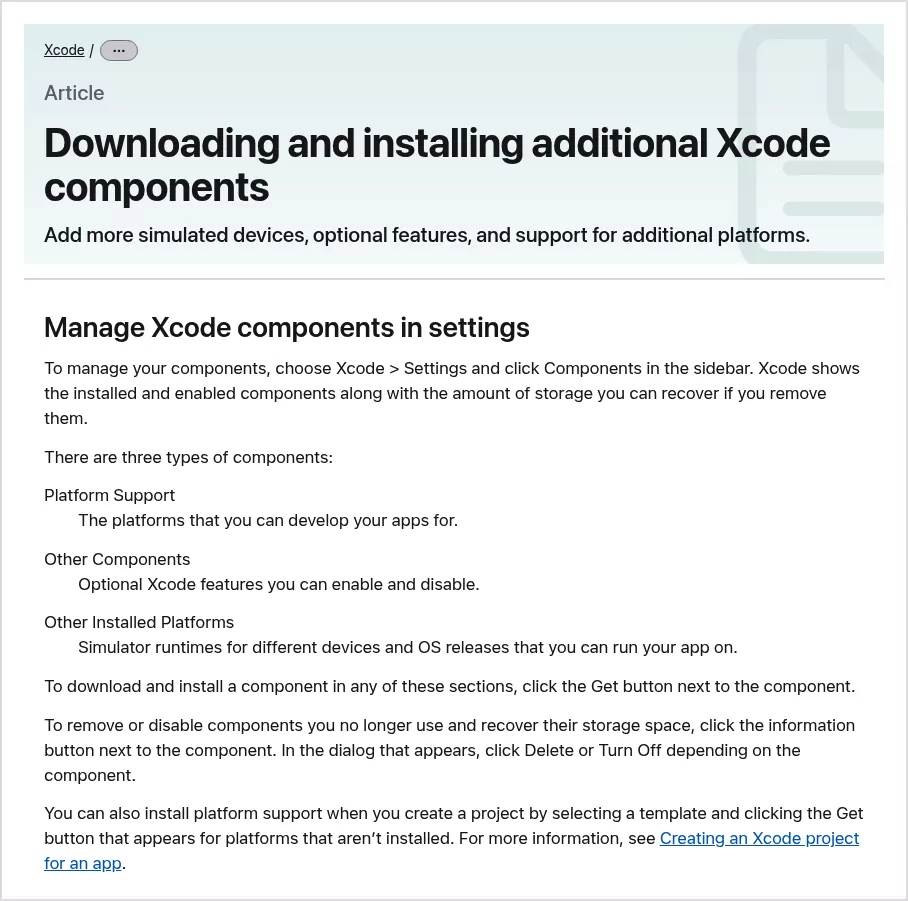
Apple's Xcode components guide says Settings > Components shows each part and its size.
Its sections are Platform Support, Other Components and Other Installed Platforms.
Click the info button next to a part, then Delete or Turn Off.
If Developer Documentation shows up, delete it as well. If not, that 1.6 GB download may stay behind.
Step 1: Clean up simulators inside Xcode first
Without Terminal: open Xcode > Settings > Components. Delete each runtime under Other Installed Platforms and each platform under Platform Support. Delete the Metal Toolchain if it is there.
With Terminal: first check which tools are in use.
xcode-select -pIf it names the Command Line Tools, not Xcode, start each command below with DEVELOPER_DIR=/Applications/Xcode.app/Contents/Developer and a space. Without it, xcrun cannot find simctl.
Run these one at a time. The first stops any running simulator. The second removes the 6.3 GB of shared caches.
xcrun simctl shutdown all
xcrun simctl runtime dyld_shared_cache remove --all
Next, preview the runtimes that will go, then delete them. The simctl help text says this also deletes each runtime's disk image from the protected AssetsV2 folder unless you add --keep-asset.
xcrun simctl runtime delete all --dry-run
xcrun simctl runtime delete all
Warning: the next command erases each simulator. The apps and data inside them go too.
xcrun simctl delete allFor a lighter cleanup, xcrun simctl delete unavailable removes only the simulators your Xcode can no longer run. All of these need Xcode still in place.
Step 2: Keep git and Homebrew working
Check that the Command Line Tools exist.
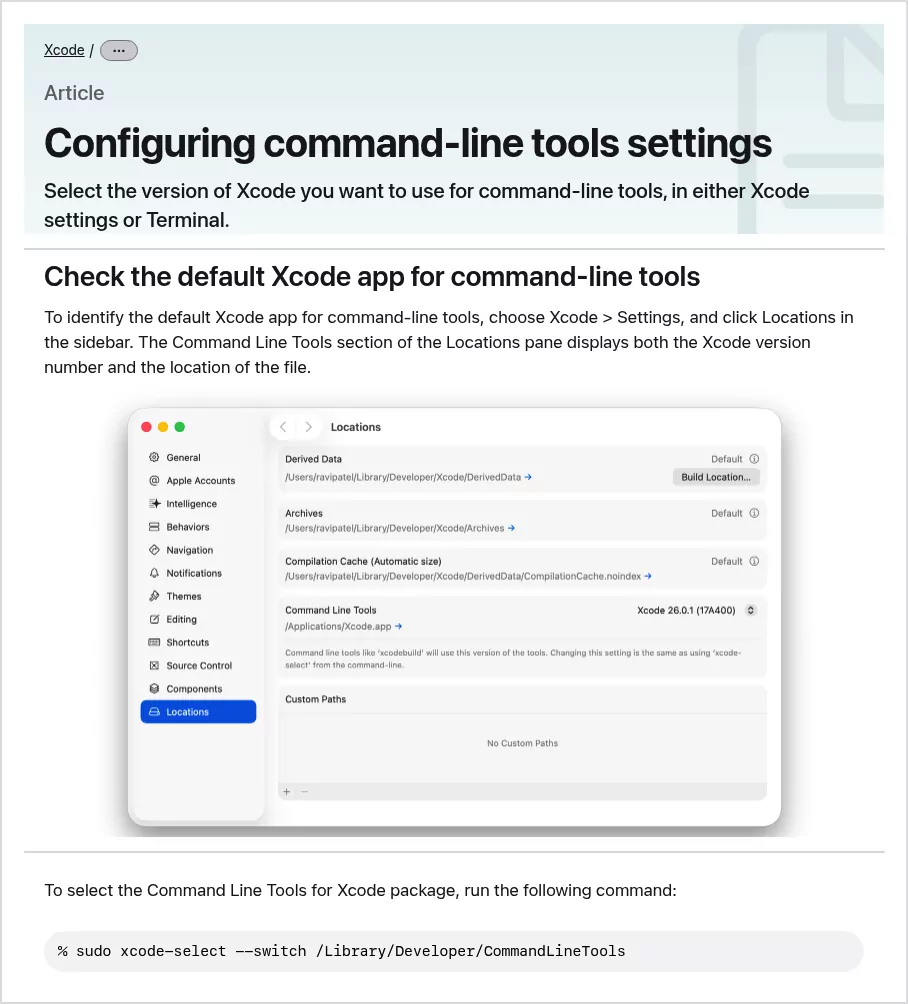
ls /Library/Developer/CommandLineToolsIf you see "No such file or directory", run xcode-select --install and click Install. Then point the command line at the tools, as Apple's page on command-line tools settings shows. It asks for your admin password.
sudo xcode-select --switch /Library/Developer/CommandLineToolsConfirm with xcode-select -p and git --version.
Step 3: Sign out of Xcode's AI features
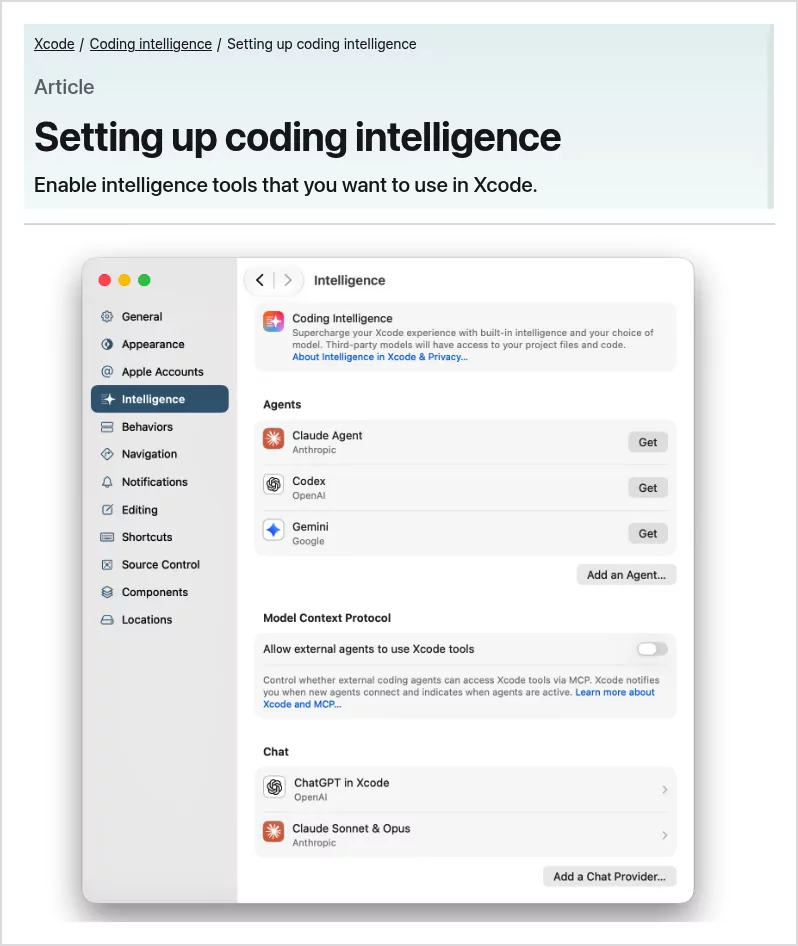
Do this while Xcode is still in place. Open Xcode > Settings > Intelligence, as shown in Apple's coding intelligence guide.
- Under Agents, open each agent you use, such as Claude Agent, Codex or Gemini. Sign out from the Account row if it offers that. Then delete the agent in Settings > Components.
- Under Chat, do the same for Claude Sonnet & Opus, a separate sign-in. Turn ChatGPT in Xcode off.
- Remove any chat provider or agent you added, and clear the Plug-ins and Permissions rows.
- Under Model Context Protocol, turn off "Allow external agents to use Xcode tools."
Did you link Claude Code to Xcode with xcrun mcpbridge? Then run this from the project folder where you added it.
claude mcp remove xcodeAnthropic's MCP guide says the default scope is local, saved per project. If you used --scope user, add it to the remove command. Check with claude mcp list.
For Codex, run codex mcp remove xcode, then codex mcp list, as OpenAI's Codex command list shows. Skip this and both keep calling a missing bridge.
Deleting Xcode revokes nothing. Revoke any API key or GitHub, GitLab or Bitbucket token you gave Xcode in that service's console.
Step 4: Quit Xcode, move it to the Trash and restart
- Quit Xcode and Device Hub. On Xcode 26 and earlier, quit Simulator too.
- In Finder, open Applications and drag Xcode to the Trash. Do the same for any Xcode-beta copy.
- Type your admin password when Finder asks. The App Store copy is owned by root.
- Restart your Mac.
On our test Mac, the simulator service kept running with Xcode closed. A restart stops it before you delete its folders.
Step 5: Delete the simulator and Xcode folders
Warning: this deletes your Archives and the themes, key bindings and snippets in UserData. It also erases every simulator, with the apps and data inside it. If you plan to reinstall, drag UserData out to your Desktop first.
- In Finder, choose Go > Go to Folder and enter
~/Library/Developer. - Drag CoreSimulator and Xcode to the Trash. If you skipped Step 1, this is where 35 GB of simulators sits.
- Also drag XCTestDevices, DVTDownloads and Packages if you see them.
To see a folder's size first, select it and press Command and I. Or find your biggest folders with Finder and Storage settings.
Did you skip the cache command in Step 1? Then go to /Library/Developer/CoreSimulator and trash Caches with your admin password.
Once the runtimes are deleted, Profiles, Images and Cryptex can go too. Leave Volumes alone.
If you see ~/Library/Developer/CoreDevice/DeviceFS, leave it.
Step 6: Clear the small leftovers
These are small, from a few KB to tens of MB. Use Go to Folder on each folder below, and trash any items whose names start with com.apple.dt:
-
~/Library/Preferences, pluscom.apple.CoreSimulator.plistandcom.apple.iphonesimulator.plist. -
~/Library/Caches,~/Library/HTTPStoragesand~/Library/Saved Application State. -
~/Library/Containersand~/Library/Application Scripts, pluscom.apple.widgetkit.simulatorandcom.apple.iphonesimulator.ShareExtension.
In the last two folders, keep com.apple.dt.AutomationModeUI. It belongs to macOS.
Then trash ~/Library/Application Support/Xcode, ~/Library/Logs/CoreSimulator and ~/Library/MobileDevice/Provisioning Profiles.
The two Xcode folders in ~/Library/Group Containers can go too, but macOS may guard them. If Finder refuses or asks for access to another app's data, skip them. Never give Terminal Full Disk Access just for this.
Leave these alone:
- The Command Line Tools folder.
- Anything in the AssetsV2 folder.
-
~/Library/Mobile Documents/59GAB85EFG~com~apple~dt~Xcode, an iCloud Drive folder. Deleting it deletes it on all your Macs. - The four small device folders from the table. Xcode puts them back on reinstall.
Confirm nothing from Xcode is still running
Open Activity Monitor and search for Device Hub, Simulator, CoreSimulator and SourceKit. Nothing should show up. Then run this read-only check in Terminal.
launchctl list | grep -i -E 'CoreSimulator|com.apple.dt'Entries that start with com.apple.dt belong to macOS. They stay listed, often with "-" as the process ID.
Only a CoreSimulator line with a number in the first column means something still runs. If you see one, restart again.
Last, run xcode-select -p. It should now print the Command Line Tools folder. Then run git --version, and brew doctor if you use Homebrew.
Once git --version works and you have saved what you need from Archives or UserData, choose Finder > Empty Trash. This is permanent. Until then the space stays in use.
Check System Settings > General > Storage, or use the built-in way to confirm the space came back.
How to uninstall the Command Line Tools for Xcode
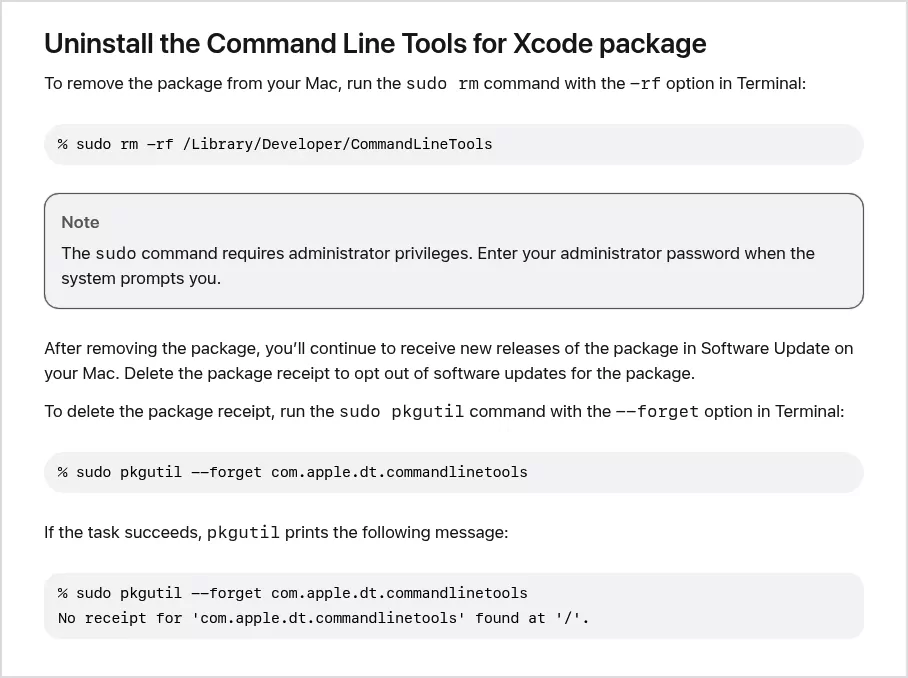
Warning: this removes git, clang, make and the python3 shim. Homebrew stops building, and Claude Code and Codex lose the git they use. Skip it unless you want all coding tools gone.
Apple's page on installing the command-line tools gives this command. Copy it exactly, since a typo here can delete the wrong folder.
sudo rm -rf /Library/Developer/CommandLineToolsApple then suggests sudo pkgutil --forget com.apple.dt.commandlinetools to opt out of updates for the tools. Its sample output says no receipt was found, which Apple counts as success.
To list the receipts on your Mac, run pkgutil --pkgs | grep -i CLTools. Forget each one with sudo pkgutil --forget and its name. To put the tools back later, run xcode-select --install.
Reinstalling Xcode cleanly later
Get Xcode from the App Store. Then point the command line back at it and finish setup.
sudo xcode-select --switch /Applications/Xcode.app/Contents/Developer
xcodebuild -runFirstLaunch
The switch comes first because xcodebuild ships only with Xcode. Confirm with xcode-select -p.
Frequently Asked Questions
Do I really need Xcode on my Mac?
Only if you build apps for Apple devices. Git, Homebrew and most coding tools need just the 2.1 GB Command Line Tools.
Why does Xcode take up so much space?
Simulators. On our test Mac, they and their runtimes, caches and old iPhone symbols took about 58 GB.
Can I delete simulators or DerivedData without removing Xcode?
Yes. Delete runtimes in Settings > Components and run xcrun simctl delete unavailable.
You can also trash DerivedData, in the Xcode folder from Step 5, with Xcode closed. Xcode rebuilds it.
I already dragged Xcode to the Trash. How do I get the simulator space back?
If Xcode is still in the Trash, select it there and choose File > Put Back instead of reinstalling. If not, reinstall it. The runtimes sit in a protected folder, and so may the 1.6 GB docs download.
Then delete the runtimes in Settings > Components and repeat Steps 2 and 4. In Terminal, use the prefix from Step 1.
Does uninstalling Xcode cancel my Apple Developer membership?
No. Apple's membership renewal page has two routes. If you joined on the website, renewal follows the Auto-renew setting in Membership details.
If you joined in the Apple Developer app, it is a subscription you can cancel. Cancel ChatGPT and Claude plans with OpenAI and Anthropic.
Removing other apps from this Mac
The Parallels Desktop guide is the other case where support files dwarf the app. The Sublime Text guide covers a coding tool whose command-line helper outlives the app.
Each guide here has the same shape: what the app installs, the vendor's own route, the manual steps and a final check. Finder, System Settings and, now and then, Terminal are all you need.