How to Uninstall Visual Studio Code (VS Code) on Mac: Extensions, AI Agent Data and the code Command
To uninstall VS Code (vscode) on a Mac, first check that the code command points at VS Code, then run Shell Command: Uninstall 'code' command from PATH. Quit VS Code, drag it from Applications to the Trash, and delete ~/Library/Application Support/Code, ~/.vscode and ~/.vscode-shared. Keep ~/.claude, ~/.codex and ~/.copilot if other AI tools still use them.
That is the short answer to how to uninstall vscode on Mac.
Why dragging VS Code to the Trash is not enough
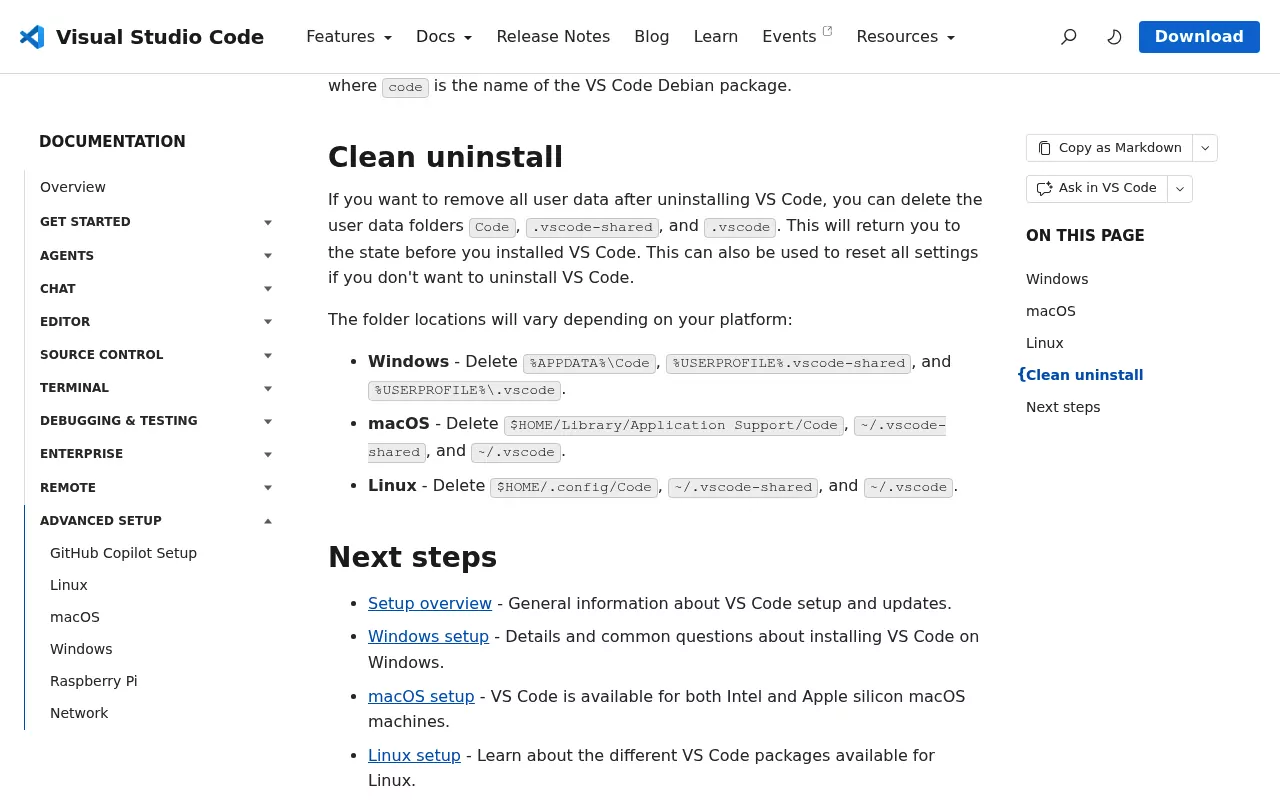
Microsoft's uninstall page says to move the app to the Trash, then lists three folders for a clean uninstall. On a test Mac running VS Code 1.137, those folders held about 2.7 GB, and the Trash left all of it behind.
VS Code runs on Chromium, so it keeps browser-style caches like those in the Google Chrome guide.
| Item | What it holds | Size on the test Mac |
|---|---|---|
/Applications/Visual Studio Code.app |
The app, built-in GitHub Copilot and the code launcher |
1.4 GB |
~/Library/Application Support/Code |
Settings, Local History, unsaved edits, Copilot Chat history, caches | 1.6 GB |
~/.vscode |
Every extension, including Claude Code and Codex with their bundled tools | 1.1 GB |
~/.vscode-shared |
Shared storage | 40 KB |
~/Library/Preferences and ~/Library/HTTPStorages items |
Preferences, updater state, web cache | Under 1 MB |
Code Safe Storage in your login keychain |
The key that protects saved sign-ins | None |
How to uninstall vscode on Mac safely: decide what to keep first
Warning: save or close every Untitled tab and unsaved file first. VS Code keeps unsaved edits in ~/Library/Application Support/Code/Backups, and they are gone for good once that folder is deleted.
Turn off Settings Sync, or keep it for later
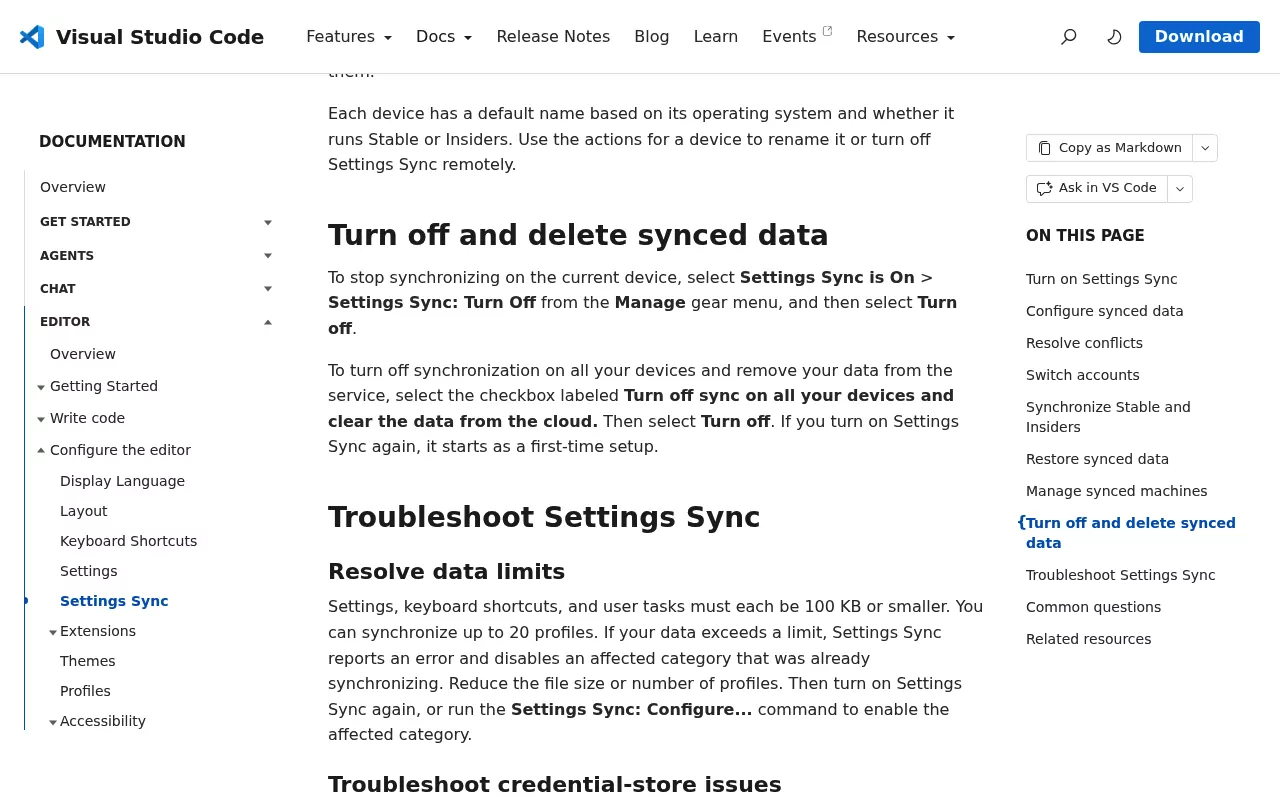
With Settings Sync on, your settings, shortcuts, snippets, profiles and extension list live in the cloud. To wipe that copy, run Settings Sync: Turn Off and tick "Turn off sync on all your devices and clear the data from the cloud," as Microsoft's Settings Sync page explains.
No sync? Save your extension list
This Terminal command only writes your extension IDs to a text file on the Desktop:
"/Applications/Visual Studio Code.app/Contents/Resources/app/bin/code" --list-extensions > ~/Desktop/vscode-extensions.txtIt uses the full path because a bare code may be missing or belong to Cursor.
Which code command is which? Check before you remove anything
Only one editor can own /usr/local/bin/code, and the app that installed it last wins. Cursor's install command replaces VS Code's link there. Run these read-only checks first:
which -a code
ls -l /usr/local/bin/code /opt/homebrew/bin/code
brew list --cask 2>/dev/null | grep visual-studio-code
grep -n "Visual Studio Code" ~/.zprofile ~/.bash_profile ~/.zshrc 2>/dev/null
They list every code on your PATH, show where each link points, check for a Homebrew install and find a PATH line from Microsoft's manual setup. "No such file or directory" is fine.
| What you see | Owner | What to do |
|---|---|---|
A link into Visual Studio Code.app, no Homebrew match |
VS Code | Remove it in Step 1 |
| The same link, plus a Homebrew match | Homebrew | Homebrew removes it in Step 3 |
A link into Cursor.app
|
Cursor | Leave it, and skip Step 1's command |
| A PATH line found by the grep check | You | Delete it after the app is gone |
| "code not found" | Nobody | Nothing to do |
Also run git config --global --get core.editor. If it prints code --wait, pick another editor, or git commit will fail once VS Code is gone.

Step 1: Sign out and switch off what lives outside the app
Do this while VS Code is still installed.
- Click the Accounts icon at the bottom left and sign out of GitHub and Microsoft.
- If you ever used Remote Tunnels, open the Command Palette (Shift, Command and P) and run Remote Tunnels: Turn off Remote Tunnel Access.
- Only if
/usr/local/bin/codepoints into Visual Studio Code.app, run Shell Command: Uninstall 'code' command from PATH. It deletes whatever link sits there without checking, so skip it for a Cursor or Homebrew link.
The success message shows even when nothing was removed, so run ls -l /usr/local/bin/code again. Leave the Codex extension signed in if you still use the Codex CLI, because OpenAI's sign-in guide says they share one login.
Step 2: Quit VS Code completely
Let running agent sessions finish, because quitting VS Code stops them. Then press Command and Q.
In Activity Monitor, VS Code shows as Code and several Code Helper processes. A search for "Code" also finds Xcode and Codex, so leave those alone.
Step 3: Move VS Code to the Trash
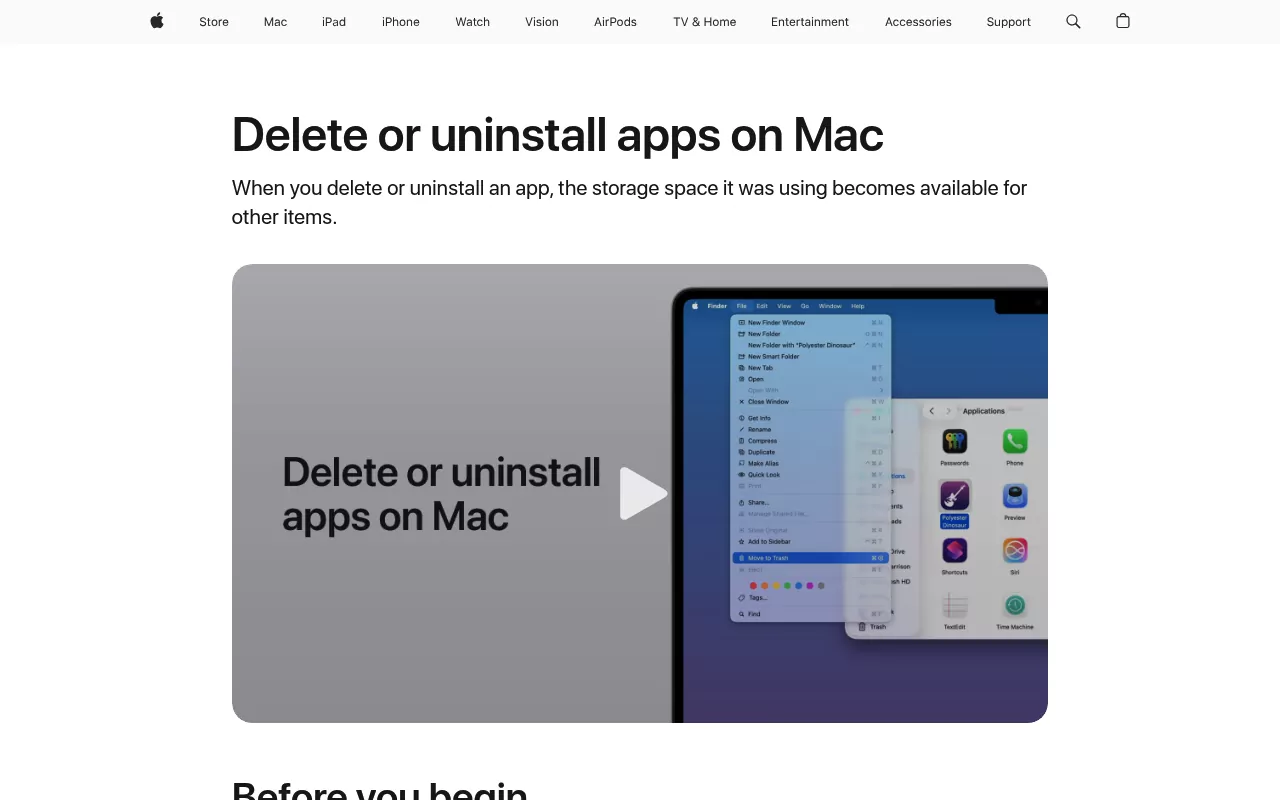
This is Microsoft's own method. Apple's advice on uninstalling Mac apps is the same when an app has no uninstaller.
- Open Finder and click Applications.
- Right-click Visual Studio Code and choose Move to Trash.
- Enter your admin password if Finder asks.
If Homebrew installed it, run brew uninstall --cask visual-studio-code instead, which also removes its code link. Adding --zap clears most of Step 4 too, but not ~/.vscode-shared, Insiders data or the keychain item.
Step 4: Delete the leftovers
Warning: this erases your VS Code settings, extensions, Local History and classic Copilot Chat history on this Mac. Back up what you want to keep first. Your projects are not touched.
In Finder, press Shift, Command and G for Go to Folder, and Shift, Command and period to show hidden folders. Then drag each item to the Trash:
~/Library/Application Support/Code~/.vscode-
~/.vscode-shared(if you still use VS Code Insiders, leave it for now) ~/Library/Preferences/com.microsoft.VSCode.plist- Files in
~/Library/Preferences/ByHostthat start withcom.microsoft.VSCode.ShipIt ~/Library/HTTPStorages/com.microsoft.VSCode- If you see them:
com.microsoft.VSCodeandcom.microsoft.VSCode.ShipItin~/Library/Caches, andcom.microsoft.VSCode.savedStatein~/Library/Saved Application State
Last, open Keychain Access with Spotlight, search for Code Safe Storage and delete only the item with exactly that name. Look-alike items such as Claude Code-credentials, Codex Safe Storage and Cursor Safe Storage may sit next to it. Leave those alone, because they belong to other tools.
Prefer Terminal? macOS 15 and later include a trash command, which moves items to the Trash so you can still restore them:
trash ~/.vscode
trash ~/.vscode-shared
trash ~/Library/"Application Support"/Code
Each line moves one folder. Keep the ~ outside the quotes, or zsh will not expand it. Avoid wildcards such as rm -rf ~/.vscode*, which delete for good.
Do not touch ~/.claude, ~/.claude.json, ~/.codex, ~/.copilot, ~/.cursor or the .vscode folders in your projects. Also leave the ~/Library/Group Containers folders starting with UBF8T346G9, which belong to Office, Teams and Edge, as the Microsoft Office guide explains.
Dev Containers leave their containers in Docker. List them with docker ps -a --filter="label=vsch.quality" from Microsoft's Dev Containers tips, then remove them in Docker Desktop.
Step 5: Remove VS Code Insiders too
Insiders keeps its own copies with "Insiders" in the name. Trash Visual Studio Code - Insiders.app, then these items if you see them:
-
~/Library/Application Support/Code - Insidersand~/.vscode-insiders -
com.microsoft.VSCodeInsiders.plistin Preferences, and itsShipItfiles in ByHost -
com.microsoft.VSCodeInsidersitems in HTTPStorages and Saved Application State - The keychain item
Code - Insiders Safe Storage
An Insiders build trashed long ago left 214 MB on the test Mac. With Homebrew, run brew uninstall --zap --cask visual-studio-code@insiders. Once both builds are gone, trash ~/.vscode-shared too.
The AI agents inside VS Code: what goes and what stays

| Agent | Removed with VS Code | Stays behind | Who bills you |
|---|---|---|---|
| GitHub Copilot (built in) | App code, classic chat history | ~/.copilot |
Your Copilot plan |
| Claude Code extension | The extension folder |
~/.claude, ~/.claude.json, keychain login |
Your Claude plan or Console account |
| OpenAI Codex extension | The extension and its codex binary | ~/.codex |
ChatGPT sign-in or OpenAI API key |
| Other AI extensions | Their storage folder | Sometimes a home folder, such as ~/.supermaven
|
The provider |
Uninstalling cancels none of these plans. To end Copilot, follow GitHub's steps to cancel a Copilot plan. Revoke any API keys at the provider.
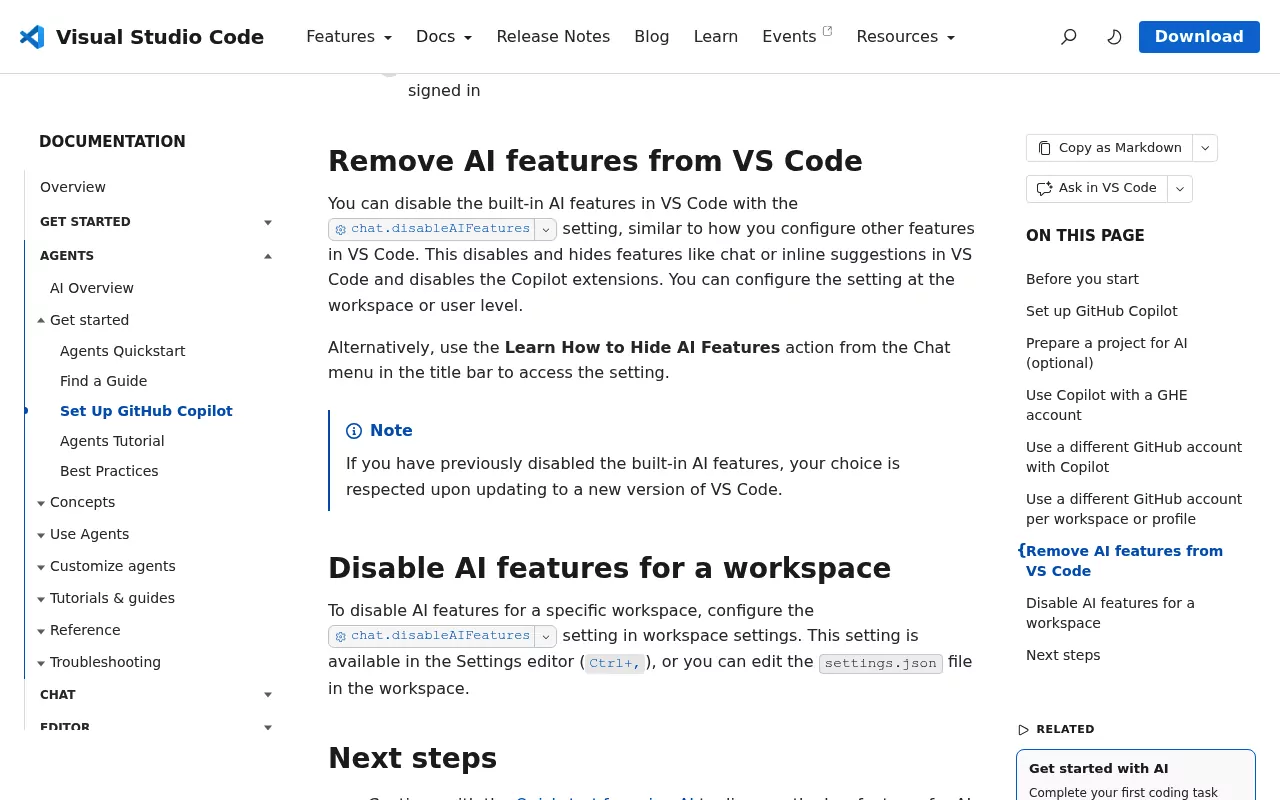
Only want the AI gone? Keep VS Code and turn on chat.disableAIFeatures, from Microsoft's Copilot setup page. It hides chat and disables the Copilot extensions only, so remove Claude Code, Codex and other AI extensions in the Extensions view.
Confirm nothing from VS Code is still running
Open Activity Monitor and search for "Code". Nothing named Code or Code Helper should remain (ignore Xcode and Codex). Then run this read-only check in Terminal:
launchctl list | grep -i -E "vscode|visualstudio"No output is the goal. If it shows com.visualstudio.code.tunnel, run launchctl unload ~/com.visualstudio.code.tunnel.plist, then move that file to the Trash.
VS Code adds no login items. Run which -a code again: it should say "code not found" or show only Cursor's link. Then empty the Trash.
Reinstalling VS Code cleanly
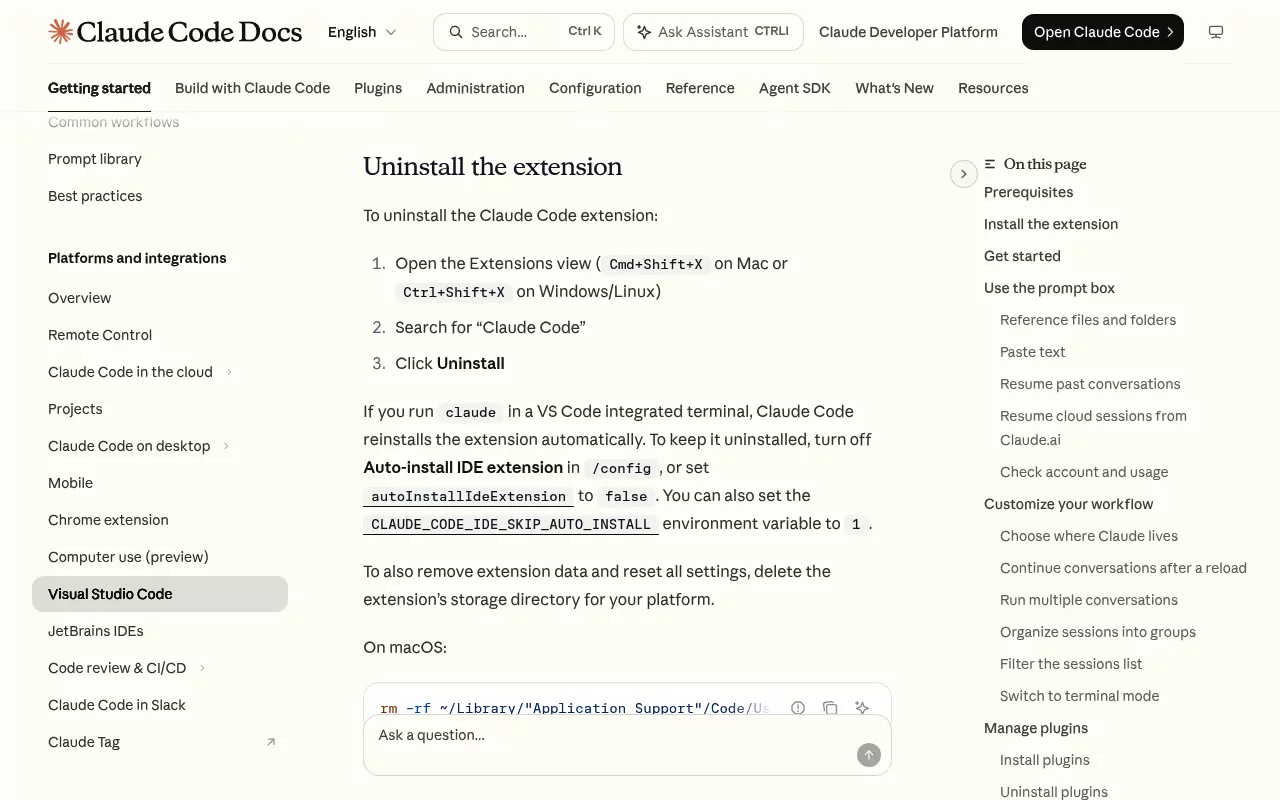
Download a fresh copy from Microsoft's macOS setup page. If you kept Settings Sync data in the cloud, signing in brings your settings back. Running claude in the VS Code terminal reinstalls the Claude Code extension, per Anthropic's VS Code guide.
Frequently Asked Questions
Will uninstalling VS Code delete my Copilot, Claude or Codex chat history?
Only classic Copilot Chat history, which lives in ~/Library/Application Support/Code/User. Claude, Codex and Copilot agent history stay in ~/.claude, ~/.codex and ~/.copilot.
Can I reset VS Code without uninstalling it?
Yes. Microsoft says deleting the three folders from Step 4, with VS Code quit, resets all settings.
Where is ~/.vscode-server?
On the remote machines and containers you opened with Remote-SSH or Dev Containers, not on your Mac. Remove it there.
Is Visual Studio Code the same as Visual Studio for Mac?
No. Microsoft retired Visual Studio for Mac on August 31, 2024.
Removing other apps from this Mac
VS Code is an editor with a command line shim, like the one in the guide to removing Sublime Text and subl. Bigger developer leftovers come with Parallels Desktop and its virtual machines, and Creative Cloud shows how far background helpers can spread.
Each guide here follows the same shape: what the app installs, whether the vendor ships an uninstaller, the manual leftover steps, and a closing check. Finder, System Settings and, now and then, Terminal are all you need.