How to Delete Apple Intelligence on Mac (and What macOS 27 Changed)
Apple Intelligence is part of macOS, so you can't uninstall it from a Mac. On Sequoia 15 and Tahoe 26, turn it off in System Settings > Apple Intelligence & Siri; Apple's support page said this removes the on-device models. macOS 27 has no master switch, and Apple doesn't say turning features off frees the space; users report it doesn't.
That is the short answer to how to delete Apple Intelligence on Mac.
Can you uninstall or remove Apple Intelligence from a Mac?
No. It is built into macOS, just like Safari, which stays on every Mac. So "remove" can only mean a few things:
- Switch it off (Sequoia 15 and Tahoe 26), or switch off its features (macOS 27).
- Disconnect the ChatGPT extension.
- Delete what it saved: Siri chats, Image Playground images and Genmoji.
- Get the model storage back, where macOS allows it.
What Apple Intelligence puts on your Mac, and where
Checked read-only on an M4 Max Mac running macOS Tahoe 26.6.2:
-
The models. They sit in
/System/Library/AssetsV2/, in folders that start withcom_apple_MobileAsset_UAF_and end inFM_GenerativeModels,FM_Visual,FM_OverridesorIF_Planner. macOS blocks even a size check on them. -
Shared neighbours. The same folder holds Siri, dictation and Translation assets.
FM_CodeLMis Xcode's code completion model, not Apple Intelligence. -
Image Playground.
/System/Applications/Image Playground.app. -
Per-user folders.
~/Library/Containers/com.apple.GenerativePlaygroundApp,~/Library/Group Containers/group.com.apple.GenerativePlaygroundand~/Library/IntelligencePlatform. On the test Mac the containers held 4 KB each. Do not delete these in Finder. Use the in-app steps below. - The cloud. Apple's privacy page says Private Cloud Compute does not store your data.
Why dragging Apple Intelligence to the Trash does not work
Image Playground.app lives on the sealed, read-only system volume, so Finder cannot move it. The models live in /System/Library/AssetsV2, which macOS links to your Data volume. So they use your free space and show up as macOS or System Data in Storage.
System Integrity Protection locks them. macOS's asset service, mobileassetd, decides what is downloaded and kept.

Before you start: check how much space it uses
Find your macOS version under Apple menu > About This Mac. Then open System Settings > General > Storage, let it finish, and note the free space.
On macOS 27, press reports say the info (i) button next to macOS lists Apple Intelligence and its size. If that line is missing, compare free space before and after. To see what else fills System Data, find your biggest files with Finder and Storage settings.
Two read-only Terminal checks help. This lists the model folders by name, not size:
ls /System/Library/AssetsV2 | grep -i UAF_FMThis shows free space on your Data volume:
df -h /System/Volumes/DataPurgeable space and Time Machine snapshots move the Avail figure too.
How to delete Apple Intelligence on Mac, version by version
| macOS version | Master switch? | Where | What happens to the models | Apple's storage figure |
|---|---|---|---|---|
| Sequoia 15.1 or later | Yes | Apple Intelligence & Siri | Removed, Apple's support page said | 7 GB |
| Tahoe 26 | Yes | Apple Intelligence & Siri | Removed, Apple's support page said | 7 GB |
| macOS 27 | No | Siri, apps, Screen Time | Apple does not say; users report the space stays | Up to 14 GB (M3 or later with 12 GB memory), up to 8 GB on other Macs |
The 7 GB figure and removal note are from the July 2026 version of Apple's How to get Apple Intelligence page; the September 14 version dropped both. Press and user reports put macOS 27 at about 14 GB on an M1 MacBook Air and 20 to 30 GB on newer Macs.
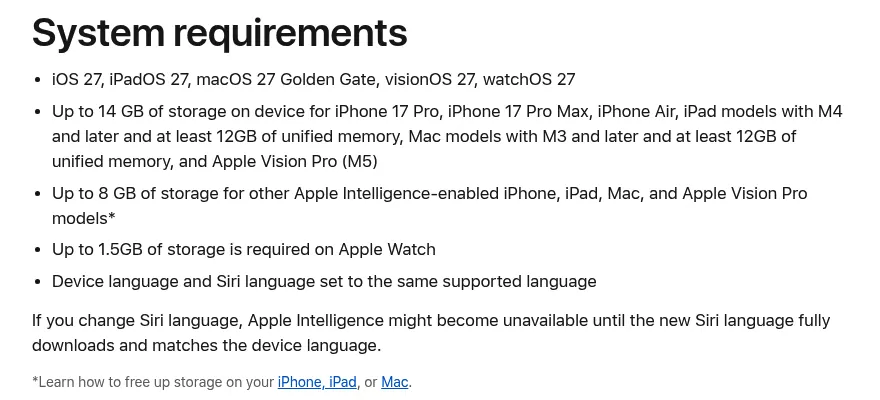
Turn off Apple Intelligence on macOS Sequoia 15 and Tahoe 26
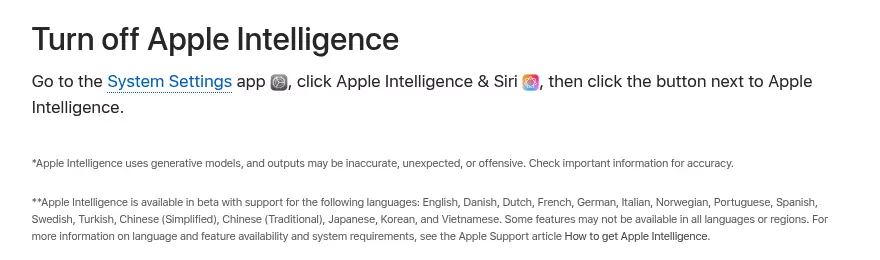
- Open System Settings and click Apple Intelligence & Siri.
- Click the button next to Apple Intelligence. If asked, confirm.
- Keep the Mac on power and online for a while, then restart it.
- Open General > Storage and compare the free space.
The steps follow Apple's Tahoe guide.
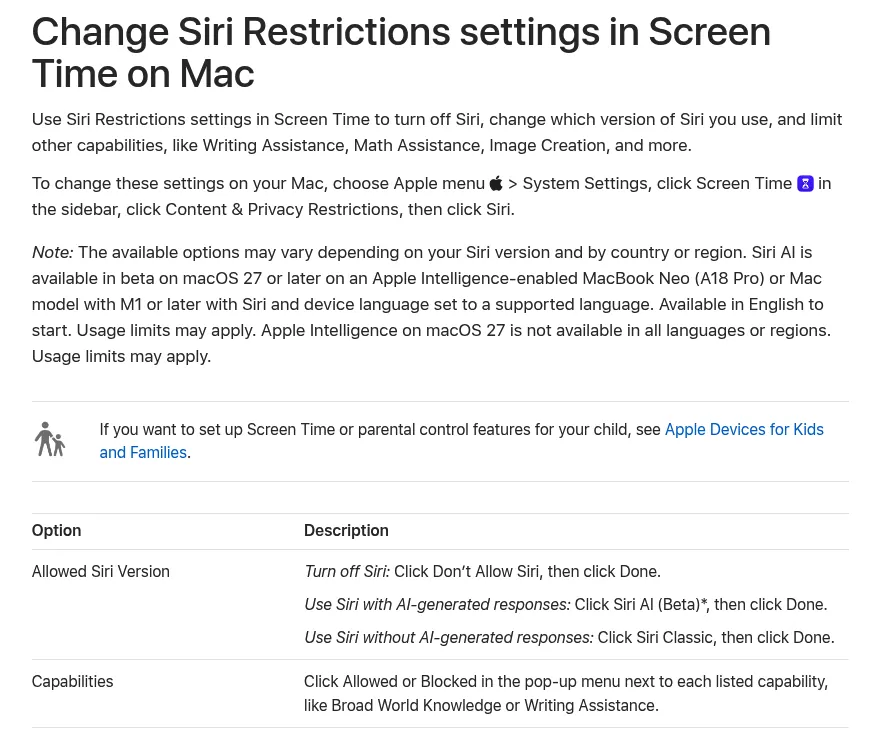
To block single features, use Screen Time > Content & Privacy > Intelligence & Siri, per Apple's Screen Time page.
What you can turn off on macOS 27
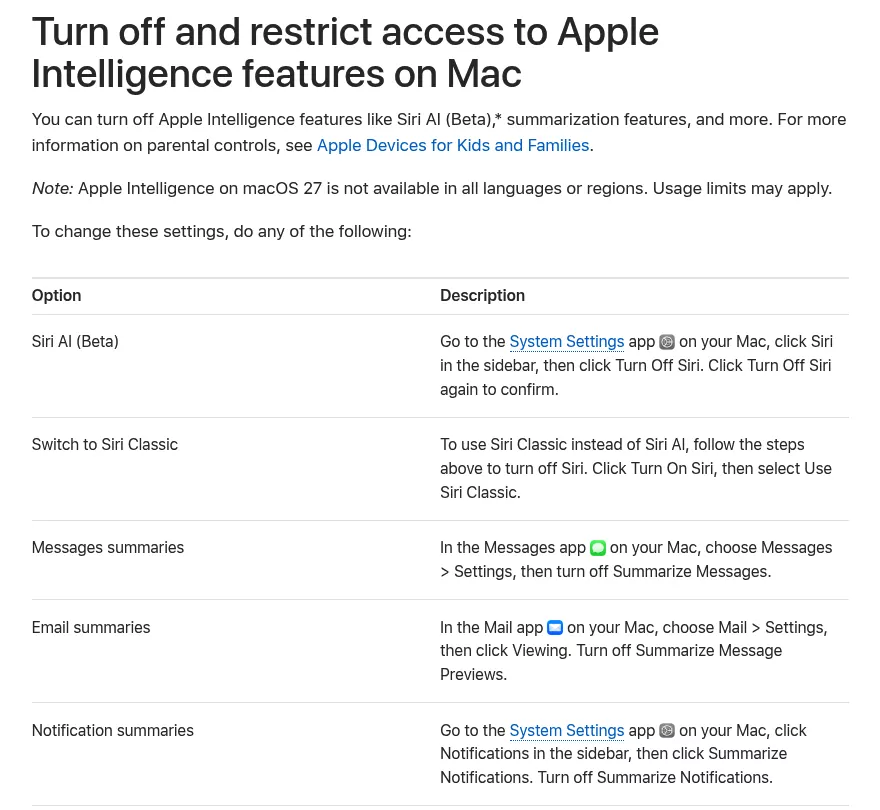
Apple's macOS 27 guide to turning off Apple Intelligence features has no master switch. Use any of these:
- Siri AI: System Settings > Siri, click Turn Off Siri, then Turn Off Siri again to confirm. For a simpler Siri, click Turn On Siri and choose Use Siri Classic.
- Notifications: System Settings > Notifications > Summarize Notifications, then turn it off.
- Messages: Messages > Settings, turn off Summarize Messages.
- Mail: Mail > Settings > Viewing, turn off Summarize Message Previews. Under Composing, turn off Personalize Smart Replies.
- Phone: Phone > Settings > Calls, turn off Suggestions in Voicemail.
- Journal: Journal > Settings > General, turn off Get Writing Prompts.
- Screen Time: System Settings > Screen Time > Content & Privacy Restrictions > Siri. Set Allowed Siri Version, and block capabilities such as Writing Assistance, per Apple's Siri Restrictions page.
Press reports say even Siri Classic does not free the space. Siri AI is English-only to start.
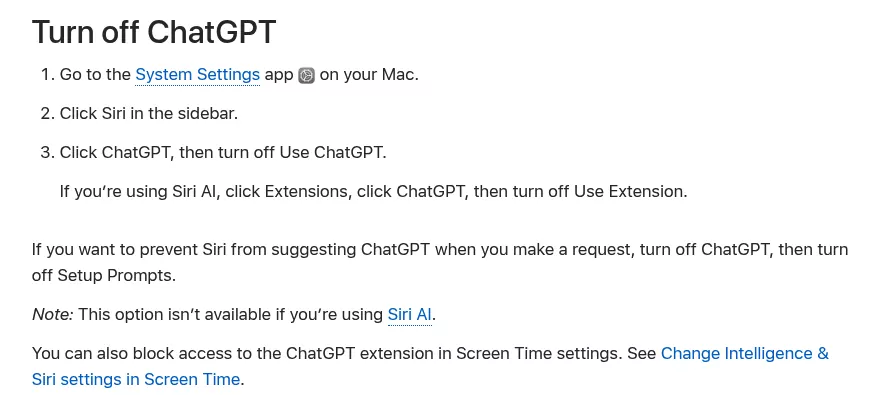
Disconnect the ChatGPT extension and sign out
- macOS 26: System Settings > Apple Intelligence & Siri > ChatGPT. Turn off Use ChatGPT, then Setup Prompts, per Apple's Tahoe ChatGPT guide.
- macOS 27: System Settings > Siri > ChatGPT. Turn off Use ChatGPT, then Setup Prompts. With Siri AI, click Extensions > ChatGPT and turn off Use Extension, as Apple's macOS 27 ChatGPT page shows.
- Your account: if the pane shows a linked ChatGPT account, sign out there too.
This does not delete chats or cancel a plan. OpenAI says requests made while signed in are saved to your ChatGPT history, so delete them there. To cancel ChatGPT Plus or Pro:
- Billed by Apple (say, bought in the ChatGPT iPhone app): in the App Store, click your name in the sidebar and follow Apple's steps to cancel a subscription. OpenAI notes that deleting your ChatGPT account does not cancel it.
- Signed up on chatgpt.com: profile icon > Settings > Billing, then Cancel under Cancel plan, per OpenAI's help page.
Delete what Apple Intelligence saved
Warning: Siri chats and Image Playground images sync across devices on your Apple Account. Expect a deletion to reach all of them. Save anything you want to keep first.
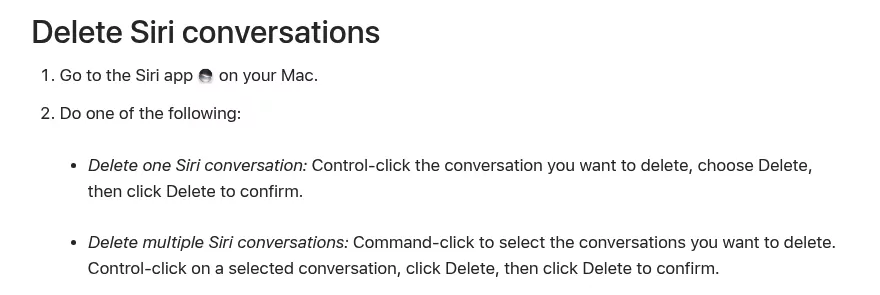
Delete your Siri AI conversations (macOS 27)
- Open the Siri app.
- Control-click a conversation, choose Delete, then click Delete to confirm. To delete several, Command-click them first.
In System Settings > Siri, set Keep Conversations to 30 days or 1 year; Apple's Siri app guide says older chats are then deleted for good. Do this before turning Siri off. Apple does not say whether that deletes them.
Delete Image Playground images and Genmoji
In Image Playground, Control-click an image in the gallery and choose Delete, as Apple's Image Playground guide shows.
For Genmoji, press Fn/Globe and E, open the stickers view, Control-click the Genmoji and choose Delete, per Apple's Genmoji guide.
What not to do: Recovery mode and deletion scripts
Some scripts and forum posts delete the model folders from Recovery with System Integrity Protection off. Apple does not document this. The trade-off is poor:
- It weakens your Mac's security.
- It can break dictation, Siri, Translation and Xcode's code completion, which share the same assets.
- macOS can download the models again.
- It leaves macOS's asset records out of step.
Changing language or region is not a removal either. Apple says Apple Intelligence may stop working when the Siri and device languages differ, not that models are deleted. macOS runs its own maintenance, so leave its system files alone.
Confirm Apple Intelligence is off
- The switch is off (Sequoia 15 and Tahoe 26), or the Siri pane and Screen Time show your choices (macOS 27).
- ChatGPT shows off, or signed out.
- Free space in Storage, rechecked after a restart.
- Optional: Privacy & Security > Apple Intelligence Report, set to the last 7 days, lists requests sent to Private Cloud Compute.
Two read-only Terminal checks:
launchctl list | grep -iE 'intelligence|generative|privatecloud|ModelCatalog'You may still see Apple jobs such as com.apple.intelligenceplatformd. A "-" in the first column means loaded but not running.
pgrep -l modelmanagerdThis checks one more system daemon. In Activity Monitor (View > All Processes), modelmanagerd and mobileassetd are normal macOS processes. Do not force quit them.
Turning Apple Intelligence back on later
On Sequoia 15 and Tahoe 26, click the same button and macOS downloads the models again. On macOS 27, Apple says the next generation is "automatically available on eligible devices when you update to the 27.0 software releases."
Frequently Asked Questions
How do I completely disable Apple Intelligence on a Mac?
Sequoia 15 and Tahoe 26 have one switch in Apple Intelligence & Siri. On macOS 27, turn off Siri or use Siri Classic, then block features in Screen Time.
What happens if I turn off Apple Intelligence on a Mac?
Writing Tools, summaries, Image Playground and Genmoji stop. What happens to the models depends on your macOS version.
How do I delete Apple Intelligence data on a Mac?
Delete chats in the Siri app, images in Image Playground and Genmoji in the stickers view. Clear ChatGPT requests from your ChatGPT history.
How do I remove Apple Intelligence summaries on a Mac?
Turn off the summary setting in Notifications, in Messages and in Mail > Settings > Viewing.
Can you uninstall Apple Intelligence to get the storage back?
No. On Sequoia 15 and Tahoe 26, Apple's support page said turning it off removes the models, while on macOS 27 users report the space stays. Intel Macs never get the models: Apple Intelligence needs a Mac with M1 or later, or the A18 Pro MacBook Neo.
Removing other apps from this Mac
Apple Intelligence is the odd case: built in, like Safari, so you switch it off. Other apps can go completely, as the guides to removing Grammarly, another AI writing helper, Parallels Desktop and its virtual machines and Google Chrome and its shared updater show.
Each guide covers what the app installs, the vendor's uninstaller if there is one, the leftover steps and a closing check. Finder, System Settings and, now and then, Terminal are all you need.