How to Uninstall Minecraft on Mac Without Losing Your Worlds
To uninstall Minecraft on a Mac, first copy any worlds you want to keep out of the minecraft folder in ~/Library/Application Support. Then quit the Minecraft Launcher and move Minecraft from the Applications folder to the Trash. Delete the minecraft folder, which holds your worlds, screenshots and game files, and empty the Trash.
This guide covers removing Minecraft for good and reinstalling it, which Minecraft's launcher troubleshooting page suggests as a first fix. Either way, start with what to keep.
Why dragging Minecraft to the Trash is not enough
The app called Minecraft in your Applications folder is the Minecraft Launcher. When you press Play, the launcher downloads and installs the game itself, as Minecraft's buying guide explains.
The game files, your single-player worlds, screenshots and backups live in a separate folder, ~/Library/Application Support/minecraft. The Trash does not touch it. Minecraft's manual uninstall page treats that folder as its own step. Apple also notes that deleting an app does not remove files you created with it.
On a Mac the folder is called minecraft, with no dot. The .minecraft name many guides use is the Windows folder. Your Library is hidden by default, and showing hidden files on Mac explains the ways in.
Before you uninstall Minecraft on Mac: decide what to keep
Minecraft's uninstall page says its support team cannot recover deleted files. So anything you want has to leave the minecraft folder before Step 3.
Keep the worlds you want
Each single-player world is a folder inside ~/Library/Application Support/minecraft/saves. That is the path Minecraft gives in its world transfer guide. In Finder, press Shift-Command-G and enter the path to go directly to that folder. With the game closed, copy the world folders you want to a place outside the minecraft folder, such as Documents.
Have you used Make Backup in the game? Those dated .zip files sit in the backups folder of the installation's game folder, says the backup world page. By default that is the same minecraft folder you are about to delete, so move those files out too.

Keep screenshots, resource packs and mods
Screenshots are in ~/Library/Application Support/minecraft/screenshots, as the screenshots help page shows. For resource packs, choose Options, Resource Packs, then Open Pack Folder in the game, as the textures help article describes.
Mods come from third-party sites, and Minecraft Support does not cover them, per its mods page. Copy any you want out of the game folder. Removing just a mod loader such as Fabric or Forge is third-party territory. This guide removes the whole game.
Check where each installation keeps its files
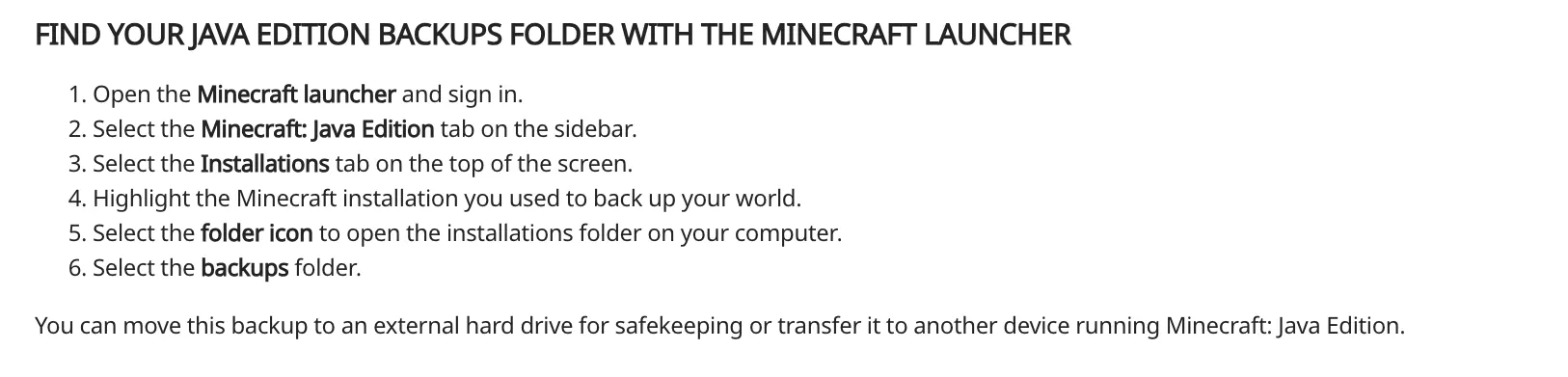
Do this while the launcher is still installed. Open the launcher, select Minecraft: Java Edition, then Installations. Highlight an installation and select the folder icon to open its folder. If an installation uses a different game folder, its worlds and backups are there, not in the default place.
On a shared Mac, check every user account
Each user on a Mac has their own Library. So each child's account has its own minecraft folder and worlds. The app in Applications is shared, so remove it once (you may need an administrator password). Repeat Steps 3 to 5 in each account where Minecraft was played, because each account has its own Trash.
Step 1: Quit Minecraft and the Minecraft Launcher
In the game, leave any world with Save and Quit to Title, then quit the game. Next, quit the launcher: choose Quit from the app menu in the menu bar, or press Command-Q.
If the game or the launcher will not close, follow how to force quit an app on Mac.
Step 2: Move Minecraft to the Trash, the way Minecraft documents it
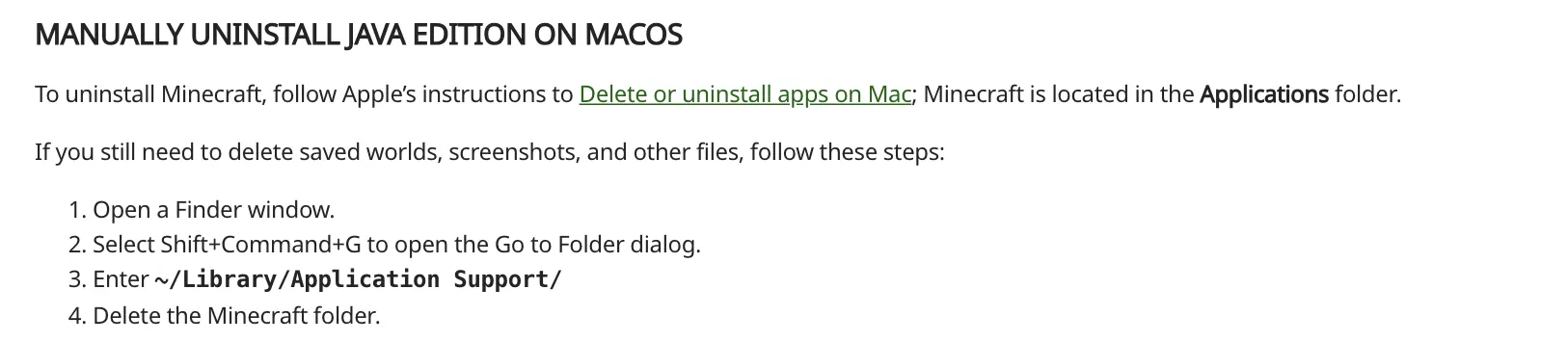
Minecraft's uninstall page names no Mac uninstaller. It says to follow Apple's Delete or uninstall apps on Mac, and that Minecraft is in the Applications folder.
- Open Finder and click Applications in the sidebar.
- Select Minecraft.
- Choose File > Move to Trash, or drag Minecraft to the Trash.
- If you are asked, enter an administrator name and password.
If Minecraft is not there, check the Applications folder inside your home folder, where Apple says some apps sit.
Step 3: Delete the minecraft folder
This removes the game files and every world still inside.
Removing Minecraft for good: delete the whole folder. If the Installations check found another game folder, remove it too, once anything you want is out.
Reinstalling to fix the launcher: Minecraft says removing all files may fix update or launch errors. You can keep this folder and skip to the reinstall section, but a full reset means deleting it.
These are Minecraft's own steps (it writes "Minecraft folder", but Finder shows minecraft):
- Open a Finder window.
- Press Shift-Command-G to open Go to Folder.
- Enter
~/Library/Application Support/and press Return. - Move the
minecraftfolder to the Trash.
Step 4: Remove other Minecraft leftovers, if present
Minecraft documents no other launcher files, so this step is a check that may find nothing. Open Terminal from Applications > Utilities, paste this and press Return. It lists matches and deletes nothing:
find ~/Library/Caches ~/Library/Preferences ~/Library/"Saved Application State" ~/Library/Logs ~/Library/"Application Support" -maxdepth 1 \( -iname "*minecraft*" -o -iname "*mojang*" \) 2>/dev/nullUse Go to Folder to open the folder that holds each item it printed, then move only those items to the Trash. Never delete the parent folders themselves, because they belong to every app.
A folder named Minecraftpe is Minecraft Education's data, covered below, so leave it unless you are removing that too. Last, if the Minecraft installer is still in your Downloads folder, move it to the Trash.
Step 5: Empty the Trash
Worlds still inside the minecraft folder in the Trash can be dragged back out now, but not after you empty it. Then choose Finder > Empty Trash. Apple notes the space becomes free only after you empty it. If something will not go, see how to empty the Trash on Mac.
If storage still looks full, check that each account that played has done Steps 3 to 5. Then see what System Data on Mac holds.
If your Mac has Minecraft Education instead
Minecraft Education is a separate app, dragged into the Applications folder per its Mac installation guide. Remove it from Applications the same way as Step 2.
Its worlds are stored locally, in Library > Application Support > Minecraftpe > Games > com.mojang in your home folder, says Location of World Files. It warns that uninstalling generally deletes these worlds, so export important ones first. It also shows how to turn a world folder into an .mcworld file.
After exporting, move the Minecraftpe folder in ~/Library/Application Support to the Trash. On a school-managed Mac, the app may come from the school's management software, so ask the school's IT team before removing it.
Confirm nothing from Minecraft is still running
- Open Activity Monitor, search for Minecraft and quit anything listed, as Apple explains in Quit an app or process in Activity Monitor. After Step 1 there should be nothing.
- Use Go to Folder on
~/Library/Application Support/minecraft. Finder should say the folder cannot be found. - Check that Minecraft is gone from Applications, and from the Applications folder in your home folder.
Reinstalling Minecraft cleanly
- Get the Minecraft Launcher from minecraft.net and install it, as the launcher install guide describes.
- Sign in with the Microsoft account that bought Minecraft. If the Play button is missing, you are likely signed in to an account that does not own the game.
- Select Play to download the game again.
- Move the world folders you kept back into the new
savesfolder, then open Singleplayer.
Minecraft lists macOS 10.15 or later as the minimum for the launcher to get updates, per its launcher requirements. If the sign-in window is blank, try the fix for a blank login window on Mac.
Frequently Asked Questions
Does uninstalling Minecraft delete my worlds?
Moving the app to the Trash does not, because the worlds stay in the minecraft folder. Deleting that folder in Step 3 does, along with any Make Backup .zip files in its backups folder. So move the worlds you want out first. Realms worlds are saved online, as the last question explains.
Where are Minecraft worlds saved on a Mac?
In ~/Library/Application Support/minecraft/saves, one folder per world. Make Backup .zip files sit in the installation's backups folder. An installation with its own game folder keeps worlds there. The Library is hidden, so use Go to Folder or show hidden files on Mac.
Does uninstalling Minecraft delete my account or the game I bought?
No. Minecraft is bought on a Microsoft account, and the games it owns appear under My Games on minecraft.net. Reinstall the launcher and sign in to play again. You do not need to close an account to uninstall. Minecraft's page for parents and guardians links to the account closing pages.
Do I need to uninstall Java to remove Minecraft?
Usually not. With a default setup, the launcher installs the Java version the game needs, say the Minecraft: Java Edition 1.18 release notes. Did you install Java yourself for mods, a server or another launcher? If nothing else needs it, see how to uninstall Java on Mac.
Will deleting Minecraft from my Mac delete my Realms worlds?
No. Realms worlds are hosted online, and Realms saves them for you, as Minecraft explains in How We Backup Your Minecraft Realms World. Uninstalling does not cancel a Realms subscription either. Apple also notes that deleting an app does not cancel subscriptions.
Removing other apps from this Mac
These guides show what other apps leave behind and how to remove them:
- How to uninstall Roblox on Mac: the Player and Studio, plus the files they leave
- How to uninstall Steam on Mac: keep or remove your games and the space they use
- How to uninstall Java on Mac: runtimes and JDKs installed outside Minecraft
- All Uninstall on Mac guides: the full index
If the app you need is not covered yet, email hello@uninstallonmac.com with the app's name and version and your macOS version.