How to Delete Widgets on Mac: Desktop, Notification Center and Leftovers
To delete a widget on Mac, Control-click it and choose Remove Widget. To clear several, Control-click the wallpaper, choose Edit Widgets and click the Remove button (a minus sign) on each widget. In Notification Center, hold Option and click the Remove button. To hide all desktop widgets without deleting them, deselect On Desktop next to Show Widgets in Desktop & Dock settings.
Below is how to delete widgets on Mac from the desktop and Notification Center, hide them, and clear one left behind by a deleted app. The same steps remove Calendar, Weather, Photos or Clock widgets you never added, which some people find on the desktop after a macOS update. They work on every Mac, MacBook Neo included.
How to delete widgets on Mac from the desktop
Desktop widgets arrived in macOS Sonoma 14. To check which macOS you have, choose Apple menu > About This Mac. On macOS Ventura 13 and Monterey 12, Apple's guides cover widgets in Notification Center only, so skip to the Notification Center steps below.
Remove one widget with Control-click
Control-click the widget, then choose Remove Widget. A right-click or a two-finger click on the trackpad opens the same menu.
Remove several widgets at once with Edit Widgets
- Control-click an empty part of the wallpaper.
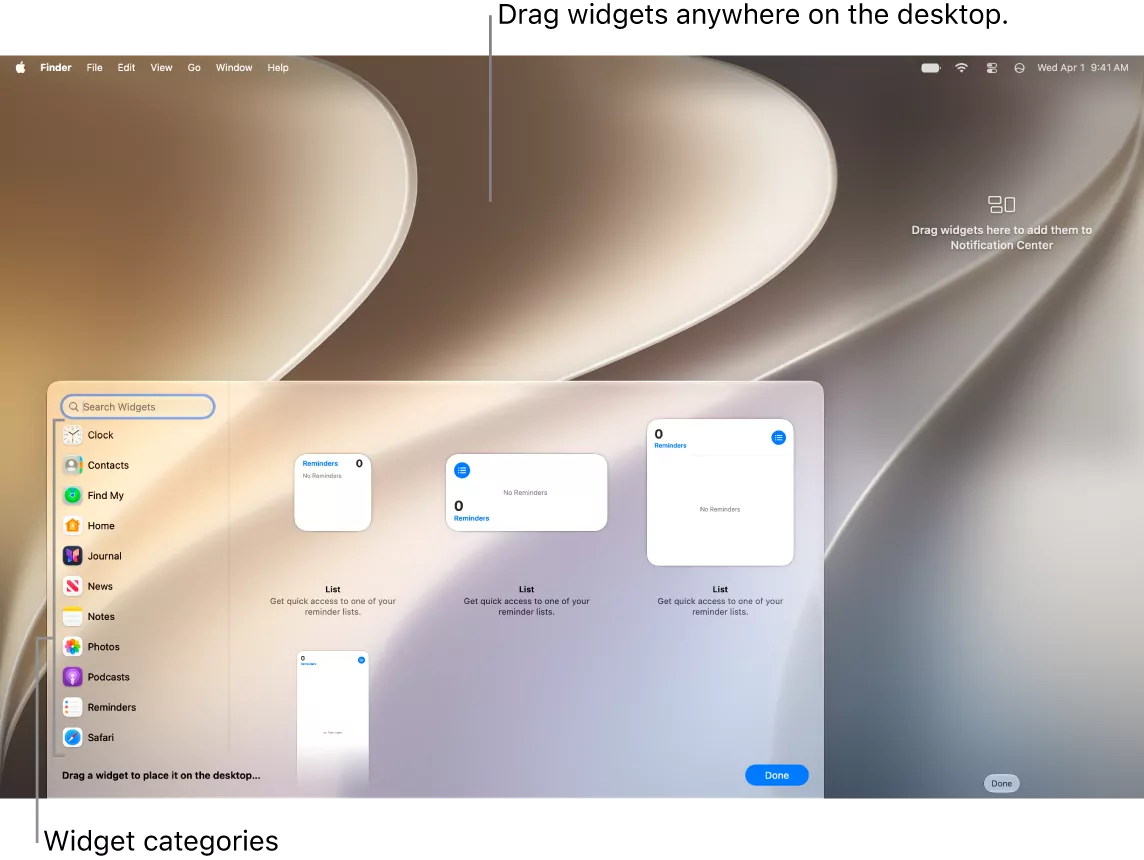
- Choose Edit Widgets.
- Click the Remove button, a minus sign in a circle, on each widget you want gone.
- Click Done at the bottom-right corner of the widget gallery.
If windows cover your widgets, click the wallpaper to move the windows away (a setting controls this; see the table below). The steps are the same on macOS Tahoe 26 and macOS 27, as Apple's widget guide shows.
How to remove widgets from Notification Center
To open Notification Center, click the date and time in the menu bar, or swipe left with two fingers from the right edge of the trackpad. Click the desktop to close it.
- macOS Sonoma 14 and later: Control-click the widget and choose Remove Widget. Or move the pointer over it, press and hold Option, then click the Remove button.
- macOS Ventura 13 and Monterey 12: hold Option while you move the pointer over the widget, then click the Remove button. That is the only method Apple's guide for those versions lists.
On every version, Edit Widgets at the bottom of Notification Center opens the widget list, so you can add back a widget you removed by mistake.
Removing a widget with VoiceOver
Move the VoiceOver cursor to the widget, press VO-Shift-M to open a shortcut menu (one of Apple's VoiceOver navigation commands), then choose Remove Widget. If nothing changes, open Edit Widgets and use the widget's Remove button.
Hide all widgets without deleting them
For a clean desktop now and then, hide your widgets instead.
- Choose Apple menu > System Settings.
- Click Desktop & Dock in the sidebar.
- Go to Widgets.
- Next to Show Widgets, deselect On Desktop. If you use Stage Manager, deselect In Stage Manager too.
Select On Desktop again to bring them back. With On Desktop off, widgets stay hidden while you work, but clicking the wallpaper still shows them.
To stop that, also set Click wallpaper to reveal desktop to Only in Stage Manager (Sonoma, Sequoia), or Show Desktop to Only in Stage Manager on Click (Tahoe 26, macOS 27). To never see a widget, remove it.
Widget settings by macOS version
| What it controls | macOS Sonoma 14 and Sequoia 15 | macOS Tahoe 26 and macOS 27 |
|---|---|---|
| Show or hide all desktop widgets | Show Widgets: On Desktop, In Stage Manager | Show Widgets: On Desktop, In Stage Manager |
| Monochrome or full color (not removal) | Widget style: Automatic, Monochrome, Full-color | Dim widgets on desktop: Automatically, Always, Never |
| iPhone widgets in the widget gallery | Use iPhone widgets | iPhone Widgets |
| Clicking the wallpaper moves windows away | Click wallpaper to reveal desktop: Always, Only in Stage Manager | Show Desktop: Always on Wallpaper Click, Only in Stage Manager on Click |
macOS Ventura 13 and earlier have none of these settings. Apple's widget page for Tahoe and later still says "Click wallpaper to reveal desktop" and "Use iPhone widgets" in places, but in Desktop & Dock settings they read Show Desktop and iPhone Widgets.
Change a widget instead of deleting it
Control-click a widget, then pick a different size, or choose Edit [widget name] to change what it shows. Click Done in the widget when you finish. Drag a widget to move it, or add one back later from Edit Widgets.
Why a widget can outlive the app you deleted
A widget ships inside its app as an app extension, a small separate program stored in the app's bundle. Apple's App Extension Programming Guide says the app contains and delivers its extensions, and they are installed with it. So when the app is fully gone, so is its widget.
To see one, Control-click an app, choose Show Package Contents and open Contents > PlugIns. Widgets end in .appex, at paths like /Applications/<App>.app/Contents/PlugIns/<Widget name>.appex. Look, but never change anything inside an app bundle.
When a widget lingers as an empty box or placeholder, or stops updating, one of these is usually why:
- The widget itself is still placed.
- It is an iPhone widget.
- The app is still in the Trash, or a second copy is on the Mac.
Separately, the widget may leave a small data folder in ~/Library/Containers. The steps below work through all of this in order.
How to remove a widget left by an app you deleted
Step 1: Remove the widget itself
Remove the widget as described above. That works even when its app is already gone.
Step 2: Check whether it is an iPhone widget
On macOS Sonoma or later, your Mac can show widgets from iPhone apps (iOS 17 or later, same Apple Account, iPhone nearby or on the same Wi-Fi network). If clicking the widget shows "Open [app name] on your iPhone to continue", that app is not on this Mac.
Remove the widget as usual. To stop iPhone widgets being offered in the gallery, turn off Use iPhone widgets (Sonoma, Sequoia) or iPhone Widgets (Tahoe 26, macOS 27) in Desktop & Dock settings.
Step 3: Empty the Trash
An app still in the Trash still contains its widget, so click the Trash in the Dock and look for the app. If you are sure, choose Finder > Empty Trash. Emptying is permanent, so to keep anything, first select it in the Trash and choose File > Put Back (Apple's steps).
Step 4: Look for a second copy of the app
Press Command-Space and search for the app's name with Spotlight. Hold Command while you double-click a result, and Finder shows where it lives. Also check:
-
/Applications, the main Applications folder. -
~/Applicationsin your home folder (Go > Home), where Apple notes some apps install. - Other drives in the Finder sidebar.
- Mounted installer disk images. Eject them, because a mounted
.dmgholds a copy of the app.
Remove an extra copy the way its vendor documents. Apple calls an app's own uninstaller the best way, since it also removes extensions and login items. For Outlook and other Microsoft apps, see how to uninstall Microsoft Office on Mac.
Step 5 (optional): Delete the widget's leftover folder in ~/Library/Containers
Many widgets keep a small folder named after their bundle ID, such as com.microsoft.Outlook.CalendarWidget for Outlook's calendar widget. It can outlast the app; removing it is about tidiness, not space.
- Back up first with Time Machine.
- In Finder, choose Go > Go to Folder (Command-Shift-G).
- Type
~/Library/Containersand press Return. - Find the folder named after the app you removed. Finder may show the app's name instead of the bundle ID.
- Move only that folder to the Trash.
Never touch folders starting with com.apple, and leave anything you cannot match to the removed app. To browse your Library folder first, see how to show hidden files on Mac.
Confirm the widget is really gone
Restart your Mac (Apple menu > Restart). Then open Edit Widgets and search the gallery for the app's name: nothing from it should be listed. If something is, and it is not an iPhone widget, a copy of the app is probably still on the Mac (Step 4).
If the app still seems to be running, quit it or force quit the app. Power users can also run this read-only check in Terminal:
pluginkit -m -D -v -p com.apple.widgetkit-extensionIt lists the widget and control extensions macOS knows about, with each copy's full path (-D includes duplicates; see man pluginkit). Many are Apple's own, under /System. No line should mention the app you removed. Never add the -a, -e or -r options, which change the plug-in registry.
Widgets from Apple's own apps
Calendar, Weather, Clock, Reminders, Notes, Photos and Stocks widgets come from apps that are part of macOS. Apple says you cannot delete apps your Mac requires, naming Notes and Stocks among them, as well as any app in the System folder. Remove or hide these widgets, and never try to delete the app. The Safari removal guide explains why built-in apps stay and why forcing them out causes problems.
Frequently Asked Questions
Why can't I remove a widget on my Mac?
Control-click the widget itself, not the wallpaper beside it. In Notification Center, hold Option with the pointer over the widget to show the Remove button. If widgets you hid reappear whenever you click the wallpaper, change the wallpaper click setting in the table above, or remove the widgets instead.
How do I remove the photo, calendar or weather widget from my Mac?
Control-click it and choose Remove Widget. If its shortcut menu shows an Edit option, you can change what it shows instead. Photos, Calendar and Weather are part of macOS, so never try to delete those apps.
Why can't I edit a widget on Mac?
If Edit [widget name] is not in its shortcut menu, that widget's content cannot be changed. You can still remove it, or pick another size if the menu lists one. If a newly installed app's widget is missing from the gallery, open the app once: Apple's WidgetKit documentation says that comes first.
How do I get icons off my Mac desktop without deleting them?
That is a separate setting. In Desktop & Dock settings, under Desktop & Stage Manager, deselect On Desktop next to Show Items (macOS Sonoma and later). The files stay in your Desktop folder.
Does removing a widget delete the app?
No. The app and its data stay. It works the other way round: deleting the app removes its widgets, apart from the leftovers covered above.
Removing other apps from this Mac
Removing the app a widget came from takes a few more steps. These guides show what each app leaves behind:
- How to uninstall Microsoft Office on Mac
- How to uninstall Google Chrome on Mac
- How to uninstall Spotify on Mac
- How to uninstall Dropbox on Mac
Browse all the removal guides. If your app is not covered yet, email hello@uninstallonmac.com with the app's name and version and your macOS version, or use the contact page.