How to Delete GarageBand on Mac and Its Sound Library
To delete GarageBand on Mac, quit it, drag it from the Applications folder to the Trash and empty the Trash. It is a free Apple app, so you can download it again any time. The app is the small part: most of the space is its sound library in /Library/Application Support/GarageBand, /Library/Application Support/Logic and /Library/Audio/Apple Loops/Apple. Remove those too, unless Logic Pro or MainStage still uses them.
Can you delete GarageBand from a Mac?
Yes. Apple's guide to deleting apps on Mac lists the apps the Finder cannot delete because your Mac needs them, such as Mail, Music and Notes. GarageBand is not one of them.
It is an optional Apple app from the Mac App Store, so deleting it does not affect macOS. Safari is different: it is part of macOS and cannot be removed, as the Safari guide explains.
Why dragging GarageBand to the Trash is not enough
GarageBand downloads its instruments, Drummer kits, Apple Loops and Learn to Play lessons into the shared /Library folder, outside the app.
On our test Mac running macOS 27.0.1, a little over 2 GB was still on disk after the app had been deleted. About 900 MB sat in /Library/Application Support/GarageBand and about 900 MB in /Library/Application Support/Logic. Another 450 MB or so was in /Library/Audio/Apple Loops/Apple, plus 14 MB in /Library/Audio/Impulse Responses/Apple.
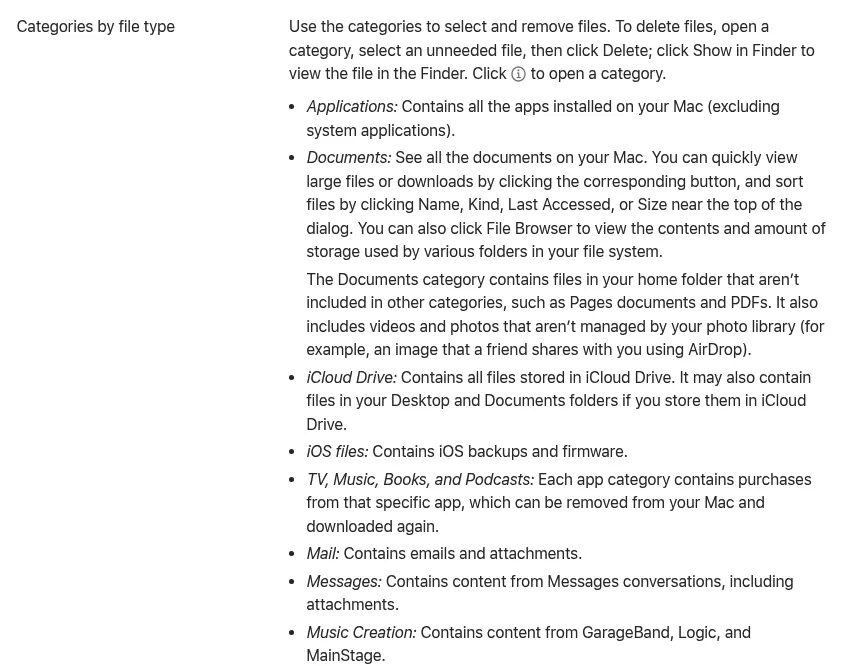
A Logic folder can appear even on a Mac that never had Logic Pro, because GarageBand's sound packs are shared with Logic Pro. Apple's Storage settings guide says the Music Creation category holds content from GarageBand, Logic and MainStage.
What GarageBand leaves on your Mac
| Location | What it holds | Delete it when |
|---|---|---|
/Applications/GarageBand.app |
The app itself | Always (Step 2) |
/Library/Application Support/GarageBand |
Instrument library, Chord Trainer and Learn to Play lessons | Only if Logic Pro and MainStage are not installed |
/Library/Application Support/Logic |
Shared instrument samples and plug-in settings | Only if Logic Pro and MainStage are not installed |
/Library/Audio/Apple Loops/Apple |
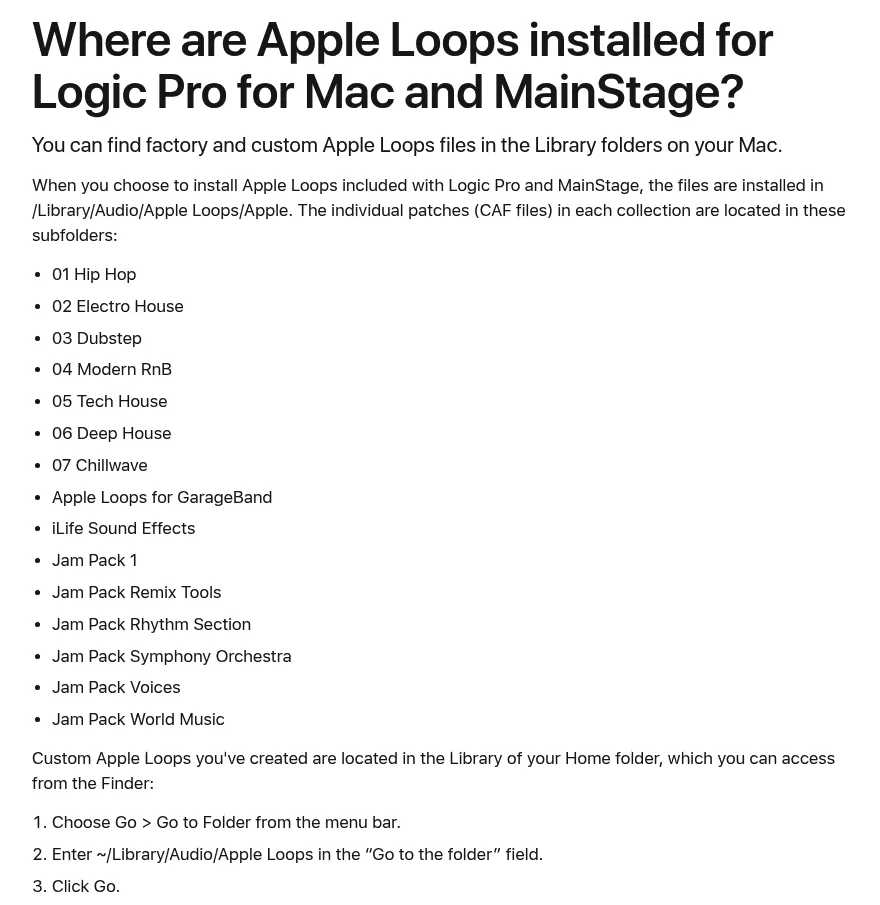
Apple's factory loops, including Apple Loops for GarageBand | Same rule, GarageBand folders only |
/Library/Audio/Impulse Responses/Apple |
Small reverb files | Same rule |
~/Library/Containers/com.apple.garageband10 |
The app's own settings and caches | Yes (Step 3) |
~/Library/Application Scripts/com.apple.garageband10 |
A helper folder, often empty | Yes (Step 3) |
~/Library/Audio/Apple Loops |
Loops you made yourself | Only if you do not want them |
~/Music/GarageBand |
Your projects | Never without a backup |
Apple documents both Apple Loops folders in where Apple Loops are installed. The other Library paths were found on our test Mac.
Before you delete GarageBand
Save your songs first
By default, GarageBand saves projects to ~/Music/GarageBand, as Apple's Logic Pro guide notes. Songs you share to GarageBand for iOS go to the GarageBand for iOS folder in iCloud Drive by default.
Copy any songs you want to an external drive, or make a Time Machine backup, before you clean folders by hand.
Check whether Logic Pro or MainStage is installed
Look in the Applications folder for Logic Pro and MainStage. If either one is there, delete only GarageBand and its two small folders in your own Library (Steps 2 and 3). Leave every sound library folder alone, because that content is shared.
Apple says Logic Pro and MainStage share one Sound Library (Move Logic Pro and MainStage content). Logic Pro 12 and MainStage 4 keep their library in one file, Logic Pro Library.bundle, in your Music folder. Leave it alone, and do not delete the older library folders to save room. Apple says the new file is a clone that uses no extra space (About the Logic Pro sound library).
Quit GarageBand
Choose GarageBand > Quit GarageBand, or press Command-Q. If it will not close, see how to force quit an app on Mac.
How to delete GarageBand on Mac, step by step
There is no separate uninstaller. Apple's own routes are Storage settings, the Finder and, on macOS Tahoe 26 or later, the Apps icon in the Dock. Use them before any manual folder work.
Step 1: Remove GarageBand sounds in Storage settings
- Choose Apple menu > System Settings, click General, then click Storage (Apple's storage guide).
- Wait a few minutes while it calculates.
- Click the More Info button next to Music Creation.
- Select the items you no longer want, then click Delete.
Before macOS Ventura 13, choose Apple menu > About This Mac, click Storage, then click Manage. Click Music Creation in the sidebar and click the button it offers (Apple's macOS Monterey guide).
Music Creation holds content for all three music apps, so skip this step if Logic Pro or MainStage stays. If Music Creation is missing or empty, or Delete does not work, go on to Step 2. Step 4 removes the sound library folders by hand.
Step 2: Delete the GarageBand app
- Open a Finder window and click Applications in the sidebar.
- Select the app, then choose File > Move to Trash, or drag it to the Trash.
- Enter an administrator name and password if your Mac asks.
On macOS Tahoe 26 or later, you can also click the Apps icon in the Dock. Click and hold the GarageBand icon until it jiggles, then click the Close button (App Store User Guide). On macOS Sequoia 15 or earlier, Launchpad works the same way with its Delete button.
Step 3: Delete GarageBand's own folders in your Library
- In the Finder, choose Go > Go to Folder, or press Command-Shift-G.
- Enter
~/Library/Containers/com.apple.garageband10and move that folder to the Trash if it is there. - Do the same for
~/Library/Application Scripts/com.apple.garageband10.
Your Library folder is hidden by default. The guide to showing hidden files on Mac shows how to reach it.
You will not find its files in ~/Library/Preferences or ~/Library/Caches. As a sandboxed App Store app, it keeps its settings and caches inside its container.
If macOS will not let you move either folder, leave it. Also leave ~/Library/Application Scripts/com.apple.STMExtension.GarageBand alone, since it belongs to Storage settings.
Step 4: Delete the sound library folders (only without Logic Pro and MainStage)
Note the leading slash: these folders are in the main Library, not the one in your home folder. Keep ~/Library/Audio/Apple Loops unless you are sure you do not want loops you made. Never use sudo rm -rf, never touch /System and never turn off System Integrity Protection.
- Choose Go > Go to Folder, enter
/Library/Application Support/GarageBandand move that folder to the Trash. - Do the same for
/Library/Application Support/Logicand/Library/Audio/Impulse Responses/Apple. - Open
/Library/Audio/Apple Loops/Appleand look before you delete. - Enter your administrator password when the Finder asks.
On our test Mac, the Apple folder held only GarageBand content: numbered genre folders and Apple Loops for GarageBand. If that is all you see, move the whole Apple folder to the Trash.
If it also holds Jam Pack or iLife Sound Effects folders, move only the numbered genre folders (01 Hip Hop to 13 Drummer) and Apple Loops for GarageBand. Apple lists the others as separate collections, so delete only what clearly belongs to GarageBand.
Step 5: Empty the Trash and check Storage again
The space comes back only after you empty the Trash. If it refuses, see how to empty the Trash on Mac.
Then reopen System Settings > General > Storage and give it a few minutes. Music Creation should shrink or disappear.
If space still seems to be missing, it may be counted as System Data, which the guide to clearing System Data on Mac explains.
Confirm nothing from GarageBand is left
Open Activity Monitor from Applications > Utilities and search for GarageBand. Nothing should be listed.
No login items or launch agents turned up on our test Mac. Still, check System Settings > General > Login Items & Extensions for any GarageBand entry.
A Spotlight search may still show two items that macOS owns: a Storage settings extension under /System and a media browser plug-in in /Library/Application Support/iLifeMediaBrowser. Leave both alone.
Keep GarageBand but get space back
Remove sounds in Music Creation, as in Step 1. The app asks to download content again when a project needs it (Get more sounds and loops).
Inside a project, choose File > Clean Up Project to delete unused audio files (Clean up projects). If sounds stop working later, choose GarageBand > Sound Library > Reinstall Sound Library.
Reinstalling GarageBand later
It is a free download from the Mac App Store. After it installs, choose GarageBand > Sound Library > Download All Available Sounds, or let it download sounds as you need them. Projects kept in ~/Music/GarageBand open as before.
Frequently Asked Questions
Why is GarageBand taking up so much storage?
Mostly its sound library. On our test Mac, its sounds and loops in /Library came to a little over 2 GB. The App Store lists the app itself at 731.9 MB. The library grows as you download more sounds, and Logic Pro and MainStage, which share it, can add more.
Will deleting GarageBand delete my songs?
No. Your projects stay in ~/Music/GarageBand unless you delete them yourself.
What is Music Creation in Mac storage?
It is the Storage settings category for content from GarageBand, Logic and MainStage. Deleting items there affects all three apps.
Why won't my Mac let me delete GarageBand?
Make sure it is closed, then enter an administrator name and password when asked. If your Mac says the app is in use, Apple suggests you restart or start up in safe mode and try again. The force quit guide helps if it will not close.
Removing other apps from this Mac
The Xcode guide covers another big Apple app whose files dwarf the app itself. Apple Intelligence is the opposite case: it is built into macOS, and how to delete Apple Intelligence on Mac shows how to switch it off.
For media and games, the Spotify guide covers a full removal or a clean reinstall. The Steam guide covers game libraries that also live outside the app.
If you have more apps to remove, the other guides on this site show what each one leaves behind and how to remove it by hand.