What Is a DMG File on Mac, and Can You Delete It After Installing?
What is a DMG file? It is a disk image: one file macOS opens like a drive, showing a new volume in the Finder sidebar. Developers use it to deliver Mac apps. You usually drag the app inside to Applications or run the installer it holds, eject the image, then delete the .dmg. Deleting it never uninstalls the app, which stays in Applications.
What is a DMG file on Mac?
A .dmg file is an Apple disk image: a single file that holds a whole virtual disk. When you double-click it, macOS mounts it, which means it opens the file like a drive you just plugged in. No extra app is needed. Apple's Disk Utility guide describes a mounted image placing "its disk icon on your desktop and in the Finder sidebar".
Developers like the format because one download arrives as a sealed copy that does not change. Disk Utility can make read-only images (UDRO) and compressed read-only images (ULFO), and an image can also be locked with a password. You can make your own image in Disk Utility, though installing an app never needs one.
What you will find inside a DMG file
Most disk images hold one of these:
- The app plus an Applications shortcut. The window shows the app icon next to a shortcut to your Applications folder. You drag one onto the other, and that is the whole install.
-
An installer. Some images hold a
.pkgfile or a separate installer app instead. Google Drive for desktop, for example, arrives as a.pkginsideGoogleDrive.dmg, as the guide to uninstalling Google Drive on Mac notes. Installers can put files outside Applications, which is why apps like this need more than the Trash to remove. -
A removal tool. Some vendors ship removal tools as their own disk images, such as
Creative Cloud Uninstaller.dmgin the Creative Cloud removal guide andAdobeAcroCleanerTool.dmgin the Adobe Acrobat removal guide. Opening the image only shows the tool. Nothing is removed until you open the tool inside and confirm. - Extras. Many images add a read-me or a license file, which you can read and leave behind.
How to open a DMG file and install the app
Here is how to install a DMG file on Mac.
- Open your Downloads folder and double-click the
.dmg. Apple's guide to installing other apps tells you to double-click "the disk image" in Downloads. - Wait for its window to open. If none opens, click the new volume in the Finder sidebar under Locations.
- Drag the app onto the Applications shortcut, or into Applications in a Finder window. If the image holds a
.pkgor an installer app instead, double-click it and follow the onscreen steps. - Open the app from Applications, not from the image. The first time, macOS asks you to confirm opening an app downloaded from the internet. Apple's page on how to safely open apps on your Mac explains that Gatekeeper checks the app comes from an identified developer and is notarized.
- Eject the image. Click the Eject button next to its name in the Finder sidebar, or select it and choose File > Eject, as Apple's page on connecting storage devices shows.
- Move the
.dmgto the Trash, then empty the Trash to get the space back.
If macOS warns that the app is from an unknown developer, read Apple's page on opening an app from an unknown developer first. Apple says the safest approach is to look for a version of the app in the Mac App Store, or for an alternative app. Leave your security settings as they are.
Apps from the App Store never come as a DMG. They install straight into Applications.
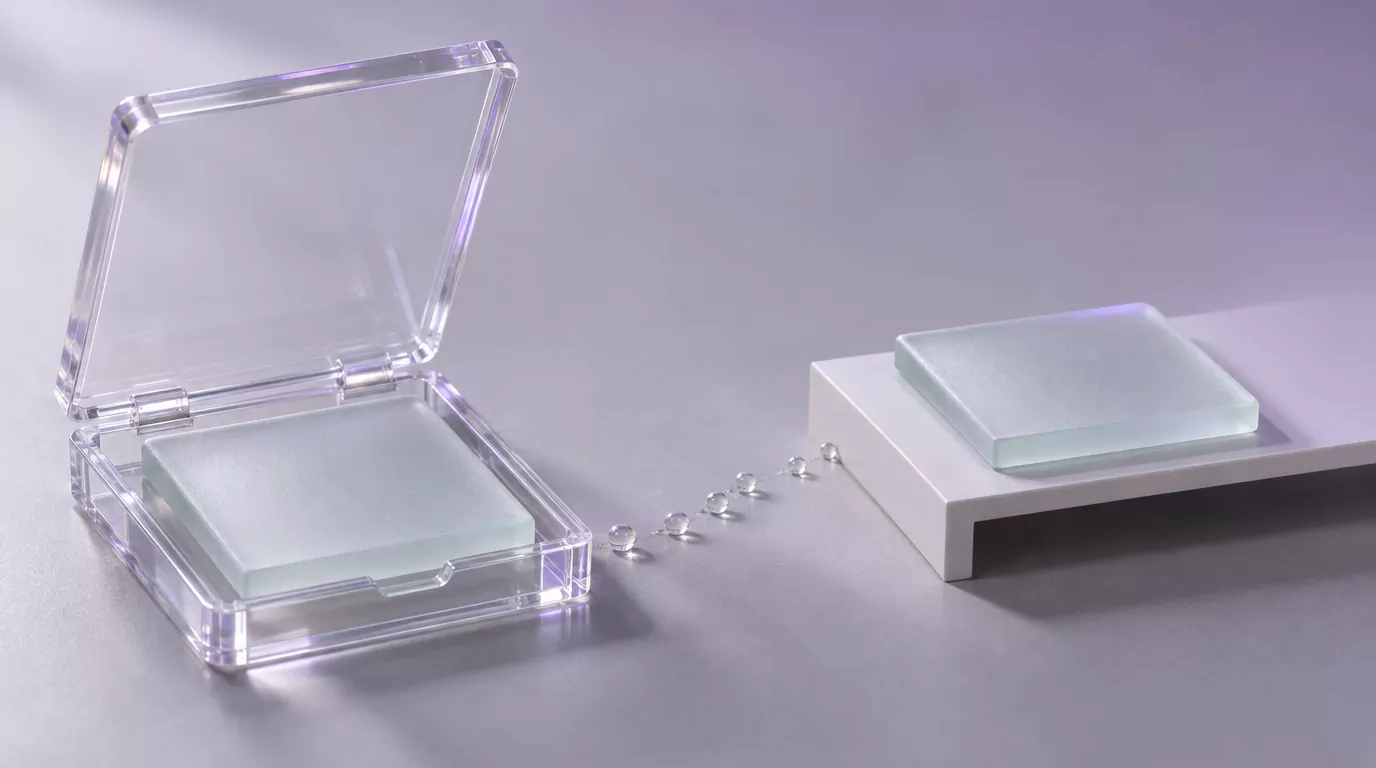
Why you should not run the app from the mounted disk image
Opening the app right from the image window often works at first. The trouble shows up later:
- The app disappears on eject. The copy on the image exists only while the image is mounted. Eject it or restart your Mac, and the app is gone.
- It cannot update itself. Disk images made for downloads are usually read-only. An app running from one has no way to replace itself with a newer version.
- The image will not eject while the app runs from it.
- Things can show up twice. A mounted image holds a full copy of the app, so its widgets or extensions can appear twice. The guide to deleting widgets on Mac lists mounted installer images among the places to check for this reason.
The fix: quit the app, drag it into Applications, open it from there, then eject the image.
What is left on your Mac after you install from a DMG
Installing from a DMG leaves several pieces on your Mac. This table shows where each one lives and whether deleting the .dmg removes it.
| Item | Where it is | Removed when you delete the .dmg? |
|---|---|---|
| The .dmg file |
~/Downloads (or wherever your browser saves files) |
Yes, once you empty the Trash |
| The mounted volume | Finder sidebar under Locations (/Volumes in Terminal) |
Gone when you eject it |
| The app | /Applications |
No |
| Extra parts a .pkg installer adds | Mostly outside Applications. For Google Drive: /Library/Google/DriveFS (on Macs that ran older versions), /Library/Application Support/Google/DriveFS, its Finder and File Provider extensions and Google Software Update |
No |
| Settings, caches and data the app creates once it runs |
~/Library/Application Support, ~/Library/Caches, ~/Library/Preferences, ~/Library/Containers (sandboxed apps) |
No |
| Login and background items the app adds | System Settings > General > Login Items & Extensions (Login Items on Ventura and Sonoma) | No |
Files in ~/Library come from the app once it runs, and files in /Library come from an installer. Neither comes from the .dmg, which is why both stay after the image is gone.
To look inside your Library folder, see how to show hidden files on Mac. To switch off an app that starts at login, see how to stop apps from opening on startup.
DMG vs PKG vs .app: which is which
The .app is the app itself: a bundle, which is a folder that Finder shows as one item, as Apple's developer notes on bundles explain. The .dmg is the disk image the app is shipped on, a disk you copy the app from. A .pkg is an installer package that runs Apple's Installer, which can put files in several places, including outside Applications.
Why deleting a DMG file does not uninstall the app
When you drag the app from the mounted image to Applications, Finder copies it onto your Mac, so the image is no longer needed. If the image held a .pkg, the installer has already put the app and its files in place, and the image has done its job.
Deleting the .dmg removes that carrier and nothing else. The app stays in Applications, and so do the files it later writes to ~/Library. It works the other way too: trashing the app leaves the old .dmg sitting in Downloads.
If the app came with its own uninstaller, start there. Apple's page on how to delete or uninstall apps on Mac prefers it to the Trash, because an uninstaller also clears out the login items and extensions the app added.
Dragging the app to the Trash removes only the app. The ~/Library and /Library rows in the table above stay until you delete them, and each per-app guide on this blog lists them. To clear out a pile of old installers at once, see how to delete downloads on Mac.
Frequently Asked Questions
What does DMG stand for?
DMG is short for disk image. A .dmg is Apple's disk image format, and the apps shipped on one are Mac apps, which do not run on Windows.
Is it okay to delete DMG files after installing, or do I need to keep them?
Yes, you can delete them once the app is in Applications and opens from there. Eject the image first, then move the .dmg to the Trash and empty it. Keep a .dmg only if you want that exact version, because the vendor usually offers the installer again.
Are DMG files safe?
A DMG file is only a container. What matters is the app inside and where it came from, so download from the developer's own site or the App Store. The first time you open the app, macOS checks it (step 4 above).
Why won't my DMG file open?
An error instead of a new volume usually means a damaged or unfinished download (Safari ends unfinished ones in .download). Delete it and download it again from the developer.
If the image opens but macOS says the app can't be opened, Apple's app safety page says it "might be broken or corrupted, or it might have been tampered with". Trash it and get a fresh copy.
Why can't I eject a DMG on Mac?
Something on the image is still in use, often the app you are running from it. Apple's advice for a disk that an app is using is to quit the apps that are using it, then try again. Press Command-Q in the app, or see how to force quit an app on Mac if it will not quit.
Apple's fallback in its steps for a disk that will not eject is to log out and back in, and if it still will not eject, to shut down. A restart also unmounts a disk image.
Removing other apps from this Mac
Many apps installed from a DMG leave files behind when they go. These guides show how to remove a few by hand, leftovers included:
-
How to uninstall ChatGPT on Mac, whose installer is usually a disk image named
ChatGPT.dmgorCodex.dmg -
How to uninstall Roblox on Mac, installed from
Roblox.dmg(the name on your Mac may differ) orRobloxStudio.dmg - How to uninstall Google Chrome on Mac
Ready for the next one? Browse all the uninstall guides on the blog and follow the same steps for every app you remove.