How to Free Up Disk Space on Mac Without Deleting Anything You Need
To free up disk space on Mac, open System Settings > General > Storage and turn on Apple's recommendations: Store in iCloud, Optimize Storage and Empty Trash automatically. Then review large files in Documents, delete media you can download again, and remove apps you no longer use along with their leftovers. Empty the Trash to get the space back.
This guide shows how to free up space on Mac with the tools macOS already includes. The steps are the same on a MacBook Air, a MacBook Pro or a desktop Mac, and none of them needs a cleaner app.
How to check storage on Mac and see what is taking up space
In macOS Ventura 13 or later, choose Apple menu > System Settings, click General in the sidebar, then click Storage. In earlier versions of macOS, choose Apple menu > About This Mac, then click Storage.
A coloured bar at the top splits your disk into categories. Hold the pointer over a colour to see how much space it uses; light grey is free space. If your Mac has more than one volume, click All Volumes to see each one, as Apple shows in See used and available storage space on your Mac.
Free space is open space on the disk that nothing is using. Available space also counts purgeable caches that macOS can clear on its own when it needs room. So the two numbers often differ, and that is normal.
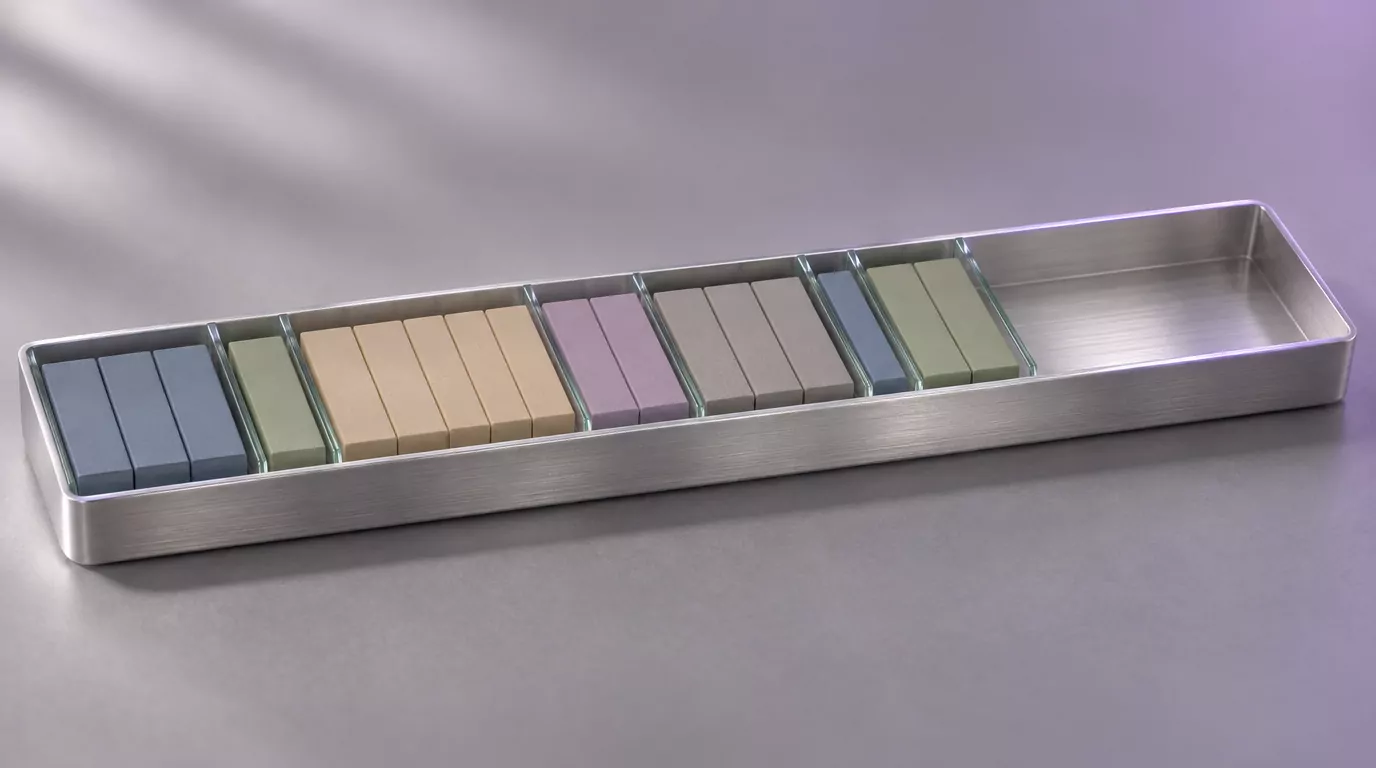
Where your Mac storage goes and the safest fix
Categories with an Info button open a list where you can select and delete files. System Data is managed by macOS, so you cannot clear it from Storage. This table pairs the main categories in Apple's Find and delete files on your Mac with the safest fix for each.
| Storage category | What it holds | Safest way to get space back |
|---|---|---|
| Applications | Apps you installed (system apps are not counted here) | Remove unused apps and their leftovers (see below) |
| Documents | Files in your home folder that fit no other category, such as PDFs | Use the Large Files and Downloads buttons, then delete or move what you no longer need |
| iCloud Drive | Files in iCloud Drive, including Desktop and Documents if you store them there | Turn on Optimize Mac Storage so only recent files stay on the Mac when space is needed |
| TV, Music, Books and Podcasts | Purchases from each app | Remove downloads you can stream or download again |
| Emails and attachments | Erase junk mail and deleted items in Mail | |
| Messages | Conversations and their attachments | Delete large attachments you no longer want |
| Music Creation | Content from GarageBand, Logic and MainStage | Open the category with its Info button and delete content you no longer use |
| Photos | Your System Photo Library | Merge duplicates, optimize storage with iCloud Photos, or move the library to an external drive |
| Trash | Items you deleted but have not erased yet | Empty the Trash |
| Other Users | Files created and modified by other user accounts on this Mac | Each person can follow these steps in their own account |
| System Data | Logs, caches, VM files, temporary files, fonts and app support files, managed by macOS | Leave it to macOS, then see the System Data guide for what is safe to remove |
Free up disk space on Mac with Apple's Storage recommendations
Three recommendations sit at the top of Storage settings, each with a button to turn it on. Apple's Optimize storage space on your Mac explains them.
When space is needed, macOS also clears caches and logs that are safe to delete, such as interrupted downloads, staged macOS and app updates, and Safari website data. You do not need to dig through system folders for that space. Apple Support's short video How to free up storage space on Mac walks through the same settings.
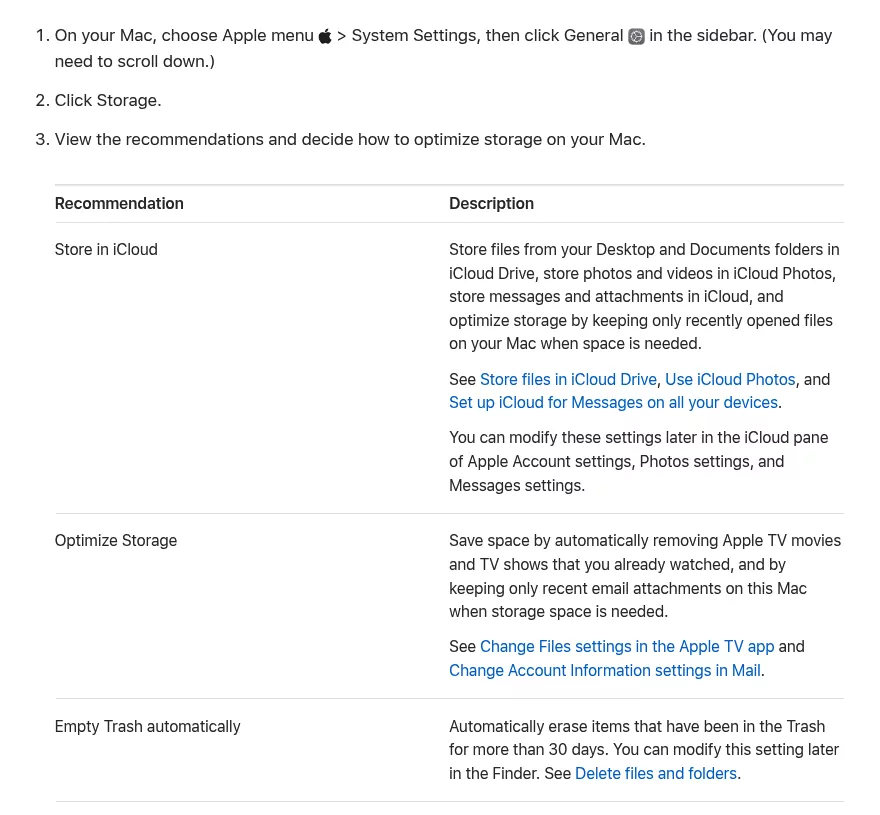
Store in iCloud
This keeps Desktop and Documents files in iCloud Drive, photos and videos in iCloud Photos, and messages in iCloud. When space is needed, only recently opened files stay on the Mac. The rest download again when you open them.
It uses your iCloud storage plan, and files you have not opened lately need an internet connection to download. For iCloud Drive alone, the same switch is Optimize Mac Storage in System Settings > [your name] > iCloud > Drive (see Store files in iCloud Drive on Mac).
Optimize Storage
This removes Apple TV movies and shows you have already watched. It also keeps only recent email attachments on the Mac when space is needed. Anything you bought can be downloaded again later.
Empty Trash automatically
This erases items that have been in the Trash for more than 30 days. You can change it later in Finder settings.
How to clear disk space on Mac by finding large files
Big, forgotten files are often the fastest space to recover. If a file matters to you, make sure you have another copy before you delete it.
- Open System Settings > General > Storage.
- Click the Info button next to Documents.
- Click Large Files, or click Downloads to see what you have downloaded.
- Sort the list by Name, Kind, Last Accessed or Size.
- To look at a file first, select it and click Show in Finder.
- Select a file you no longer need, then click Delete.
Sorting by Last Accessed brings up files you have not opened in a long time, and File Browser, in the same window, shows how much space each folder uses. Delete only files you recognise and no longer need. If you are unsure about a file, move it to an external drive or leave it where it is.
Compressing files you keep but rarely open might save some space: Control-click one in the Finder and choose Compress (see Zip and unzip files and folders on Mac). The Finder keeps the original, so delete it only after you have opened the .zip and checked the copy.
Remove media you can download again, plus old mail and attachments
Apple's Free up storage space on Mac lists these as easy places to start.
- TV, Music, Books and Podcasts: open the category in Storage and remove downloads you can stream or download again.
- Mail: in Mail, choose Mailbox > Erase Junk Mail, then Mailbox > Erase Deleted Items.
- Messages: open the Messages category in Storage and delete large attachments you no longer want, after saving any you want to keep. Attachments you delete in Messages wait in View > Recently Deleted for up to 30 days, so delete them there to get the space back now (see Delete messages and conversations in Messages on Mac). With Messages in iCloud, they are also removed from your iPhone and iPad.
Photos: merge duplicates and optimize storage
Photos finds duplicates for you. Click Duplicates under Utilities in the Photos sidebar, select the copies, then click Merge (see Remove duplicate photos and videos on Mac). One photo stays in your library, and the extra copies wait in Recently Deleted for 30 days, so the space comes back after that or once you delete them there.
If you use iCloud Photos, choose Photos > Settings, click iCloud, then select Optimize Mac Storage. Your Mac then keeps smaller versions of your photos when space is limited, and the full-size originals stay in iCloud (see Use iCloud Photos on Mac).
Move files off your Mac instead of deleting them
An external drive is the safest home for large files you want to keep but rarely open. The Photos library is often the biggest single item, and Apple gives exact steps in Move your Photos library to save space on your Mac.
- Quit Photos.
- In the Finder, choose Go > Home, then open the Pictures folder.
- Drag Photos Library to your external drive.
- When the copy is finished, double-click Photos Library in its new place to open it.
- If you use iCloud Photos, set this library as your System Photo Library.
- Once the library opens from its new place, make sure you have another copy of anything that matters. Then drag the original Photos Library from Pictures to the Trash and empty the Trash.
Apple has a few rules for the drive:
- Format it as APFS or Mac OS Extended (Journaled).
- Do not use a drive that holds Time Machine backups.
- Avoid SD cards, USB flash drives, network drives and cloud-synced folders.
- Connect the drive before you open Photos, or Photos starts a new, empty library.
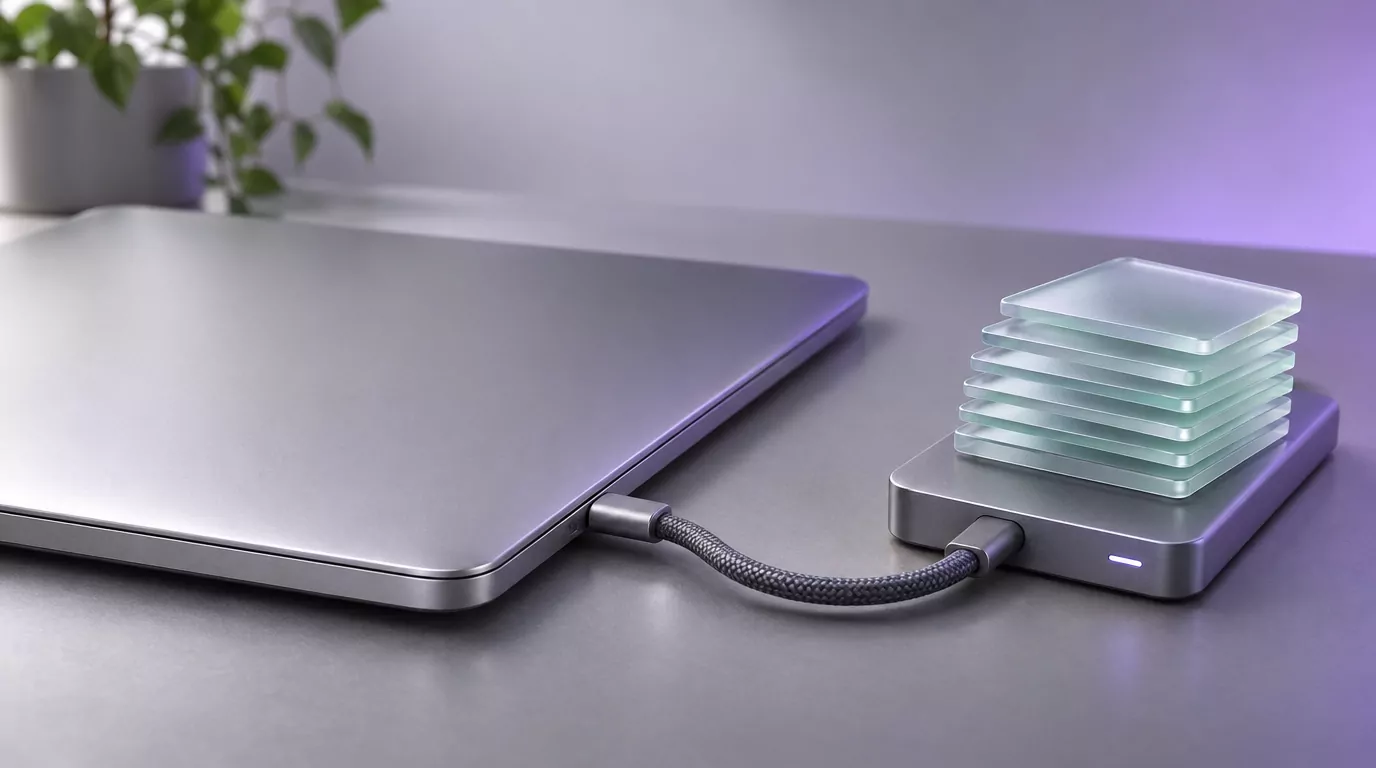
iMovie libraries can be moved the same way, as Apple explains in Move your iMovie for Mac library.
Remove apps you no longer use, leftovers included
Open the Applications category in Storage to see the apps you installed and how much space each one uses (system apps are not listed). Use this list to spot large apps you no longer use, then remove each one with the steps below. Deleting straight from this list skips the app's own uninstaller and leaves its leftovers behind.
Apple's advice in Delete or uninstall apps on Mac comes down to four steps:
- Quit the app if it is open.
- Look for an Uninstall or Uninstaller app, often next to the app, or an uninstall option inside it. Use it first if there is one, because it also removes login items, extensions and data the app stored elsewhere.
- If there is no uninstaller, drag the app to the Trash, or select it and choose File > Move to Trash.
- Choose Finder > Empty Trash to get the space back.
Deleting an app keeps the documents you made with it, and it does not cancel a subscription bought through the app.
Why the Trash alone is not enough
Dragging an app to the Trash removes only the app bundle. Its settings, caches and support files stay behind in your Library folder, usually in these places:
~/Library/Application Support~/Library/Caches~/Library/Containers~/Library/Group Containers~/Library/Preferences
The Library folder in your home folder is hidden by default. The guide to showing hidden files on Mac explains how to open it. Delete only folders that clearly carry the removed app's name.
The biggest wins are often outside the app
Some apps keep far more data than the app itself takes up. Each guide below shows where that data lives and what to keep:
- Xcode: simulators and developer data build up over time. See how to uninstall Xcode on Mac.
- Docker: your images, containers and volumes live in one large disk image. See how to uninstall Docker on Mac.
- Parallels Desktop: each virtual machine is one large file that stays behind when you remove the app. See how to uninstall Parallels Desktop on Mac.
- Steam: installed games take the most room, and you can uninstall games inside Steam if you only want space back. See how to uninstall Steam on Mac.
- Ollama: local AI models are stored apart from the app. See how to uninstall Ollama on Mac.
When an app will not delete
If macOS says an app is in use, quit it first, and the guide to force quitting an app on Mac helps when it will not close. Apps that macOS needs, such as Mail, Music and Notes, cannot be deleted in the Finder. Safari is protected the same way, as the guide on uninstalling Safari on Mac explains.
The Trash, Downloads, caches and System Data in brief
Empty the Trash, or the space never comes back
Moving a file to the Trash does not free its space. The space returns only when you empty the Trash with Finder > Empty Trash (see Delete files and folders on Mac). Emptied items are deleted for good, so glance through the Trash first.
Clear out old downloads
Open Downloads with Go > Downloads in the Finder, or with the Downloads button in Storage. Old .dmg and .pkg files only deliver an app. Once the app opens from Applications and any disk image is ejected, they can usually go.
Leave caches mostly alone
macOS removes the caches it can safely clear when space runs low, and apps build theirs again as you use them. Clearing one app's cache is a repair step, not a storage plan. Never delete the whole ~/Library/Caches folder.
Shrink System Data with care
Apple describes System Data as a general category for files that fit no other category. macOS manages it, so the guide to clearing System Data on Mac shows what is inside it and what is safe to remove. Starting up in safe mode also clears some system caches, which can free space for a short time, for example to finish a macOS update.
Files and folders to leave alone while you free up space
Leave these alone:
- Anything in
/System, and anything in the macOS category of Storage. - Whole folders such as
~/Library,~/Library/Cachesor~/Library/Application Support. Remove only subfolders that clearly belong to an app you have removed. - The Photos Library in the Finder. Delete photos inside Photos instead. The exception is the original library once you have moved it and opened the copy on your external drive.
- Files you do not recognise.
- Terminal commands copied from forums that delete files in bulk.
You never need to turn off System Integrity Protection to free up space on a Mac.
Confirm the space is back in Storage settings
When you are done, empty the Trash, then open System Settings > General > Storage again. Give it a moment to recalculate, and restart your Mac if the numbers look stale.
Two things can make the gain look smaller than you expect. Available space includes purgeable space that macOS frees only when it needs it. And merged or deleted photos and deleted messages wait in Recently Deleted for up to 30 days unless you delete them there.
Frequently Asked Questions
My Mac storage is full. What should I delete first?
When Mac storage is full, start with the largest colour in the Storage bar. The quickest safe wins are usually emptying the Trash, deleting old installers from Downloads, removing media you can download again and removing apps you no longer use. Developer tools, virtual machines and games are worth a look too, because their data can take far more space than the app itself. If System Data is the largest, leave it to macOS, which clears the caches and logs that are safe to delete when space is needed.
Why is my Mac running out of disk space?
Photo and video libraries grow, downloads pile up, apps leave data behind after you delete them, and System Data changes size as macOS works. Messages and Mail attachments build up quietly, and some apps keep large data outside the app itself. Files you delete also keep their space until you empty the Trash.
What is "Other" in Mac storage?
Other is the older name for what macOS now calls System Data. It holds files that fit no other category, such as logs, caches and temporary files. The System Data guide explains what is inside it and what you can safely remove.
How do I delete duplicate files on Mac?
For photos and videos, open the Duplicates collection in Photos and click Merge. For other files, the Finder has no built-in duplicate finder. Open the Documents category in Storage, sort by Name or Size to spot copies, and keep the one you actually use.
Do I need a cleaner app to free up space on my Mac?
No. Every step in this guide uses System Settings, the Finder and the apps' own options. If you would rather use a tool, our comparison of seven Mac uninstallers covers what each vendor documents.
Removing other apps from this Mac
If the Applications list turned up other apps you no longer use, the guides for Adobe Creative Cloud, Microsoft Office and Spotify start with each vendor's own removal steps, then show what each app leaves behind and how to clear it. For any other app, check the full list of removal guides.
If an app you want to remove is not covered yet, email hello@uninstallonmac.com with the app's name and version and your macOS version, or use the contact page.